

Dashboards
Build live dashboards from any chart or number in CEEJAY, for the whole community, a category or a campaign, and share them with your team.
Follow a launch or campaign day by day, start from a template like Event night, or have CEEJAY draft one. Each block shows the same numbers as one of your pages, such as Growth, Engagement or Polls, for the range in the header. Share a dashboard with your team, and turn it into a report for members outside your team.
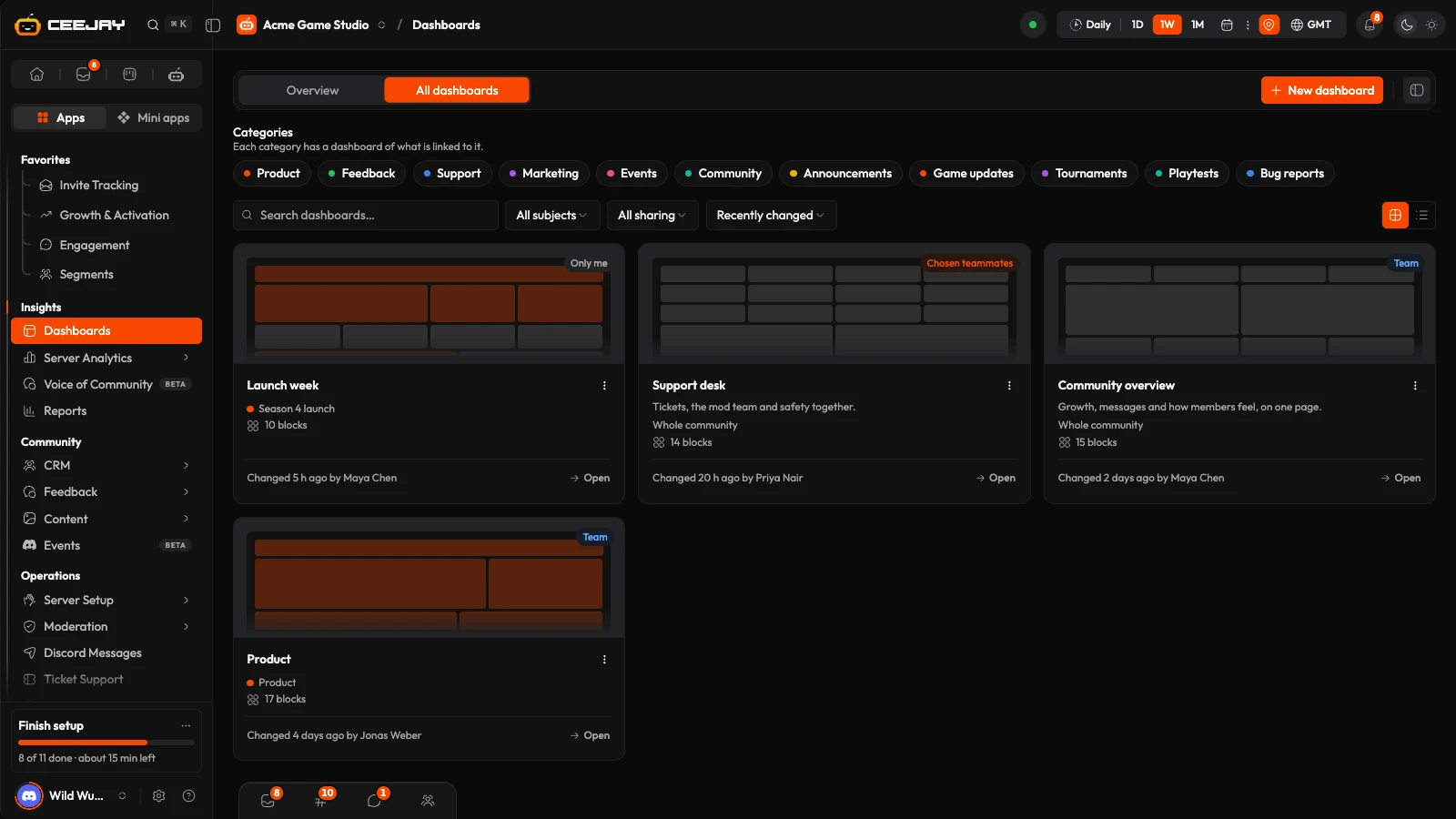
What you see
Go to Insights → Dashboards. The page has two tabs:
- Overview: your community's Overview, a dashboard everyone on the team starts from. The dashboard's name at the top is a menu that switches between the Overview, your dashboards, the ones shared with you, and the dashboards of your categories and campaigns.
- All dashboards: every dashboard you can open, as cards with a picture of their layout, what they are about, how many blocks they have, who can open them and when they last changed. New dashboard is in the bar.
On All dashboards, Categories has one button per category: each opens the dashboard of what is linked to that category. Where campaigns are not switched on for your community, there are no category or campaign dashboards.
- Search, the About filter (Whole community, A category or A campaign) and the Shared filter narrow the list. Sort by Recently changed, Name A–Z or Most blocks. A switch changes between cards and rows.
- The ⋯ menu on a card has Open, and Share, Rename and Delete where your access allows them. Right-click a card for the same list.
- With none yet, the page says No dashboards yet and offers New dashboard.
Create a dashboard
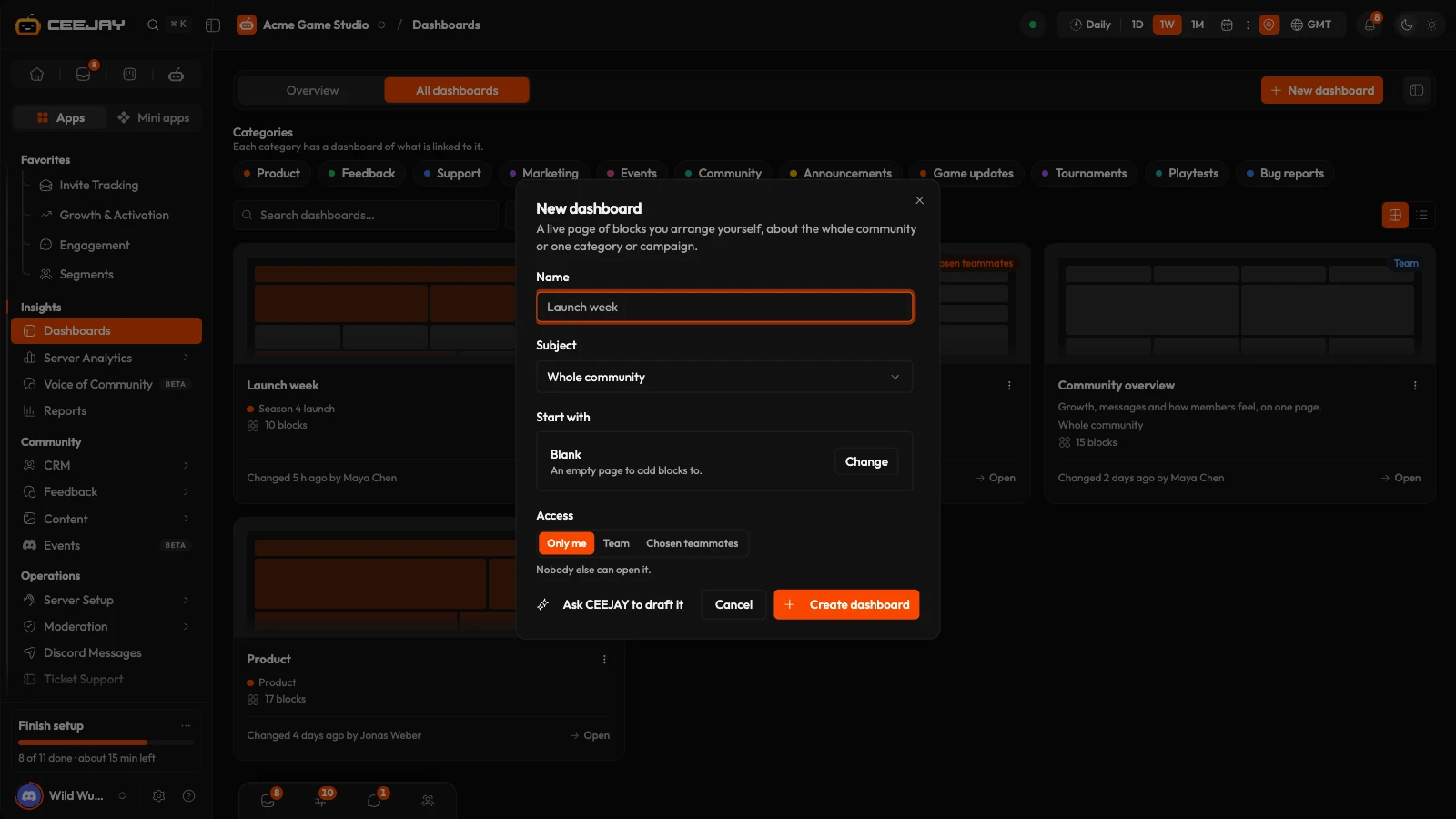
Press New dashboard. Choose Start from scratch for an empty page, Use a template for a ready-made dashboard or one your team saved, or have CEEJAY draft one.
Type a Name, such as Launch week. Under Subject, choose Whole community, a category or a campaign.
Under Start with, a whole-community dashboard shows the template you picked, or Blank, with Change to pick another. The templates include Community overview, Weekly summary, Launch day, Growth and retention, Support desk, Event night and Rewards and economy, and more by industry. For a category or campaign, pick Linked items, which lays out its summary, activity, apps, items and members for you, or Blank.
Under Access, choose Only me, Team or Chosen teammates. For chosen teammates, search and tick up to 50.
Press Create dashboard. It opens at once. If your team has the CEEJAY page, the window also offers a draft from CEEJAY: it asks what you want to watch and shows a draft to confirm in the chat.
A category's or campaign's own dashboard is made the first time anyone opens it. Open a campaign's from Open dashboard on the campaign page. See Campaigns.
Read a dashboard
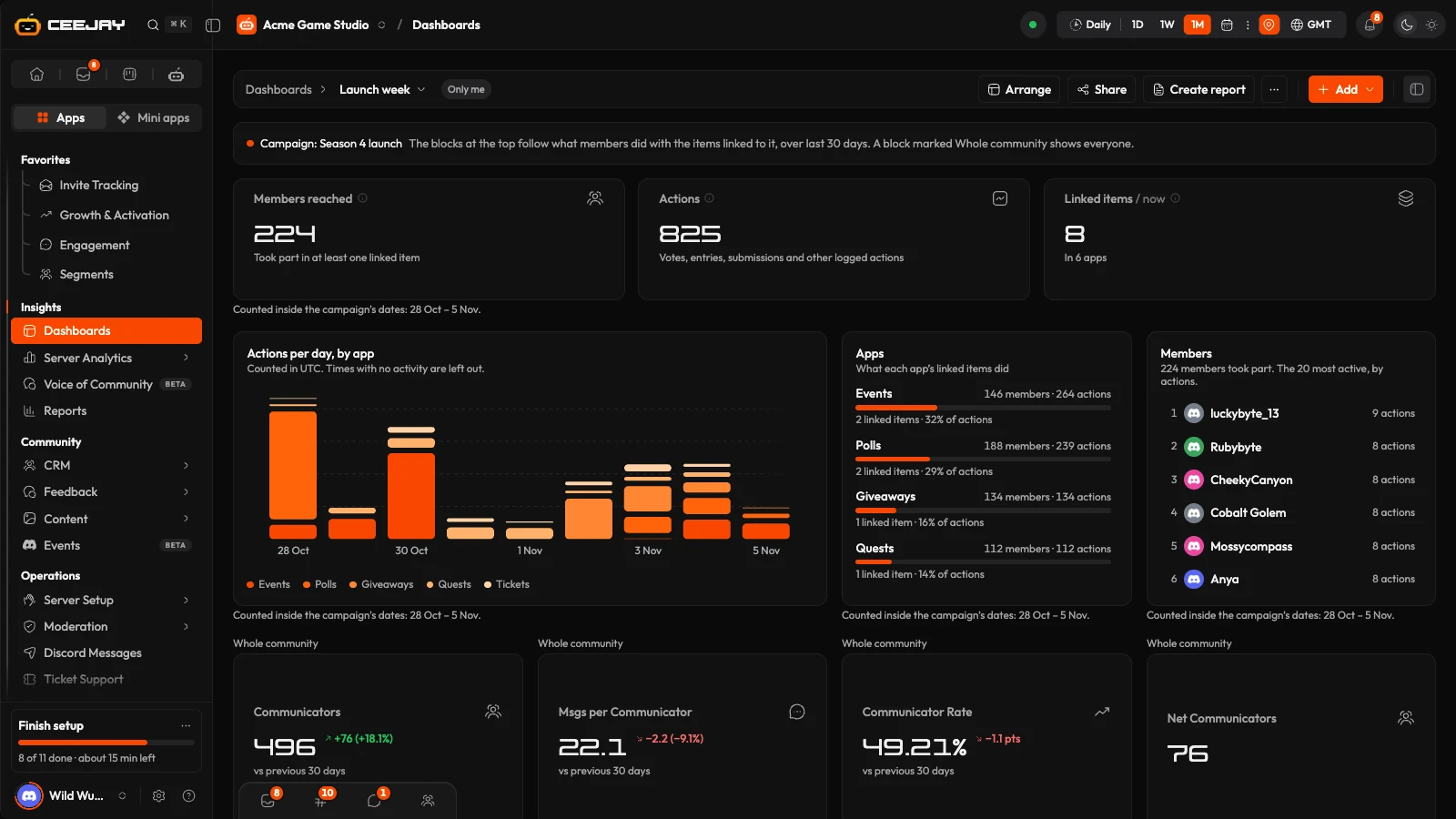
Every block follows the date range in the header. The channel and role filters do not reach a dashboard. A block set to its own range says so above it. On a dashboard about a category or campaign, the blocks at the top follow what members did with the items linked to it, and every other block is marked Whole community.
A block that cannot be shown says why instead of leaving a gap. Couldn’t load this block. has Try again. A block for a page your team does not have says it is hidden for you. A block that no longer exists says to remove it.
The ⋯ menu has Full screen for a wall display, Duplicate, Save as template, Make this my Overview (and Use the community Overview to go back), Name and description, and Delete dashboard. Reset to the default layout is on the Overview, and Lay out again from what is linked on a category or campaign dashboard.
Arrange the layout
There is no edit mode. If you can change a dashboard and your screen is at least 1,024 pixels wide, you arrange it in place. Below that the page is read-only.
- Drag a block by its header to move it, and drag any edge or corner to resize it. Buttons, links and charts inside a block never start a drag.
- On a block, the tools appear when you point at it: Block settings, Split into separate cards where a row of numbers can split, and Remove from this dashboard.
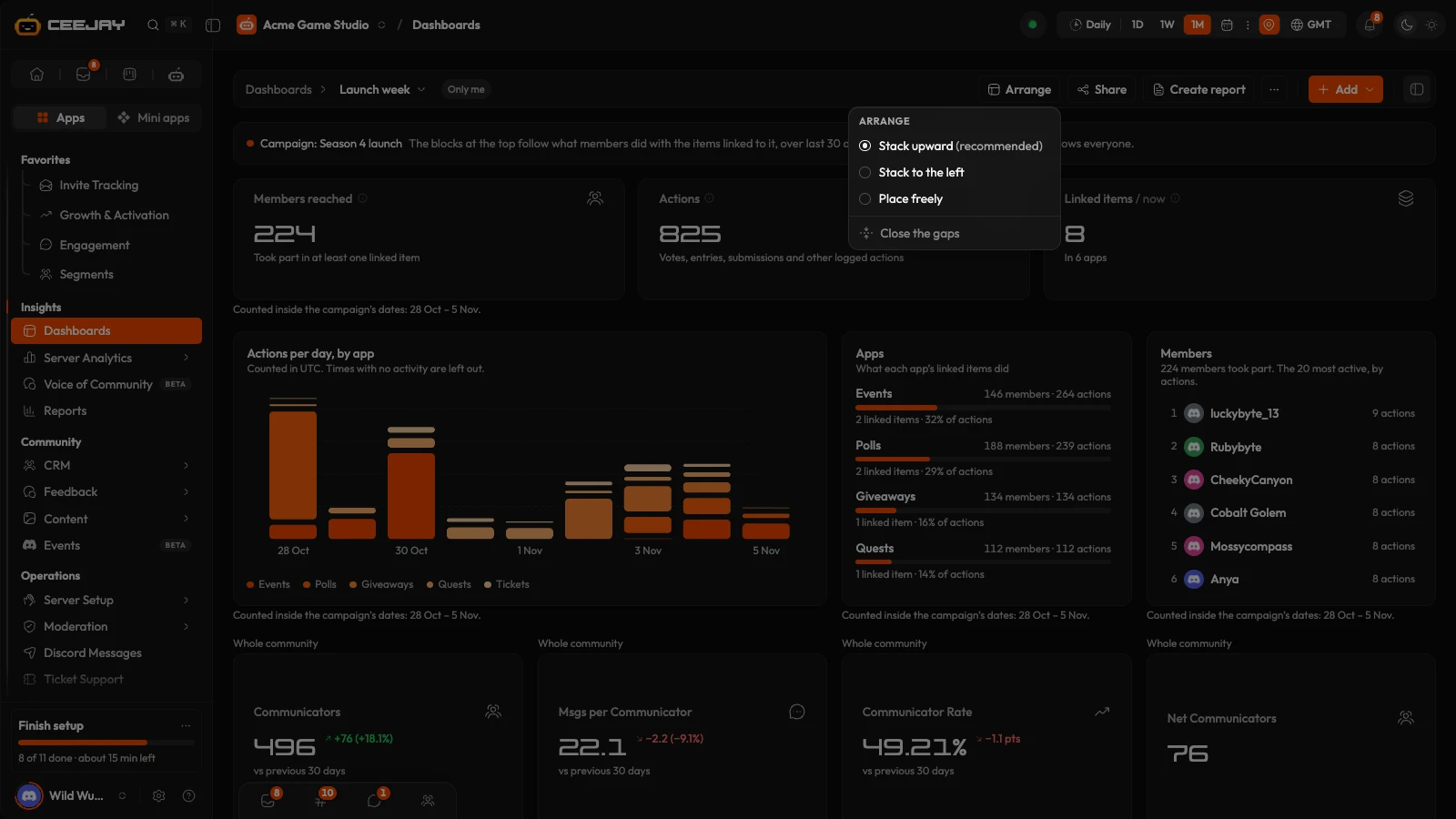
- Arrange in the bar sets what happens when you move a block: Stack upward, Stack to the left or Place freely. It is your own choice and is kept in this browser. Close the gaps places every block again, in reading order.
- Every change saves at once, and a Layout saved message offers Undo.
The block settings open in a panel on the right. They hold a Title, a Range (Same as the dashboard, or its own) and, for the Items block, Items from.
Add to a dashboard
Press Add in the bar. The menu offers:
- Charts and numbers: any chart, number or list from your pages. Search, narrow by All, Numbers, Charts, Lists or Maps and heatmaps, and pick a group on the left, starting with Popular. Pointing at a row shows a live preview. A tick means it is already on the dashboard, and pressing the tick takes it off. On a category or campaign dashboard the first group, Follows this dashboard’s subject, holds Summary, Activity over time, Apps, Items and Members. Every other block shows the whole community. A dashboard holds up to 40 blocks.
- Text: a heading, a note or a link.
- Image: a banner, a logo or a screenshot, uploaded or from a link.
- Button: a link to a CEEJAY page or a website.
- Widget: live lists of what is true now, such as open tickets, new members, next events, live polls, top suggestions and what needs attention. A widget says Now on its face, and the range in the header does not change it.
- The last entry opens the chat with CEEJAY, which already sees the dashboard, so you can say what you want to watch.
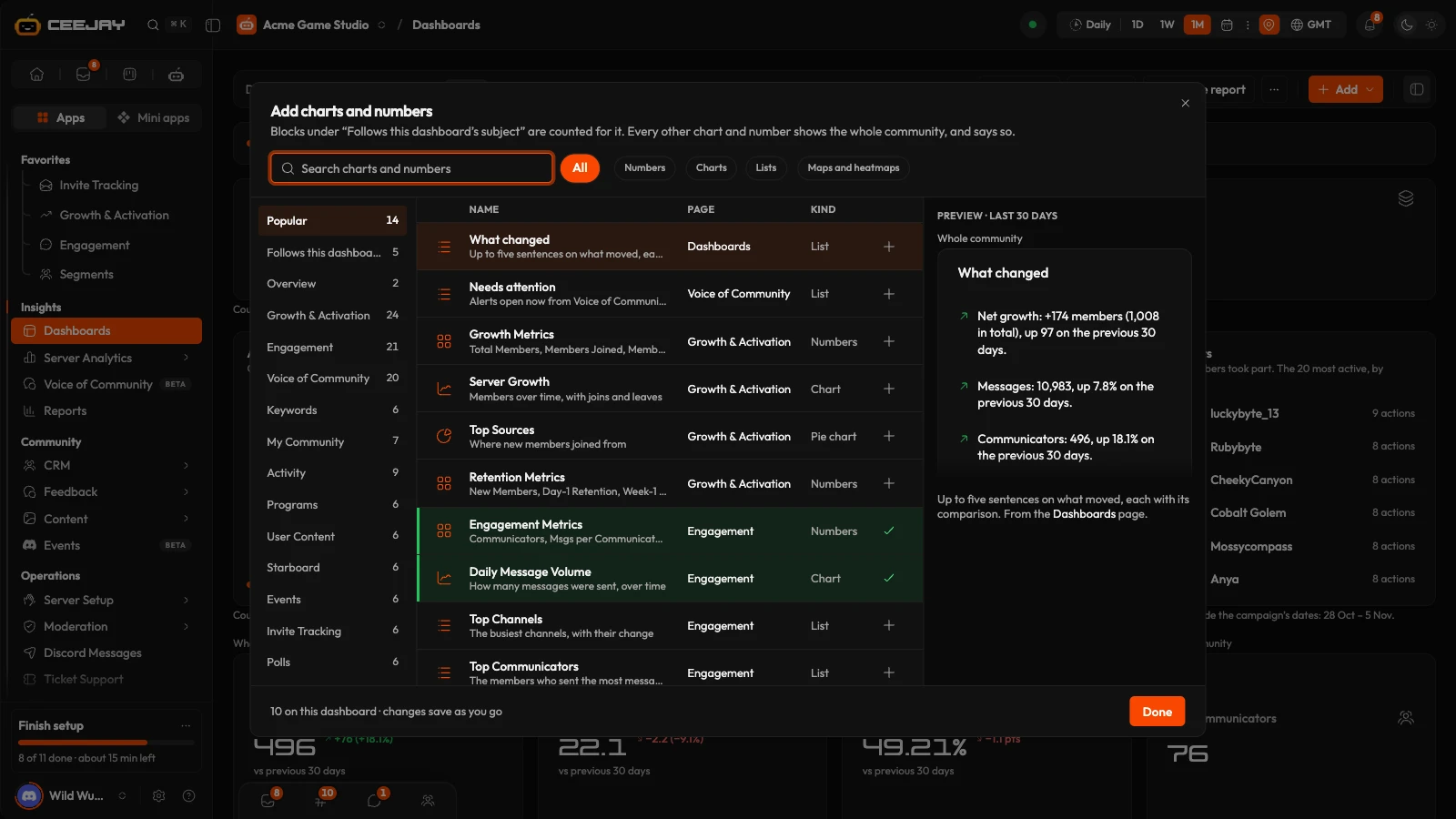
Text, image, button and widget blocks stay on the dashboard. They do not go into a report.
Share a dashboard
The person who made a dashboard, and any owner or administrator who can open it, can press Share. The window has two choices:
- Access: Only me, Team (everyone on the team who has the Dashboards page) or Chosen teammates.
- Editing: Only me or Anyone who can open it.
The community’s Overview is always shared with the team, so there you choose only who may change it: Owners and admins or Anyone on the team. A private dashboard is visible only to the person who made it, owners and administrators included. Members outside the team do not get a dashboard: they get a report.
To rename a dashboard, use Rename in the list, or Name and description in its ⋯ menu. To delete one, use Delete in the list or Delete dashboard in its menu, then confirm. It is removed for everyone who can open it, and the pages its blocks read from are not affected. The Overview cannot be deleted. A ready-made category or campaign dashboard you delete is made again the next time someone opens it.
Create a report from a dashboard
Create report copies the dashboard’s blocks into a draft report, in reading order, with the dates fixed from the range in the header at that moment. A message says Draft report created, and the report is in My Reports. Only blocks that show the whole community can go in a report. The blocks that follow a category or campaign, and text, image, button and widget blocks, stay on the dashboard, and the message says how many.
The button is greyed out when no block can go in a report, or when you have picked a custom range in the header without both dates. You need the Report Management page. From there, publishing, the link, email and PDF work as for any report: see Reports.

