

Settings
Decide who can open your dashboard, how the bot looks, what CEEJAY is connected to and which notifications you receive.
Settings is where you decide who can open your dashboard, how the bot looks and what it tracks, what CEEJAY is connected to, and which notifications you receive. Every setting in CEEJAY lives here, and each feature's own settings are also one press away on its page.
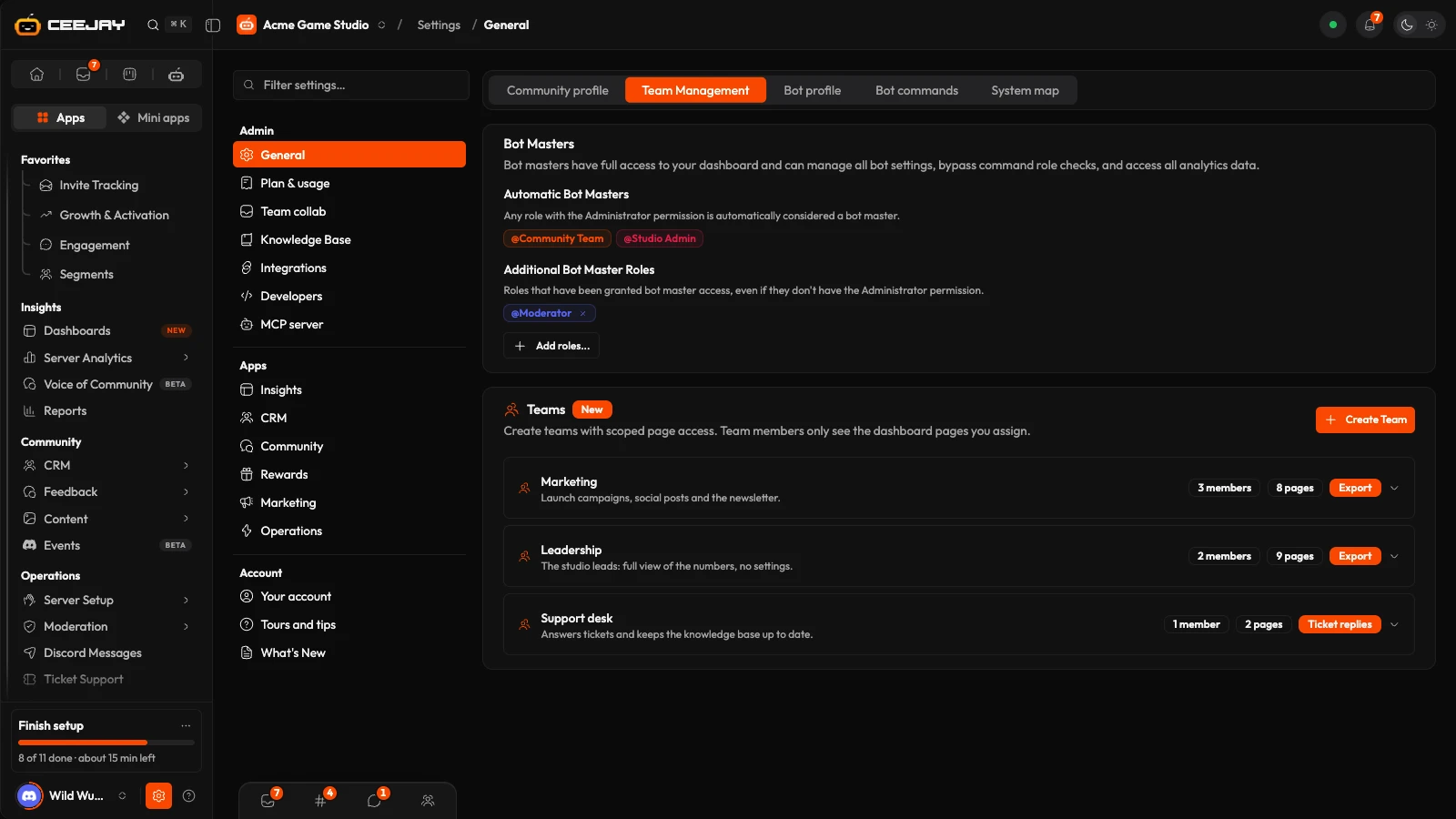
How Settings is organised
Open Settings in the sidebar's bottom row. The list follows the sidebar, in three headings:
| Heading | Rows |
|---|---|
| Admin | General, Plan & usage, Team collaboration, Knowledge Base, Integrations, Developers and MCP server. Team access, roles and integrations. |
| Apps | One row for each section of the sidebar: Insights, CRM, Community, Rewards, Marketing and Operations. The settings of the pages in that section. |
| Account | Your account, Tours and tips and What's New. Personal settings, available to every team member. |
Pick a row and it opens on the right, with its settings as tabs across the top. General holds Community profile, Team Management, Bot profile and Bot commands. Your account holds Profile, Preferences and Notifications. Developers holds API Keys, Webhooks, Platforms, Event Log and SDK. A tab for a feature page, such as Settings → Rewards → XP, has a button at the top, such as Open XP, that goes to the page.
Landing Page, Welcome Cards, Community Hub and Verification have no settings panel, because the page is the setting. Their tabs show a Configured on its own page card with a button that opens the page.
Good to know
You only see the rows and tabs for pages you can open. Owners, administrators and bot masters see all of them, and Plan & usage is for them alone. A team member sees the settings for the pages their team was given, and only if the team has Settings ticked under General in its page access. Without it, Settings shows only the rows under Account. Some tabs, such as Member fields and Campaigns, appear only when that feature is switched on for your community.
Two ways in
- From the list. Open Settings and pick the row, then the tab: Settings → Rewards → XP, Settings → Developers → API Keys.
- From the page. Press Settings in the bar at the top of a page and its settings open in a panel beside the page, without leaving it. The page stays live behind the panel, and Esc or the cross closes it. Pages with a large settings screen, such as XP, show their key groups first, with All XP settings at the bottom for the rest.
Find a setting
Type in Filter settings… above the list. The filter reads row and tab names and the settings inside them, including other words for them: type "rank card" and Settings → Rewards → XP stays in the list. If nothing matches, the list says so.
Press ⌘K (Ctrl K on Windows) anywhere in the dashboard to search pages and settings by name.
Save your changes
Most settings save from a bar at the bottom of the page. When you change something, a bar appears with Unsaved changes. Reset puts everything back as it was, and Save changes saves. When it works, the bar reads Changes saved for a moment. If several tabs have unsaved changes, the bar saves them together. In a panel beside a page, Save and Reset sit at the panel's foot.
If you leave with unsaved changes, CEEJAY asks you to confirm: Keep editing keeps you on the page and Discard leaves without saving.
A few controls act at once instead of waiting for the bar. Each page in this section says which.
On a phone
There is no room for the list beside a row on a phone or a small tablet. A bar at the top of the page names the row you are in and opens the list as a sheet (All settings). The filter sits at the top of that sheet.
In this section
Community profile
What you told CEEJAY about your community, and how to reopen setup.
Team management
Give a Discord role full access, or build teams that only see the pages you choose.
Bot settings
The bot's name, picture and banner, which commands it has, and what it tracks.
Plan & usage
What your plan includes, what you have used and how close you are to a limit.
Connected Apps
Connect Jira, ClickUp, GitHub and Slack, and read the event log.
Domains & apps
See your sending domain, web page, bot and platform apps together, and create your own Discord app.
API keys and webhooks
Let your own tools read and write to your community, and send events to your endpoint URL.
Knowledge base
Teach CEEJAY AI what your community knows.
Message backfill
Import your server's message history so charts start full.
Notifications
Choose what reaches you in the bell, on your devices and by email.

