

Categories
Label items and campaigns by what they are about, then filter every list by it and open a dashboard for each category.
A category is one shared label, such as Product, Feedback or Events. Put it on a poll, a giveaway, a message, a form, a ticket panel or a campaign. Then filter every list by it, and see everything under a category on one dashboard. An item has one category at most. A category is not a campaign: a campaign is one initiative with dates, a category is a topic that runs through all of them.
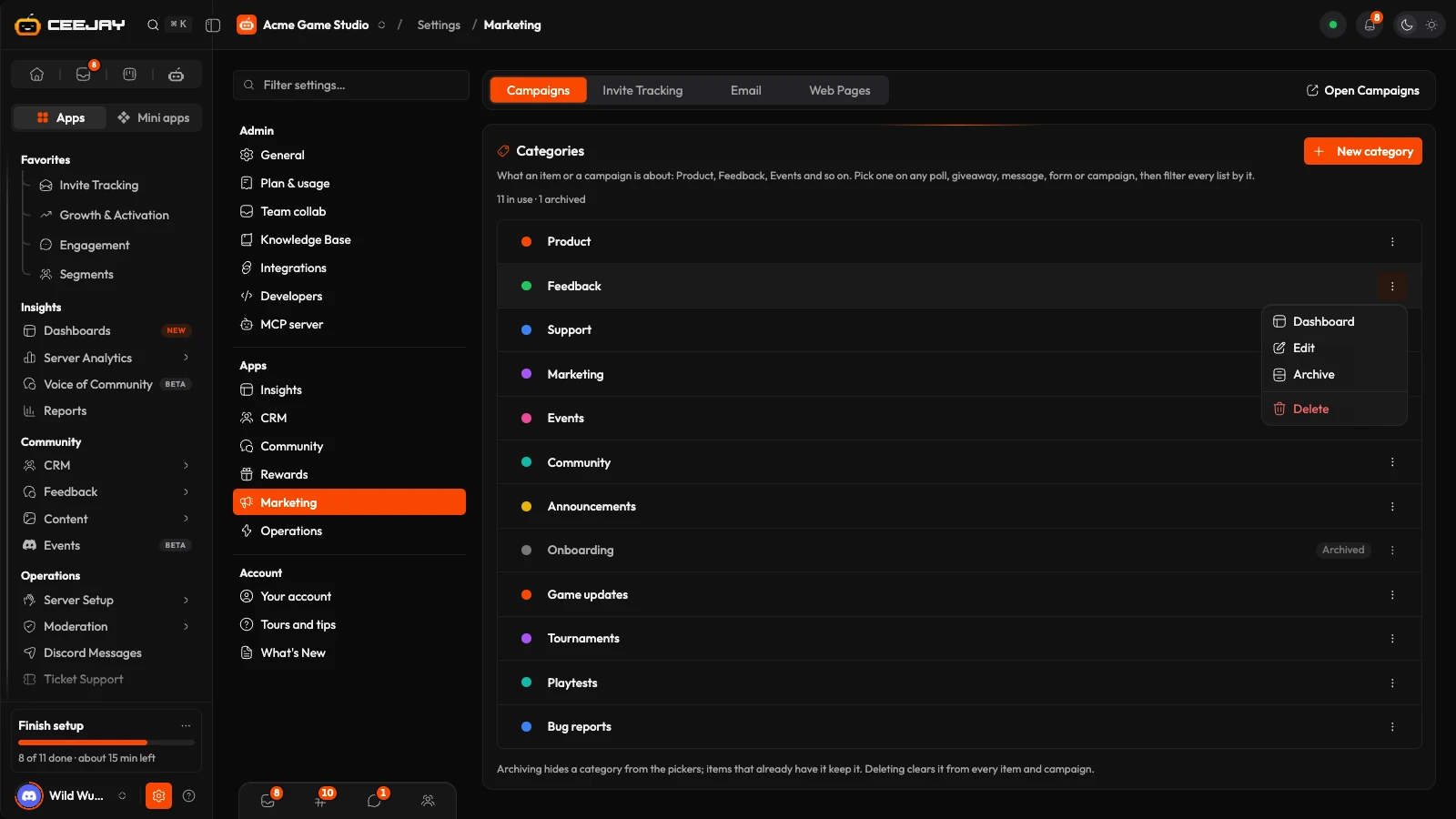
What you see
Go to Settings → Marketing → Campaigns. The Categories card lists every category with its colour, its name and an Archived tag where it applies. New category is at the top. Above the list, a line says how many are in use and, where any are archived, how many.
Every community starts with the same eight: Product, Feedback, Support, Marketing, Events, Community, Announcements and Onboarding. It also gets a few for its industry. A gaming community, for example, gets Game updates, Tournaments, Playtests and Bug reports. From then on the list is yours to change.
Manage the list
Press New category, type a Name (up to 60 characters, such as Playtests), choose a Colour and press Add category. A community can have up to 60.
To change one, open its ⋯ menu and choose Edit to rename or recolour it. Items and campaigns that carry it keep it under the new name. Pressing the colour dot changes the colour at once.
Archive hides a category from the pickers. Items that already have it keep it, and Restore brings it back.
Delete takes it off every item and campaign that has it, after you confirm Delete category. The items stay in their apps. A message says how many items it was cleared from. To stop offering a category but keep it on the items that have it, archive it instead.
Owners, administrators and bot masters can rename, recolour, archive and delete. A team member limited to some pages sees the list and can add a category.
Put a category on an item
Every builder for an app that takes categories has a Category field in its first section, under the name and channel, next to Campaign. Open it and pick one, search with Search categories…, or choose New category to make one on the spot. No category clears it. Neither field is required, and neither blocks saving.
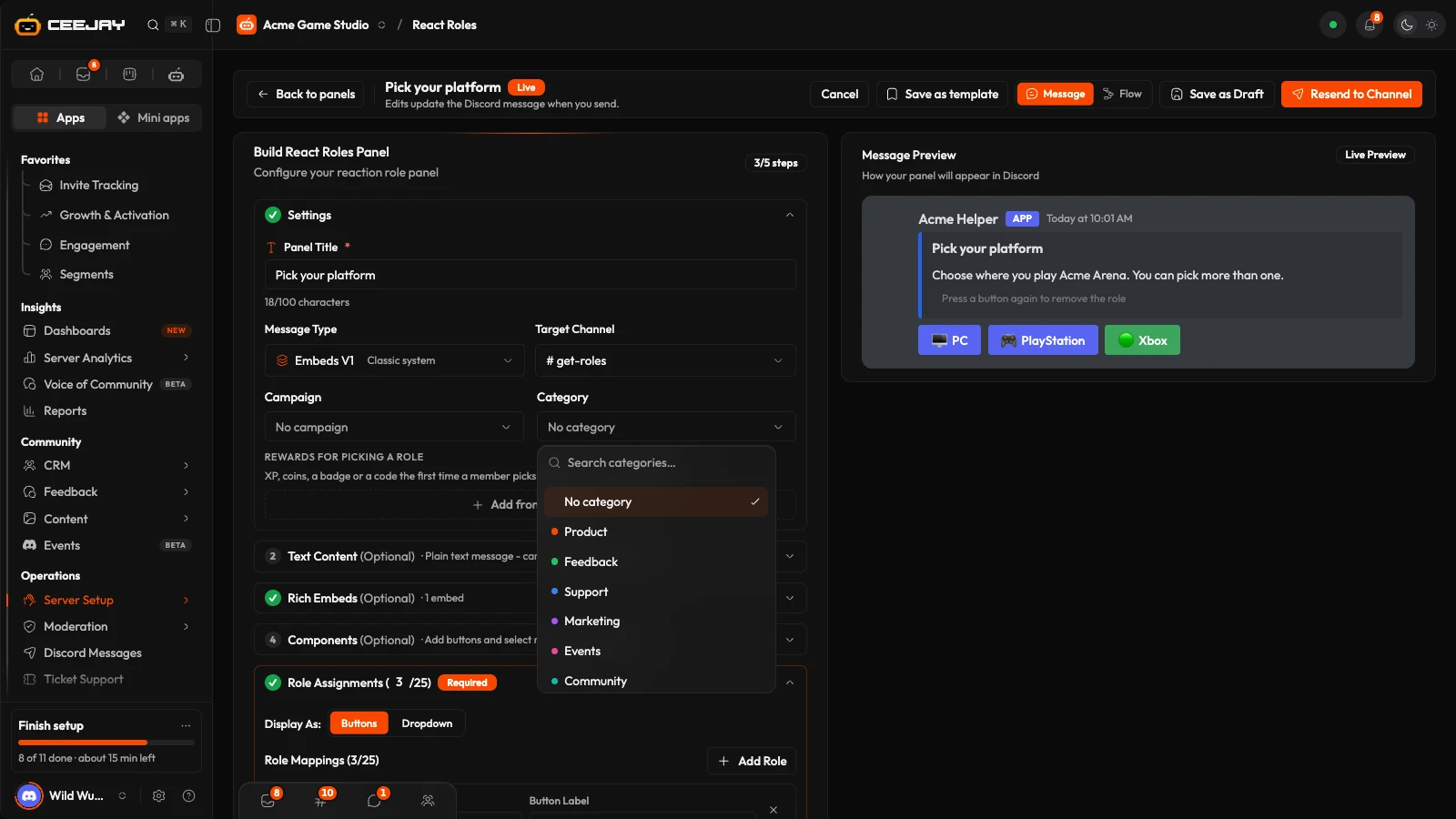
On an item that is already saved, the choice is kept at once, and a message appears if it could not be saved. On a new item it is saved with the item.
These apps take categories: Polls, Surveys & Forms, Events, Quests, Achievements, Shop & Economy, Giveaways, Tickets, Programs, Email, Magic Messages, React Roles, Automations, Invite Tracking, Reports and Workspace. XP and Account Linking take campaigns but not categories.
Good to know
Member suggestions have their own categories, set up in Upvote. They are not part of this list. See Upvote.
Find things by category
- On a card or row, an item's campaign and category show as small labels.
- The lists for these apps have Category and Campaign filters, with All categories, No category, All campaigns and No campaign.
- A campaign has a category too. Filter the Campaigns page by it. See Campaigns.
- Each category has a dashboard of what is linked to it. Open it from the row of categories on Insights → Dashboards, or from Dashboard in the category's menu here. See Dashboards.

