

Reports
Build reports from any numbers in CEEJAY, with an AI summary and your own notes, then share them by link or email a PDF on a schedule.
Email a weekly PDF to your publisher, report on one campaign or category, or start from a template like Executive Overview. A report is a document built from blocks: numbers, charts, rankings and notes, for readers who want the picture without opening the dashboard. You publish a report to freeze its numbers, then share a link, email it as a PDF or schedule it.
What you see
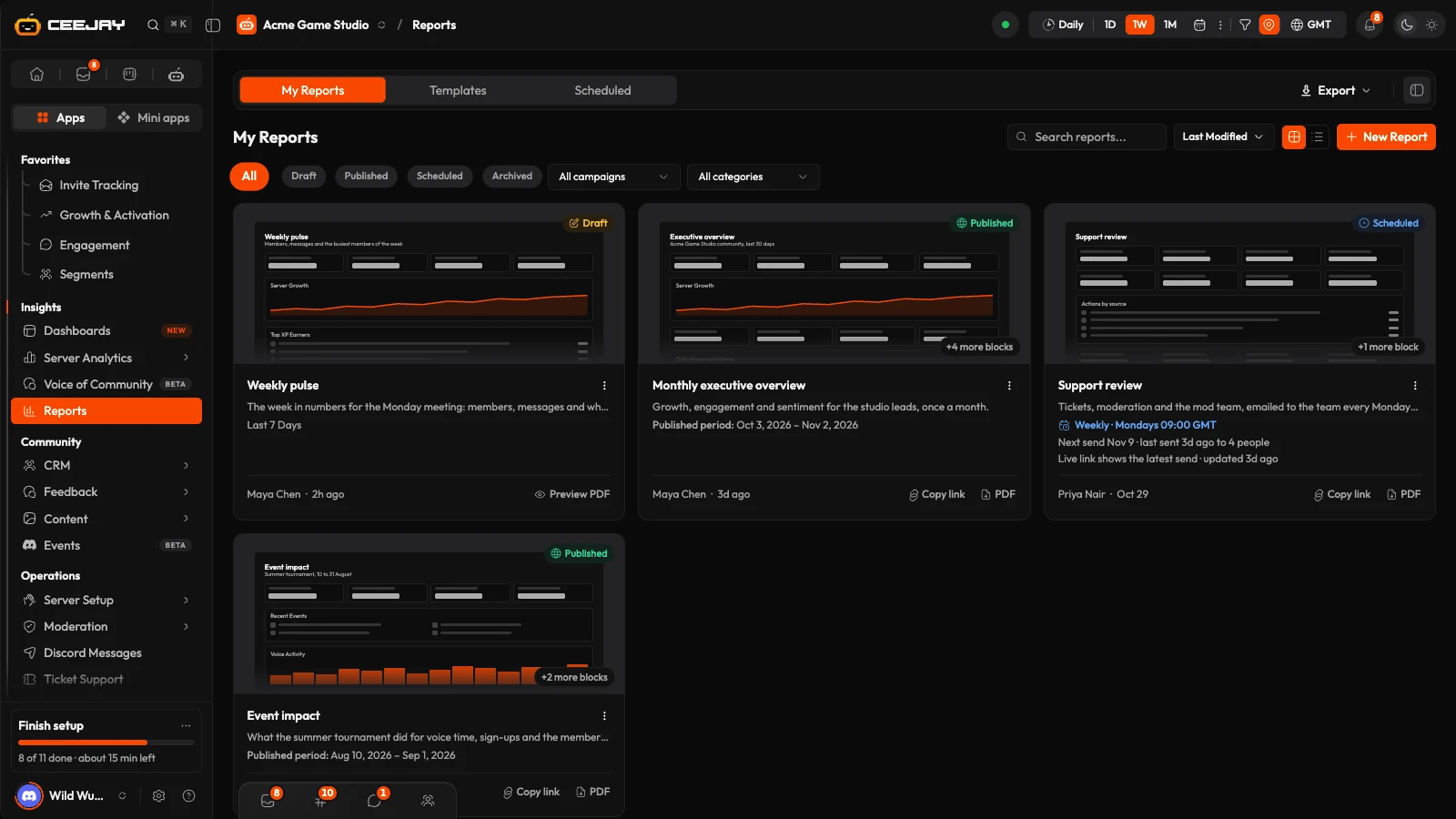
Go to Insights → Reports. The page is called Report Management, and three tabs sit in the bar:
- My Reports: every report in your community, with Search reports..., a sort (Last Modified, Name or Date Created), a switch between cards and rows, and New Report. All, Draft, Published, Scheduled and Archived filter by status (All leaves archived reports out), and Campaign and Category filters appear where campaigns are switched on.
- Templates: ready-made layouts. See below.
- Scheduled: the reports that are emailed on a schedule.
A report is Draft while you build it, Published once you have published it, Scheduled once it is also emailed on a schedule, and Archived once you archive it. A published or scheduled report's ⋮ menu has Unpublish to Draft and Archive, an archived report's has Restore and Delete permanently, and a draft's has Delete. Everyone with the Report Management page sees every report, but only the person who made a report can change it, publish it, share it, schedule it or delete it. Anyone can press Duplicate in a report's ⋮ menu to make a draft of their own.
Create a report
Press New Report. This makes an empty draft called Report with today's date and opens the builder. To start from a layout instead, use Use template, or Create report on a dashboard.
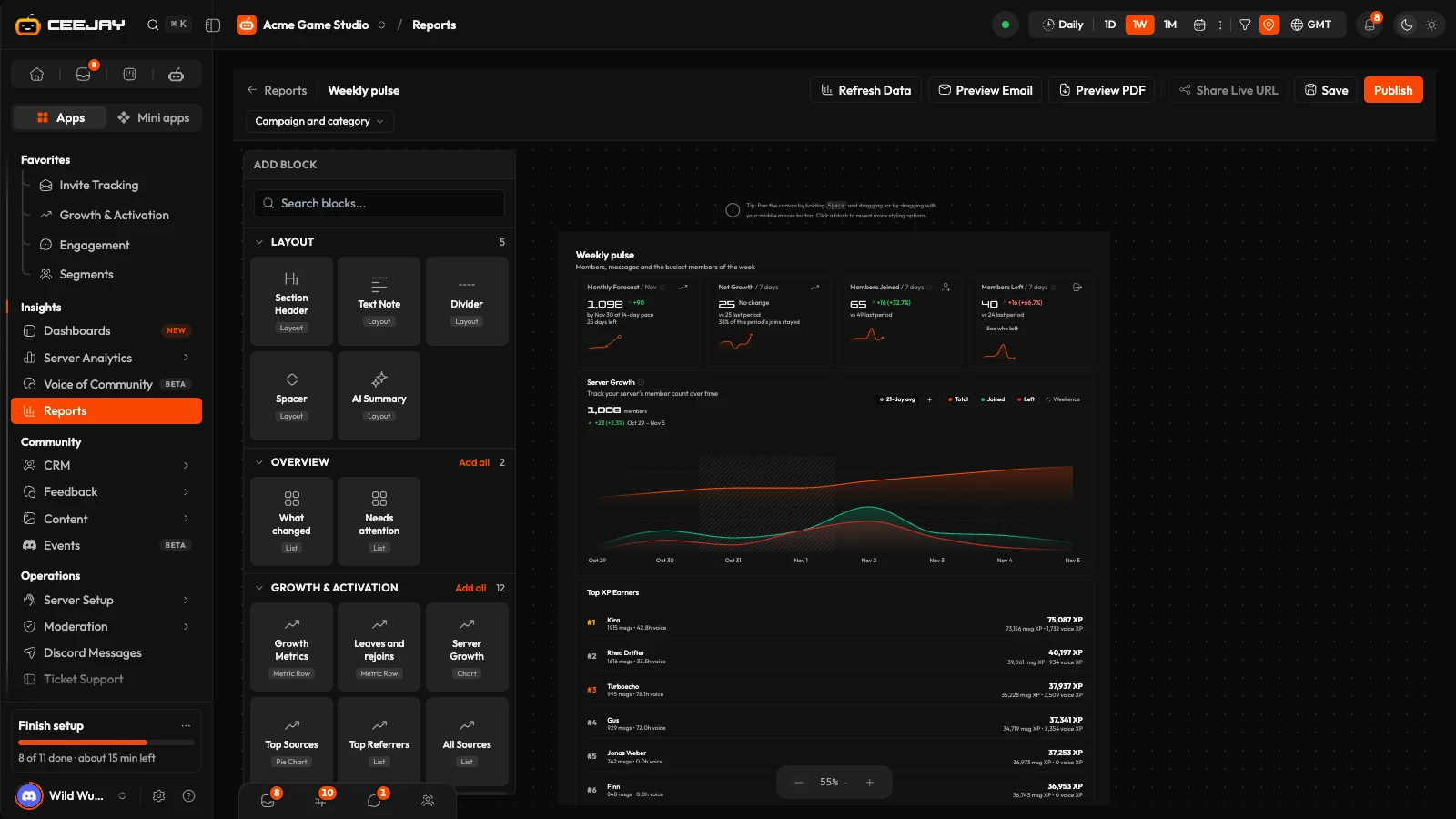
In Add Block, search with Search blocks... or browse by page. Layout holds Section Header, Text Note, Divider, Spacer and AI Summary. Each page, such as Growth & Activation, Engagement or Polls, holds its numbers, charts and lists. The Add all button on a page's heading adds all of its blocks at once.
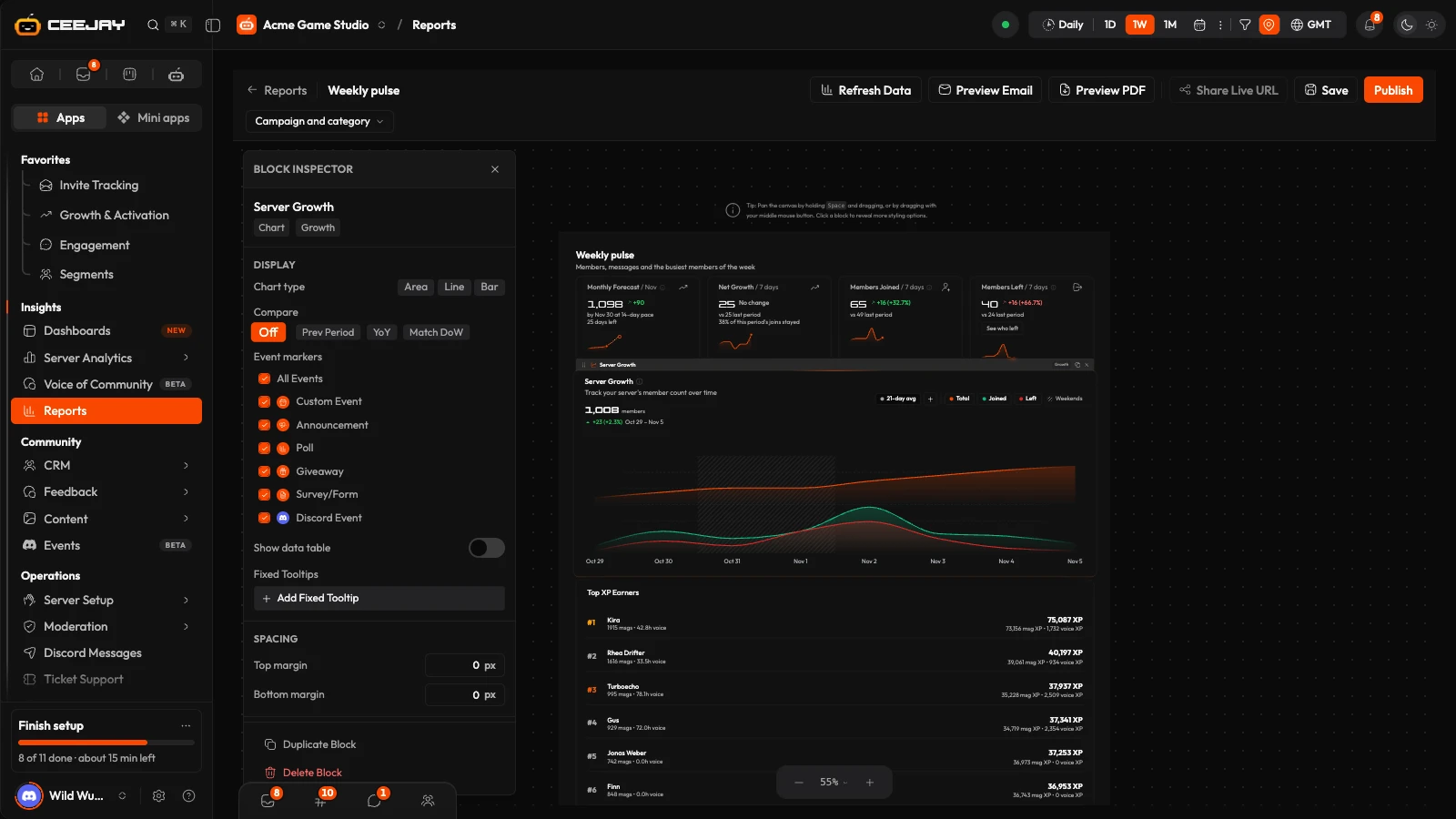
Drag blocks into the order you want. Press a block to open the Block Inspector and change that block's settings. A chart can offer Chart type, Compare, Event markers and Show data table, and a ranking, list or table sets Max items or Max rows. Every block also has spacing settings, Duplicate Block and Delete Block. Press the report's name to rename it.
Press Refresh Data to load the numbers. The report saves as you go, and the bar shows when it last saved. Save saves it at once.
Time filters
A report uses the date range picked in the header: 1D, 1W, 1M, 3M, 6M, 1Y, ALL or custom dates. Its blocks follow that range, and a block that always shows one window, such as All time, shows Fixed window under its title. In the Block Inspector, a chart's Chart type is Area, Line or Bar where the chart allows it, and Compare on the Server Growth chart is Off, Prev Period, YoY or Match DoW.
Templates
The Templates tab lists Quick Start Templates: pre-built report layouts. The Industry menu starts on your community's industry from setup, with All industries and General as other choices. Seven templates are for every community: Executive Overview, Engagement Deep Dive, Growth Summary, Community Pulse, Creator & Ambassador Performance, Moderation & Community Health and Event & Campaign Impact. Each industry adds its own. Press Use template to make a draft from one and open it in the builder. The pages and the blocks stay yours to change.
Publish and share
Press Publish. A message says Report published! Publishing freezes the numbers, the layout and the period, so the report keeps showing the figures it had on that day. If some blocks are still loading or failed, Publish blocked or Report data still loading tells you to wait, retry or remove them first.
- Share Live URL is greyed out until the report is published. Pressing it makes a link and copies it, with the message Share Link Created! The same link is Copy link on the report's card and Open Live URL in its ⋮ menu.
- Anyone with the link can open the report, read-only, without signing in. It shows the report as you published it, not live numbers. The link has no expiry date. It stops working when you press Unpublish to Draft or archive the report.
- To change a published report, edit it. A banner tells you that you are editing a draft, that the published version is still live, and that you can publish to update it or discard the draft. Discard draft goes back to what is published.
- Export PDF downloads the published report. On a draft, or a published report with edits, the button reads Preview PDF. On a published report with edits, a menu beside it also offers Export last published.
Good to know
A shared link shows the version you published. To refresh it, make your changes and publish again.
Email and schedule
Press Send Email on a published report, or Send via Email in its ⋮ menu. On a draft, or a published report with edits you have not published, the button reads Preview Email and sends a one-off copy of what is in the builder, which is not saved. On a published report with edits, a menu beside it offers Send last published. In the window, add up to 10 Recipients (press Enter or comma after each), and optionally a Subject and a Message, then press Send to and the number of recipients. A message says Report Queued (Preview Queued for a preview): CEEJAY makes the PDF and emails it.
To send a published report on a schedule, open its ⋮ menu and choose Schedule Email.
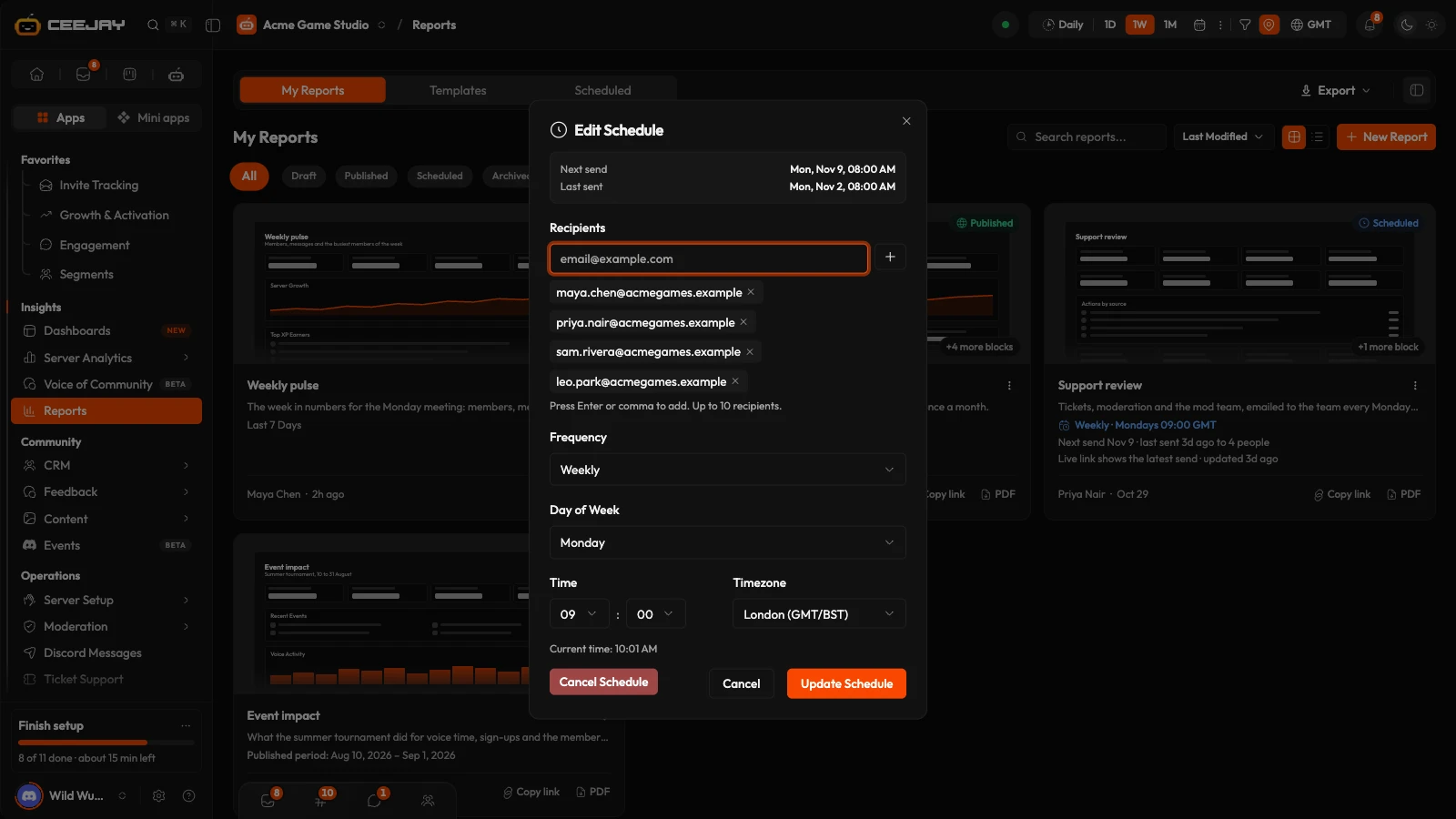
Add the Recipients, up to 10.
Choose the Frequency: Daily, Weekly (with a Day of Week) or Monthly (with a Day of Month, 1 to 28).
Set the Time and the Timezone. For a daily schedule you can switch on Daily digest (no PDF), which sends a short scorecard in the email instead of the full PDF.
Press Set Schedule. The report is now Scheduled. To change it, open Schedule Email again: Update Schedule saves your changes and Cancel Schedule returns the report to Published.
The Scheduled tab lists these reports with the schedule, the next send and the last send. The link of a scheduled report always shows its most recent send. Earlier sends stay in the PDFs recipients received. If a scheduled email cannot be sent, CEEJAY sends the person who made the report a Scheduled report failed notification with the report's name: see Notifications.
Campaign and category
Under the report's name in the builder, Campaign and category opens the two fields. A report with a campaign shows up in that campaign's items, and you can filter My Reports by either. See Categories.

