

Saved Content
Save the best fan art, clips and links members share, and find them again for your socials, a newsletter or a thank-you.
Save the best posts for your team. When a member shares something worth keeping, such as fan art, a clip or a good link, you star it and it goes on this list, ready for a newsletter, a social post or a thank-you.
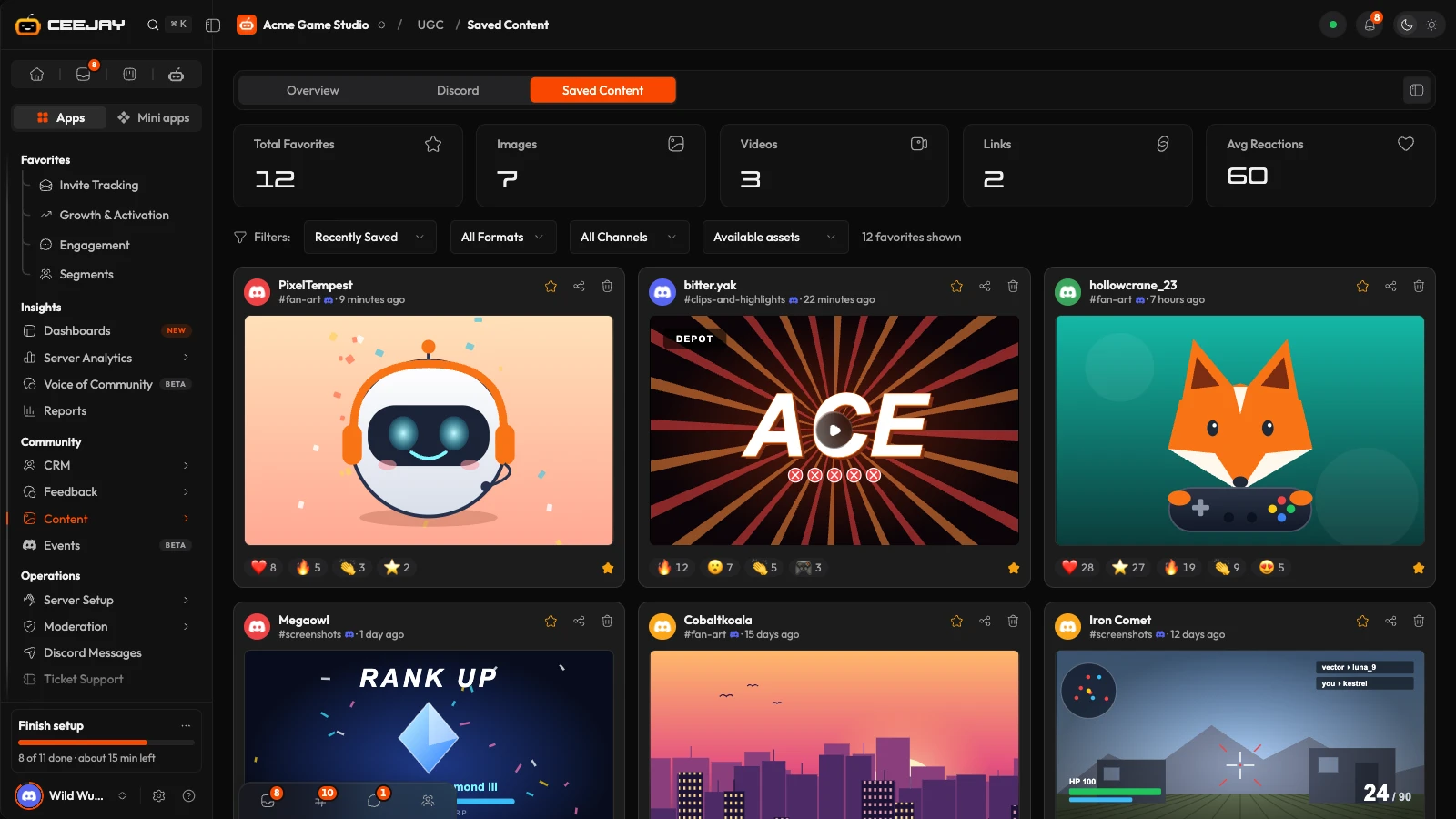
What you see
Open Content → UGC and go to the Saved Content tab. This page has no date range. It lists the 50 posts saved most recently, and the five cards count everything saved.
- Five cards: Total Favorites, Images, Videos, Links and Avg Reactions, which is the average number of reactions on your saved posts, rounded. The filters below only change the list.
- Four filters. The sort menu has Recently Saved, Most Reactions and Date Posted. The format filter has All Formats, Images, Videos and Links. The channel filter lists All Channels and each channel with its number of saved items. The last filter switches between Available assets and Expired assets.
- A line beside the filters saying how many saved posts are shown and from how many channels.
- A card for each saved post, with who posted it, where, when and its reactions. Press a card to open it full screen, with Previous, Next and Open in Discord.
If nothing is saved yet, the page says No Favorites Yet and offers Go Back to Content.
Save a post
Press the star on a post in User Content, on its Discord tab or in the viewer. The star turns gold and the post appears here. A post saved from the Starboard, with Save to Saved Content in its menu, is added here too. In Discord, a moderator with Manage Messages can right-click a message and choose Apps → Save post. Only posts in User Content (images, videos and links) can be saved.
To take a post off the list, press its star again, here or in User Content. On this page its tooltip says Remove from favourites. Removing it from Saved Content does not delete the post.
Find a post
Pick an order. Recently Saved shows the latest additions first. Most Reactions shows the posts members reacted to most. Date Posted shows the newest posts by when they were shared.
Narrow the list with the format and channel filters. The line beside the filters updates to say how many are left. If nothing matches, the page says "No saved content matches these filters" and has a Clear filters button.
To check posts whose picture or video no longer loads, choose Expired assets. The option shows how many there are. A post whose picture fails to load while you browse moves there too.
Share or delete
Each card has the same share and delete buttons as User Content. Share content offers Share to WhatsApp and Share to Telegram, and shares a link to the Discord message.
The bin opens Delete Content. Delete Forever removes the post from CEEJAY altogether, so it disappears from User Content as well. It does not delete the message in Discord. To remove the Discord message too, use Dashboard + Discord in User Content.
Good to know
This is one list for the whole community, not one per person. Everyone on your team sees the same posts, and anyone who can open the page can add to it or remove from it. Discord's links to pictures and videos expire after a while, so an old saved post can end up under Expired assets. Its text and its link to the Discord message stay.

