

User Content
Browse the images, videos and links members share, with your top posts and creators, and save the best for your socials.
Find fan art to feature on your socials, thank your most creative members and remove posts that break your rules. User Content gathers the pictures, videos and links your members share, with how much is shared, in which channels and by whom.
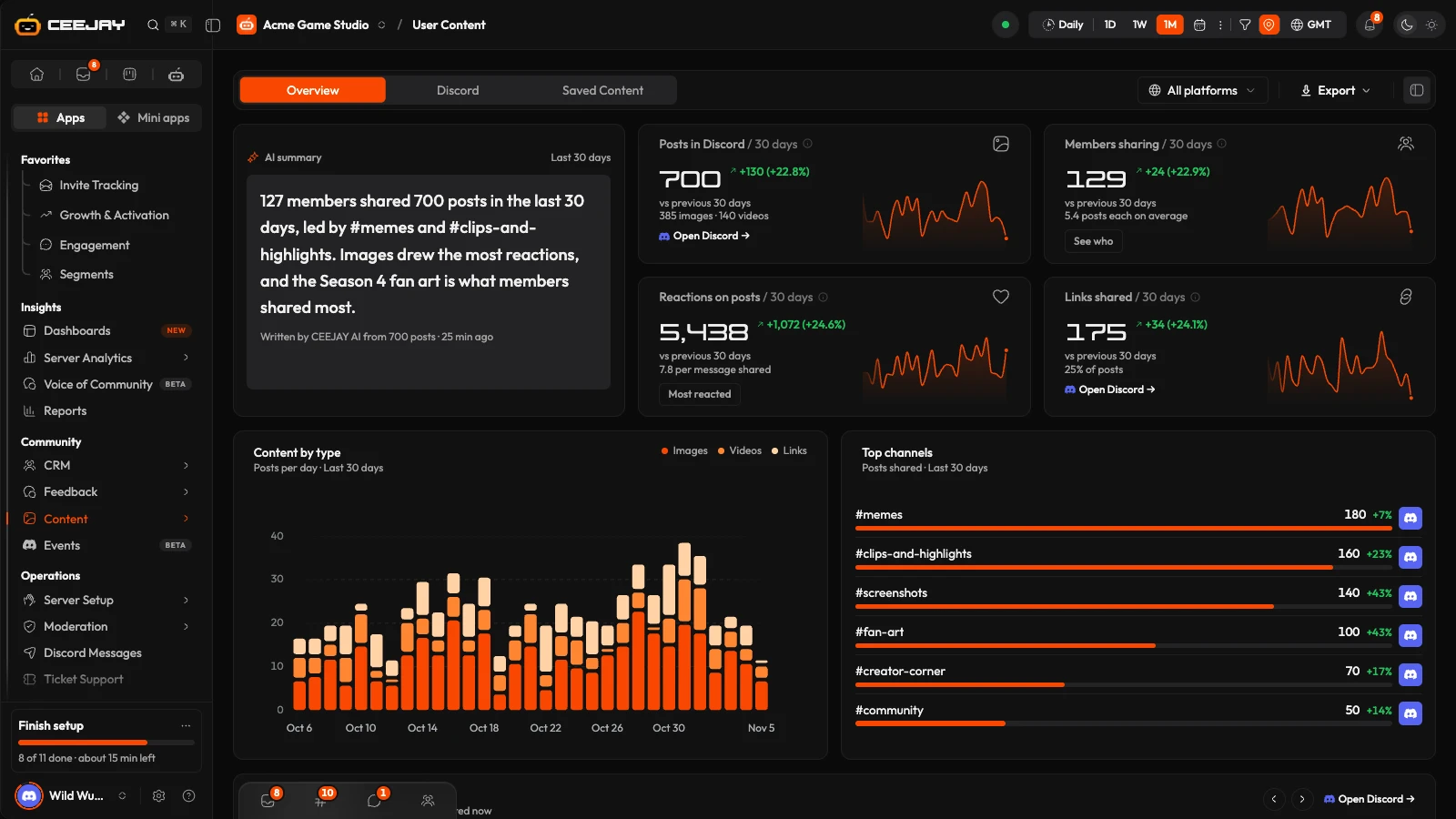
What you see
Open Content → UGC. The page is User Content, and it has three tabs: Overview, Discord and Saved Content. Overview and Discord follow the date range and the channel filter at the top of the page. The Overview also follows its comparison setting and its role filter. A platform picker beside Export offers All platforms and Discord, which read the same numbers. Twitch, YouTube, TikTok and X are marked as coming soon.
CEEJAY adds a post to User Content when a message has a picture or video attached, or has a link in it. It stores the file's Discord URL rather than a copy, and keeps the reaction count up to date. Links from GIF pickers (Tenor, Giphy, Klipy) and Discord's own media links are not counted. The Overview also leaves out channels you have hidden from analytics. Starboard posts are on their own page, and content from other platforms is not included.
Overview
The Overview opens with an AI summary card on the left and four stat cards on the right.
The AI summary says in a few sentences what members shared in the range. Under the text it reads "Written by CEEJAY AI from" the number of posts, and how long ago. CEEJAY writes it when you open the page and there is none, and writes a newer one only after new posts arrive and enough time has passed, which is longer for a longer range. While a newer one is being written the card says so, and it says when no new posts have arrived since. When a channel or role filter is on, the summary still covers the whole community, and the card tells you. If it cannot be written, the card says why and offers Try again.
The stat cards:
- Posts in Discord: images, videos and links posted in the range. A message with pictures counts once, and each link counts once. The card says how many were images and how many were videos.
- Members sharing: members who posted at least one, each counted once.
- Reactions on posts: every reaction on those messages, as CEEJAY last counted them. It includes the poster's own reaction and reactions added after the range ended.
- Links shared: links in the range, and what share of all posts they are.
Each card shows its change against the previous period, and its (i) has the exact definition. Under them are Content by type, a stacked chart of images, videos and links per hour, day, week or month depending on the range, and Top channels, with each channel's change against the previous period. Most reacted posts is a carousel of the 20 most reacted posts, the top one in the middle, and Top members lists the members who shared the most, with a link to each member profile.
Browse the posts
The Discord tab is the feed. It has four cards (Total Content, Images, Videos and Links) and three filters:
- The format filter: All Formats, Images, Videos or Links.
- A grouping menu: Most recent, Most reacted, By channel or Links by source. The last one groups links by the site they point to.
- Available assets or Expired assets.
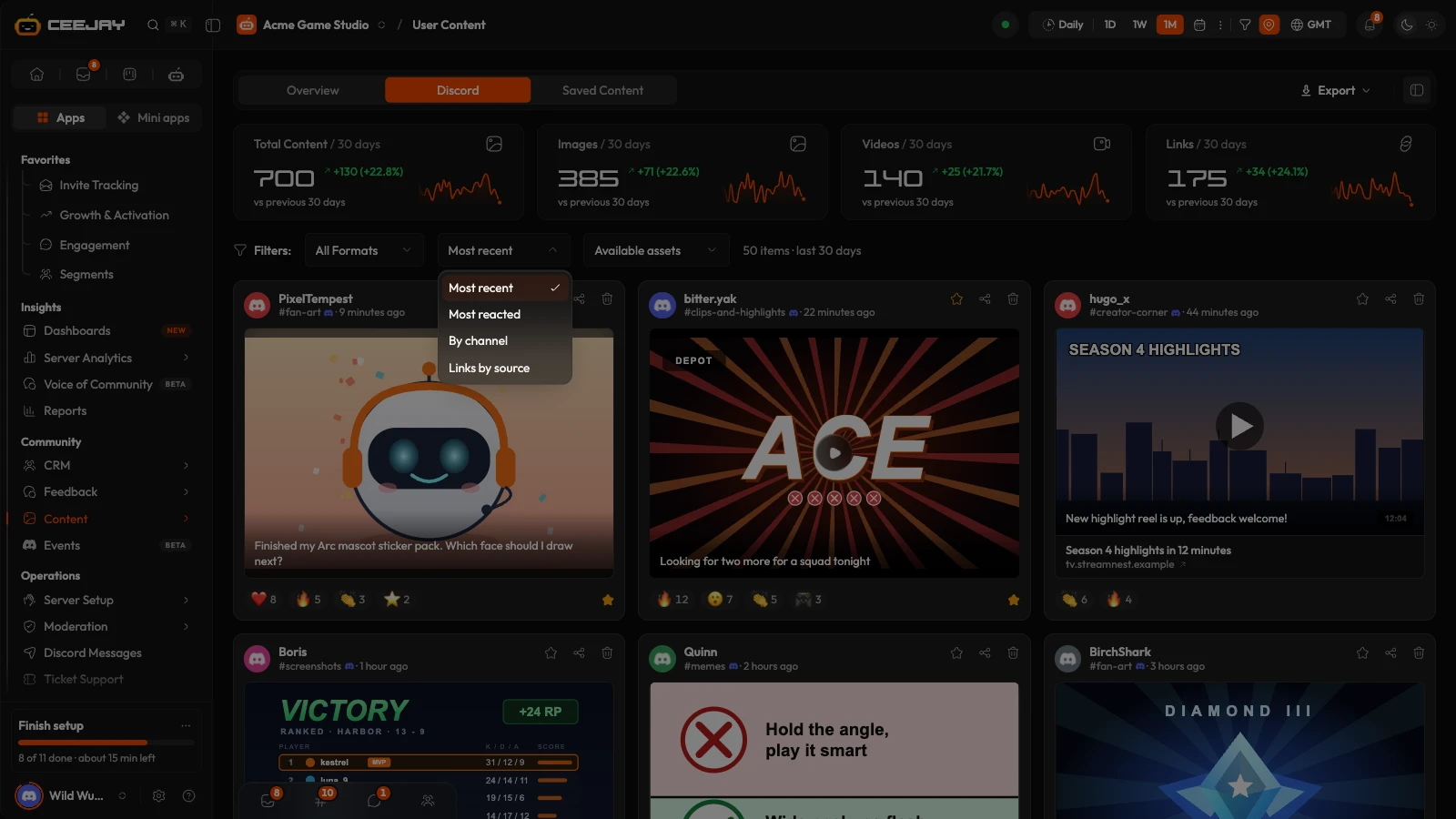
The feed holds the 50 newest posts that match the range, the channel filter and the format filter. The four cards count every matching post, and the grouping menu sorts only those 50, so Most reacted here is the most reacted of the newest 50. The Overview's Most reacted posts looks across the whole range.
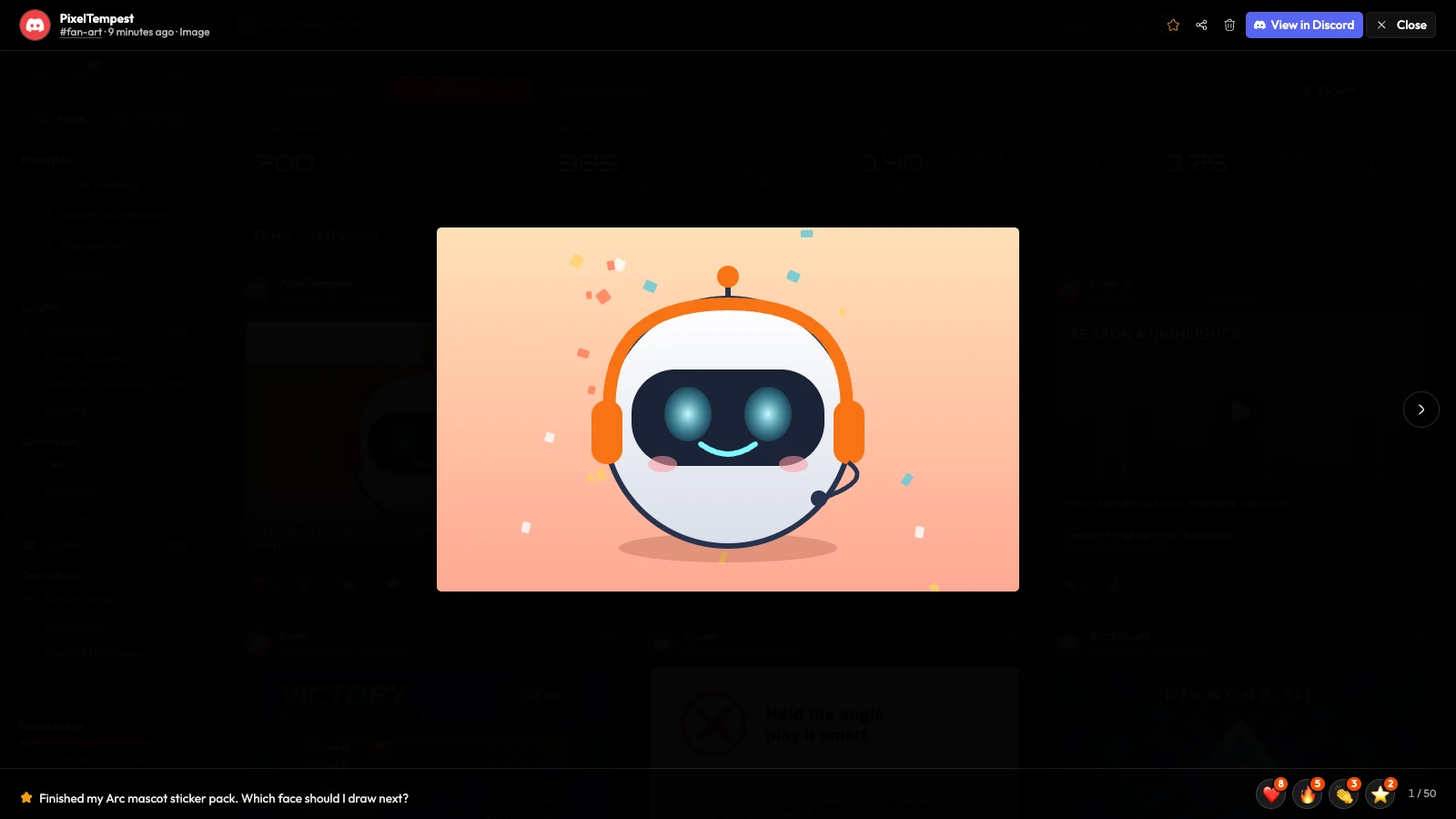
Press a post to open it full screen. Use the Previous and Next arrows, or the arrow keys, to move through the posts in the order they appear, and Open in Discord to see the original message. Each post also has three buttons:
- The star adds it to Saved Content, or removes it.
- Share content offers Share to WhatsApp and Share to Telegram. It shares a link to the Discord message.
- The bin deletes it. See below.
Delete a post
Press the bin on a post and choose what to delete in the Delete Content dialog:
- Dashboard Only removes it from CEEJAY. The message stays in Discord.
- Dashboard + Discord removes it from CEEJAY and permanently deletes the message in Discord. Use it for harmful or inappropriate content. CEEJAY needs the Manage Messages permission in that channel.
Press Confirm Delete. Neither can be undone.
Good to know
Discord's links to pictures and videos stop working after a while. When that happens, the post moves to Expired assets, and a post whose picture fails to load moves there too. The text and the link to the Discord message are still there.

