

The Starboard
Repost the messages members react to most to boards of their own, with a live count, as a hall of fame for art, clips or memes.
Run a hall of fame for fan art, keep your funniest moments and see whose posts make the board most. When a message collects enough of a chosen reaction, CEEJAY reposts it in a channel you pick, with the author, the text, the pictures and a live count. You can run more than one board, for example one for artwork and one for funny moments.
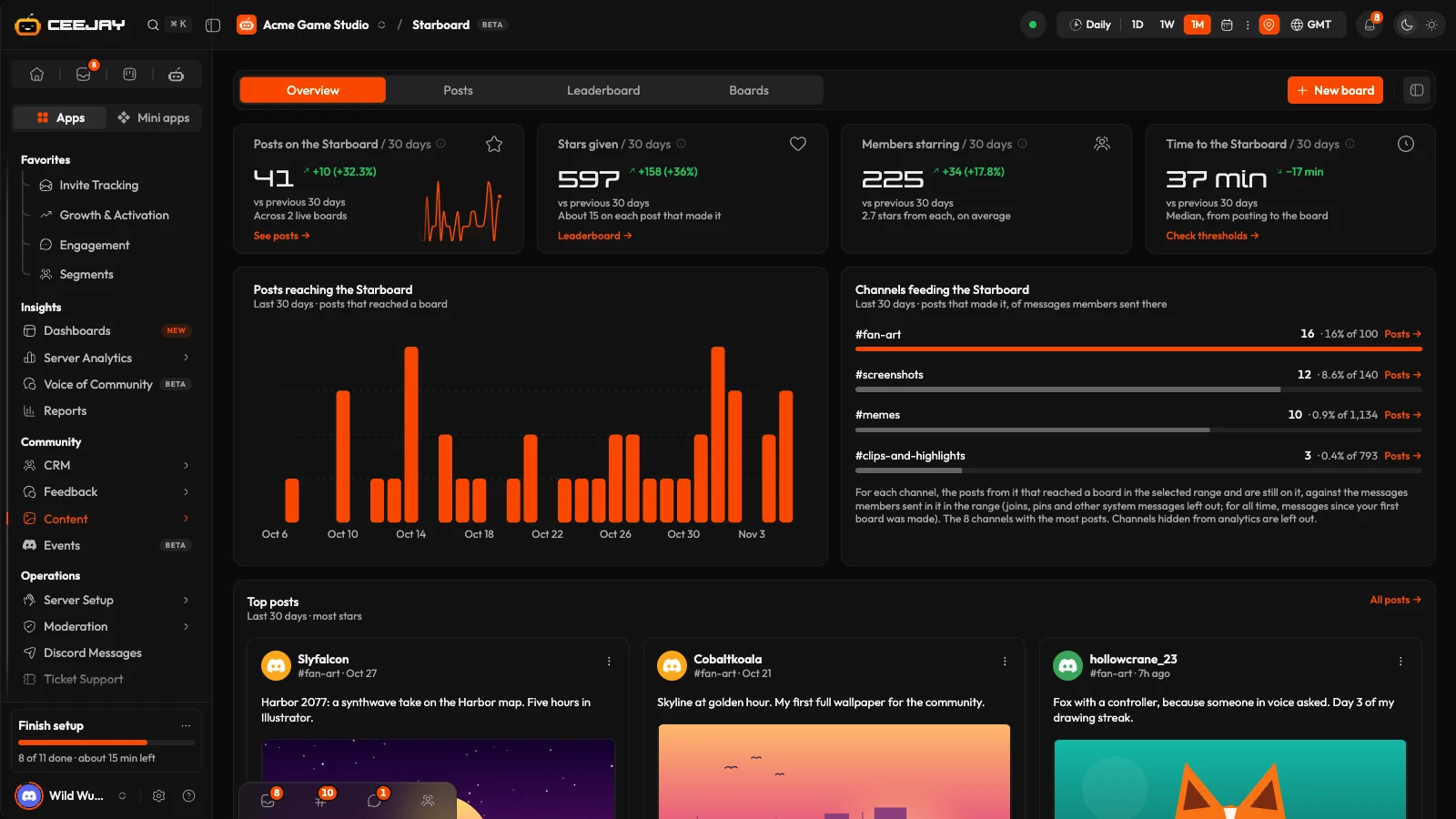
What you see
Go to Content → Starboard. The page has four tabs: Overview, Posts, Leaderboard and Boards. New board is the page's main button. Overview, Posts and Leaderboard follow the date range at the top of the page, and Boards does not. Only the Overview leaves out channels you have hidden from analytics: the other three count every channel.
A bell with a count appears when a board needs attention. It opens Needs attention: a board with no channel, a board CEEJAY cannot post in, or a paused board.
- Overview: four cards, Posts on the Starboard, Stars given, Members starring and Time to the Starboard (the median time from posting to the board), then the posts that reached a board over time, Channels feeding the Starboard, Top posts and a Boards table. Press the (i) on a card for its exact definition.
- Posts: the posts that reached a board in the range, 20 to a page, as cards or rows. Filter by Board, Channel and Status (On the board, Taken down or Removed by your team), and sort by Most stars or Newest. The Status filter starts on On the board.
- Leaderboard: members ranked by Total stars, Times on the Starboard or Top post, with a Board filter once you have more than one board, and the reward roles above the table.
- Boards: each board as a card showing its post as Discord shows it, with a status stamp: Live, Paused, No channel or Missing permission.
How a post gets on a board
A member reacts to a message with the board's emoji. When the message reaches Reactions needed (3 by default), CEEJAY posts it in the board's channel. If the count later falls below Minimum reactions to stay, CEEJAY takes the post down. By default a member's own reaction does not count, messages from bots cannot make it, and age-restricted channels are left out. You can change each of those.
A board post shows a header with the tier's emoji, the count and the channel, the author, the message text, its pictures, and a button that jumps back to the original. The post's colour and emoji change as the count grows through the board's tiers. CEEJAY adds the emoji to each board post too, so members can react there, and those reactions count for the original message.
If you have several boards, they are checked in order, and a post goes to the first board it qualifies for.
Create a board
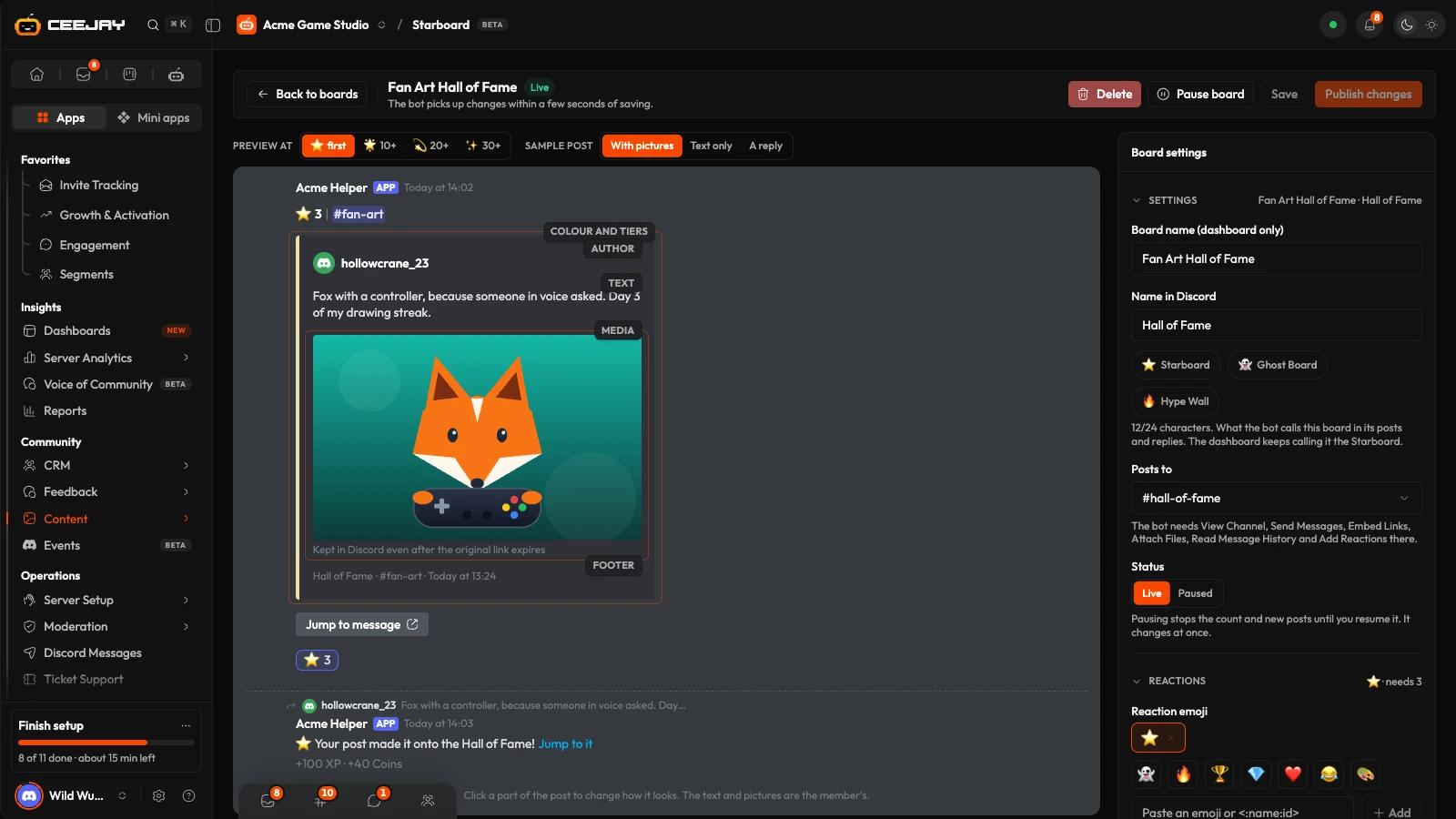
Press New board. The builder is its own page, with a sample post drawn as Discord shows it and a Board settings panel beside it. Use Preview at and Sample post (With pictures, Text only or A reply) to check how the post looks. Click a part of the post, such as its header or its text, to edit that part.
Open Settings in the panel. Give the board a Board name (dashboard only), choose the Name in Discord members see (up to 24 characters, with ready-made choices such as Starboard, Ghost Board and Hype Wall), and pick the channel under Posts to.
Open Reactions and choose the Reaction emoji (up to 10, and any of them counts), Reactions needed and Minimum reactions to stay. Minimum reactions to stay cannot be higher than Reactions needed, and 0 keeps a post up for good.
Checks shows whether a channel is picked, whether the numbers make sense and, once the board is saved, whether CEEJAY can post in the channel. Press Save. A new board is saved Paused. Press Publish board to put it live, and Publish changes after later edits.
Board settings
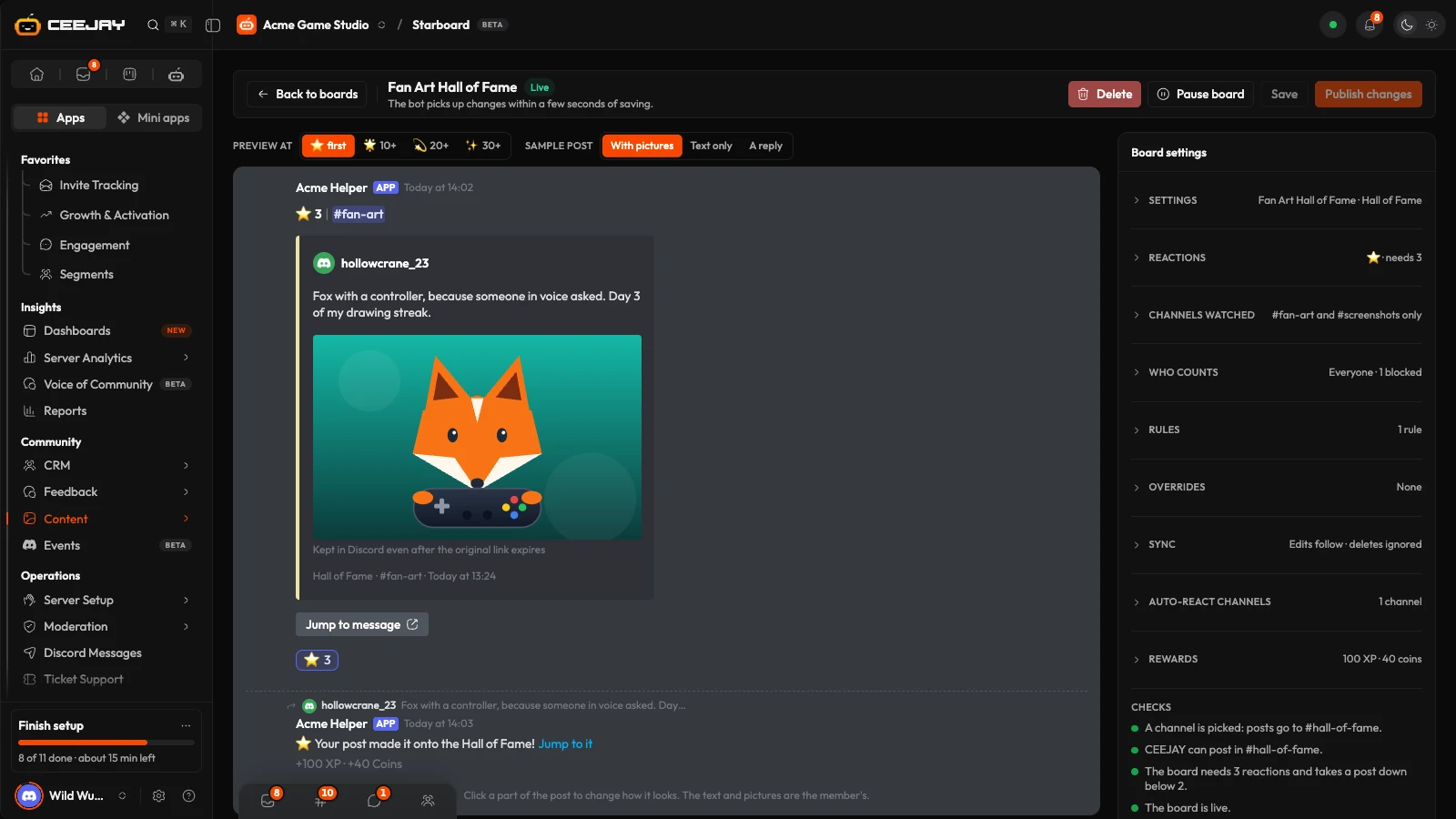
- Channels watched: All channels, Only these channels or All channels except these, and what to do with age-restricted channels: Leave them out, Include them or Only age-restricted channels. Discord does not allow posts from age-restricted channels on a board that is not age-restricted.
- Who counts: Everyone or Only these roles can react. Add Blocked roles and Blocked members, and choose whether blocking applies to Both, Post authors or Members reacting. Remove reactions that don't count deletes reactions from members who cannot react here, and needs Manage Messages in the watched channels.
- Rules: more conditions a post must pass: Age, Date window, Media, Length or Words. A post must pass every rule marked Required, and at least one rule marked Any one of when there are any.
- Overrides: different settings for one channel, a kind of channel or an author role. An override only changes what it lists.
- Sync: whether the board post follows edits and deletes of the original, and what to do when someone deletes a board post: Do nothing, Post it again, Freeze its count or Freeze it and hide it from the board.
- Auto-react channels: channels where CEEJAY adds the emoji to every new message, so members can react with one tap. Its own reaction never counts.
- Rewards: Use XP settings or Set for this board for the XP and coins the author earns when a post makes it. Reward roles give a role at a milestone: Total stars, Times on the Starboard, Top post or Saved by your team. They save as you change them, and Keep roles when members drop below decides whether CEEJAY removes a role.
Click a part of the sample post to edit it: the Header line and Colour and tiers (both open the tiers and Mention the author, which pings the author when their post goes up and is off by default), the Author, the Replied message, the Text (how many characters to show), the Media (how many pictures and embeds, and whether to keep a copy), the Footer, the Jump link (a Button or a Text link), the Bot reaction, and the Reply on the post, a public reply that names the board and the reward.
Manage posts and boards
A post's ⋮ menu has Open in Discord, Open the board post, Save to Saved Content, Freeze the count or Unfreeze the count, Put it back on the board, and Remove from the board. Removing a post deletes the board post and keeps it off the board however many reactions it gets. To put it back, set the Status filter on the Posts tab to Removed by your team and use Put it back on the board.
A board's ⋮ menu has Edit, Duplicate, Pause or Resume, and Delete. Deleting a board leaves its posts in Discord, but CEEJAY stops updating them, and the board's history on this page and its own reward roles are deleted with it. In the list layout, drag a board to change the order boards are checked in.
What CEEJAY does in Discord
CEEJAY needs View Channels, Send Messages, Embed Links, Attach Files, Read Message History and Add Reactions in the board's channel. If one is missing, the board shows Missing permission, posts that reach it wait, and Check permissions in the builder asks CEEJAY to check again within about 10 seconds. Remove reactions that don't count is on by default, and while it is on CEEJAY also needs Manage Messages in the watched channels, or the board shows Missing permission too. A reward role needs Manage Roles, with CEEJAY's role above it. See Add the bot.
In Discord, anyone can see the ranking with /starboard leaderboard, and a moderator with Manage Messages can put a message on a board by hand: right-click it and choose Apps → Send to Starboard. See Bot commands.
Good to know
A server can have up to 10 boards. A board's emoji counts on messages in the channels it watches and on the board's own posts. Posting a reply on the post, when you turn it on, does not ping the author.

