

Social Feeds
Post a message in Discord when a YouTube channel uploads, an X account posts or a Twitch channel goes live.
Social Feeds watches the accounts you choose and posts in a Discord channel when something new happens: a new YouTube video, a new X post, or a Twitch stream going live. Each watched account is a subscription with its own channel, message and mentions.
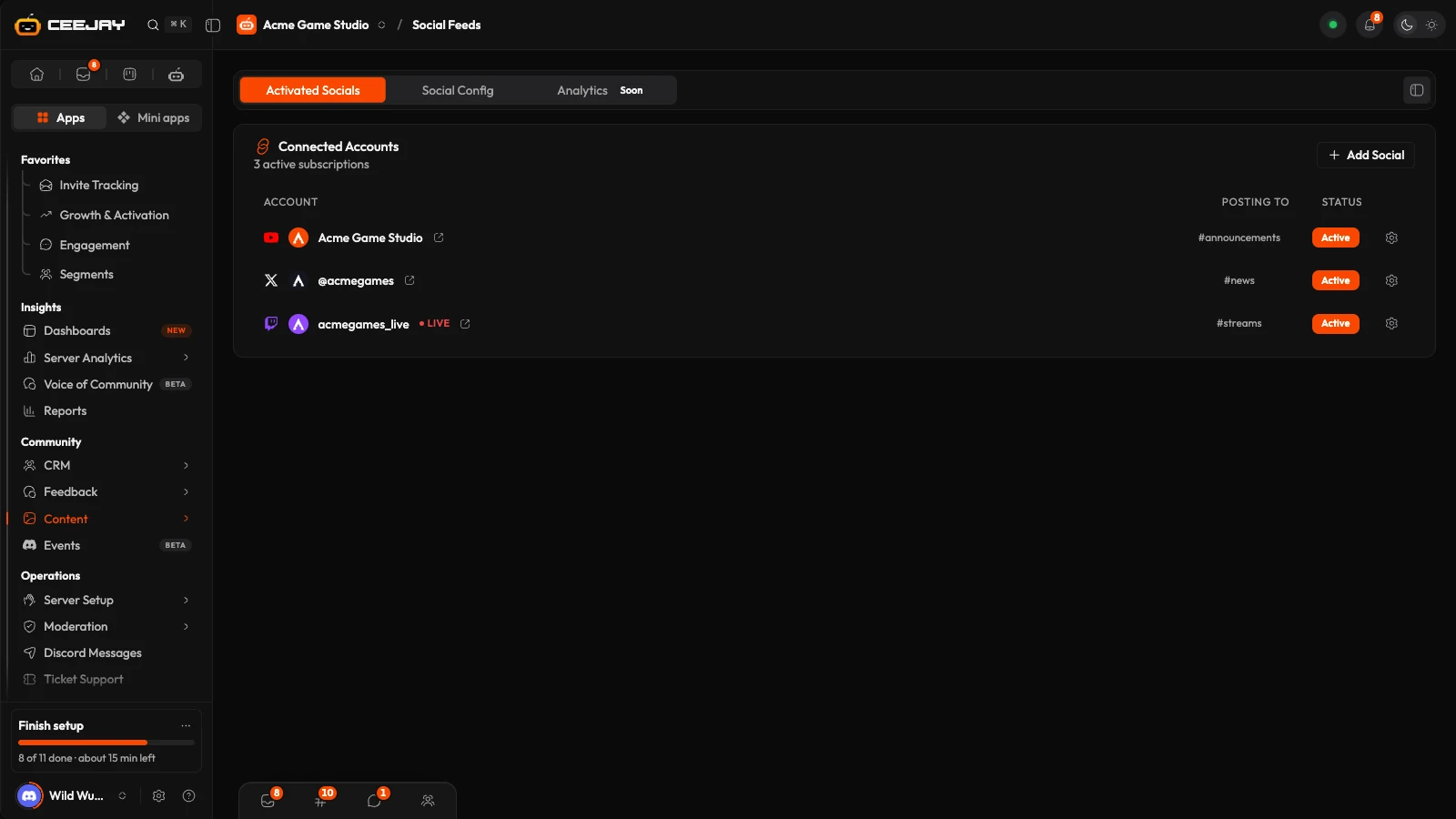
What you see
Go to Content → Social Feeds. The page has three tabs:
- Activated Socials: every account you watch, under Connected Accounts. Each row shows the account, the channel it posts to under Posting to, and a Status of Active or Paused. A Twitch channel that is on air shows Live. Add Social takes you to the next tab.
- Social Config: three cards, YouTube Alerts, X Alerts and Twitch Alerts. Under them are the accounts you watch for each. This is where you add, change and remove accounts.
- Analytics: marked Soon. It is not available yet.
Watch an account
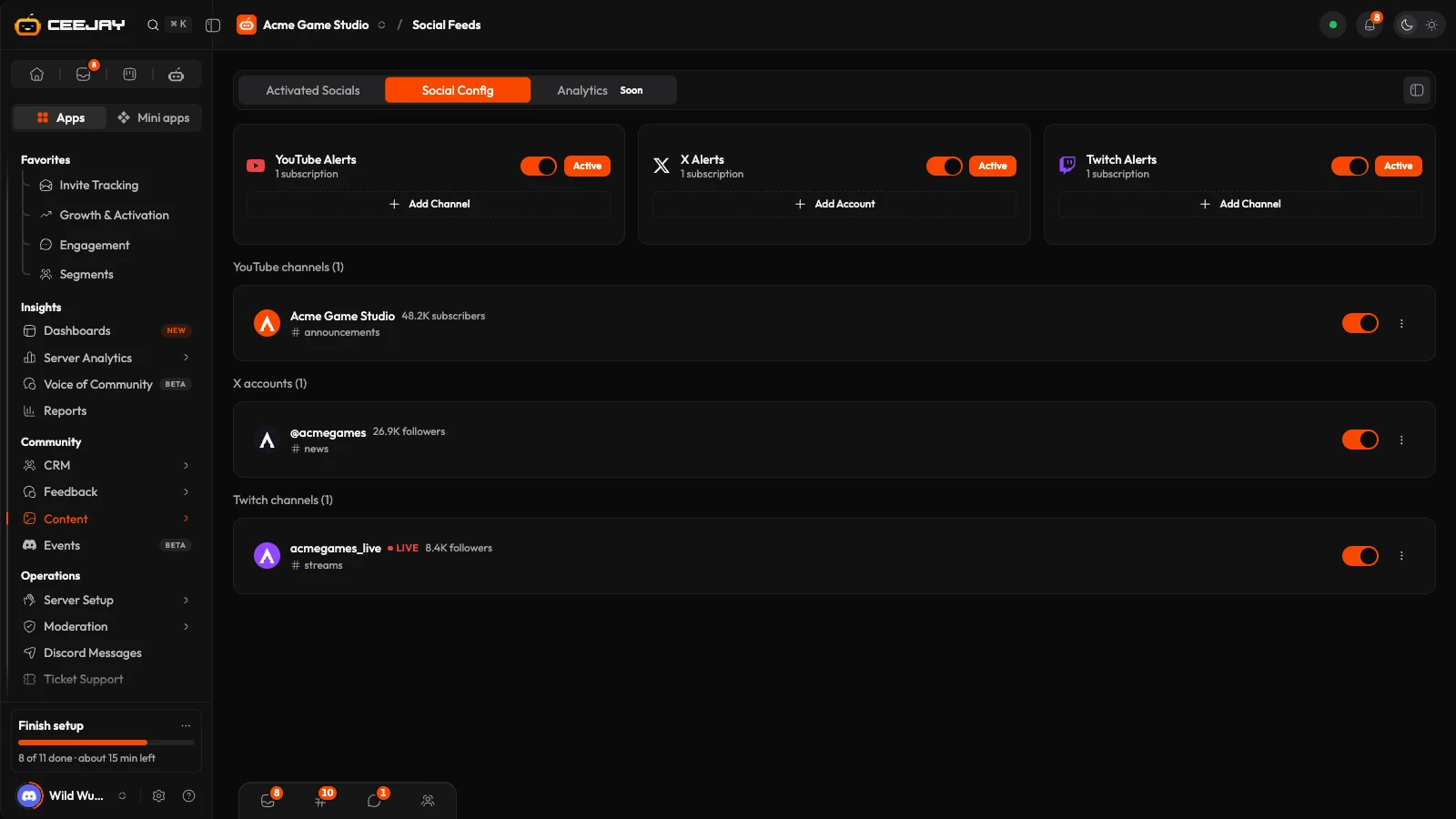
Open Social Config. Press Add Channel on YouTube Alerts, Add Account on X Alerts, or Add Channel on Twitch Alerts.
Find the account. For YouTube, search for the channel by name. For X, type the username, such as @AcmeGameStudio. For Twitch, search for the channel.
Pick the Discord Channel to post in. It must be a text or announcement channel.
Edit the Notification Message if you want to. Press Add Channel (or Add Account) to save. CEEJAY starts watching straight away.
Each account has these options:
- Notification Message: your text with variables. YouTube has
{channel_name},{video_title},{video_url}and{channel_url}. X has{username},{display_name},{tweet_text},{tweet_url}and{profile_url}. Twitch has{streamer_name},{username},{stream_title},{game_name},{stream_url}and{viewer_count}. - Rich Embed: on by default. It adds the video thumbnail and details, the post text and images, or the stream title, category, viewers and preview.
- @everyone and Mention Role (optional): ping everyone, or one role, when the alert is posted. Turning on @everyone clears the role.
- X also has Include Reposts and Include Replies, so you can choose whether those count as new posts.
- Twitch also has When the stream ends: Leave the message as it is, Mark it as ended or Delete the message.
The default YouTube message starts with @everyone
The text CEEJAY fills in for a new YouTube channel begins "Hey @everyone". That is part of the message itself, so it can ping everyone even when the @everyone switch is off, if CEEJAY is allowed to mention everyone in that channel. Delete those words from Notification Message if you do not want that.
How quickly it posts
- YouTube: CEEJAY receives notifications as videos are published and also checks every hour in case one was missed.
- X: CEEJAY receives posts as they are published and also checks every 15 minutes in case one was missed.
- Twitch is checked every 3 minutes. One stream is announced once. If a streamer drops and reconnects, they are not announced again for 15 minutes. If a channel is already live when you add it, that stream is not announced, only the next one.
Manage your accounts
On Social Config, each account has a switch to pause or resume it and a ⋮ menu with Edit and Delete. Delete asks you to confirm. The switch on each platform card pauses every account on that platform at once, and shows Active or Inactive. To change an account's message or channel, choose Edit: the account itself cannot be changed, so to watch a different one, add it as a new account.
What CEEJAY does in Discord
CEEJAY posts in the channel you picked. It needs Send Messages there, and Embed Links for rich embeds. If three runs in a row fail for a feed, CEEJAY notifies your team that the feed stopped posting, with the reason. In notification settings the event is called Social feed stopped posting. See Add the bot.

