

The CEEJAY assistant
Answers to complex questions about your community, and polls, giveaways and events drafted for you.
CEEJAY is the assistant built into your dashboard. Ask it about members, activity, tickets or events and it answers from your community's own data, with charts and tables where they help. It can also draft things for you to review. It reads and drafts, and nothing it drafts is created until you press the button on its card.
What you see
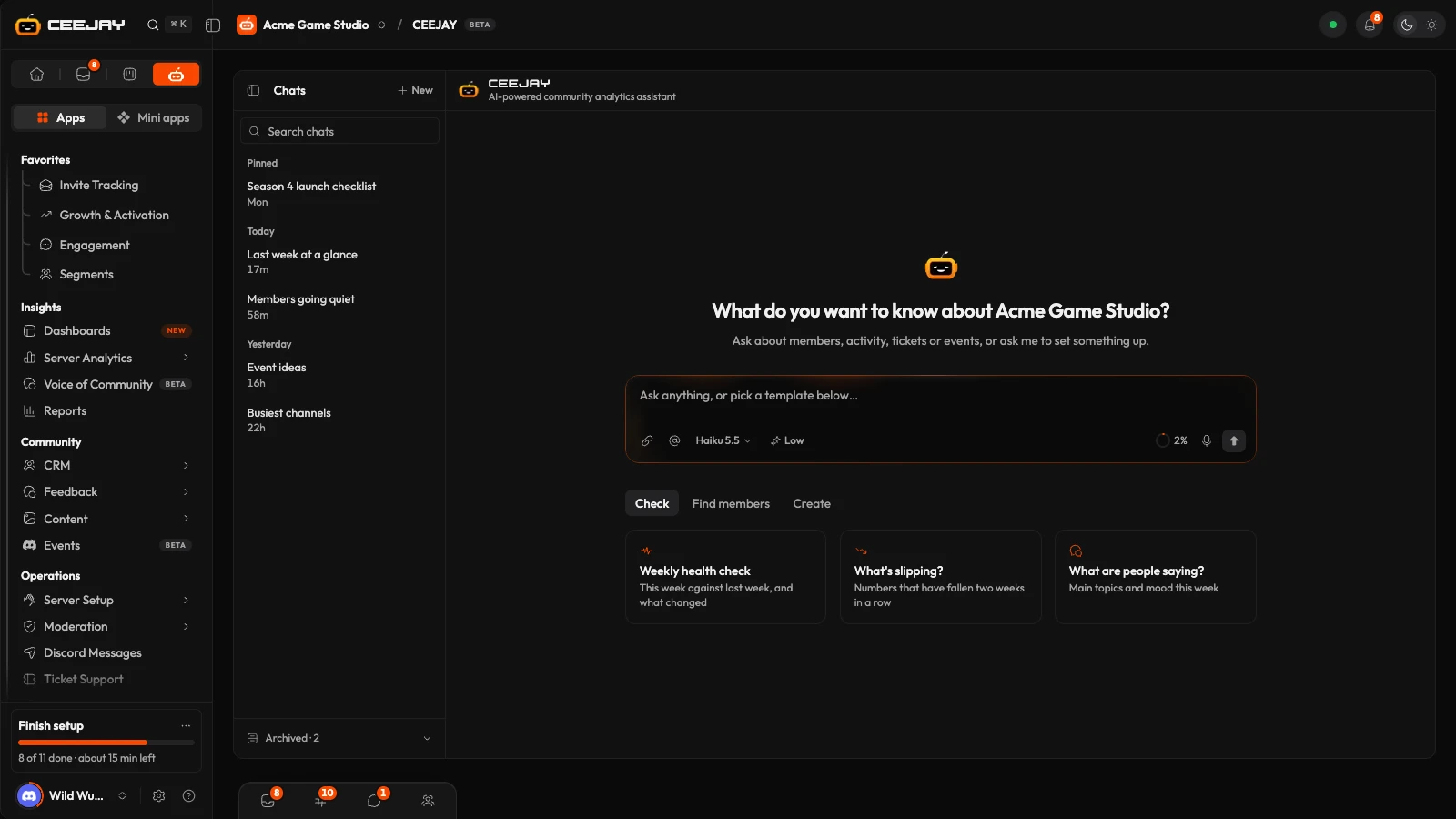
CEEJAY is available in two places, and they share one chat. The CEEJAY page is the last icon in the top bar of the sidebar. On every other page, the CEEJAY head in the bottom-right corner opens the same chat as a pop-up, with New chat, Open full page and Minimise at the top. On a phone, the CEEJAY button in the bottom bar opens it full screen.
- Chats (on the page): your conversations, pinned first and then by date, with Search chats and a New button. Each row's menu has Pin, Rename and Archive. Archived at the bottom lists your archived chats. Your chats are private: teammates cannot see them.
- Three tabs of starter questions, Check, Create and Find members, with three questions each, such as "What's slipping?" and "Members going quiet". Press one and CEEJAY asks it straight away.
- In the pop-up, three questions about the page you are on, under "Ask about" and the page's name.
- Looking at above the prompt bar names the page CEEJAY can see, with the tab and the item you have open, such as a member or a topic. The date range and filters on screen go with it. Press the × to leave the page out of your next messages, and Undo to bring it back. It comes back by itself when you change page.
Ask a question
Type in the prompt bar, or press a starter question. Press Enter or Send. On a touch screen Enter adds a new line, so use Send. Stop cancels a response that is still generating.
While CEEJAY works, one line says what it is checking, such as "Counted messages each day". Afterwards it folds to "Checked 3 things" with the time it took. Press it to see each step.
The answer appears with its numbers, and often a chart, table, key figures or a leaderboard. Under an answer are Copy (text and tables), Read aloud, Good answer and Bad answer, and Regenerate on the latest one.
Ask a follow-up in the same chat. CEEJAY remembers what you have discussed in it.
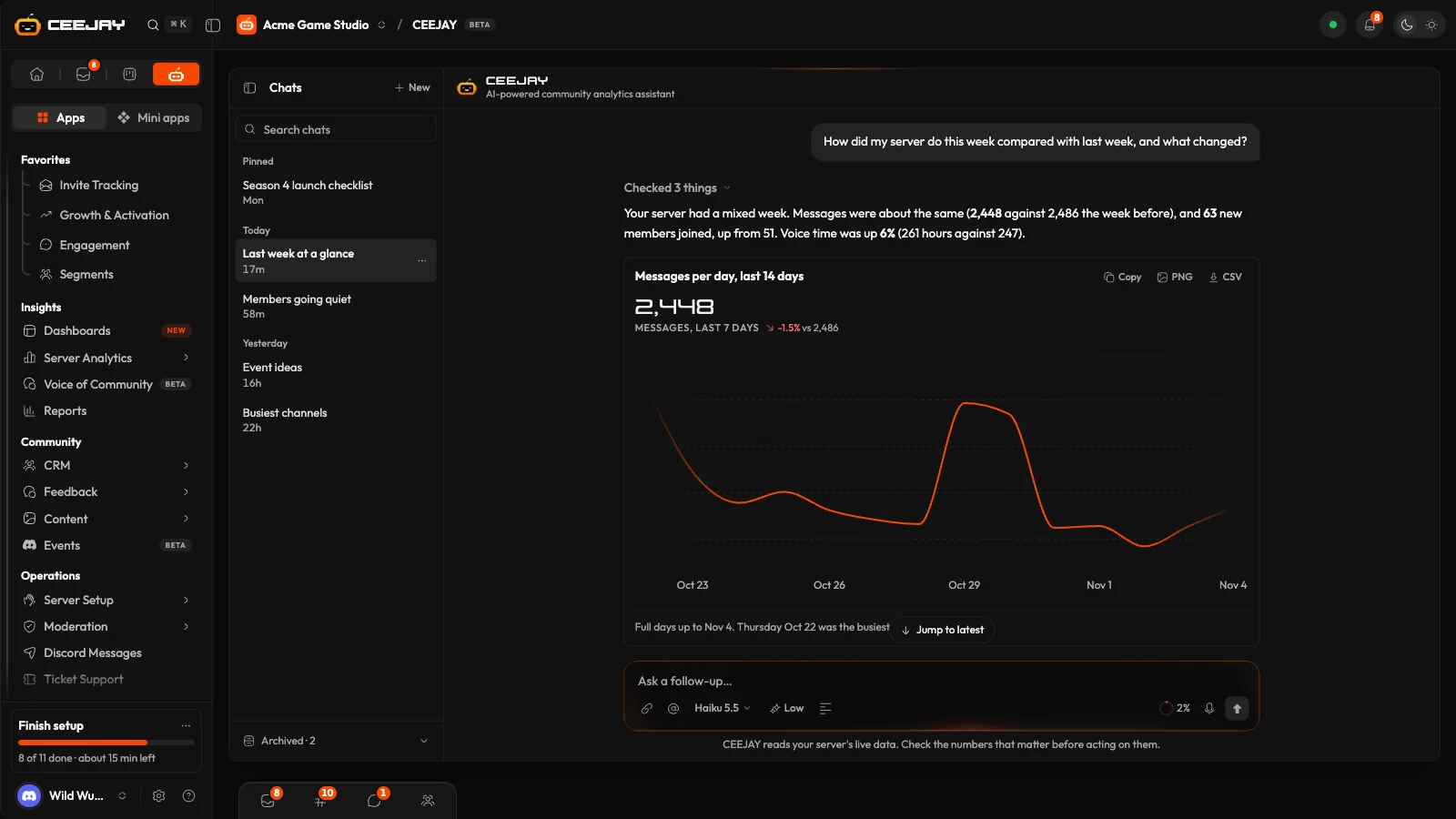
The prompt bar has more than a text box:
- Attach images or PDFs adds pictures (PNG, JPEG, WebP or GIF, up to 5 MB each) or PDFs (up to 10 MB each), four at most per question. You can also drop them on the box.
- Typing @ (or # for channels) opens a picker for the exact channel, role, member, segment or tag you mean. On the page there is also a Mention a channel, role or member button.
- The microphone button types what you say, where your browser supports speech recognition.
- Summarize conversation, or typing
/summarizein a chat that has messages, shows a summary you can Copy or Continue in new chat.
Some chart cards have an Ask CEEJAY button. It opens CEEJAY and asks a ready-made question about that chart straight away.
What CEEJAY reads
- Your community's data in CEEJAY: members and what they do, messages (it can search what members wrote), voice time, invites, tickets, polls, giveaways, events, forms, quests, automations, reports, and the topics and mood from Voice of Community. It reads only the community you have selected.
- The documents in your Knowledge base, for questions about your game, product or rules.
- The page you are on, so "this page" means what you are looking at.
- Files you attach to a question.
It can only look. It cannot change or delete anything, post in Discord or message a member.
What CEEJAY drafts
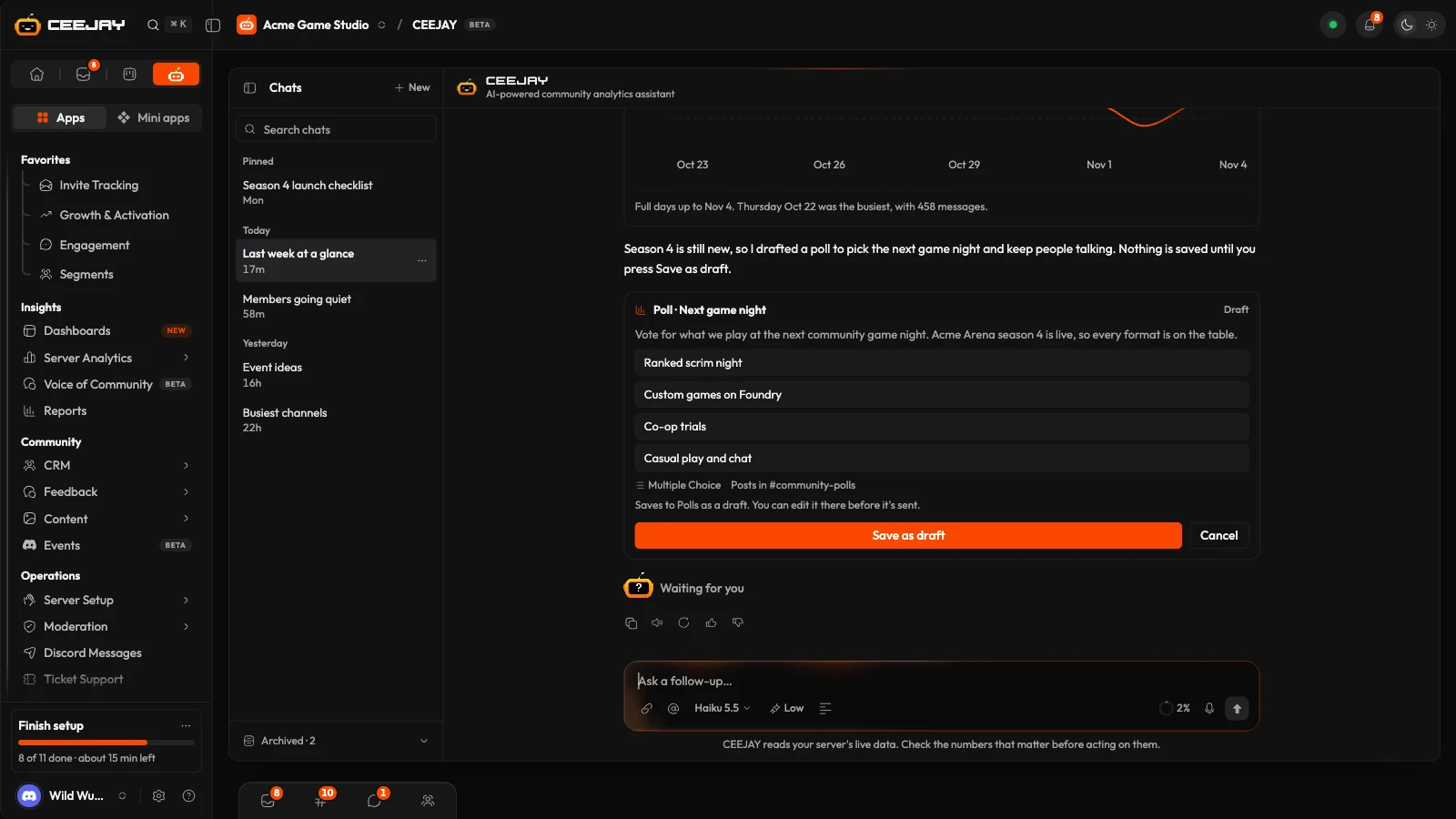
To make something, ask for it, such as "Draft a poll asking what event members want next". CEEJAY writes a draft card in the chat with a preview and a line under it saying exactly what the button does. Press the button to create it. Cancel discards the draft, and the card confirms that nothing was created.
| Draft | Button | What pressing it does |
|---|---|---|
| Poll | Save as draft | Saves it to Polls as a draft. You edit it there before it is sent. |
| Giveaway | Save as draft | Saves it to Giveaways as a draft. It starts when you start it there. |
| React roles panel | Save as draft | Saves it to React Roles as a draft for you to send. |
| Message | Save as draft | Saves it to Magic Messages as a draft. You send or schedule it from there. |
| Message with a time | Schedule message | Schedules it in Magic Messages. It sends at that time unless you change or cancel it there first. |
| Ticket panel | Create panel | Creates it in Ticket Support for you to send. |
| Event | Add to calendar | Adds it to the calendar straight away. |
| Quest | Create quest | Creates it in Quests straight away. |
| Shop item | Add to shop | Adds it to your shop straight away. |
| Invite link | Create invite link | Creates a Discord invite link straight away. |
| Form | Create form | Creates it in Surveys & Forms straight away. |
| Upvote category or template | Create category, Create template | Adds it to Upvote straight away. |
| Dashboard | Create dashboard | Creates it on the Dashboards page, where Dashboards is available. |
After you press the button, the card says what happened and has an Open link to the new item. If it fails, the card shows why and a Try again button.
When a request could mean two things, CEEJAY asks with buttons instead of guessing. You can also type your answer. When one request needs several drafts, it lays out a plan first, with a Do all button (it shows the number of steps) and One by one.
How CEEJAY labels its work
- Each answer starts with "CEEJAY" and the name of the model that wrote it.
- The steps line shows what CEEJAY looked at. On the stronger model, it can also show a short summary of its thinking.
- The numbers come from your data and CEEJAY writes the explanation around them. When it cannot confirm something, it says so.
- If the AI's safety checks stop an answer, a note says so.
- If an answer fails, you see "Couldn't finish this answer" and "Nothing was changed on your server", with Try again and Show details.
Model, effort and memory
The model button in the prompt bar switches between Haiku 5.5, a quick model for simple lookups and counts, and Sonnet 5.5, a stronger one for most questions and reports. The effort button, for the stronger model only, runs from Low (quickest) to Max (most thorough, slowest) on a slider from Faster to Smarter.
The ring beside the microphone shows how much of the conversation's context limit is used (Chat memory in its pop-up). It turns amber at 80%. At 95% a message says the conversation is full and offers Summarize and continue or New chat.
An archived chat opens read-only. Press Continue in new chat to carry on from it.
Good to know
CEEJAY answers with Claude models from Anthropic. What CEEJAY reads to answer you, and any file you attach, is sent to Anthropic to write the answer. Check any number you are going to act on against its own page.

