

Discord Messages
Post any message, from announcements and rules to FAQs, with buttons that give roles or reply, now or at the time you pick.
Discord Messages is where you write the messages CEEJAY posts in your Discord channels: rules, announcements, event posts, FAQs. You write on a canvas that looks like the message in Discord, then send it, schedule it or keep it as a draft.
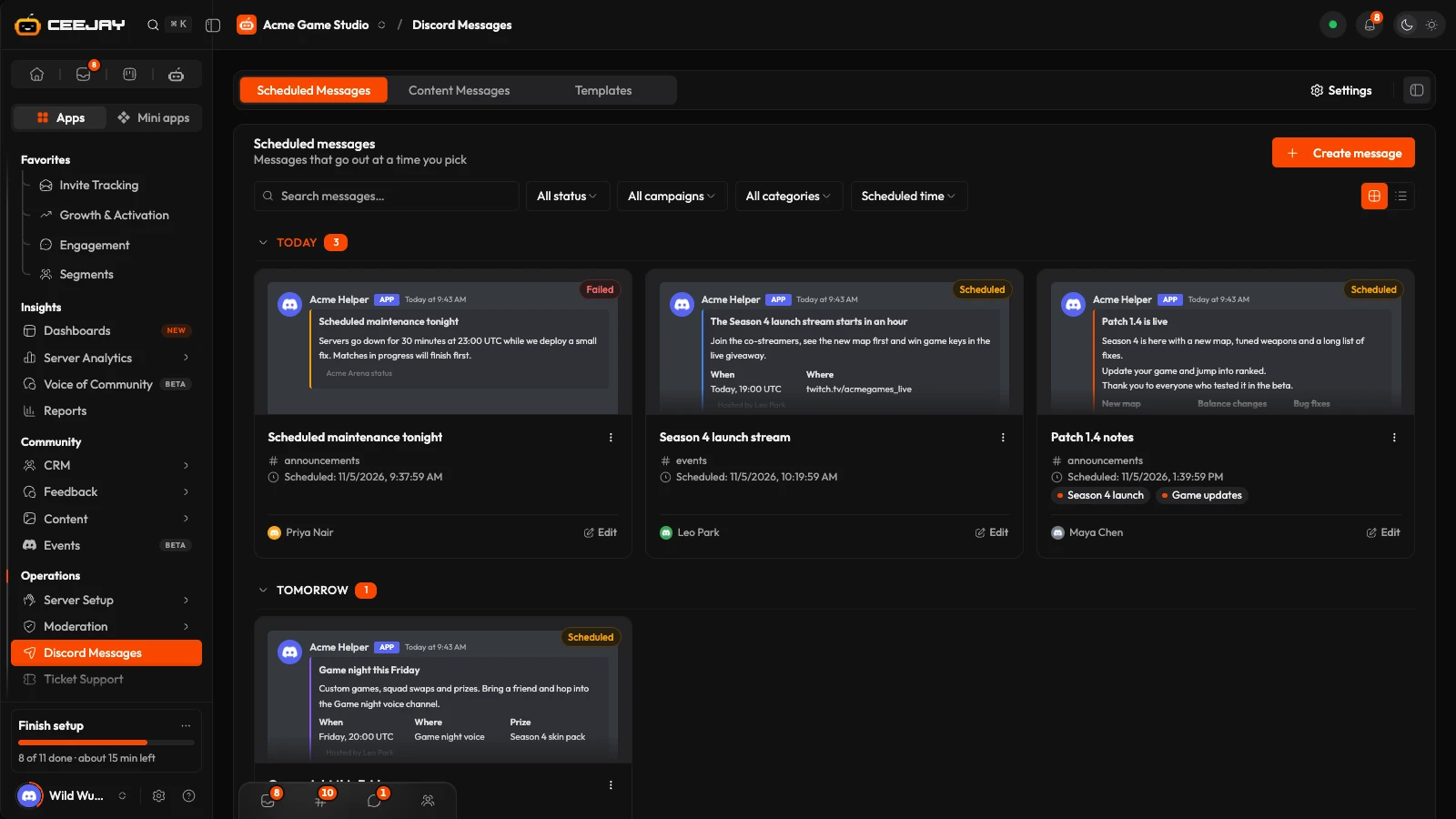
What you see
Go to Operations → Discord Messages. This feature was previously called Magic Messages, and some screens, including its Settings tab, still use that name. The page has three tabs:
- Scheduled Messages: messages that go out at a time you pick, and drafts. They are grouped by day, with drafts in their own group. Messages already sent are folded into a SENT group at the end.
- Content Messages: messages that stay in a channel after you send them with Send now: rules, links, FAQs.
- Templates: your saved templates under Server templates, and ready-made ones under Pre-made templates.
Each message is a card showing the message as it will look in Discord, with its status (Draft, Scheduled, Pending, Sent or Failed), its channel and who made it. A message that CEEJAY drafted for you says via CEEJAY. Use the search box, the Status filter and the sort menu to find one, and the layout toggle to switch between cards and rows. The ⋮ menu on a card has Edit, Duplicate, Resend (once a message has been sent) and Delete.
If you left a builder with unsaved work, an Unsaved changes card at the top of the list offers Resume or Discard. Your work is kept in your browser as you type.
Write a message
Press Create message. Choose Start from scratch, or Use a template to open the template gallery.
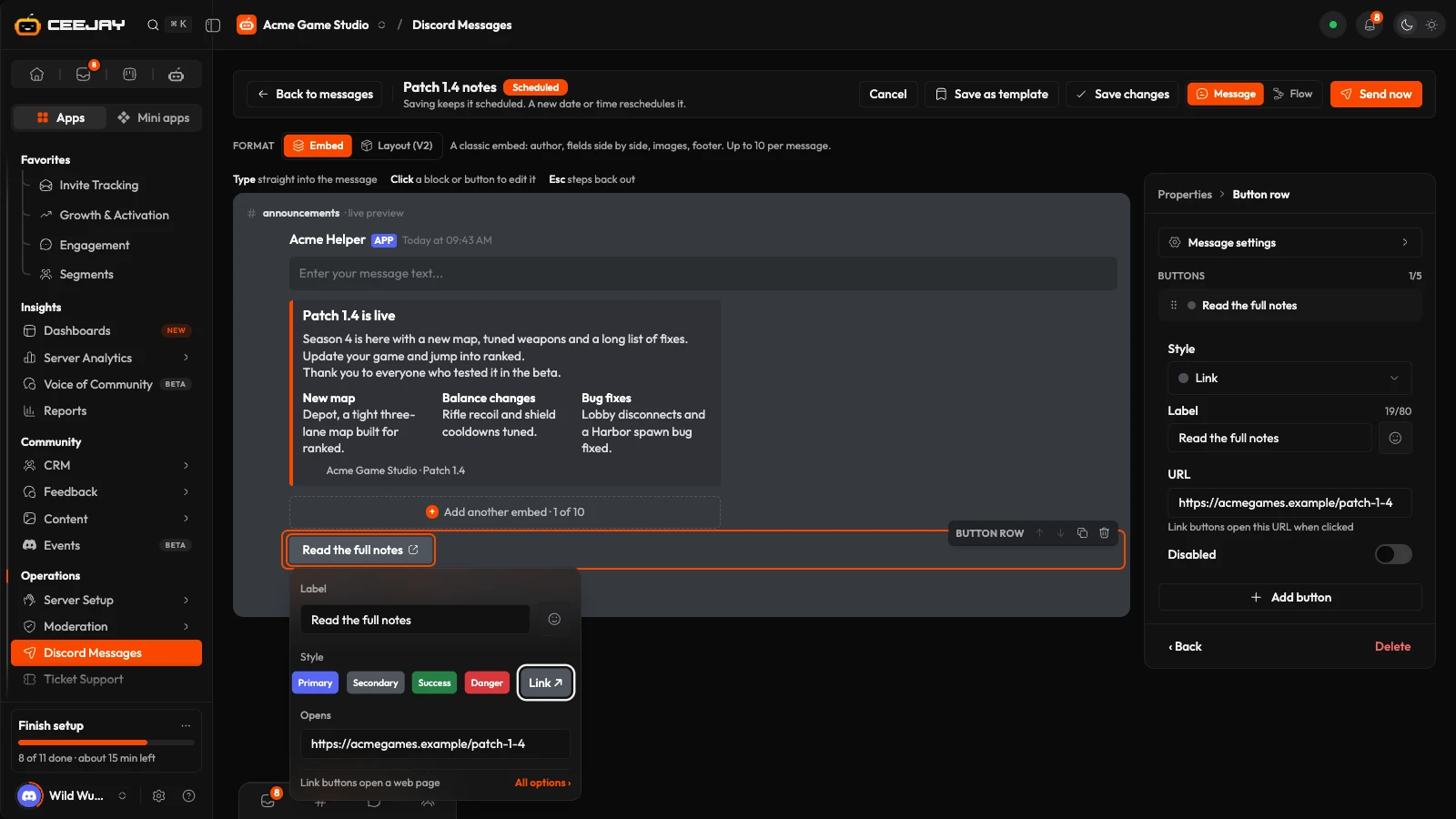
The builder is its own page. The message is drawn as Discord shows it: click the text to type there, or click a block to edit it. The Properties panel beside it holds the message's own Settings. Type a Message title (for your team only, up to 100 characters) and pick the Channel.
Pick the format with the Embed and Layout (V2) switch above the message. Embed gives you text, up to 10 embeds and up to 5 rows of buttons and select menus. Layout (V2) is Discord's newer layout, with containers, sections, text blocks, separators, image galleries and buttons placed anywhere. Layout messages have no embeds and no attachments. You are told what changes when you switch formats, and nothing changes in Discord until you save.
Add buttons if you want them. In Embed, press Button row under the message, then + Button. In Layout (V2), add a Button row from Add a block. Press a button to change its label, emoji and style. A Link button opens a web address, which you type under Opens. All options on a button opens its full editor, where the actions are. Any other button runs up to three actions when a member presses it: Text response, Add role, Remove role or Toggle role. For a text response, the Target is Channel message or DM user. The reply is private to the member who pressed the button unless you tick PUBLIC.
Look at Checks in the Properties panel before you send. A red check, such as an empty message or an embed field with a name but no value, stops Send now, Schedule message, Save changes and Update in Discord until you fix it. Amber checks are warnings, such as an empty field or block that will be left out. Save draft is not stopped by checks, so you can save unfinished work. It only needs a title, a channel and something in the message.
See what happens after a click
A message with buttons does more than post. Switch the top bar of the builder from Message to Flow to see everything a member gets after a click, before you send: the post, each button's private reply, pop-up form, direct message and role change, each as Discord shows it. Every step is marked Editable (set in the builder) or Fixed text (CEEJAY's own words).
Steps can be dragged where you want them, and Tidy up puts them back in line. You can also build right on the flow. Add a button puts a new button on the posted message. On a button, Add a step adds a reply only that member sees, a post in the channel, a direct message, or a role to add, remove or toggle. A button holds up to three steps. Pick a step to change its words and how it is sent, or Remove this step. Changes made in Flow also appear in Message, and both are saved together. The same switch is on React Roles and Ticket Support panels, where Flow shows what will happen.
Send, schedule or save a draft
The buttons at the top of the builder depend on where the message is.
- Send now posts it. CEEJAY posts queued messages within about ten seconds. The page shows Sent once the message is in Discord, or the reason it could not be posted. Until then it shows Queued, and the card changes when the message is out.
- Schedule message posts it later. Open Schedule in the Properties panel, pick a Date and a Time (in 5-minute steps, in the timezone shown under them) and press Schedule message at the top. For a message that is already scheduled, Save changes keeps it scheduled, and a new date or time reschedules it.
- Save draft sends nothing. A new message asks which list the draft goes in, Scheduled messages or Content messages. An existing message stays in its own list.
- A sent message shows Update in Discord instead, which edits the message that is already posted.
Good to know
A message sent as a webhook cannot be edited afterwards, only deleted. A Layout message that has been posted cannot be turned back into an embed: use Duplicate as embed to start an embed copy.
Send as a webhook
By default the bot posts the message. Under Send as you can choose Webhook to post it under another name and picture. Pick a saved Webhook Identity, or Custom (one-off)… and type a Display Name (up to 80 characters) and an avatar for this message only.
To save an identity for reuse, go back to the list and press Settings at the top of the page (Settings → Operations → Discord Messages). On the Webhooks card, press Identity. A name cannot contain "discord" or "clyde". CEEJAY creates one webhook called "CEEJAY Messages" in the channel the first time it needs it, which needs the Manage Webhooks permission.
Attachments
Embed messages can carry up to 10 files, such as images and PDFs. Press Upload attachments in the Properties panel. Each file must be within your server's Discord upload limit, which the panel shows.
Templates
On the Templates tab, choose Pre-made templates and press Browse templates, or choose Use a template when you create a message. The gallery shows the built-in templates, with a Built-in and Your templates switch once you have saved some of your own. Search them, narrow them with the Category and Industry dropdowns, and choose Embed or Layout (V2). Press a template to read it, then press Use template. A built-in template opens in the builder pre-filled.
Built-in templates contain placeholders in square brackets, such as the date of an event. The server name is filled in for you. Send now, Schedule message, Save changes and Update in Discord are blocked until every placeholder is replaced, and until every link button has an address and every role button has a role. Save draft is never blocked.
To save a template of your own, press Save as template in the builder, name it, and add a description if you like. It appears under Server templates, where you can Edit, Duplicate, Use template or Delete it. Deleting a template does not change the messages made from it.
What CEEJAY does in Discord
CEEJAY posts the message in the channel you picked, as the bot or as the webhook. It needs Send Messages there, plus Embed Links for embeds, Attach Files for attachments and Manage Webhooks for a webhook. If a message cannot be posted, its card shows Failed and your team gets a notification with the reason, listed as Magic message failed to send in notification settings. When you press Send now, the page tells you the reason on the spot. See Add the bot for what each permission is for.
Resend posts a new copy and leaves the original where it is, so members see the message twice unless you delete the first one. Delete removes the message from the dashboard and, if it was already sent, from Discord. It cannot be undone.

