

Polls
Ask members anything in Discord, from yes or no votes to ratings and open questions, and reward everyone who votes.
Ask members anything in Discord, from yes or no votes to ratings and open questions, now or on a schedule. CEEJAY closes each poll, shows the result and can reward everyone who voted.
What you see
Go to Feedback → Polls. The page has six tabs:
- Overview: how polls are doing across a date range. It follows the range picker and the Compare switch in the header.
- Polls: every poll that has been sent, as cards (or a list, or a table) with its status.
- Scheduled: polls waiting to go out, and drafts that were never sent.
- Results: one poll in depth. Pick the poll at the top.
- Templates: ready-made polls, and the ones you saved.
- Sequences: a series of polls sent one after another.
The bell beside the tabs is Needs attention. It lists polls closing with few votes, polls past their end time that are still open, live polls with no voter reward, and a drop in participation. Dismiss an item and it stays dismissed until its numbers change.
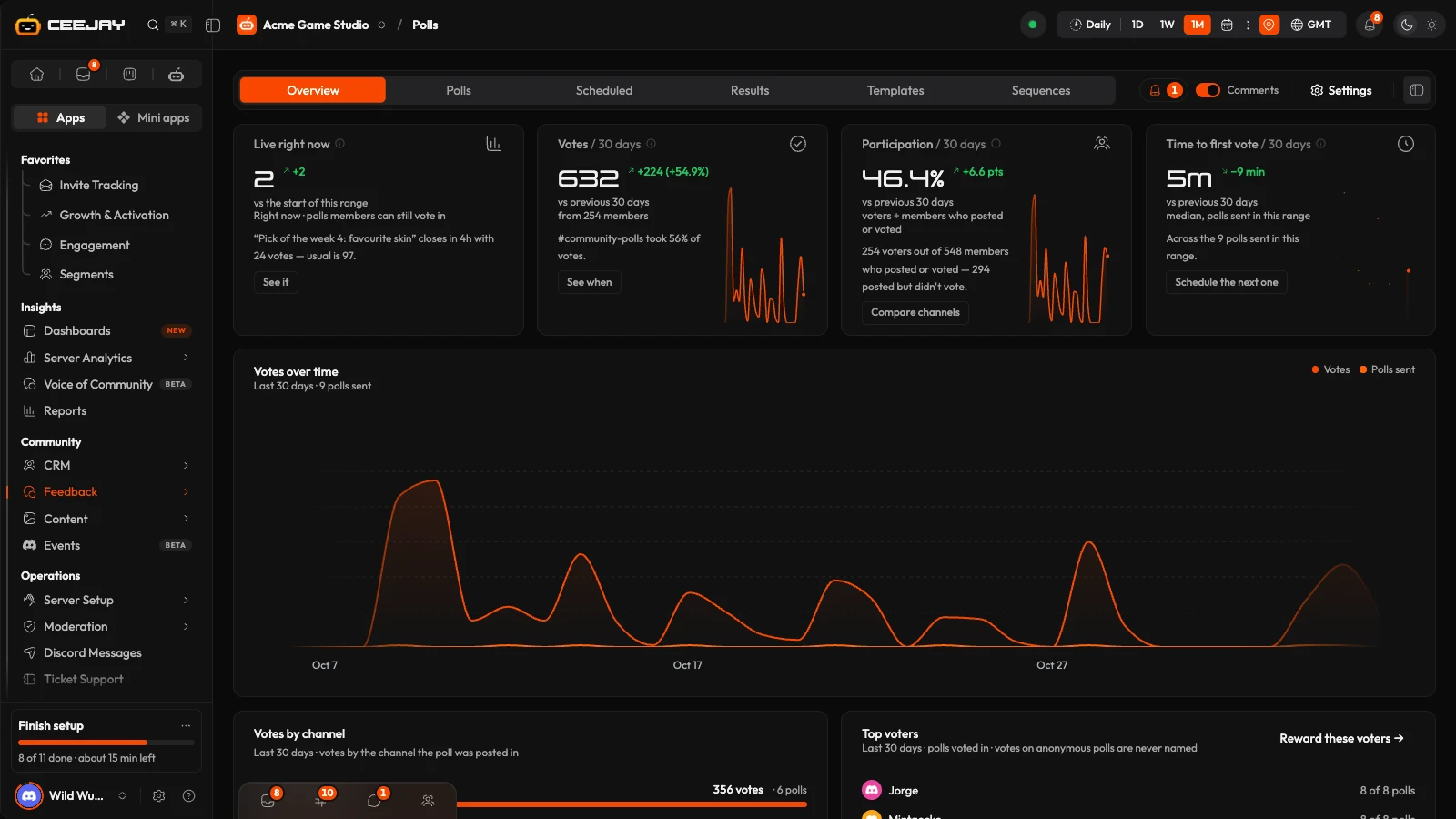
Overview
The Overview shows how polls are doing across the range, what drives it, and which live poll closes next.
- Live right now: polls members can still vote in, compared with the same count when the range began.
- Votes: votes cast in the range, one per member per poll.
- Participation: members who voted as a share of members who posted or voted in the range. It never goes above 100%.
- Time to first vote: the median time from a poll being sent to its first vote, for polls sent in the range.
Under the cards, Votes over time draws votes and polls sent. Votes by channel shows votes per channel. Top voters lists members by the number of polls they voted in; votes on anonymous polls are never named. Live polls is a table of the polls closing soonest, with a View results button for each one. Its "usual" figure is the average for closed polls of the same type in the last 90 days.
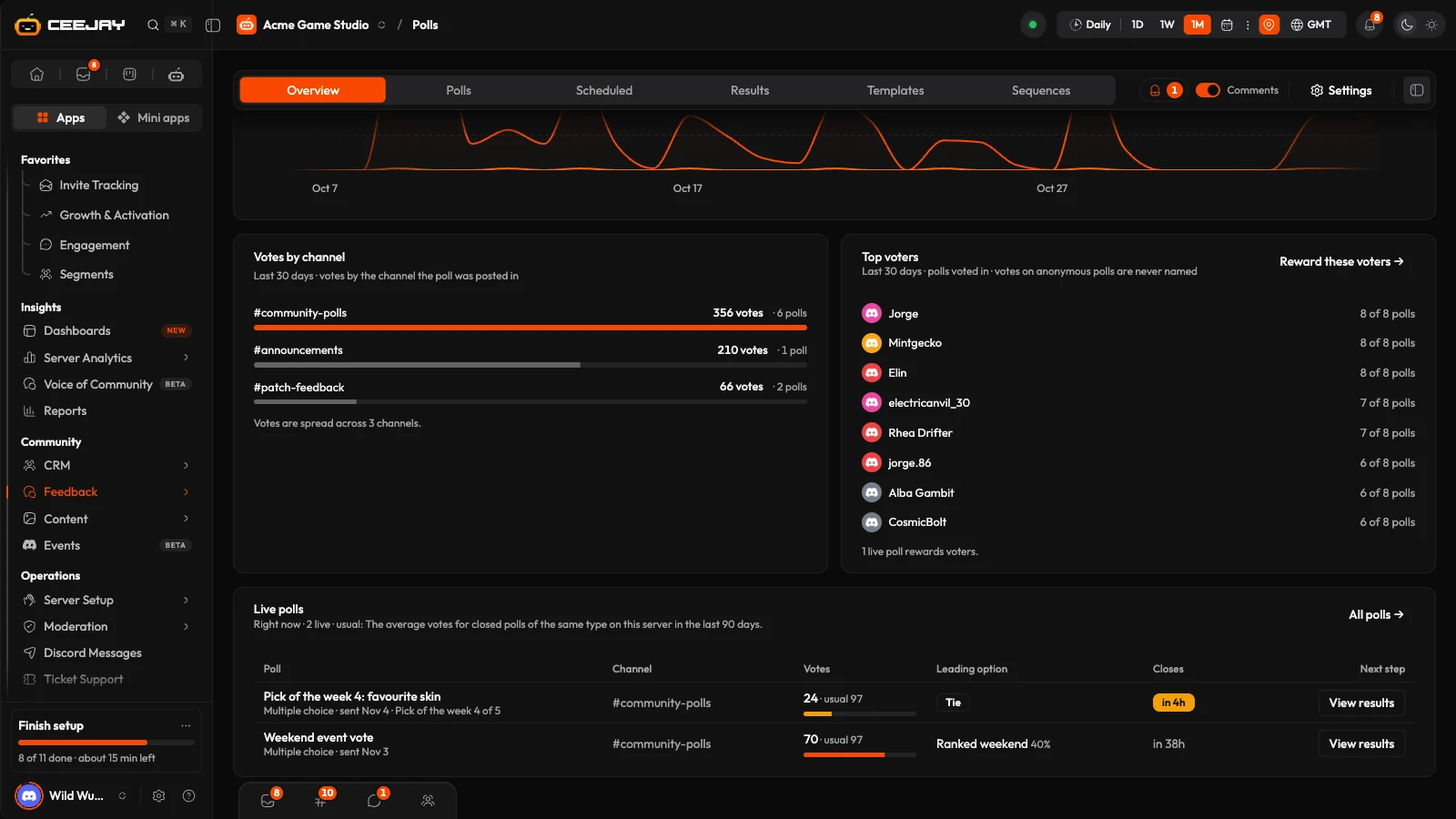
Press the (i) beside a card title for its exact definition.
Create a poll
Go to Feedback → Polls and press Create Poll on the Polls or Scheduled tab.
Choose Start from scratch, or Use a template to open the template gallery. A template opens the builder already filled in.
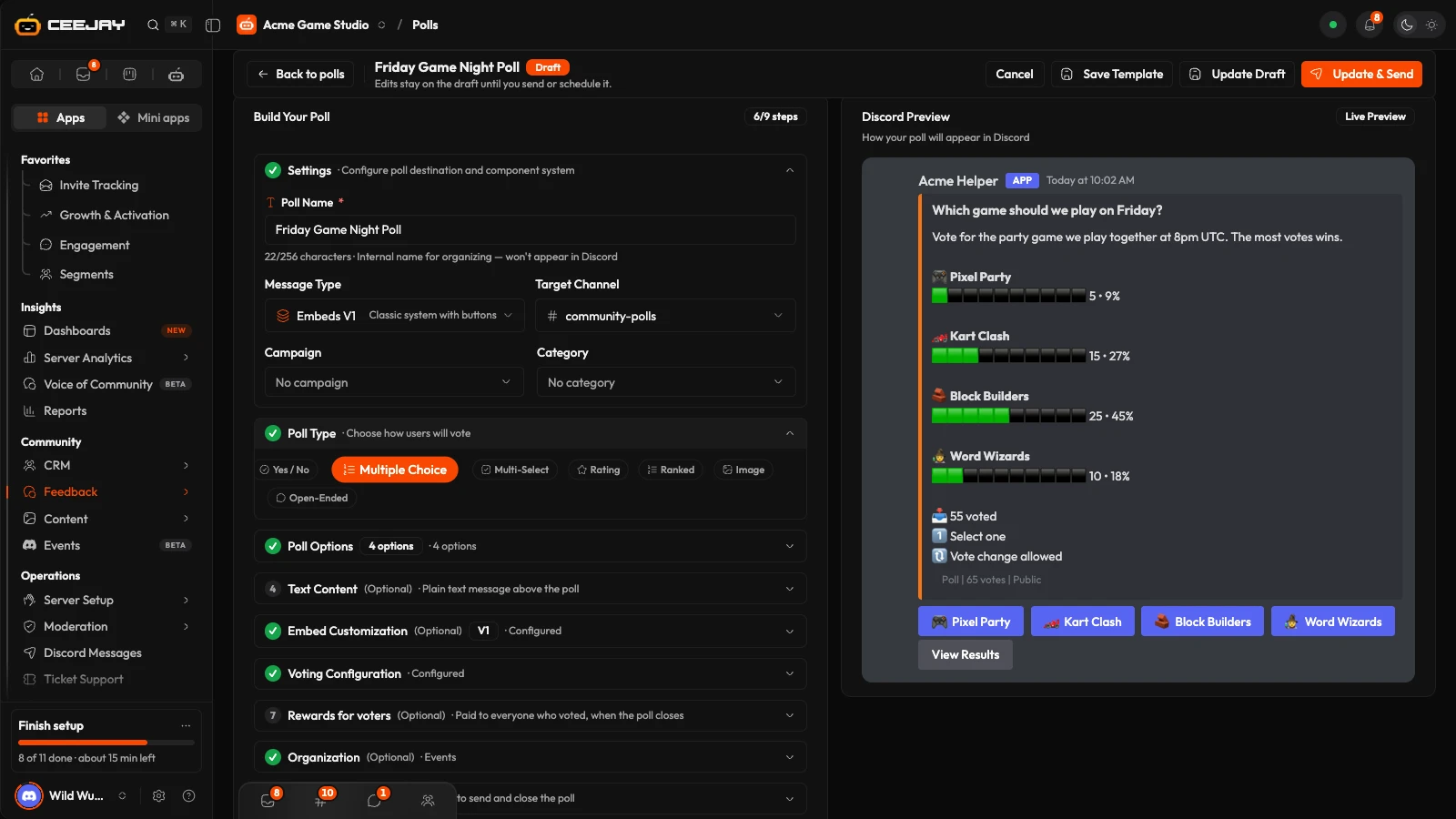
Build the poll with a live Discord preview alongside. In Settings, type the Poll Name and pick the Target Channel. The poll name is for your team only; members never see it. Open Poll Type and choose how members vote: Yes / No, Multiple Choice, Multi-Select, Rating, Ranked, Image or Open-Ended.
In Poll Options, add what members choose from. Yes / No polls add their two options for you. A rating poll takes a Minimum Rating and a Maximum Rating. An open-ended poll takes a Response Prompt, and each answer members submit becomes an option others can vote for.
Write the message in Text Content and Embed Customization. The title members see is the Embed Title, not the poll name. The Message Type in Settings can also be Components V2, which gives you a free layout in Message Layout. Open-ended polls start in Components V2. Switching between the two clears what you wrote, and the page asks before it does.
Set the voting rules in Voting Configuration:
- Anonymous Voting hides who voted for which option.
- Allow Vote Changing lets members change their vote while the poll is open.
- Show Results During Voting is Always, After Close or Never. With Always, members see the current results in the private confirmation after they vote.
- Result Visibility is Public, Voters Only or Admins Only. With Admins Only, only members who can manage the server can use the View Results button on the message.
- Required Roles limits voting to members with those roles. All roles means anyone.
- Selection Limits sets the fewest and most options a member can pick on a multi-select poll.
- Results Display Style and Chart Emoji change how the results are drawn in the message.
Optional: add Rewards for voters, an Organization category and tags, and Scheduling. Then press Send Now.
The bar at the top of the builder holds the final actions: Cancel, Save Template, Schedule (once Schedule for Later is on), Save Draft and Send Now. Saving a draft sends nothing. Your changes are also autosaved as a draft while you work, and the Polls tab offers to resume them if you leave.
Good to know
A poll can only be sent or scheduled once it has a name and a channel. If you used a template, replace every [placeholder] first. Send Now and Schedule stay disabled until you do. Saving a draft never does.
What members see
The bot posts the poll in the channel you picked, with buttons or menus to vote: two buttons for Yes / No, a button per option for multiple choice, a menu for multi-select, a row of numbers for a rating. After a vote, the member gets a private confirmation. Members can also use /poll results to read a poll's results. Members who can manage the server can close a poll with /poll close or from the message's Apps → Close Poll menu, and the person who created the poll can use the menu too. See commands.
Results are not secret
Every poll message has a View Results button, and any member can run /poll results. Show Results During Voting only decides whether the vote confirmation includes the results. Voters Only has no effect yet, and Admins Only covers the button but not /poll results. Do not rely on these settings to keep a vote blind.
When a poll closes, the bot changes the original message into the result. You can also post the result again as a new message: press Share results on a closed poll's card, or Post results to #channel on the Results tab.
Scheduling and closing
Open Scheduling in the builder.
- Duration / Auto-close closes the poll after 1 hour, 6 hours, 12 hours, 24 hours, 48 hours or 1 week, or at a Close at time you pick. A preset counts from the moment the poll is posted.
- Schedule for Later posts the poll at the Publish at time. The time must be in the future.
- Recurring repeats the poll Daily, Weekly, Biweekly or Monthly, until an optional Recurrence ends at time.
A scheduled poll stays on the Scheduled tab until it is sent. Cancel stops it from being sent. A draft there is removed with Delete.
Poll rewards
Open Rewards for voters in the builder. Everyone who voted is rewarded once when the poll closes, however often they changed their vote. Set a Role, XP or Coins, or use Add from the pool for any other reward from the Rewards Engine. Save the poll first: the section asks you to when it has not been saved. The poll message shows a "Vote to earn" line. Voter rewards carry over to repeats, resends and duplicates.
Manage polls
On the Polls tab, a poll's ⋮ menu offers:
- Edit. A live poll only lets you change its name, description and a few settings.
- View results, for a live or closed poll.
- Duplicate, which makes a new draft on the Scheduled tab.
- Resend, only for a poll that failed to send.
- Close Poll, which stops new votes and shows the final results.
- Share Results, for a closed poll.
- Delete. All votes are lost.
Use the status filter (All Status, Active, Closed, Pending, Failed), the search box and Group to find a poll.
Results
On the Results tab, pick a poll. Four cards compare it with closed polls of the same type in the last 90 days: Votes, Voters, Participation and Time to first vote. Result shows what won, or the tie. When the votes came in shows the timeline, and Who voted lists voters, newest first, with a link to each member profile. On an anonymous poll, voters are hidden.
The buttons above the cards are Export CSV, Duplicate and Post results to #channel.
Templates
The Templates tab has Premade Templates and Your Templates. Press Browse templates for the gallery, or Use template on any card. Save Template in the builder adds your own poll to Your Templates.
Sequences
A sequence sends a series of polls to one channel, one after another. Use it for a weekly check-in or an onboarding survey.
Write each step as an ordinary draft poll first. Give each one an auto-close time.
On the Sequences tab, press New sequence. Enter a Name, a Channel, a Cadence (Manual, Every hour, Every day or Every week) and Every N. With Manual, you send each step yourself, and there is no Every N. Add the drafts under Steps and drag them into order.
Press Save, then Start sequence on the card. Step 1 is sent immediately, or at the Start time if you set one.
Each later step is sent the chosen interval after the previous poll closes, so a step with no close time holds the sequence up until you close it. Pause stops it, Resume carries on, and Edit steps changes the list. Deleting a sequence does not delete its polls.
Settings
Press Settings at the top of the page to open the poll settings in a panel beside it. The same settings are under Settings → Community → Polls: Defaults, Permissions, Notifications and Auto-archive. CEEJAY saves these choices but does not apply them yet, so changing them has no effect on polls today.

