

Knowledge base
Give CEEJAY AI your website, rules, docs and FAQs, so it answers with what your community actually says and does.
The knowledge base is what CEEJAY AI reads about your community: your website, your rules and FAQ channels, handbooks, help pages and how you like to sound. The more it can read, the more its answers sound like they come from someone who knows your community.
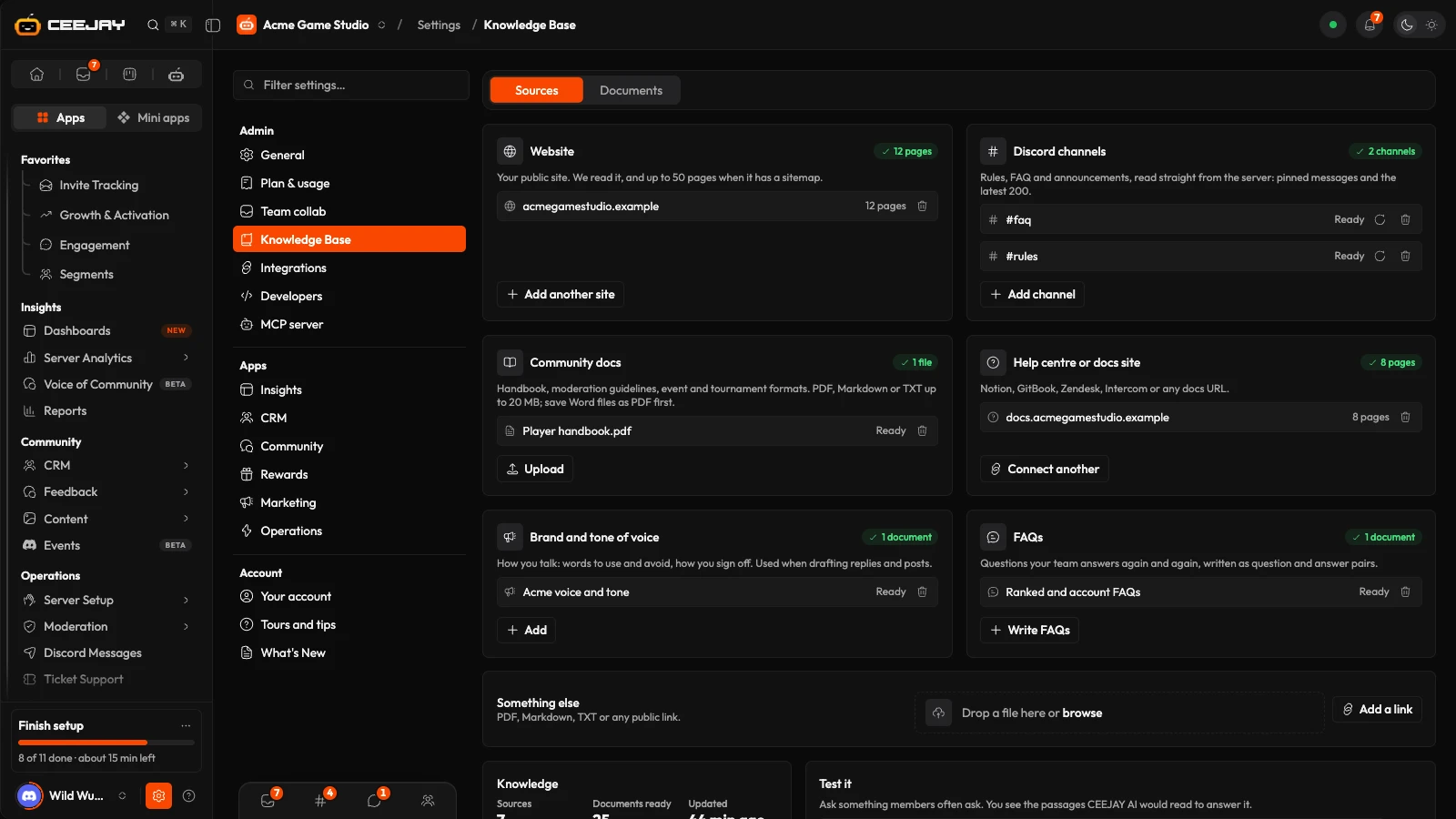
What you see
Go to Settings → Knowledge Base. Two tabs sit at the top, Sources and Documents.
Sources holds, from top to bottom:
- The source cards: Website, Discord channels, Community docs, Help centre or docs site, Brand and tone of voice and FAQs, then a Something else row. Each card says what to add and shows what you have added, with a count.
- Knowledge: how many Sources you have, how many Documents ready, and when it was last Updated.
- Test it: ask a question and see which passages CEEJAY AI would read to answer it.
Documents lists everything CEEJAY AI can read for this community, with an All sources menu to filter the list.
The setup window has the same cards in its Knowledge step. See Set up your community.
Add a website or help centre
On the Website card press Add website. For a docs site, use Connect on the Help centre or docs site card instead. It works with Notion, GitBook, Zendesk, Intercom or any public docs URL.
Type the Web address, such as https://yourcommunity.gg, and press Add. If the URL is not valid, the window says Enter a web address, like https://yourcommunity.gg.
CEEJAY reads the page. When the site has a sitemap it reads up to 50 of its pages, and a message says Reading and the number of pages. The item shows Reading… until it is Ready.
Add a second site with Add another site or Connect another. Something else takes any other public link: press Add a link.
Add Discord channels
CEEJAY reads a channel straight from your server: its pinned messages and the latest 200. Use it for rules, FAQ and announcements. The bot needs the View Channel and Read Message History permissions in that channel.
On the Discord channels card press Add channel.
Search with Search channels… or pick from the list. Channels with names like rules, faq, announcements or welcome are listed first under Suggested, and the rest are under Other channels. Text and announcement channels are offered.
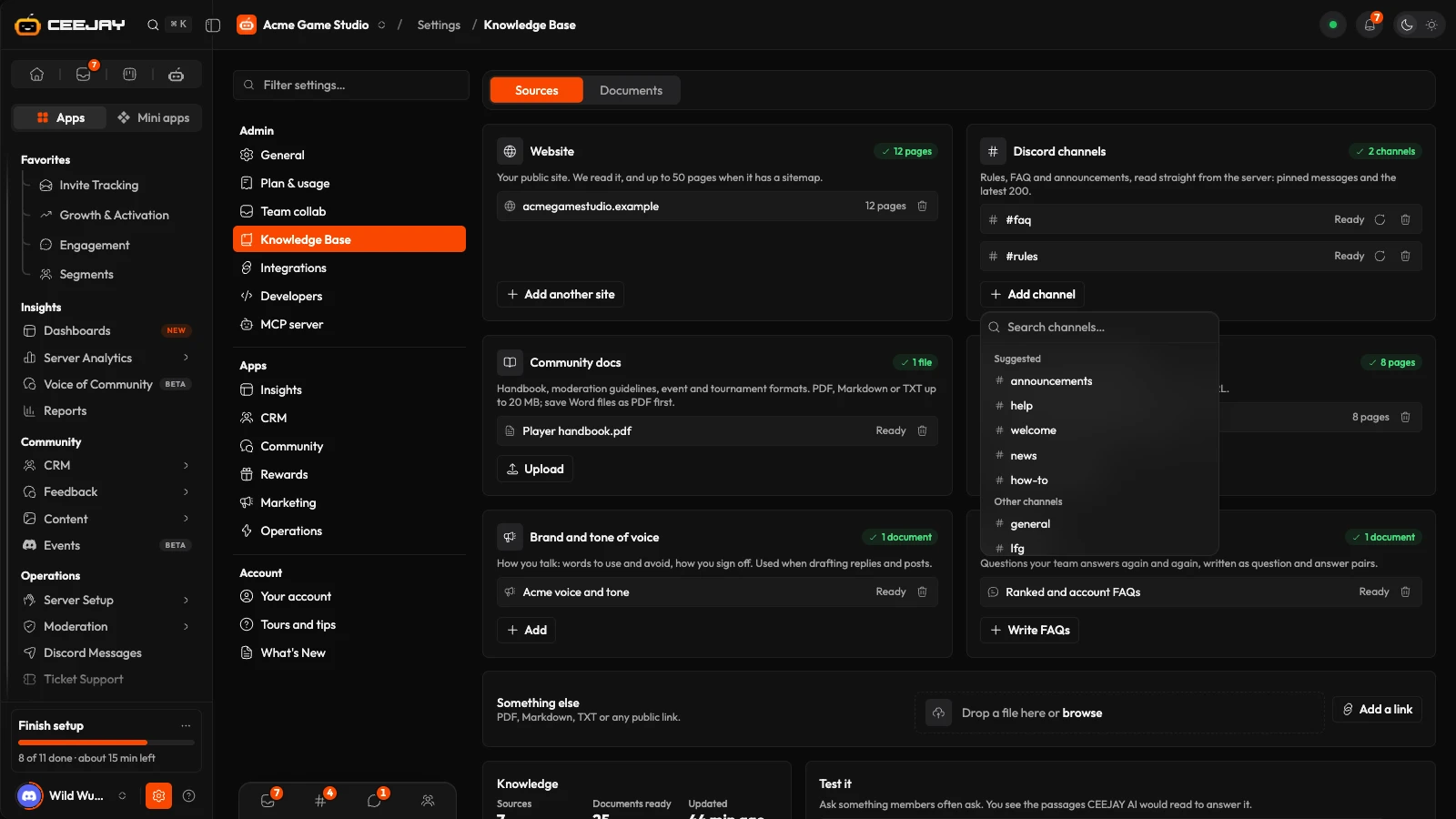
If the list says CEEJAY can’t see any text channels yet, the bot has no access to your channels. See Troubleshooting.
Upload files and write your own
- Community docs: press Upload or drop files on the card. PDF, Markdown or TXT, up to 20 MB each. Save a Word file as PDF first, or you get That file type isn't supported. Something else takes a file you drop on it for anything that does not belong on another card.
- Brand and tone of voice: press Add and write how you talk, such as words to use and avoid, how formal you are and how you sign off. CEEJAY AI follows it when it drafts replies and posts. Give it a Title, write the Guidelines, press Save.
- FAQs: press Write FAQs, then fill in a Question and an Answer for each row. Add question adds a row, and the × beside a question removes it. Save keeps the rows that have both a question and an answer.
Written documents hold up to 50,000 characters. A counter under the text shows how many you have used. A saved document is ready for CEEJAY AI in about a minute.
You may also see a document called Community Q&A under FAQs. CEEJAY fills it from the question and answer pairs it finds in your community, so you do not have to write them.
Test it
Type a question members often ask into Test it and press the search button. Matching passages shows up to three passages with the document each came from and how close the match is. If nothing matches you see No passage matches with your question, which tells you what to add. Test it needs at least one document that is ready.
Keep it up to date
Each item shows Reading…, Ready, Failed or a count of pages. A failed item shows why, in red.
- To pick up changes, a Discord channel or a web page can be read again. A channel has a circular-arrows button on its row in its card. A web page has the same button on its row in the Documents list, which shows when you hover over the row, and always on a touch screen.
- Remove: press the bin and confirm Remove. CEEJAY AI stops using it, and you can add it again later.
- Documents: the Documents tab shows each document with its type, size or site, number of chunks and date. Pages from the same site fold into one row you can open. Press the bin on a document, then Delete, to remove it.
- Reprocess All: appears only when something has lost its searchable content. Pages and channels are read again. Files whose originals were not stored must be uploaded again.
Good to know
Files are not read again by themselves. If a handbook changes, upload the new version and remove the old one.
How CEEJAY AI uses it
- The CEEJAY assistant reads it when you ask about your community, game or product, and to put your numbers in context. It names the document it used. See The CEEJAY assistant.
- Voice of Community checks the questions members keep asking against it, to see whether you already have an answer. CEEJAY also learns the names and terms your community uses from your documents, which helps it recognise and name topics. See Voice of Community.
- AI agents you connect can search it, within the permissions you give them. See AI agents.
The knowledge base is for your team's use of CEEJAY AI. It does not post answers in your Discord server.

