

Welcome Cards
Greet every new member with a card image in the channel you choose, in your own layout, colours and words.
A welcome card is a picture CEEJAY posts in a channel the moment someone joins your server. It can show the member's avatar and name, your server's icon and your own greeting. You design it on a page with a live preview, and turn it on when you are happy with it.
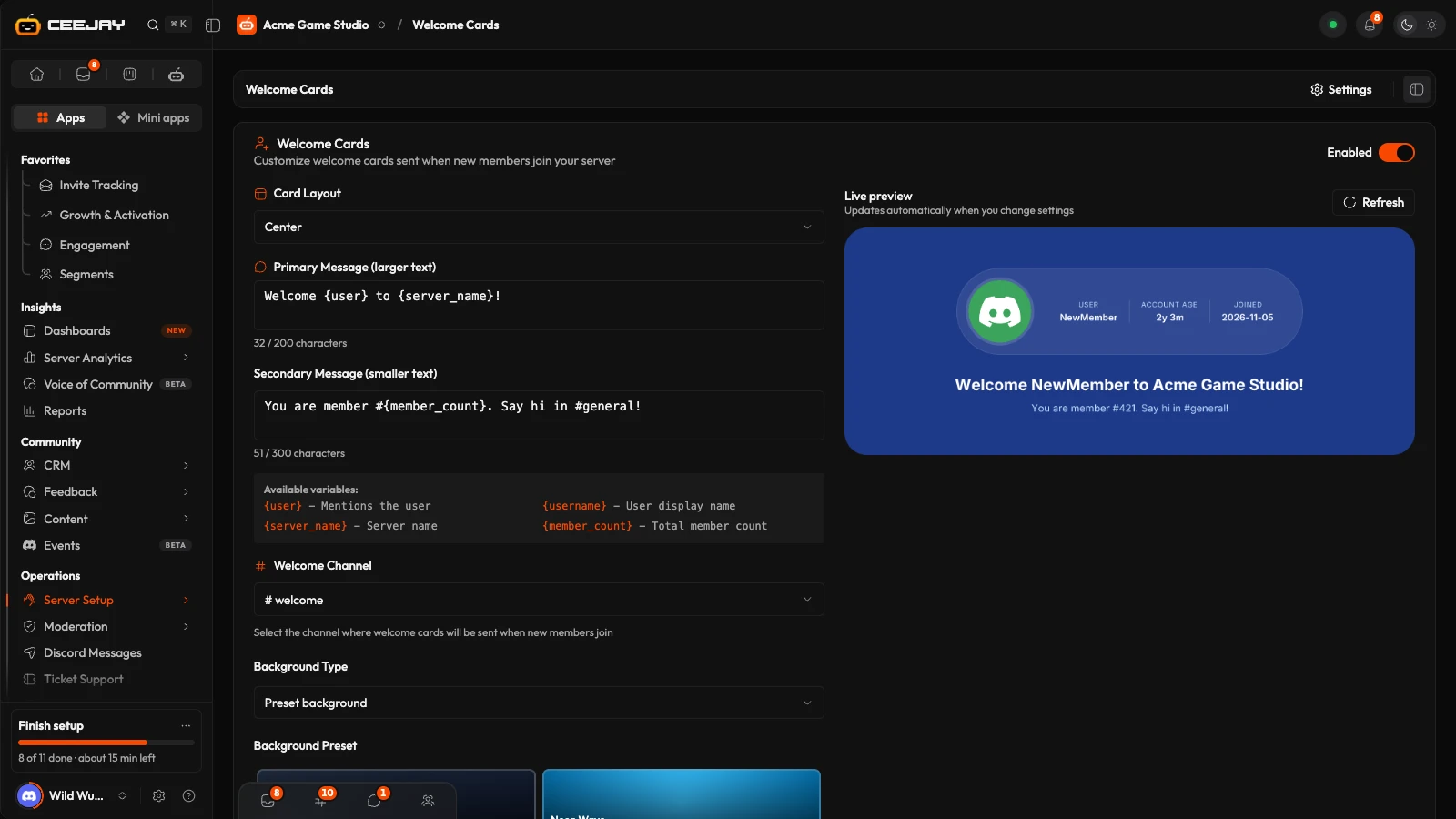
What you see
Go to Server Setup → Welcome Cards to design the card and check it in the Live preview. The card has an Enabled or Disabled switch. The preview uses a sample member (NewMember, 421 members) and updates as you change settings. Press Refresh to redraw it.
Design the card
Pick a Card Layout: Center, Left Circular, Right Circular, Left Full or Right Full. They differ in where the avatar sits and how it is shaped.
Write the Primary Message (larger text), up to 200 characters, and the Secondary Message (smaller text), up to 300. Both can use variables, which are listed under the boxes: {user} and {username} (the member's name), {server_name} and {member_count}. For example, "You are member #{member_count} of {server_name}".
Choose the Welcome Channel. It must be a text or announcement channel. With None (disabled) no card is posted.
Choose a Background Type. Preset background shows a set of backgrounds to pick from. Solid color takes a Background Color. Custom image (URL) takes a Background Image URL, or press Upload to add a PNG, JPG or GIF of up to 10 MB. For an image you also set the Image Size (Cover or Stretch), the Image Position when it covers, and a Fallback Color that shows if the image cannot load.
Set the Primary text and Secondary text colours and the Primary font and Secondary font. Check the preview and switch the card to Enabled. After you change a setting, press Save to keep your changes, or Reset to discard them. The switch and the settings are saved together.
Turn it off or change it
To stop new cards, switch the card to Disabled and press Save in the save bar. Setting the Welcome Channel to None (disabled) also stops them. The save bar appears once you change something. If the preview cannot be drawn, the space under Live preview says why instead of showing a card.
What CEEJAY does in Discord
When a person joins, CEEJAY draws the card and posts it in the welcome channel, with a mention of the new member above it so they get a notification. Bots that join are skipped. CEEJAY needs Send Messages and Attach Files in the welcome channel. If the card is disabled, no channel is set, or the channel is no longer a text channel, nothing is posted.
Good to know
The card is an image, so the words on it are drawn into the picture. {user} shows the member's name there rather than a mention. The mention is the line above the card. Editing the design later only changes cards for members who join afterwards.

