

React Roles
Post a panel in Discord where members pick their own roles with buttons or a dropdown.
A React Roles panel is a message with buttons or a dropdown. Each one gives a member a role when they use it, so members choose their own pings, platforms, regions or pronouns without asking your team. Despite the name, members use buttons or a dropdown, not emoji reactions.
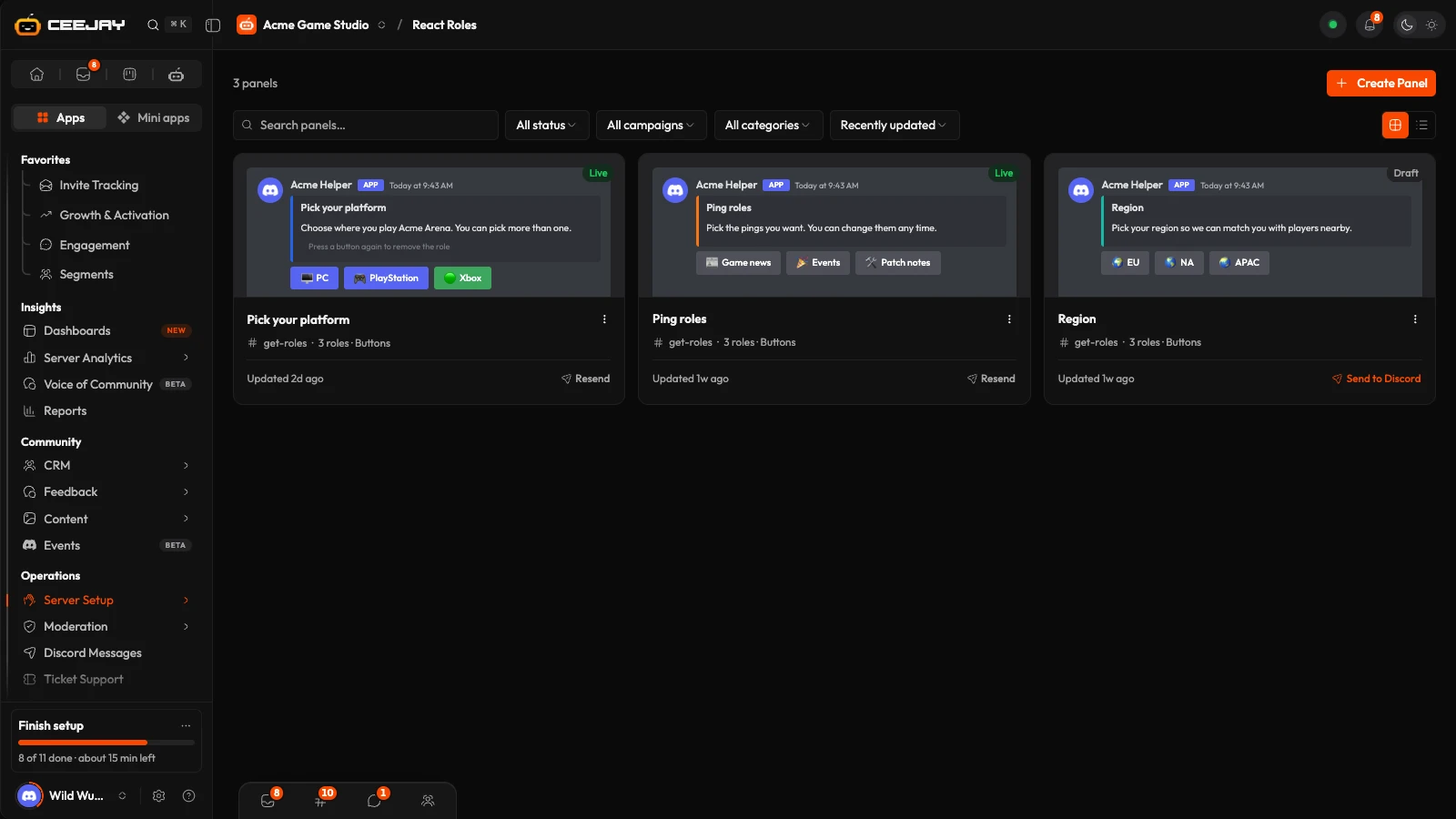
What you see
Go to Server Setup → React Roles. The page is a list of your panels, shown as cards that preview the panel as members see it, or as rows (use the layout toggle). A card shows the panel's status (Draft or Live), its channel and when it was last updated. Search, filter by Status and sort from the toolbar above the list.
A draft card has a Send to Discord button. A live card has Resend. The ⋮ menu has Edit, Duplicate and Delete. If you left a builder with unsaved work, an Unsaved changes card at the top offers Resume or Discard.
Create a panel
Press Create Panel. Choose Start from scratch, or Use a template to open the gallery of ready-made panels (pings, pronouns, regions, platforms and more). A template opens in the builder pre-filled, and you match each of its roles to a real role on your server.
In Settings, type the Panel Title (up to 100 characters, required) and pick the Target Channel. Message Type is Embeds V1 for the classic look, or Components V2 for a free layout. Switching between them clears what you have written, and the page asks first. The steps below are for Embeds V1. A Components V2 panel has no Role Assignments section: you add buttons or a dropdown yourself and give each one a Toggle role action.
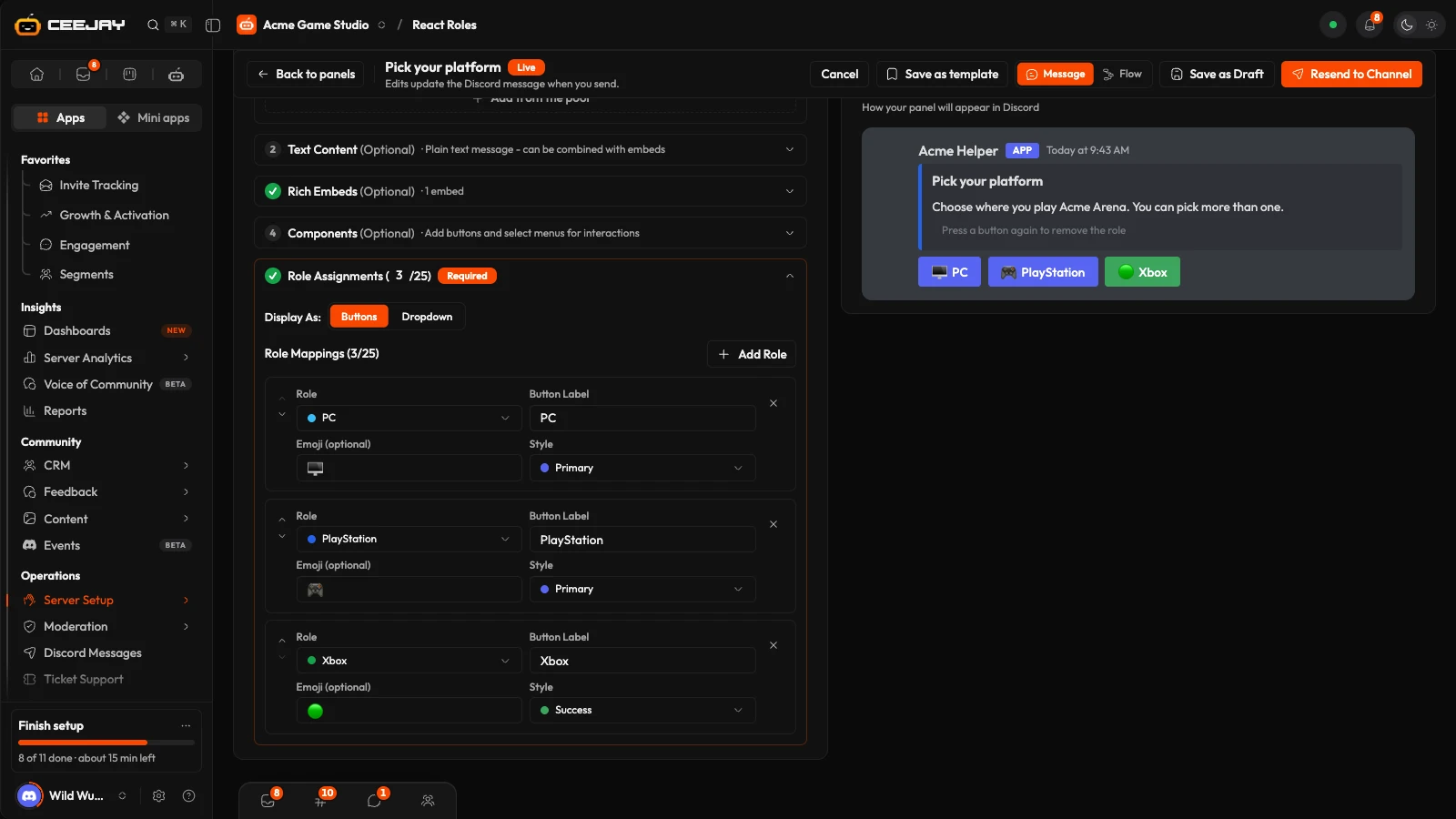
In Role Assignments, choose Display As: Buttons or Dropdown. Press Add Role for each role, up to 25. For each one pick the Role, give it a Button Label (or Option Label for a dropdown), and add an Emoji (optional). Buttons also take a Style, and dropdown options take a Description (optional). Use the arrows beside a role to reorder them.
Write the message above the buttons in Text Content and Rich Embeds. Both are optional, but a panel needs at least one of them to be sent. Components adds extra buttons or a select menu after the role buttons, such as a link button.
Check the Message Preview beside the builder, then press Send to Channel. Save as Draft keeps the panel without posting anything.
See what happens after a click
Switch the top bar of the builder from Message to Flow to see everything a member gets after pressing a role button or choosing an option: the panel, the private reply and the role change, each as Discord shows it. Every step is marked Editable (set in the builder) or Fixed text (CEEJAY's own words). Drag steps where you want them, and press Tidy up to put them back. On React Roles the flow shows what will happen; you still change the panel in Message.
What members see
The bot posts the panel in the channel you picked. A member who presses a role button gets the role, and a private reply confirms it ("Successfully added" followed by the role's name). Pressing the same button again removes the role. A dropdown works the same way, one option at a time. Replies are private to the member who pressed, and the panel does not ping the roles it lists.
Each role on a panel is its own on and off switch. There is no setting that limits a member to one role from the panel.
Send, resend and delete
- Send to Channel saves the panel and posts it. It needs a title, a channel, some text or an embed, and at least one role, with a label and a role picked for every button. Save as Draft needs less: a title, a channel and at least one role with a label.
- Resend to Channel (and Resend in the list) deletes the panel's message in Discord and posts a new one. Press it after you change roles or text.
- Delete removes the panel and its message in Discord.
- A template's
[placeholders]hold up sending until you replace them. Saving a draft never waits.
Roles CEEJAY can give
CEEJAY needs the Manage Roles permission, and it can only give roles that sit below its own role. In the role list, a role at or above CEEJAY's role is greyed out and marked "Above the bot's role", so you cannot pick it. To use it, drag CEEJAY's role above your panel roles in Server Settings → Roles in Discord. If the order changes after you sent a panel, a member who presses that role's button sees "Something went wrong" with a reference code and the role is not changed. See Add the bot.
Roles that belong to a bot or an integration, such as Server Booster or a Twitch subscriber role, cannot be given by anyone. They are greyed out in the role list with the note "Belongs to a bot or integration".
Rewards for picking a role
Where it is available, Rewards for picking a role in Settings grants XP, coins, a badge or a code the first time a member picks a role on the panel, once per member. Save the panel first. The rewards come from the Rewards Engine.
Good to know
Resending a panel replaces the message, so the old buttons stop working. Members keep the roles they already have.

