

Verification
Ask new members to solve a captcha before they get access, to keep bots and raiders out.
Verification puts a captcha between a new member and the rest of your server. CEEJAY posts a message with a Verify button in a channel you choose. A member who solves the captcha gets a role, and you decide what that role can see.
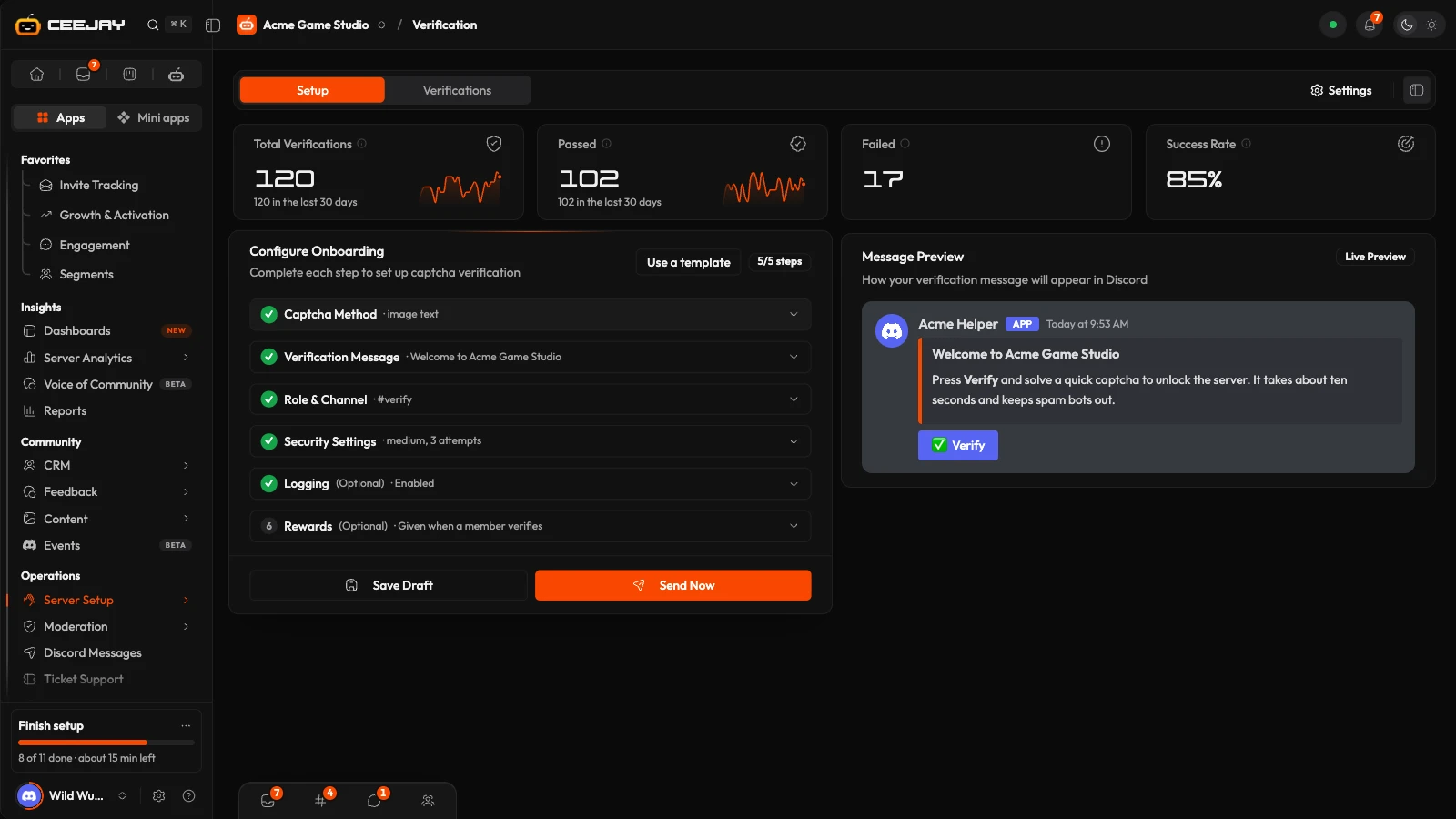
What you see
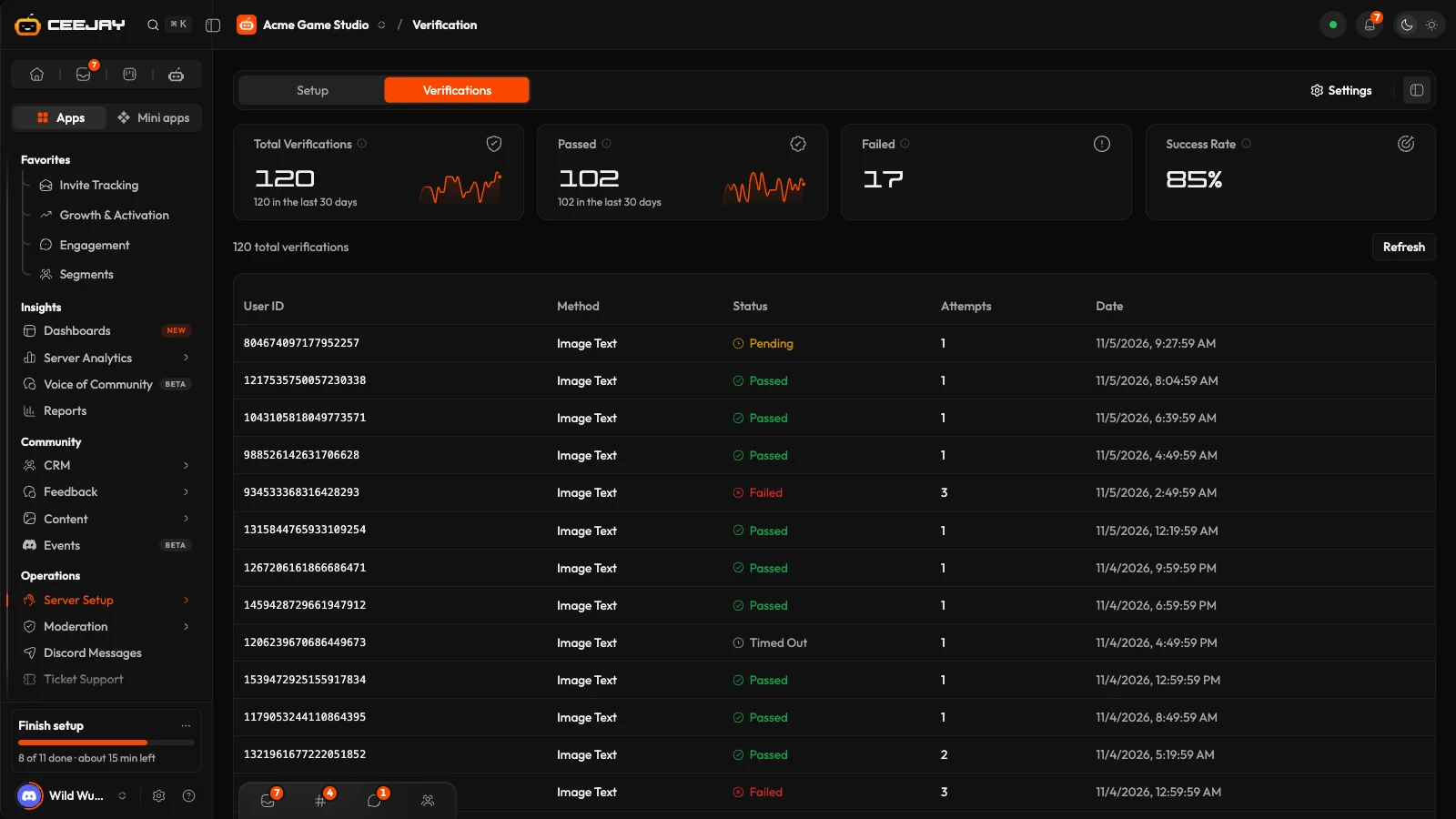
Go to Server Setup → Verification. Two tabs, Setup and Verifications, sit at the top, with four cards under them: Total Verifications, Passed, Failed (failed, kicked and timed out attempts together) and Success Rate. The cards count the whole server, not only the list below.
- Setup: the numbered steps that configure verification, with a Message Preview beside them.
- Verifications: a list of attempts, newest first, with the member's User ID, Method, Status, Attempts and Date. The status is Passed, Failed, Pending, Timed Out or Kicked. Press Refresh to reload it. It shows the latest 50.
Set it up
On Setup, open Captcha Method and choose one. Image Text shows a distorted text image, and the member types the answer. Image Pick shows a word in an image, and the member presses the button with the matching word. Emoji Pick shows a target emoji, and the member presses the matching button. Math Challenge shows a sum in an image, and the member types the answer.
Open Verification Message and write the Embed Title, Embed Description and Embed Color, and set the Button Label and Button Emoji. Use a template at the top starts you from a ready-made captcha and message. It only fills in the captcha method and the message, never your channel or roles, and it asks first if you have already set a message up.
Open Role & Channel. Pick the Verification Channel where the message is posted and the Verified Role members get when they pass. Both are required. You can also pick an Unverified Role, which is given when a member joins and removed when they pass. Roles that belong to a bot or an integration are greyed out.
Open Security Settings to set the Difficulty (Easy, Medium or Hard), Max Attempts (1 to 10) and Cooldown (seconds), and choose On Max Failures: Do nothing, Kick from server or Timeout (mute). A timeout takes a Timeout Duration (minutes), up to 40,320.
Optional: Logging posts each pass, and each member who runs out of attempts, in a Log Channel. Left empty, they go to your Audit Log channel. Where it is available, Rewards gives members XP, coins, a badge or a code when they verify, once per member.
Press Save Draft to save the settings without posting anything, or Send Now to turn verification on and post the message. Send Now needs a channel and a Verified Role. Pressing it again later replaces the old message with a new one.
What happens in Discord
Verification works on roles, not on channel access. CEEJAY does not change your channel permissions, so set them in Discord yourself: members without the Verified Role (or with the Unverified Role) should only see the verification channel.
When someone joins and verification is on, CEEJAY gives them the Unverified Role if you set one. They press Verify, and CEEJAY shows the captcha in a message only they can see. The captcha is valid for 5 minutes. A member who already has the Verified Role is told they are verified already. The Cooldown (seconds) sets how soon a member can try again.
On a pass, CEEJAY gives the Verified Role, removes the Unverified Role, and tells the member they have access. On the last failed attempt, CEEJAY does what On Max Failures says and logs it, and your team gets a notification that the member failed verification, listed as Member failed verification in notification settings. If the kick or timeout could not be applied, for example because the member outranks CEEJAY, the status stays Failed and the log channel says why.
CEEJAY needs Manage Roles, with its role above the Verified Role and the Unverified Role, plus Kick Members or Timeout Members if you choose those actions. It also needs Send Messages and Embed Links in the verification channel, to post the message, and in the log channel, to post results. See Add the bot.
Good to know
Verification is a captcha only. There is no approval queue where a person on your team accepts or rejects a member. A member who fails every attempt is the only case that reaches your team, as a notification.
A member who has used every attempt cannot try again, even after a timeout ends or if they rejoin. To let them in, give them the Verified Role in Discord. There is no switch on this page to turn verification off once Send Now has run.

