

Notifications
Choose what reaches you in the bell, as push notifications on your devices and by email, and when summaries and digests are sent.
Notifications alert you to events such as a ticket waiting for a reply, a spike in joins or a message that failed to send. For each kind of event you choose whether it reaches you in the bell, as a push notification on your computer or phone, and by email.
These choices are yours alone. Every person on the team sets their own, and they are saved for each community. They belong to your account, so every team member can open them, whatever pages their team was given.
What you see
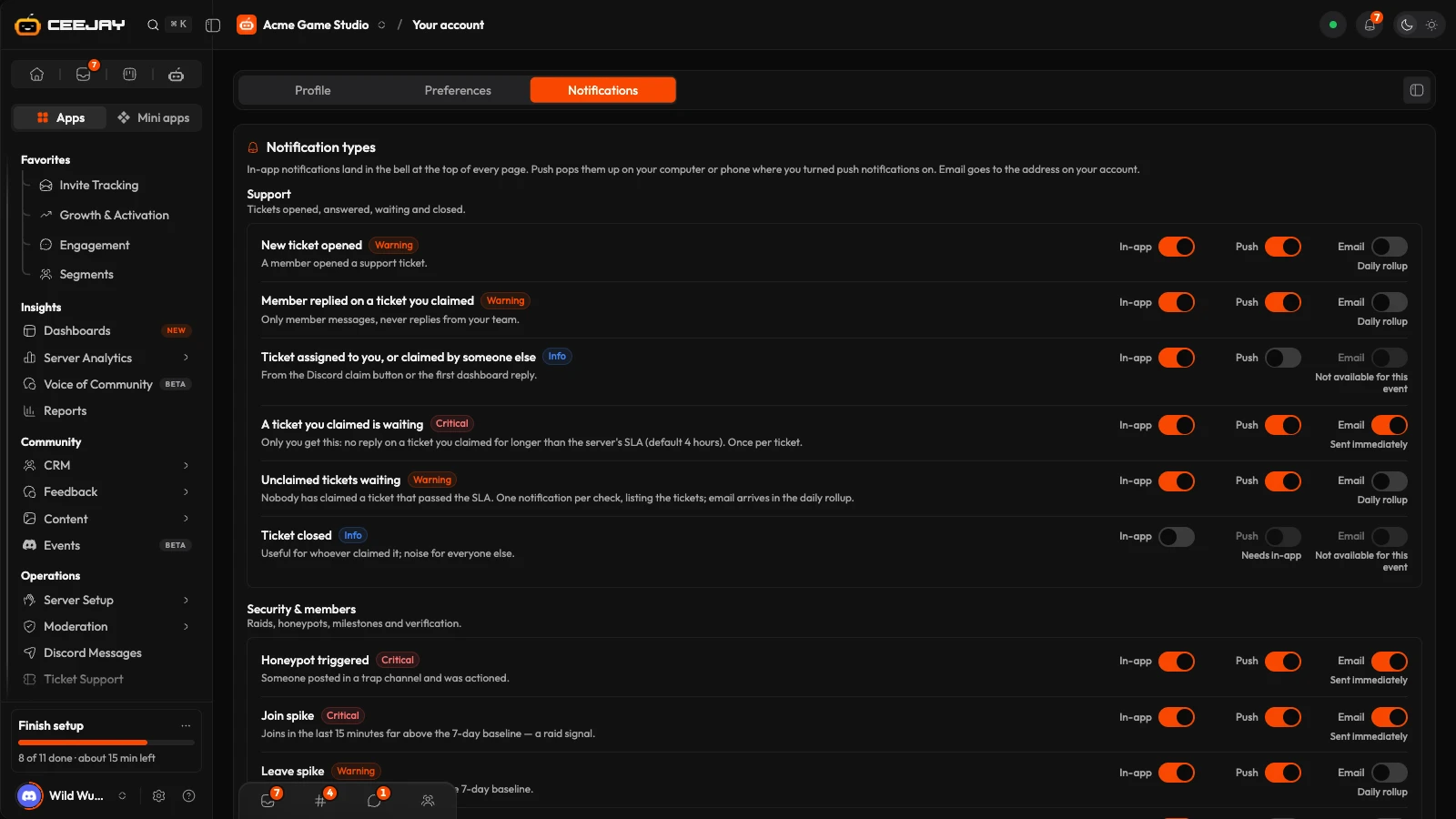
Open Settings → Your account and choose the Notifications tab. Notification settings in the bell opens the same tab. The tab has three cards:
- Notification types: every event, grouped, with its switches.
- Push notifications: notifications on your computer or phone, even when CEEJAY is closed.
- Email delivery: the master email switch, and when summaries and digests are sent.
Choose what reaches you
Events are grouped, and each group is one row with three switches for the whole group: In-app, Push and Email. Turn one off and none of the group's events use that channel. When the group's events are set differently, the switch says how many are on, for example 2 of 6 on.
To set events one at a time, press Customise on the group. Each event has a name, a one-line description, a label that reads Critical, Warning or Info, and up to three switches:
| Switch | What it does |
|---|---|
| In-app | Puts the event in the bell at the top of every page. |
| Push | Also sends it as a push notification to the devices where you turned push notifications on. It needs In-app: with that off, the switch is greyed out and says Needs in-app. |
| Emails it to the address on your account. Where email is not offered for an event, the switch is greyed out and says Not available for this event. |
Under an available Email switch, a line says when the email is sent. The label on the event decides it:
| Label | Email goes out |
|---|---|
| Critical | Sent immediately |
| Warning | In the Daily summary, one email a day |
| Info | In the Weekly digest |
Open the Notifications tab of your account and find the group. Its heading says what the group covers.
Switch In-app, Push and Email for the whole group, or press Customise and switch them for one event.
Press Save changes in the bar at the bottom of the page. A message says Notification settings saved. Reset discards your changes.
The groups
| Group | What it covers |
|---|---|
| Support | Tickets opened, answered, waiting and closed. |
| Security & members | Raids, honeypots, milestones and verification. |
| Voice of Community alerts | What Voice of Community flags: sentiment moves, topic surges, toxic messages. |
| Feedback & rewards | Forms, polls, suggestions, giveaways, quests, and shop and reward fulfilment. |
| Automation health | Failed or stopped automations, feeds and integrations: a message that did not send, a feed that stopped, an integration or a scheduled report that failed, and a finished backfill. |
| Team & account | Team members joining, and your weekly digest. |
| Tasks | The task board: assignments, due dates and comments. |
| Comments & mentions | Comment threads, and pings for you or your role in Discord or Messaging. |
| Community mods | Applications, trials and shift cover for your mod team. |
| Action items | Tasks awaiting action, and suggestions from CEEJAY AI. |
A new person starts from the defaults. Most events start on in the bell, and a few quiet ones, such as a closed ticket, start off. Critical events, the weekly digest and some warnings, such as a magic message that failed to send, also email by default. Change any of it.
Good to know
Some events only reach the person they are about, such as a ticket you claimed that is waiting, or a task assigned to you.
Push notifications
Push sends a notification to a device, even when CEEJAY is closed. Turning it on is a choice for each device and browser, so do it on every one you want.
Open the Push notifications card. This device says whether this browser is on.
Press Turn on and allow notifications when your browser asks.
Press Send a test. A message says Test sent, and a notification should appear on this device within a few seconds. Turn off switches this device off again.
Turning a device on or off takes effect immediately and does not need Save changes.
The Push switch on each event sets which events send a push notification. Critical and warning events start on. Push notifications from this server is your own switch for this community: off means no push notifications from this community on any of your devices, while the bell and email are unaffected.
The This device line shows when something is blocking push notifications:
- Blocked: notifications are turned off for this browser or device. Allow them in the site or device settings, then press Check again.
- On an iPhone or iPad, notifications only work once CEEJAY is on your Home Screen, and the device needs iOS 16.4 or later. Tap the Share button, choose Add to Home Screen, open CEEJAY from there and turn push on. See Install the app.
- Reload CEEJAY to finish turning this on for this device appears after turning push on. Press Reload.
- Push notifications are not available yet. means push is not set up for your instance. The bell and email still work.
Email delivery
Email notifications is the master switch. Off means no notification email of any kind for this community, including anything already waiting to be sent. The bell is unaffected.
Four settings decide when the grouped emails go out:
| Setting | What it sets |
|---|---|
| Timezone | The clock the times below follow. Your browser's timezone is offered and marked (your browser). |
| Daily summary at | The hour the one daily email for warnings is sent. |
| Weekly digest on | The day of the weekly digest. |
| Weekly digest at | The hour of the weekly digest. |
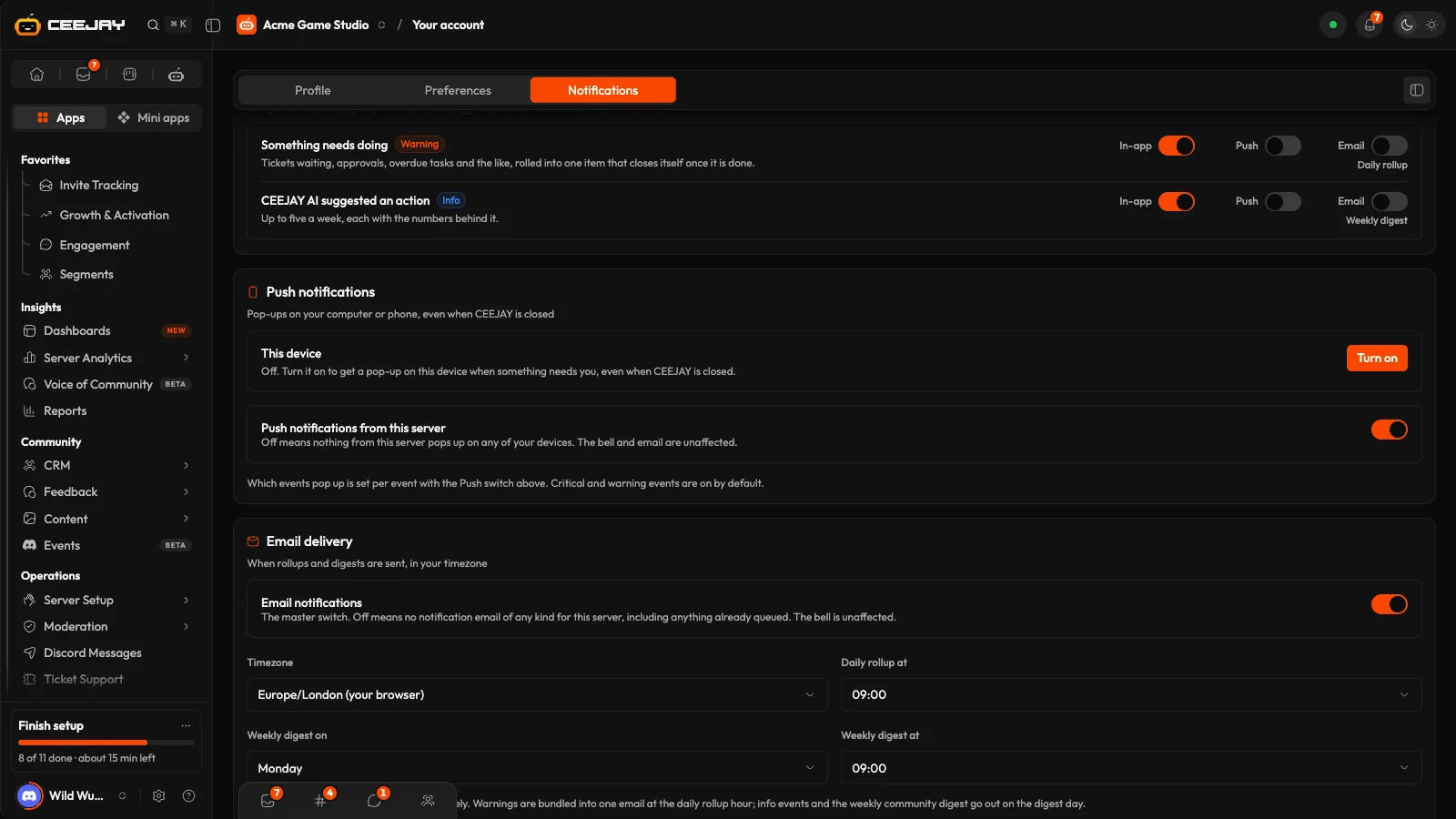
Email goes to the address on your account. If your account has none, the first card shows Add an email to your account to receive email notifications.

