

Upvote
Collect feature requests members vote on in Discord, and move each one from planned to shipped.
Collect feature requests in one channel and plan your roadmap from the top-voted ideas. Members post an idea from a button, others vote on it, and you move each suggestion through its statuses on the dashboard or in Discord.
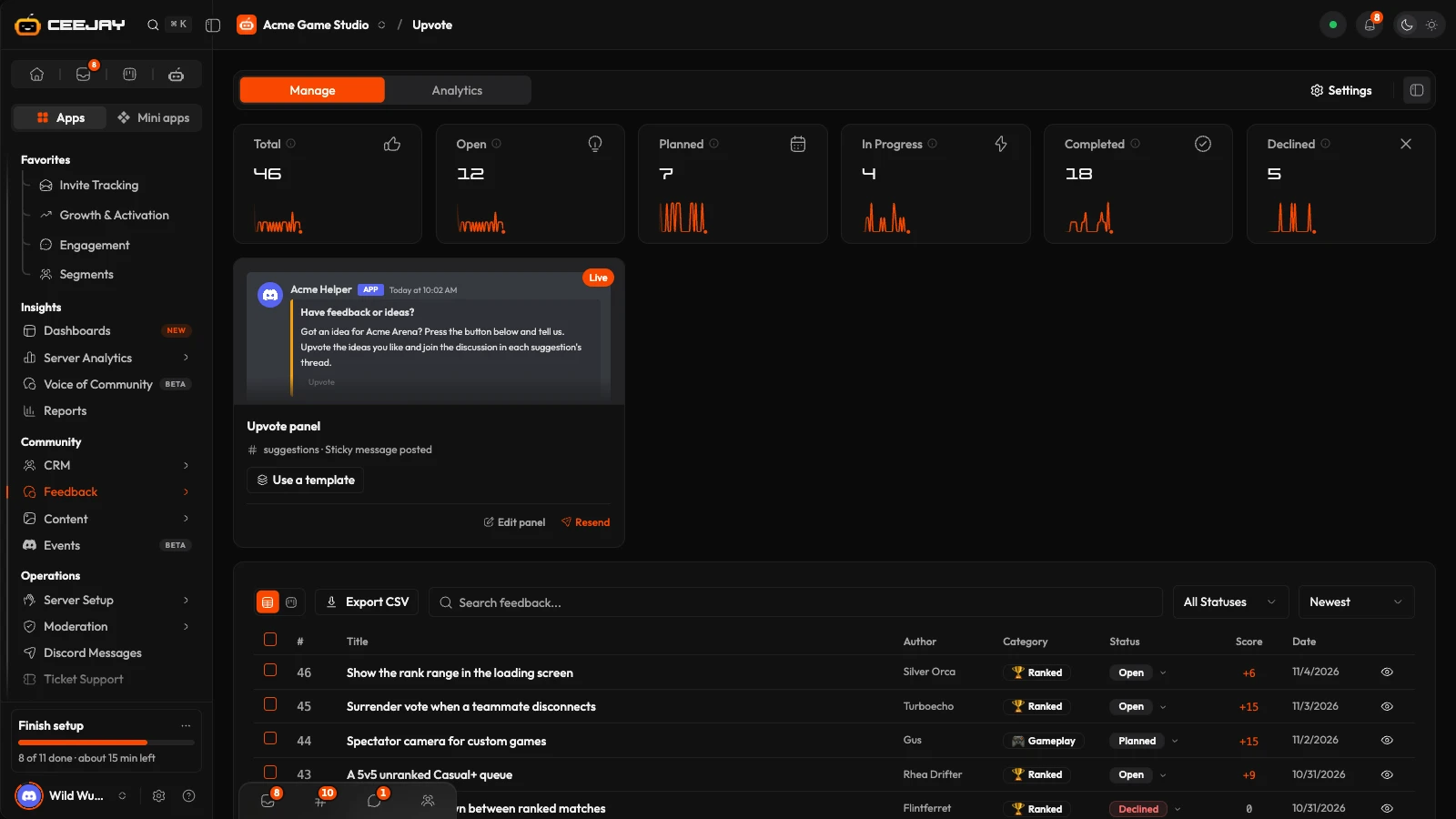
What you see
Go to Feedback → Upvote. Six stat cards sit at the top of both tabs: Total, Open, Planned, In Progress, Completed and Declined. Each counts the suggestions that have that status now, whenever they were posted, and its small chart shows how many moved there each day over the last 30 days. Press the (i) beside a title for its definition.
The page has two tabs:
- Manage: the Upvote panel card, then the list of suggestions.
- Analytics: Status Distribution, Category Breakdown, Vote Trends, Top Suggestions and Top Contributors, for the last 30 days.
How members suggest
Your server has one Upvote panel: a message with a button, posted in a channel and kept at the bottom of it. Members press the button, or type /suggest, and a form asks for a title and a description. If you have turned on categories, they choose a category first. If you have submission templates, they can start from one. The bot warns a member when similar suggestions already exist.
Once a suggestion is live, either straight away or after approval if you require it, the bot posts it in your suggestions channel with vote buttons that show the counts. See commands for /suggest and /suggestion.
Set up the panel
On the Manage tab, press Edit panel on the Upvote panel card, or Use a template to start from a ready-made message. A template replaces the message, button and vote style you have set, and the page asks before it does.
Build the panel with a live Discord preview alongside. In the first section, pick the Suggestions Channel. This is where suggestions are posted, and it is required. You can pick a different Sticky Message Channel, and Enable Sticky Message keeps the panel at the bottom of its channel.
Customise the panel message with Embed Color, Title, Description and Footer Text. In the button section, set the Button Label, Button Emoji and Button Style.
Choose the Vote Style: Up / Down (thumbs up and thumbs down), Upvote Only (a single upvote button with a count) or Check / X. You can set your own Upvote Emoji and Downvote Emoji.
Press Save Settings, then Send sticky panel. Saving sends nothing to Discord. Sending posts the panel to the channel, or replaces the current one. On the card, the same step is Send, or Resend once the panel is live.
Changes are autosaved as a draft, and the card offers Resume editing if you leave. Save as template in the builder's menu saves the panel as one of your own templates.
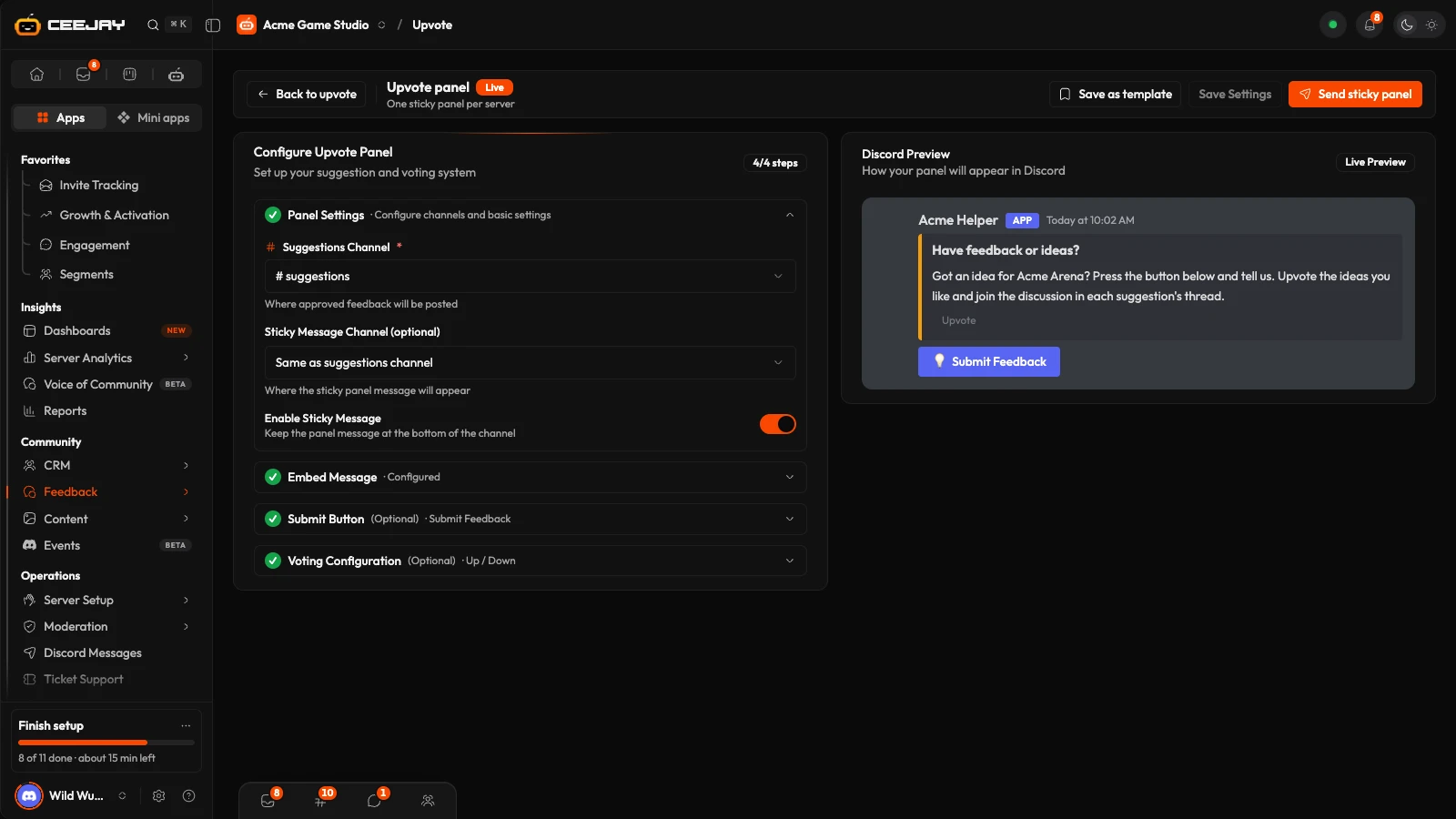
Manage suggestions
Under the panel card, switch between Table view and Board view.
- Table view lists suggestions with their #, Title, Author, Category, Status, Score and Date. Search them, filter by status (Pending Review, Open, Planned, In Progress, Completed, Declined, Not Planned) and sort by Newest, Top Voted, Most Upvotes or Number. Tick several rows to change their status together with Change status... and Apply.
- Board view shows the Open, Planned, In Progress and Completed columns. Drag a card to another column to change its status.
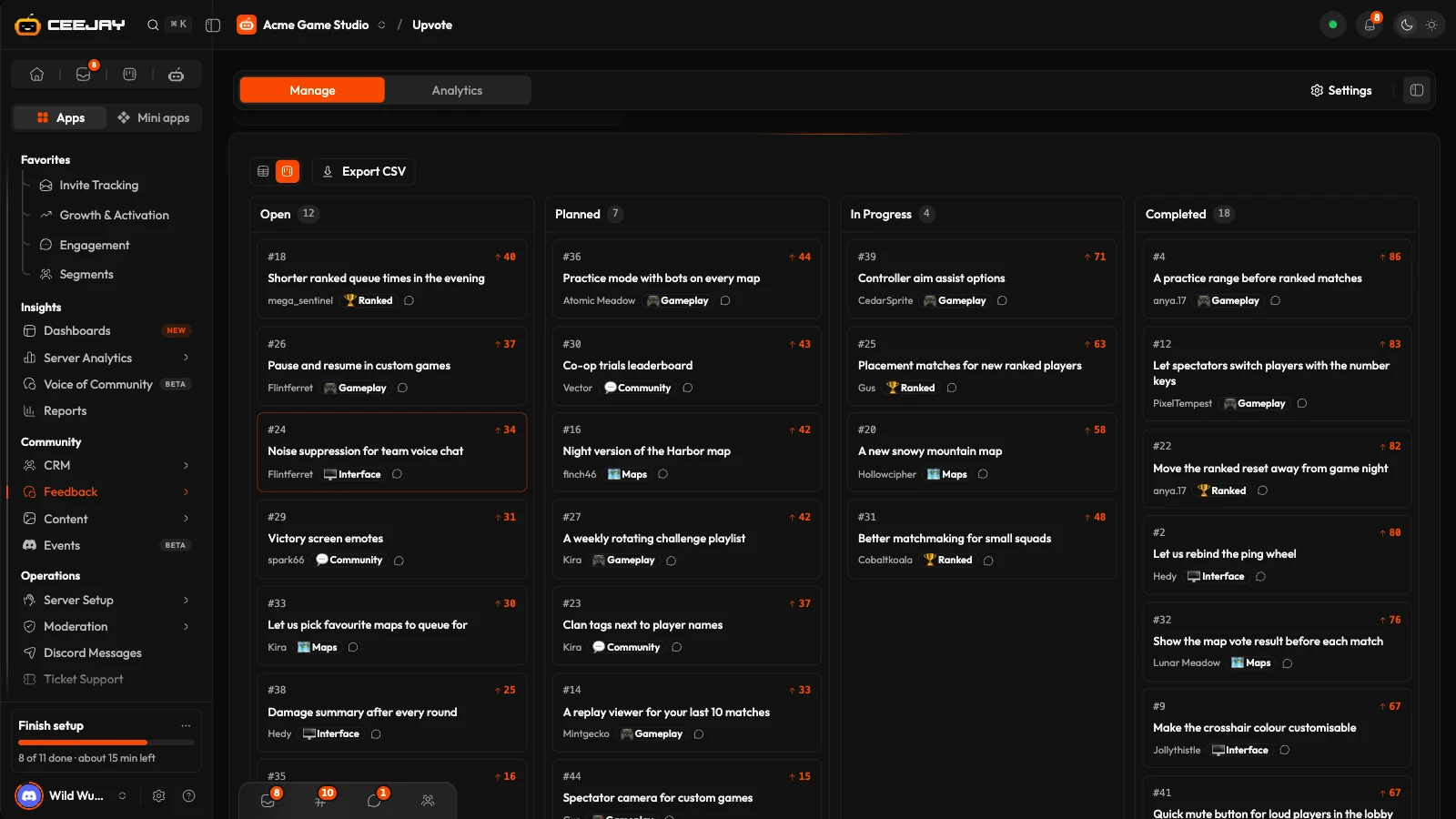
Export CSV downloads the list.
Open a suggestion to read it in full. You see its votes, then Scoring with Priority, Effort and Impact for your own planning, the Status Note and the Status History. Merge combines a duplicate into another suggestion. Its votes move across, and a member who voted on both counts once. The duplicate then leaves the list and the counts, and its Discord message loses its vote buttons. Merge is not offered on a suggestion that is already Declined or Not Planned. In Discord, a moderator with Manage Messages can change a status with Apps → Set Suggestion Status on the suggestion message.
Settings
Press Settings at the top of the page to open the settings in a panel beside it, or go to Settings → Community → Upvote. On a large screen the panel shows the groups you change most (voting, auto-close, moderation and notifications), with a button at the bottom for all the rest. Save changes with the bar at the bottom of the page.
- Moderation & Anti-Spam: a Review Channel where pending suggestions wait, Require Admin Approval, Auto-Approve Roles that skip the queue, a Submission Cooldown (seconds) and Max Active Per User. Moderators with Manage Messages approve or deny from the review channel.
- Auto-Close & Deadlines: Auto-close inactive suggestions closes Open suggestions with a Score of 0 or less after that many days and marks them Not Planned, and Default voting deadline (days) sets a deadline on new ones. Leave either empty to turn it off.
- Categories: Enable Categories, then add, rename, switch off or delete categories.
- Submission templates: starting points members can pick when they post an idea. Each one fills in the description and can set the category.
- Voting Options: Allow Vote Change and Show Vote Count.
- Discussion Threads: Auto-Create Thread opens a thread for each approved suggestion, named with the Thread Name Template.
- Notifications: a Notification Channel for status announcements, a Webhook URL that receives a message when a status changes, Notify on Status Change and Notify on Approval, which send the author a direct message.
- Rewards: Enable Rewards grants the author XP Amount and a Reward Role when their suggestion is marked Completed. Milestone Rewards add a bonus after a number of completed suggestions.
Good to know
Rewards are granted once per suggestion, when its status becomes Completed, whether you change it in Discord or on the dashboard.

