

Voice of Community
Know how members feel, what they talk about and which questions are waiting, so you catch problems while they are small.
Voice of Community, at Insights → Voice of Community, reads what members write in the channels you choose and shows how they feel, what they talk about and what they ask. It has four tabs: Overview, Topics, Sentiment and Questions. The numbers follow the range, channel and role controls in the header.
Before you start
Choose the channels CEEJAY listens to. Open Settings → Insights → Voice of Community and switch on the channels you want under Channel Tracking. The Overview has a Choose channels to listen to button while it is empty. A new community starts with every channel off.
- Only messages of 15 characters or more count. Bot messages, commands and system messages are left out.
- Messages are analysed in batches, so new messages usually show up within an hour.
- Each message is labelled positive, neutral or negative. Spam is left out of every figure.
- Channels you hide from analytics are left out as well.
How the sentiment figures are worked out
The same rules apply on every tab, so the numbers agree with each other.
- Sentiment is the share of labelled messages in the range that were positive. Negative is the share that were negative. Every labelled message counts once. Nothing is weighted or smoothed.
- The ± beside a figure is the margin of error at 95% confidence.
- A share from 30 or more labelled messages is shown in full. From 5 to 29 it is shown with its counts and a Low sample chip. Under 5, only the counts show, for example "1 of 2". Changes and rankings are not calculated from low samples.
- The change is in percentage points against the period before, of the same length. It only shows when both periods have 30 or more labelled messages and the change is statistically significant. Otherwise you see "no clear change".
- When CEEJAY changed how it labels messages, a comparison across that date would reflect the classifier change rather than a change in your community. The card then says "No comparison: the classifier changed on" that date, and clears on its own once both periods are after it.
Press the (i) on a card for its full definition. When your team has spot-checked enough labels, the (i) also says how many were found right: see Check how accurate the labels are.
Overview
The answer on arrival, top to bottom:
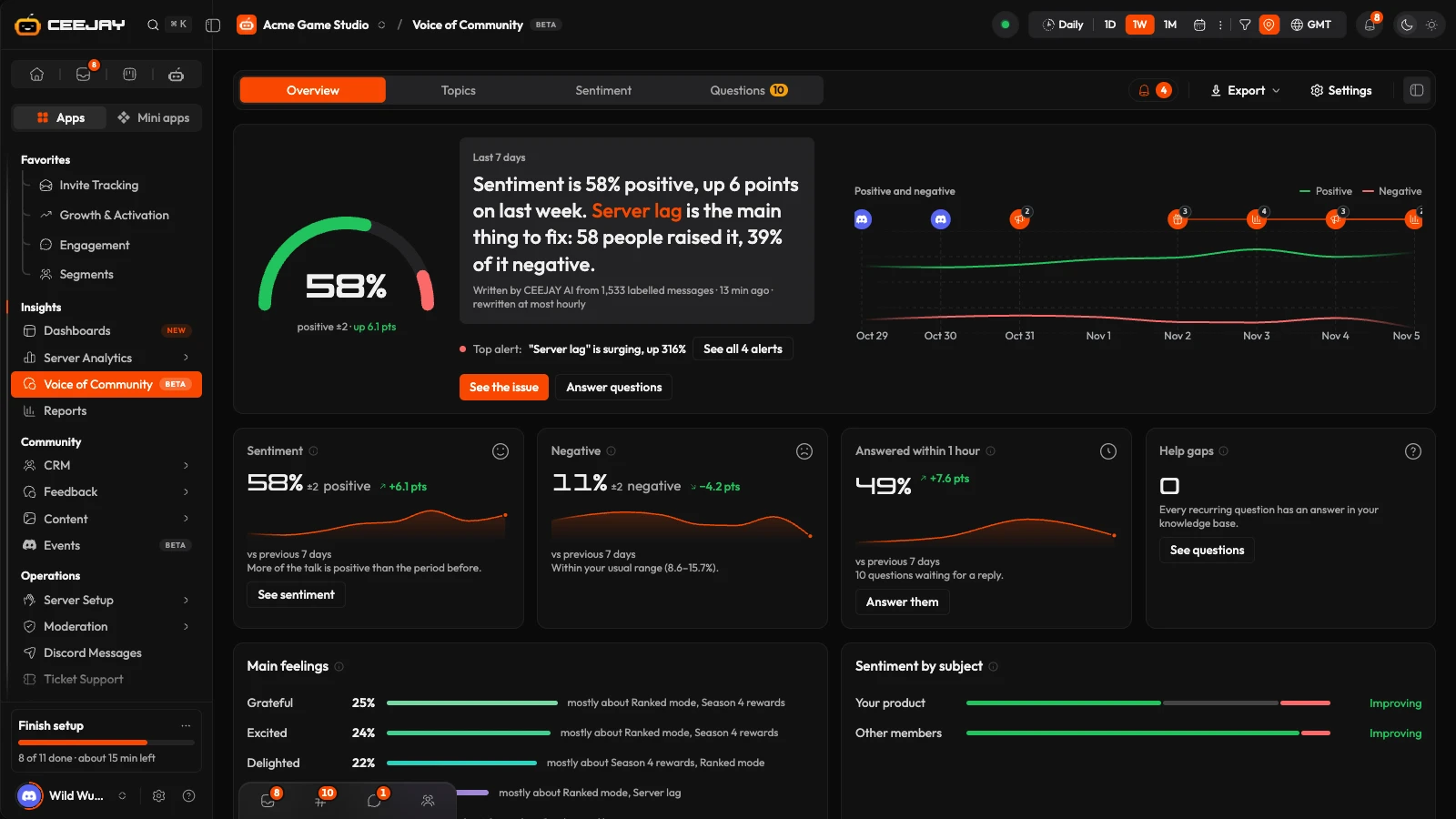
- A summary card written by CEEJAY AI: what matters most, why, what stands out against recent weeks, anything that needs attention, and one recommendation. If there is more to read, scroll inside the card.
- Four cards: Sentiment, Members talking, Topics and Questions, for the dates you pick. Select a card for the full breakdown.
- Main feelings and Sentiment by subject: how members feel, and about what (what you offer, your team, moderators, other members, competitors). They show once the range has labelled feelings.
- Most talked about: the topics with the most members, each with a bar split into positive, neutral and negative. Hover a bar for each share and how many messages it comes from.
- Top issues: the top five topics ranked by how many members talk about them, how negative it is and whether it is growing. Press a row to open the topic.
- Bright spot: up to three of the most-reacted positive messages in the range. Make a quote card turns one into an image you can share. The card shows the member's real name and picture unless you change its privacy menu to Discord (a generated handle and a stock picture) or Redact (blurs both).
- Rising keywords: a list of tracked keywords mentioned more than in the period before, biggest rise first, with the topic each is talked about in.
The Negative card compares the range's share with your usual range: the middle 80% of daily shares over the four weeks before the range, counting days with at least 30 labelled messages. It needs 7 such days, so there is none on ALL.
The summary covers every tracked channel. Channel and role filters change the numbers, not the summary.
Needs attention
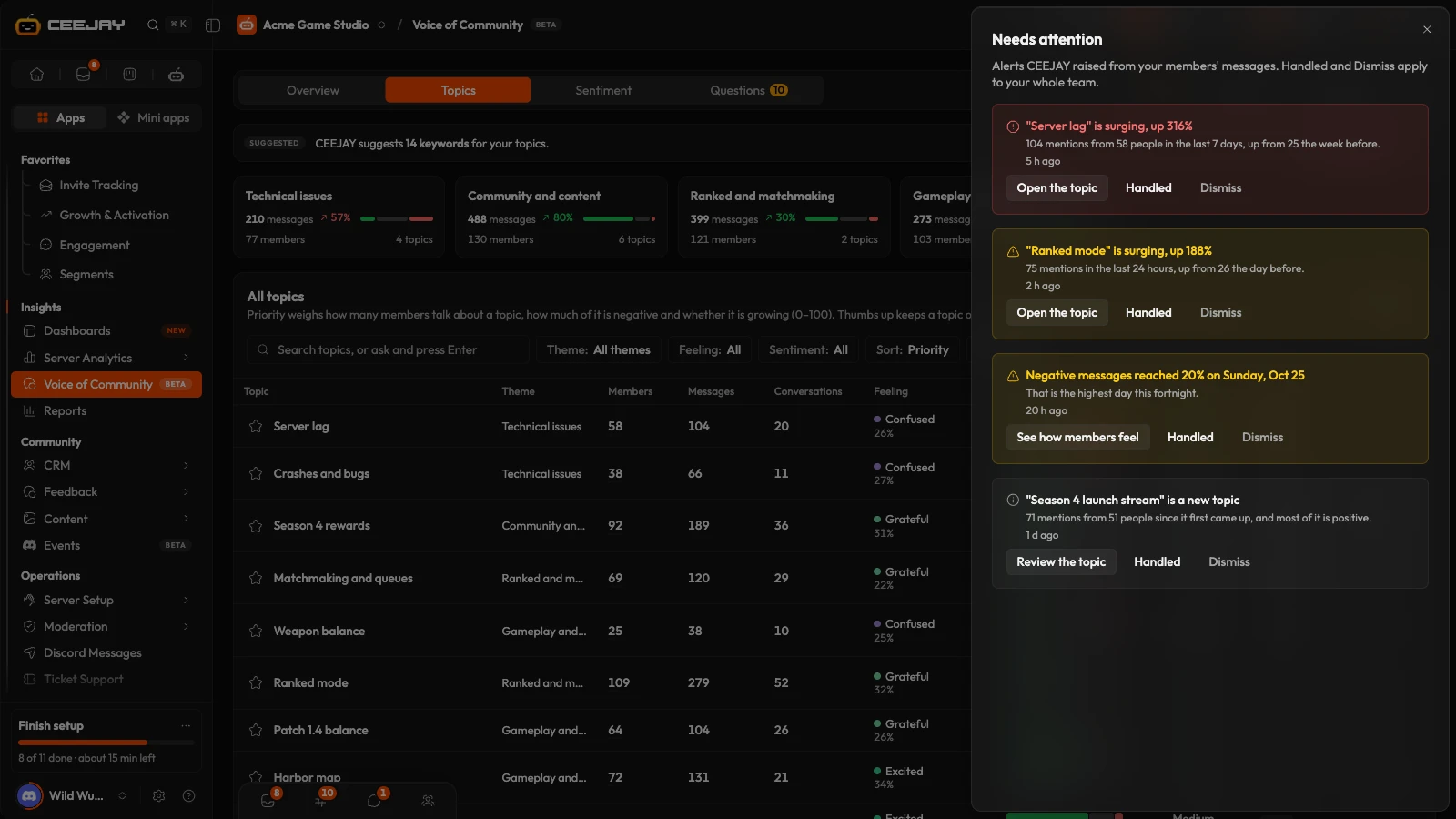
The bell beside the tabs, with a count while anything is waiting, opens Needs attention. It lists the alerts CEEJAY raised from member messages, most urgent first. Each has a button that goes to what it is about, plus Handled and Dismiss, which apply to your whole team.
Topics
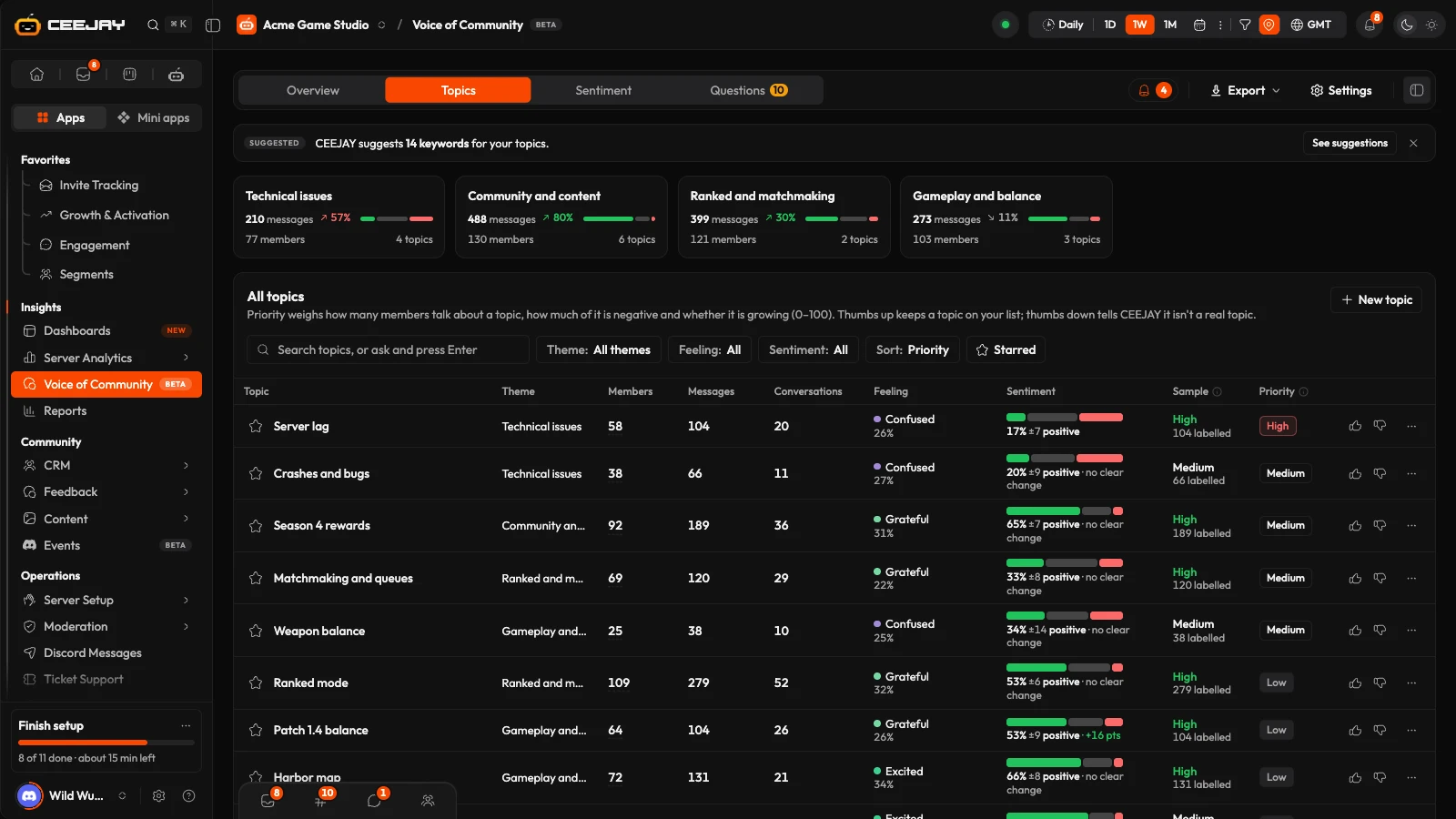
- Review strip: appears when CEEJAY added topics in the last week, or suggests keywords for your topics. See them opens Topics CEEJAY added: new topics are added on their own once at least 3 messages from 2 or more members raise them. Remove one and CEEJAY will not add it again. Manage all topics opens the full list in settings. See suggestions jumps to the keyword cloud. The cross dismisses the strip until CEEJAY adds more.
- Themes: one row above the table, a card for each group of topics with its trend and positive and negative share. Pick one and the table shows its topics. The card then opens to a summary written by CEEJAY AI with one next step, beside its busiest topics, its sentiment and how it moved.
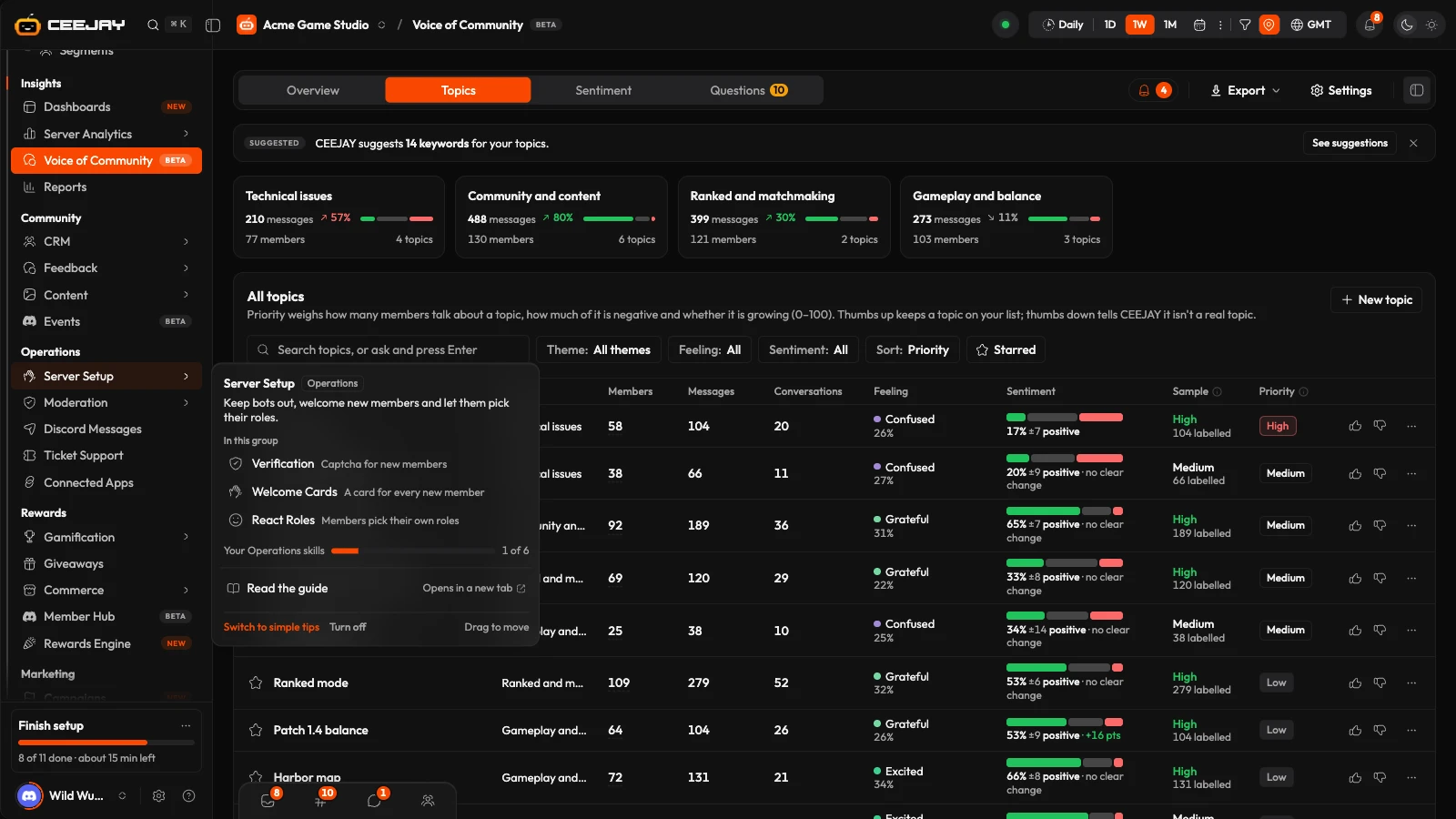
- All topics: one table. Topic (with a star, and the number of open comment threads), Theme, Members and Messages, then Sentiment, Sample, Trend and Priority. Wider screens add Conversations, Message type, Feeling and Channels. Hover a topic's members to see how many more or fewer than before, how much the most active member wrote, and who they are. Press a member to open their profile.
- Sample says how much the sentiment rests on: Too few, Low, Medium (30 to 99 labelled messages) or High (100 or more).
- Priority is High, Medium or Low, worked out from how many members talk about the topic, how negative it is and whether it is growing. Press it to set a level yourself. Automatic lets CEEJAY set the priority again.
- Search topic names, or type a question and press Enter for a smart search across the messages. Theme, Sentiment (All, Mostly negative, Mostly positive) and Sort (Priority, Members, Sentiment, Trend, Newest) narrow the list, and Starred keeps your starred topics. The thumbs tell CEEJAY which topics are useful and which are not real topics.
- New topic creates a topic yourself. It has the same name, theme, keywords and channels as a topic's Setup tab.
- A topic's ⋯ menu, or a right-click on its row, moves it to another theme, merges it into another topic, comments on it, makes a task from it or adds it to a doc.
Keyword Cloud
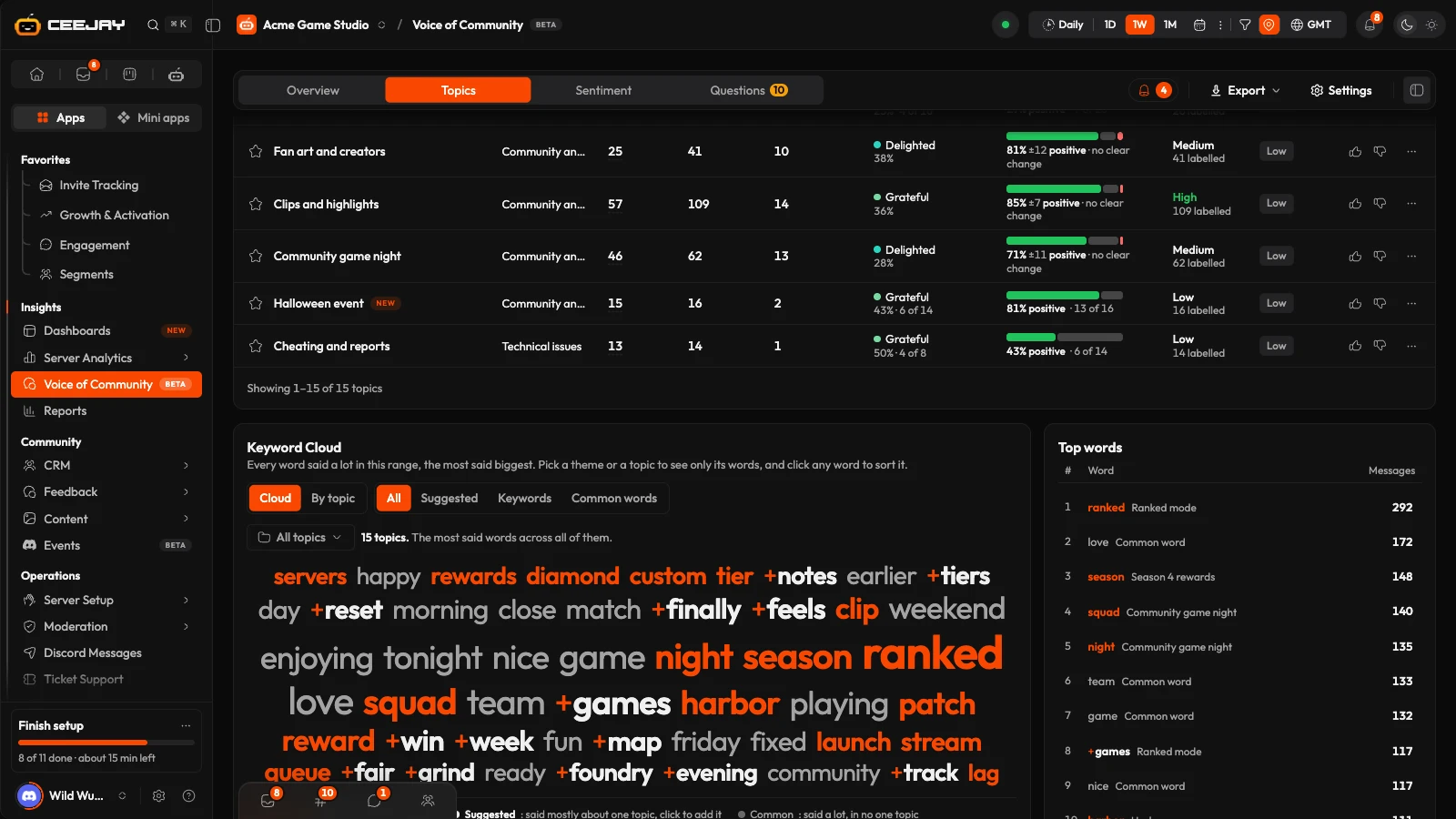
The cloud shows the most frequent words in the range, sized by frequency. It follows the dates and filters you pick. Keywords already counting towards a topic are orange, suggested words are white with a +, and common words are small and grey.
- Pick a theme or a topic to see only its words. Switch between Cloud and By topic, and filter by All, Suggested, Keywords or Common words.
- Press a word to open its panel: its mentions and members, the channels it is said in, its latest messages, and Add to a topic. From there you can also start New topic with it or ignore it.
- Shift-click picks several words at once to add, ignore or start a topic with together.
- The top ten words sit in a list beside the cloud with their topic and message count.
A topic
Press a topic to open it in a side panel, or Open full page. It has four tabs.
- Overview: a summary written by CEEJAY AI with a Recommendation, Members and Negative against the period before, Drivers, Members and Message types. When members are waiting on a reply about this topic, Waiting for your reply on this topic lists them.
- Messages: Latest messages, at most three per member, and Busiest threads. On each message, Wrong label? lets you set it to positive, neutral or negative. Your label counts from then on, and the model's first label is kept.
- Sentiment: the split by day, Feelings, Subject (who the feeling points at) and Sentiment drivers: the messages with the clearest feeling, negative first.
- Setup: what puts a message in the topic. Its Details, its Keywords and its Channels.
Drivers shows what is behind a topic. A driver is something that makes up more of the topic than it does of everything else your server says in the same days, by 15 points or more: a few members writing most of it, a role, new members, a channel, or one busy day. Each is drawn as the topic's share with a mark at the server's share. Under them: whether your knowledge base answers the topic, the busiest conversation and the topics that Often with it.
The ⋯ menu has Create task, which opens the new-task dialog for your Tasks board already filled in with the topic and a link back, Mark handled, Open full page, Edit details, Move to another theme, Merge into another topic, Useful topic or Not a topic, and Copy link to this topic. The topic's summary is rewritten when you open it, at most once an hour.
Set up a topic
- Keywords work as one search. Says any of these holds the words that make a message about the topic. Also says one of these is optional: with words in it, a message must say one of those too. Says none of these leaves out any message that says one, even when it says a keyword. A word matches whole, with or without a plural s. Each word shows how often it was said in the last 30 days. A dot marks a word so common it would pull in everyday chat, and Remove or Fix all takes those out. Add the names members use for the topic as keywords.
- Channels: choose how each channel counts towards the topic. Every message counts everything CEEJAY reads there, for example your playtest channel. Mentions only counts just the messages that match the keywords, for example general chat. Never keeps the topic out of a channel where it comes up by chance. Every channel CEEJAY reads counts from the start, so pick Never for the ones that should not. Use suggestions applies CEEJAY's picks. A thread counts as its channel. A message counts for a topic under every name the topic has had.
- Save and Cancel appear once you change something.
Sentiment
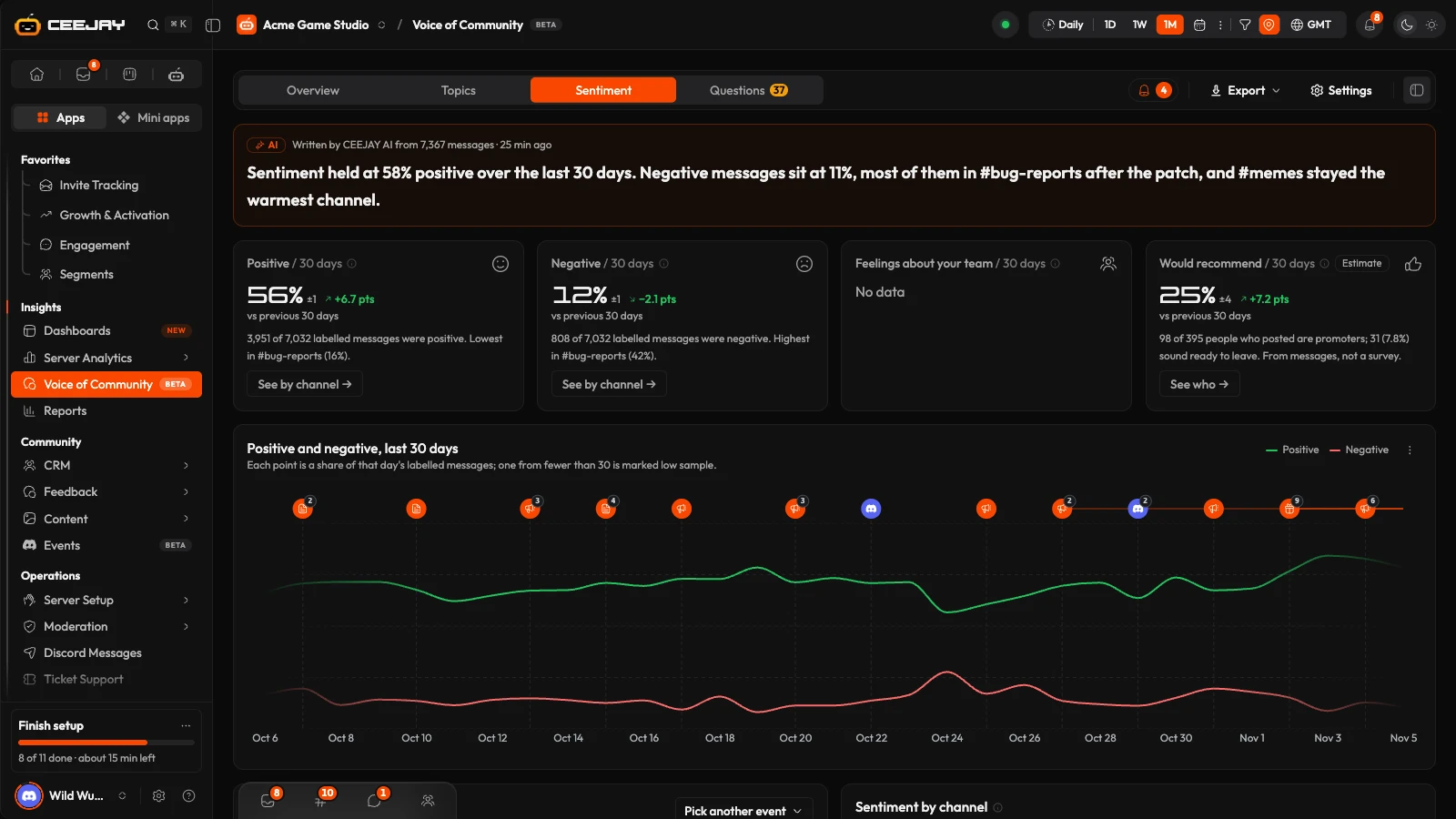
- A summary of how members responded to the latest event, written by CEEJAY AI.
- Positive and Negative cards with the numbers behind them, and the channel with the lowest or highest share. Feelings about your team and Would recommend (marked Estimate) join them once there are enough messages.
- Positive and negative: a line chart of both shares over time. Points with fewer than 30 labelled messages are marked low sample.
- What an event changed: the share of positive messages after one of your calendar events against before it.
- Sentiment by channel, most negative first. Channels with fewer than 30 labelled messages are left out, and a line says how many.
- Member feelings over time, and Members: members with at least 2 labelled messages, in four groups. Positive (half or more positive, under 1 in 5 negative), Balanced, Negative (35% or more negative, under a quarter positive) and Volatile (a quarter or more of each). See who → lists the members.
Questions
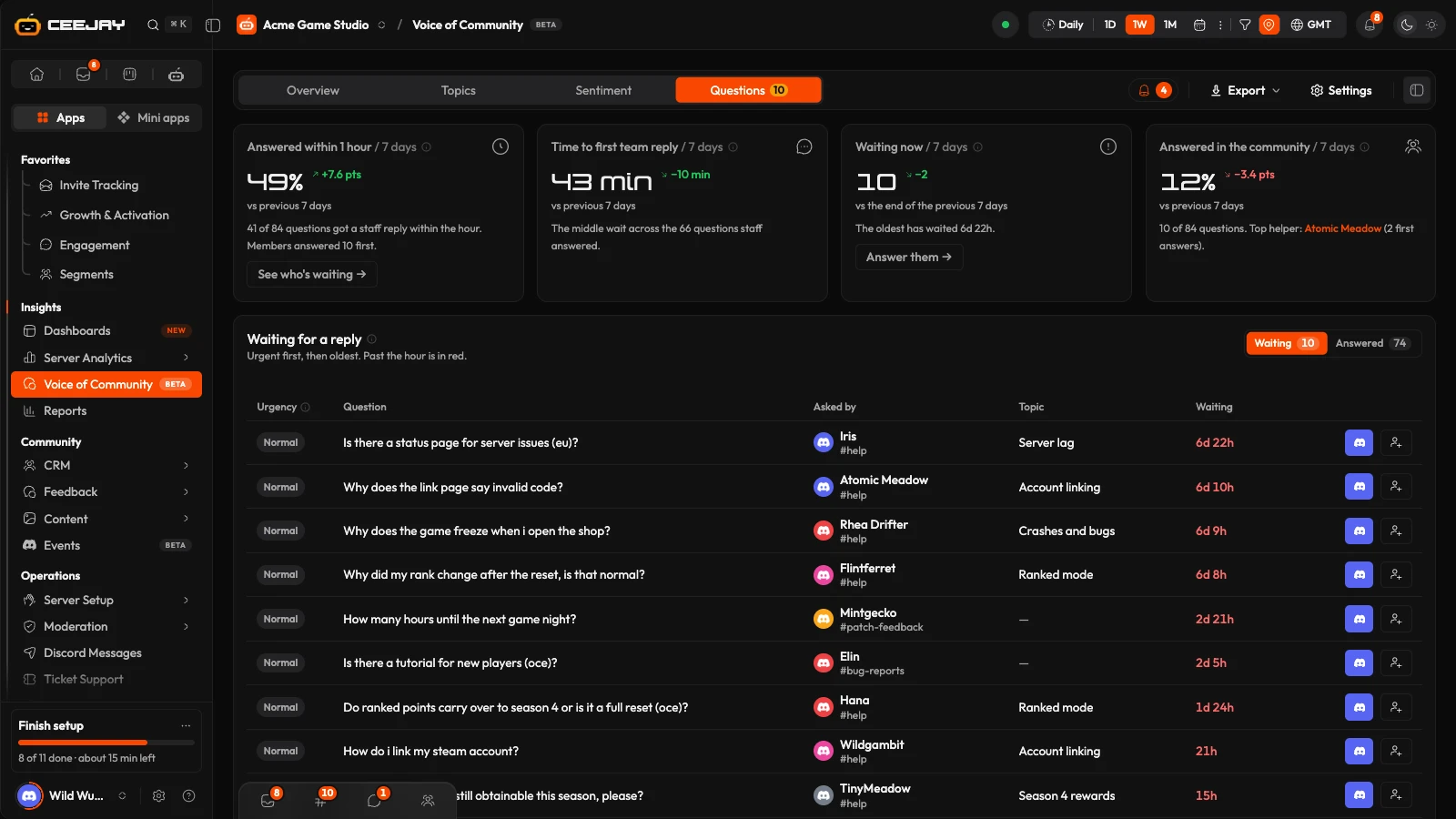
Questions shows who is waiting on you. A question is a message the model identified as a question, in a tracked channel, from a member who is not on your team or a bot.
- Four cards: Answered within 1 hour, First response time, Waiting now and Answered in the community. The reply times count replies from your Inbox team (everyone with a dashboard login, plus holders of the team roles you choose) and your Community Mods. Until you choose team roles, the cards say so, with Choose team roles →.
- Waiting for a reply and Answered questions lists, 20 to a page, with View in Discord and Assign. Assign creates a task on the board that links back to the message. You write the reply in Discord. The tab shows how many are waiting.
- Recurring questions: topics more than one member asked about. A chip says whether your knowledge base already answers it (Matching document exists or No matching document); recurring questions with no answer are the Help gaps. Draft a FAQ with CEEJAY opens the assistant with a request to write one, and See the questions filters the list to that topic.
Check how accurate the labels are
In Settings → Insights → Voice of Community, under Classifier accuracy, Check 10 labels shows random labelled messages one at a time. Say whether the label is right, pick the right one, or skip. Once there are at least 30 checks the Sentiment (i) shows the share found right.

