

Surveys and forms
Build applications, surveys, sign-ups and bug reports that members fill in without leaving Discord, and save the answers to their profiles.
Take mod and creator applications, run a survey after an event, or collect bug reports with screenshots, all without members leaving Discord. You build the form on the dashboard, post it in a channel with a button, and read the answers on the Responses tab.
What you see
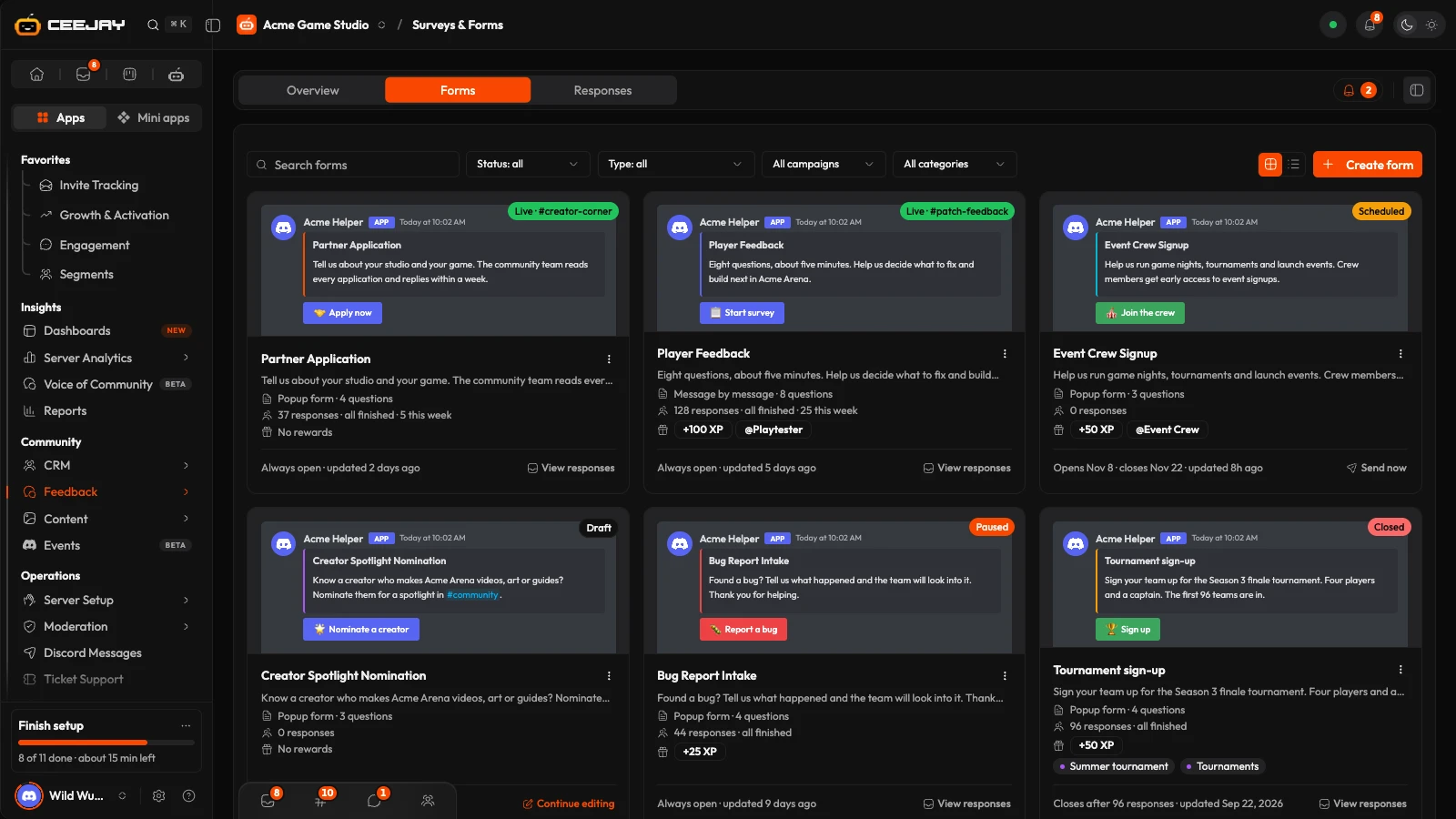
Go to Feedback → Surveys & Forms. The page has three tabs:
- Overview: how forms are doing across a date range. It follows the range picker and the Compare switch in the header.
- Forms: your forms as cards (or a table), with a search box, a status filter and a type filter.
- Responses: the answers to one form.
The bell beside the tabs is Needs attention. It lists forms about to close, forms that reached their response cap, surveys where many members stop part-way, large changes in responses, forms that were never posted, and closed forms with no reward.
Overview
The Overview has four cards:
- Responses: responses finished in the range, across every form. A member who answers the same form again is not counted twice.
- Finished: responses finished as a share of everything started. A popup form is finished in one go, so it never lowers this number.
- Members reached: distinct members who finished at least one form.
- Taking responses: forms posted to a channel and open right now.
Below them, Responses over time draws finished responses and the members who started but did not finish. By form shows responses and completion for each form. Drop-off shows how many members answered each question of your busiest message-by-message survey. Latest responses lists the newest answers across all forms. Press the (i) beside a card title for its exact definition.
Three ways members answer
Pick the Form Type when you build a form.
- Popup form: one Discord pop-up with up to 5 questions. Members can also open it with
/formand the name you give it, if you set a Slash Command Name. - Message by message: the bot asks one question at a time, in a private thread or by direct message. Up to 25 questions, and long answers are fine.
- Message form: pickers on the message, with no pop-up. Choices only, no free text.
Create a form
Go to Feedback → Surveys & Forms → Forms and press Create form. Choose Start from scratch, or Use a template for applications, surveys and sign-ups with the questions already written.
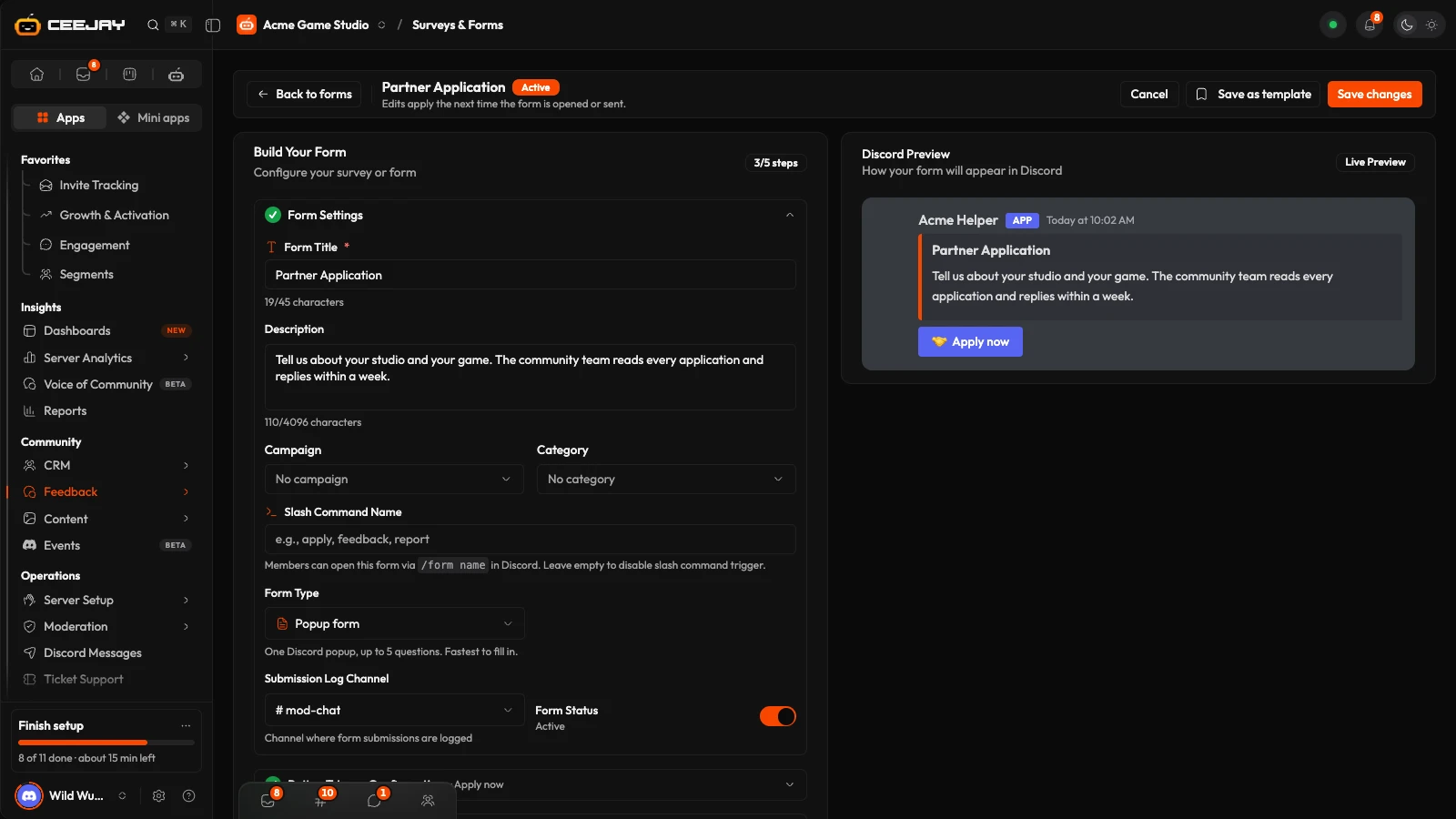
Build the form with a live Discord preview alongside. In Form Settings, enter the Form Title (required) and a Description, choose the Form Type, and optionally a Submission Log Channel, where each submission is logged. Form Status switches the form on or off.
For a popup form or a survey, open Button Trigger Configuration. Button Text is what members press to start the form. You can also set the button Color, an Emoji and the Embed Color.
Add your questions in Form Fields (popup forms) or Survey Questions (message by message). Press Add question and choose a Question type: Short text, Paragraph, Number, Email, Link, Dropdown, Single choice, Checkboxes, File upload, Member picker, Role picker, Channel picker, Rating, Net Promoter Score, Opinion scale or Yes or no. Mark a question Required. For choices, type the Options one per line. An option can hold commas and spaces, and each box shows its Discord character limit.
Each of the last four has its own options:
- Rating: a score from 1 to 5, shown as numbers or stars. Set the Highest score from 3 to 10 and name each end, such as Poor and Great.
- Net Promoter Score: how likely members are to recommend you, from 0 to 10. In a Discord popup, members pick their score from a dropdown.
- Opinion scale: Strongly disagree, Disagree, Neutral, Agree and Strongly agree.
- Yes or no: members pick Yes or No.
Open Completion Rewards, Schedule & limits and, for a survey, Survey Settings if you need them (see below). Then press Save form.
Press Save as template to save the form as one of your own templates. Saving a form does not post it. It is saved to the Forms tab, and you send it to a channel from there.
Good to know
A popup form needs a Button Text and at least one question. If you started from a template, replace every [placeholder] before you send the form to a channel. Saving is never blocked.
Where it shows
Open Where it shows in the builder to choose where members answer: Discord, the Member Hub, In game, or any of them together.
- Discord: the form is posted to a channel with its button, and opened with
/formwhen it has a Slash Command Name. With Discord off, Send to channel is dimmed and the form is answered in the Hub or in game only. - Member Hub: the form is listed on the Hub's Home screen, and members answer it in a popup, one question at a time. With Open automatically on, it also opens as a popup once a day, after a member checks in or completes a quest.
- In game: the form is offered inside your game through CEEJAY Connect, drawn in the game's own style. Choose Every game or one game. For one game, Show after can wait for one of its events, such as the end of a match, and Times sets how often it has to happen for the player since the survey opened. The game then decides when to show the survey. It needs Connect and the game's quests and shop switched on; until then the row is dimmed with the reason.
The Hub and games ask short text, paragraph, number, email, link, dropdown, single choice, checkbox, rating, Net Promoter Score, opinion scale and yes or no questions. Member, role and channel pickers and file uploads are only asked in Discord: the Hub and games leave out an optional one, and a form with a required one stays in Discord. Members earn the form's completion rewards once, wherever they answer, and a form in the Hub or in a game shows as Live on the Forms tab. Each response shows where it was given under Answered in.
Survey settings
For Message by message, open Survey Settings.
- Delivery Mode: Private Thread creates a private thread for each respondent in the survey channel. Direct Message sends the questions by direct message, and needs the member to have direct messages turned on.
- Survey Channel: where the threads are created. The default is the channel the form was posted in.
- Welcome Message and Completion Message: what the member reads when they start and finish.
Completion rewards
Open Completion Rewards to reward members when they finish. Set an XP Reward and Role Rewards, or use More rewards for coins, a badge, a code and other rewards from the Rewards Engine. A reward is granted once per member, the moment they finish. You can add rewards while you build a new form. They are attached when you press Save form. When a reward is a Steam key or a gift code, the private reply a member gets after they submit shows it straight away, and /inventory shows it again. See who got which key in the Rewards Engine pool.
Schedule and limits
Open Schedule & limits. Everything here is optional.
- Opens and Closes: leave Opens empty to post the form as soon as you send it. With a date, Send to channel schedules the post for that time. When a form closes, its button stops working.
- Close after: closes the form after that many responses. Empty means no limit.
- Respondents: Anyone, or members with one role. Other members see that they are not eligible.
- Let members change their answers: every form takes one response per member. When on, a member can answer again and their answers update. When off, their first answer is final.
- When it closes, post a summary to: a channel that gets one message with the number of responses.
Send a form to a channel
On the Forms tab, open a form's ⋮ menu and choose Send to channel. Pick the Channel and When: Now, or At a date and time. The bot posts the message with the button, usually within about 30 seconds. A form whose Opens date is still ahead is scheduled for that time unless you pick another time. Pause switches the button off, Resume switches it back on.
Manage forms
Press a card or row to open its panel. It shows the form's Responses, Finished share and Last response, then its rewards, schedule, number of questions, where answers go and when it was posted. Its buttons are Edit, Duplicate, Send to channel (Send to another channel once posted), Pause or Resume, and Delete. Deleting a form deletes its responses.
A form's status is one of Live, Scheduled, Draft, Paused or Closed. A form is Closed once its close date has passed or it has reached its response cap.
Read the responses
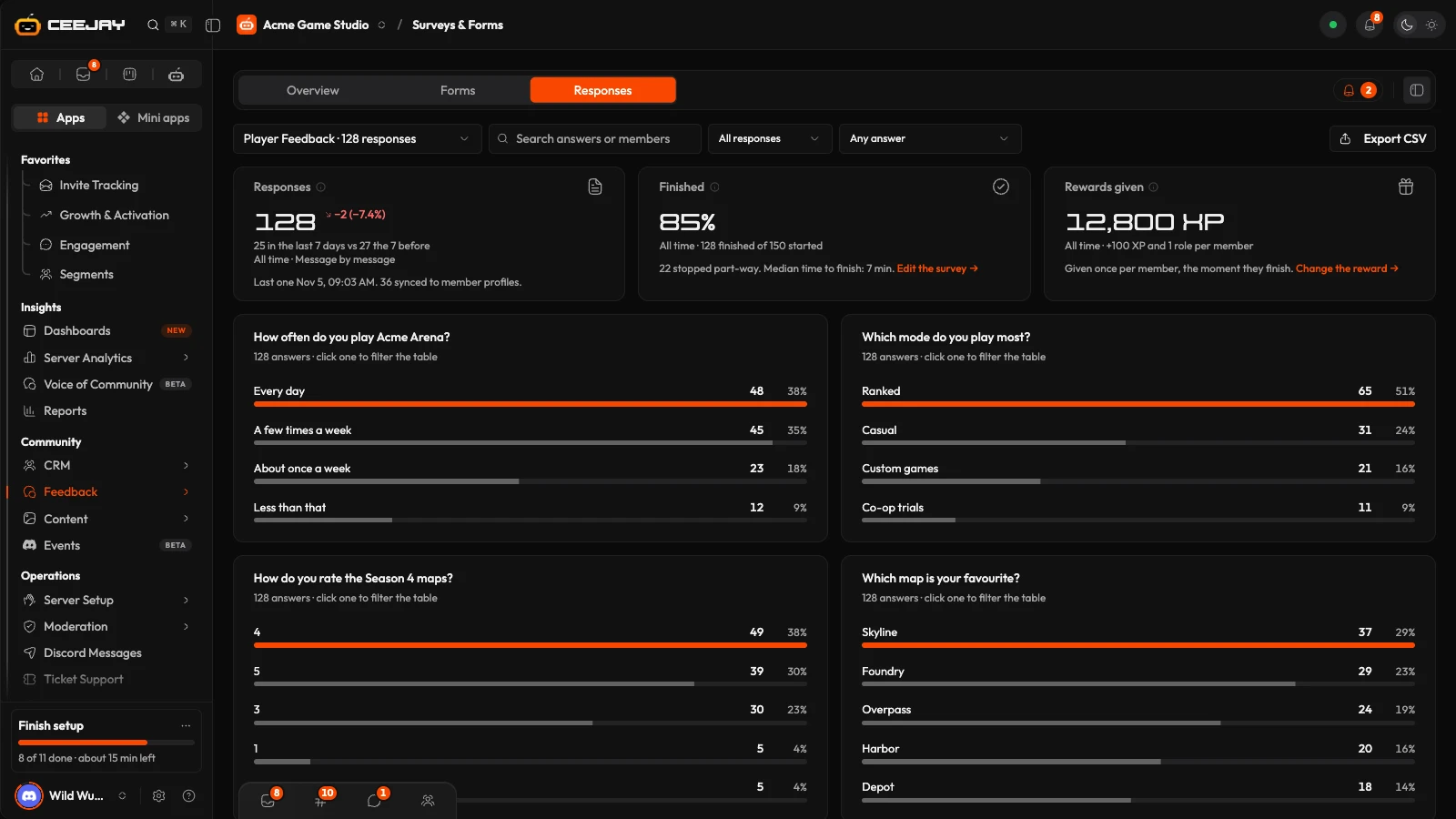
Open the Responses tab and choose a form. You can search answers or members, show Finished or Unfinished responses, and filter by an answer. Three cards show Responses, Finished and Rewards given. Each choice question has its own breakdown, and pressing an answer filters the table. A rating or opinion scale shows its average, and a Net Promoter Score question shows the score with its promoters (9 or 10), passives (7 or 8) and detractors (0 to 6). Press a row to read the full response and open the member's profile. Export CSV downloads the responses.
Save answers to the member profile
Each question has Save to the member's profile as. Choose Email address, Phone number, Tags (comma-separated) or one of your own member fields. The answer is copied to the member's profile when they finish. The panel on the Responses tab shows whether it was synced.

