

Add the bot
Invite CEEJAY to your Discord server, and see what each permission it asks for is used for.
The bot is how CEEJAY learns what happens in your server: messages, joins, voice time, reactions, tickets and more. It is also what posts your polls, giveaways and scheduled messages. Until the bot is in your server, the dashboard has nothing to show.
Before you start
- Sign in with Continue with Discord, using the account that owns the server or manages it. A server is listed for you if you own it or have the Administrator or Manage Server permission in it. To open that server's dashboard, you need to own the server, have the Administrator permission, or hold a bot master role.
- Discord adds a bot to one server at a time. Repeat the steps for each server.
Add the bot to a server
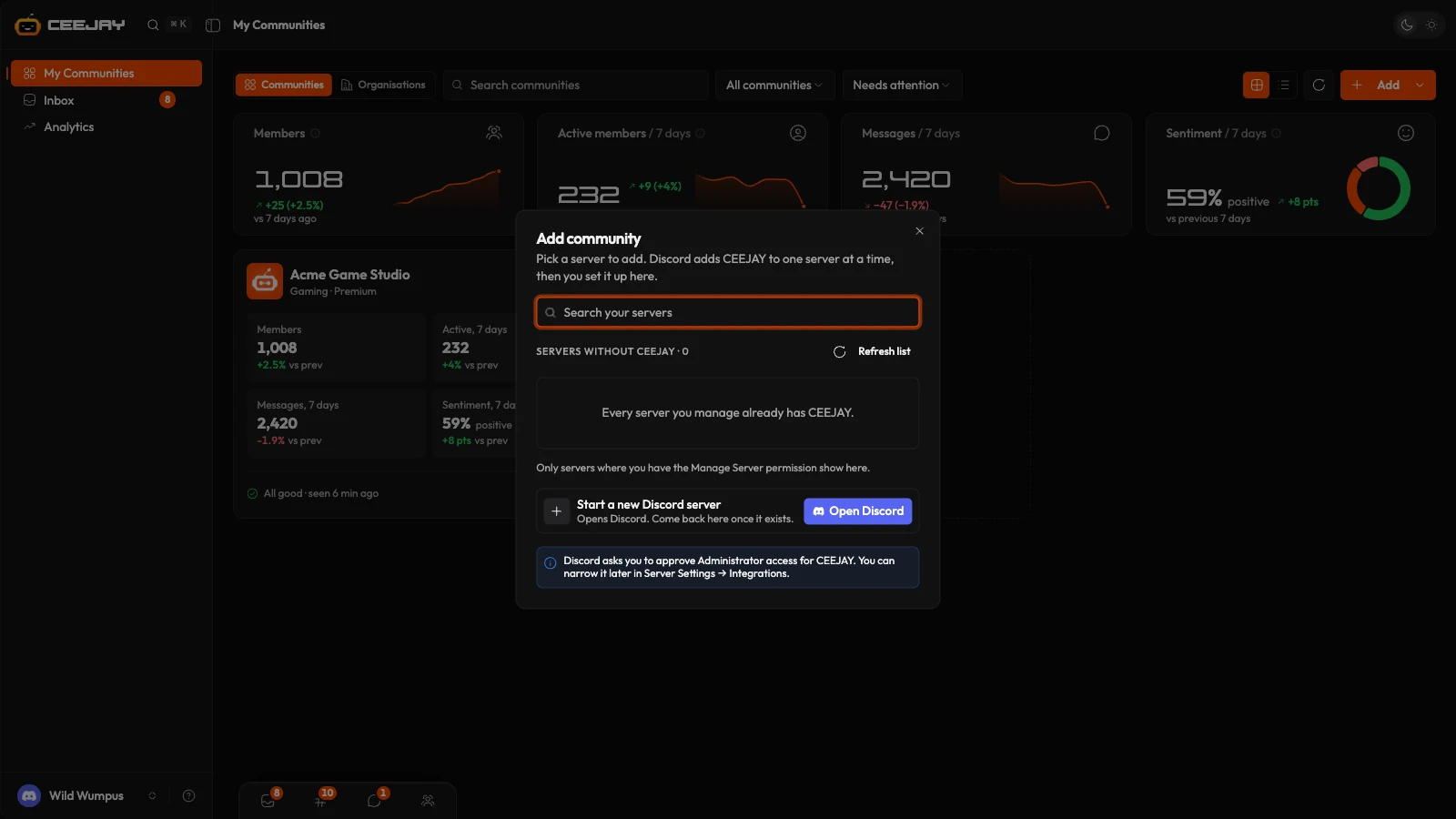
Open My Communities. Servers you can add are under Bot not installed, each with an Install bot button. You can also press Add, choose Community, and press Add beside the server. The Add community card in the grid opens the same list.
Discord opens with that server already chosen and asks you to approve CEEJAY.
You come back to CEEJAY, which opens the setup window for the server straight away. Carry on with Set up your community.
If you cancel in Discord, nothing is added. A server whose invite was started but not finished shows Finish install instead of Install bot.
If the server appears under Pending access instead of opening setup, the dashboard has not been switched on for that community yet. See My Communities.
If your server is not in the list, press Refresh list in the Add community window. The list comes from Discord, so a server you gained access to a moment ago can take a refresh to appear.
What CEEJAY asks for
The invite asks for Administrator, and for the right to add CEEJAY's slash commands. Administrator grants CEEJAY every permission its features use in one step, so there is nothing to fix later. If you would rather grant fewer permissions, you can narrow it afterwards by editing CEEJAY's role in Server Settings → Roles in Discord. The features that need a permission you removed pause until you grant it again.
Here is what each permission is for.
| Permission | What CEEJAY uses it for | What stops without it |
|---|---|---|
| View Channels | Seeing a channel at all | Analytics for that channel, and Tickets and Magic Messages in it |
| Read Message History | Reading messages so they can be counted | Message analytics and reaction tracking |
| Send Messages | Posting in a channel | Magic Messages, Polls, Giveaways, Tickets and level-up messages |
| Embed Links | Posting messages with a title, colour and links | Magic Messages, Polls, Giveaways and Social Feeds |
| Attach Files | Posting images and files | Rank cards, Welcome Cards and ticket transcripts |
| Add Reactions | Reacting to messages | Automations that add a reaction |
| Manage Messages | Deleting or pinning other members' messages | Honeypot, and Automations that delete or pin |
| Manage Roles | Assigning roles to members | React Roles, Verification, XP level rewards, Shop roles and Community Mods |
| Manage Channels | Creating channels | Tickets and the Honeypot trap |
| Manage Webhooks | Sending messages with a custom name and avatar | Magic Messages sent with a custom name, replies in a linked Discord channel in the Inbox, and ticket replies |
| Create Public Threads | Starting threads | Tickets, Surveys and Automations that use threads |
| Send Messages in Threads | Posting in threads | Tickets and Surveys that use threads |
| Manage Server | Reading the server's invites | Invite Tracking |
| View Audit Log | Reading the audit log | Community Mods and Invite Tracking |
| Manage Nicknames | Changing nicknames | Shop rewards that change a nickname |
| Timeout Members | Timing a member out | Honeypot, Verification and Automations that time members out |
| Kick Members | Removing a member | Honeypot, Verification and Automations that kick |
| Ban Members | Banning a member, and reading the ban list | Honeypot and Automations that ban, and knowing whether a member was banned or left on their own |
If you narrow the permissions
A permission only helps in the channels where the bot has it. A channel the bot cannot see is left out of analytics. CEEJAY also cannot assign a role that sits above its own role. If rewards or Verification should assign a role, drag CEEJAY's role above it in Server Settings → Roles.
Check the permissions
Two places tell you when something is missing, and what it stops.
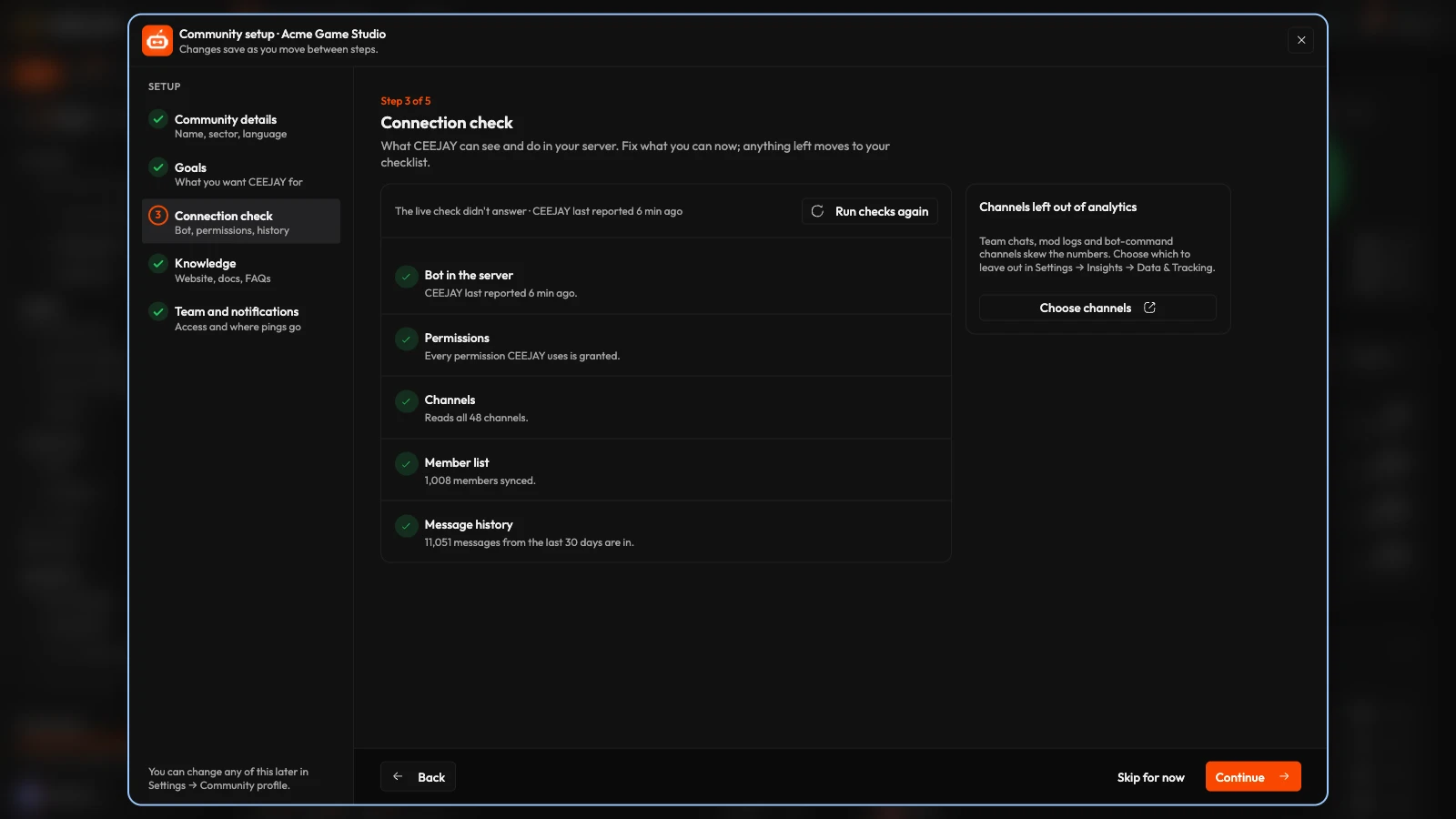
- The Connection check step of setup lists every check with a tick or a warning, for example "Manage Roles permission missing", and which features are waiting on it. Run checks again after you change something in Discord.
- A community's card on My Communities shows the same as a warning under Needs attention.
Both have a button that takes you back to Discord for that server: Fix in Discord in setup, Grant in Discord on the card, and Re-invite bot in Discord in the card's ⋮ menu. They reopen the original invite. Approving it again restores any permission that was removed.
If the bot goes quiet
The Connection check and the community card also say when the bot is not responding.
- "CEEJAY hasn't reported since ..." usually means the bot is restarting. Wait a few minutes and press Run checks again.
- "Bot offline since ..." means no messages, joins or tickets are being collected, so charts will have a gap. Use Re-invite bot.
- "Bot removed" means CEEJAY is no longer in the server. Nothing new is collected until you add it again.
Remove a community
On My Communities, open the ⋮ menu on a card and choose Remove from CEEJAY, then confirm with Remove. This removes the community from your CEEJAY account. The bot stays in your Discord server until you remove it there. You can add the community back later.

