

Giveaways
Run giveaways, drops, raffles and quest giveaways in Discord, with entry rules, bonus entries and alt checks, and track every prize claim.
Give keys to your most active members, give supporters bonus entries and reroll prizes nobody claims. A giveaway posts a prize in a channel with a button to enter. When it ends, CEEJAY draws the winners, announces them and tracks who claimed their prize.
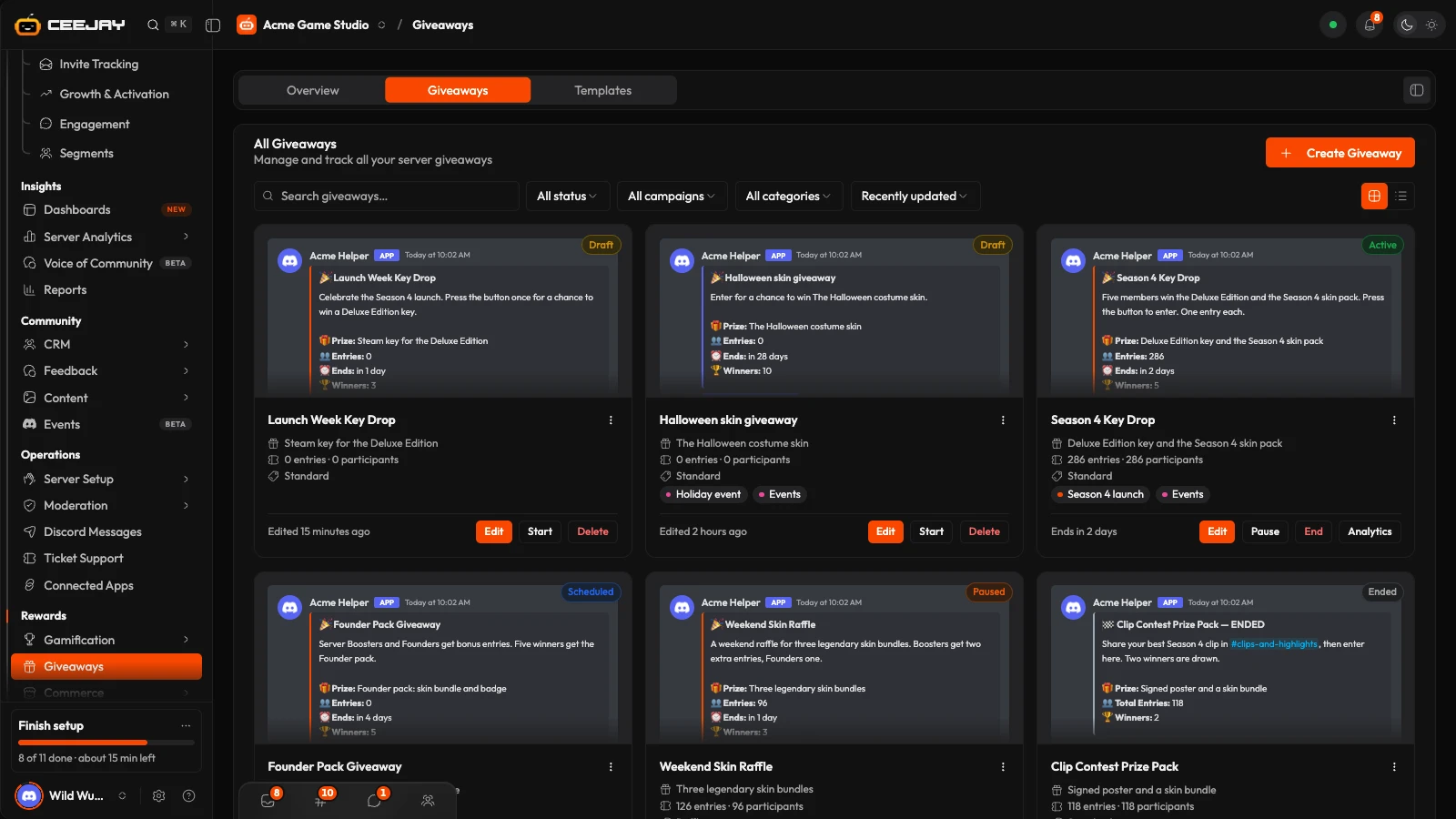
What you see
Go to Rewards → Giveaways. The page has three tabs:
- Overview: how giveaways are doing across a date range. It follows the range picker and the Compare switch in the header.
- Giveaways: all your giveaways as cards (or a list), with a search box, a status filter and a sort control.
- Templates: ready-made giveaways, and the ones you saved.
The bell beside the tabs is Needs attention.
Overview
The Overview has four cards:
- Giveaways run: giveaways that started in the range. A scheduled giveaway counts once it goes out.
- Entries: entries submitted in the range.
- Members taking part: members who entered at least one giveaway, as a share of your members.
- Prizes claimed: winners drawn in the range who claimed their prize. Unclaimed after 48 hours is flagged.
Below them, Entries per giveaway compares giveaways, and Giveaways lists them, newest first, with an Analytics → button for each. Press the (i) beside a card title for its definition.
Choose a type
In the builder, Giveaway type opens a list of types:
- Standard: runs for a set time, and winners are drawn at random.
- Drop: the first members to press the button win, and there is no draw. A drop ends as soon as its last winner is found. For now CEEJAY then does not notify the winners, announce them, change the post or calculate Analytics, and the dashboard does not name them. Use Standard or Raffle when you need to know who won.
- Raffle: bonus entries raise a member's odds when Winners picked is Weighted by bonus entries.
- Quest: members earn entries by completing tasks.
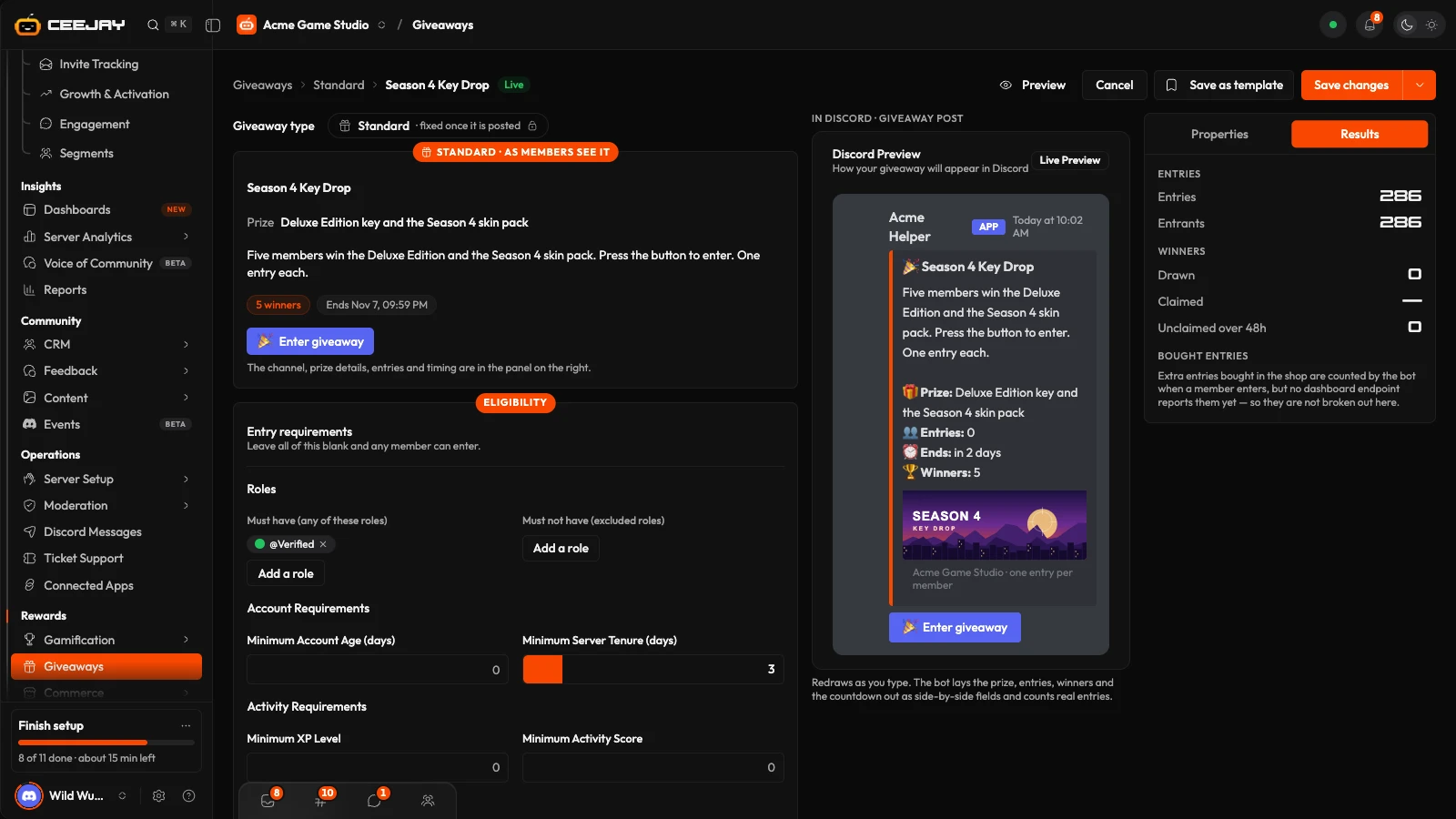
The type is fixed once the giveaway has been posted.
Create a giveaway
Go to the Giveaways tab and press Create Giveaway. Choose Start from scratch, or Use a template to open the built-in gallery.
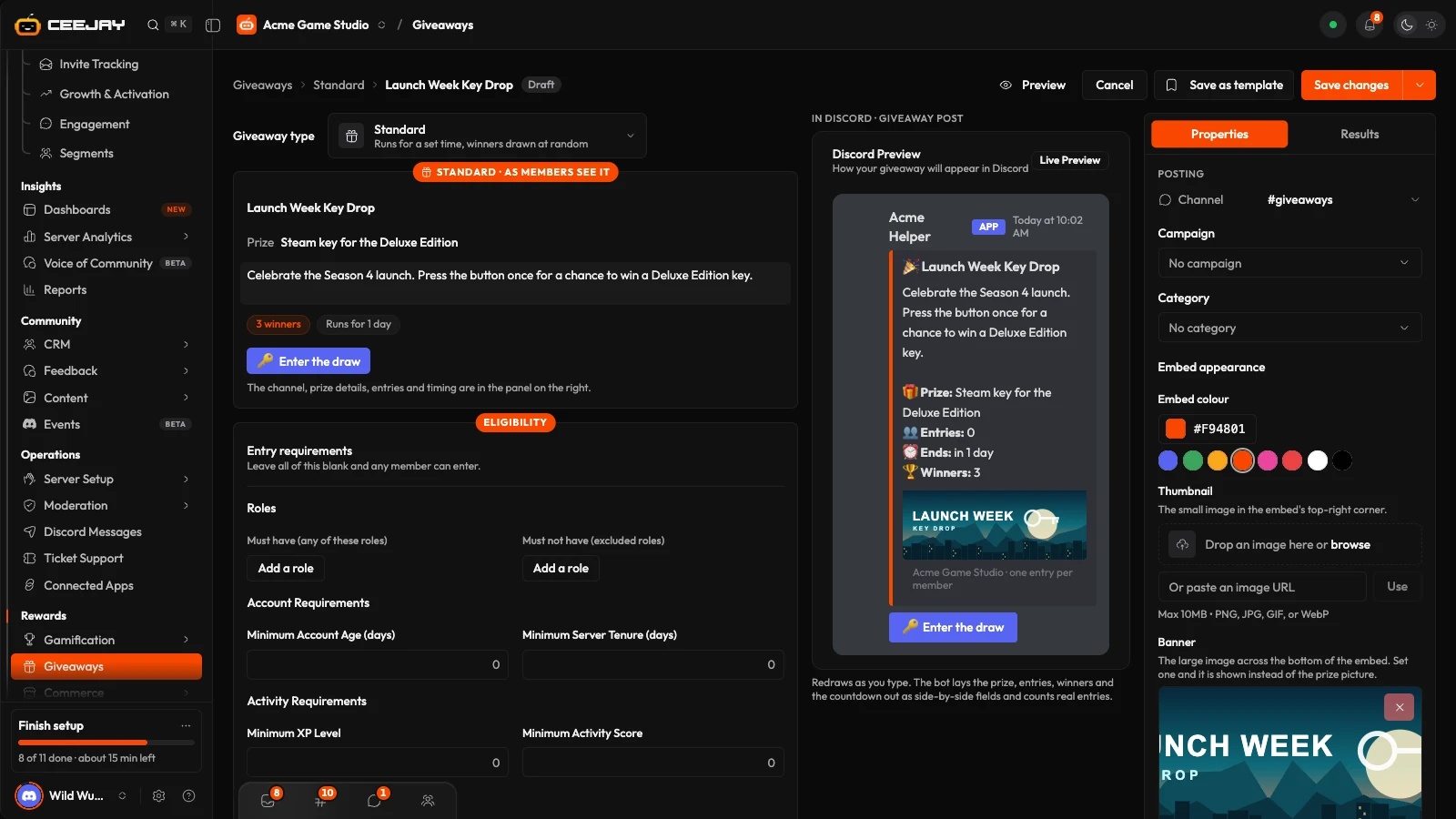
The builder is its own page. On the left is the giveaway as members will see it. Type the title (the box that reads Name the giveaway) and the Prize, and add a short description if you need one. A live preview of the post sits beside it, and Preview widens it to the whole page.
In the panel on the right, under Posting, pick the Channel. Below it, set the post's look: Embed colour, Thumbnail image, Banner image, Footer text, and the Button label, Button emoji and Button style.
Set the Prize details (Worth, the number of Winners from 1 to 100, and a Prize picture), the Entries and the Timing (see below).
Press Start now and the bot posts it within 30 seconds. Open the arrow beside it for Schedule, which posts it at its start time, or Save draft to keep it for later.
The top bar also has Cancel and Save as template, which keeps the setup (never the channel or times) as one of your own templates. If you started from a template, replace every [placeholder] before Start now or Schedule.
Entries and timing
- Total cap limits all entries. Each member limits entries per member, from 1 to 1,000. Daily re-entry lets a member enter again each day.
- Winners picked is At random, Weighted by bonus entries or First to enter.
- Starts is optional. Leave it blank to post the giveaway as soon as you schedule it or press Start on its card.
- Ends by is A length of time (Runs for, in minutes, with presets from 1 hour to 1 week) or A date and time. A giveaway that goes to Discord needs an end. A draft does not.
Use a date and time to end a giveaway
A giveaway set to A length of time is not given an end time when it starts, so it does not close or draw winners until you press End. Choose A date and time for Ends by, or press End when you want the draw. Giveaways made from a built-in template start with A length of time.
Pick the winner method that fits the type
At random gives every member who entered the same chance, whatever their bonus entries. Weighted by bonus entries counts them. First to enter is meant for the Drop type: on any other type it draws nobody, and the giveaway ends with no winners.
Participation XP and rewards
Participation XP gives XP For entering and For winning. Rewards for winners adds a Role, Coins, or anything from the pool, on top of the prize. Rewards from the pool can be added while you build a new giveaway, and are attached when you save it. A role or coins need the giveaway saved first. When a reward is a key, winners see it when they claim their prize. See the Rewards Engine.
Who can enter
Three sections sit under the giveaway card.
- Entry requirements: leave all of it blank and any member can enter. You can require or block roles (Must have, Must not have), set a Minimum Account Age (days), Minimum Server Tenure (days), Minimum XP Level and Minimum Activity Score, limit entry to Segment Filter segments, or add Excluded user IDs and Excluded role IDs.
- Bonus entry rules: extra entries for members with a role (Role Bonuses), a level (Level Bonuses), a segment (Segment Bonuses) or time in the server (Tenure Bonuses), and a Streak Bonus for each consecutive giveaway. Bonus entries only change the odds when Winners picked is Weighted by bonus entries, and even then they mean better odds, never a guaranteed win.
- Fraud protection: Min Account Age (Days), Require Avatar, Min Messages in Server, Min Activity Score, Alt Account Detection, Claim Timeout (Hours) and Auto-Reroll on Timeout. A new giveaway starts with Min Account Age (Days) at 7, so Discord accounts younger than a week cannot enter, with Alt Account Detection on, Claim Timeout (Hours) at 24 and Auto-Reroll on Timeout on. Alt Account Detection turns away a member who matches three of these four: fewer than 5 messages, no profile picture, an account younger than 30 days, and under 7 days in the server.
A Quest giveaway also has Quest tasks: what members do to earn entries. Each task is Messages, Voice, Reactions, Level or Role, with a target and the entries it awards. It needs at least one task.
What members see
The bot posts the giveaway with the entry button. A member who presses it gets a private confirmation with their total entries and a breakdown of any bonus entries, or a private message saying why they cannot enter.
When a giveaway reaches its end time, or you press End, entries close, the bot draws the winners and posts them in the channel, which usually takes about 30 seconds. The original post changes to show the winners, and its button becomes Giveaway Ended. The winners post has its own Claim Prize button, so a winner with direct messages turned off can still claim. Each winner also gets a direct message from the bot with the same button. Pressing it marks the prize as claimed and shows the winner their key, if the prize has one. A winner picked by a reroll is notified too. You fulfil the prize yourself, unless it is a reward from Rewards for winners. If a winner does not claim within the Claim Timeout (Hours) (24 by default) and Auto-Reroll on Timeout is on, a new winner is drawn.
Manage giveaways
The buttons on a giveaway depend on its status:
- Draft: Edit, Duplicate, Start, Delete.
- Scheduled: Edit, Duplicate, Start Now, Delete.
- Active: Edit, Duplicate, Pause, End, Analytics. Pause closes entries until you Resume.
- Paused: Resume, Duplicate, End. End is refused on a paused giveaway for now, so Resume it first and then press End.
- Ended: Analytics, Duplicate.
End asks first. Entries close at once, and an ended giveaway cannot be reopened or its draw reversed.
Analytics is filled in when a giveaway reaches its end time or you press End. It shows Total Entries, Unique Participants, Claim Rate, Rerolls Performed, a Segment Breakdown, an Entry Method Breakdown and Fraud Statistics. Press Edit on a draft, scheduled or active giveaway and the Results tab on the right shows its entries and the winners drawn so far. An ended giveaway opens its Analytics instead. These do not name the winners: they are in the announcement the bot posted in the channel.
Good to know
A giveaway can also be sent to partner servers you work with. In the panel on the right, Partner servers lists the partners that have giveaway access. Switch one on and pick Their channel, and the giveaway goes to that channel when you start or schedule it. See Partner links.
Templates
The Templates tab has Built-in templates, from a milestone draw to a game key drop. Press Browse templates for the gallery. Your own saved templates are listed below with Use template and Delete.

