

Member fields
Keep your own facts about each member, such as a player ID or a country, and use them in filters, segments and exports.
Member fields keep the facts about a member that Discord does not tell you: a player ID, a country, a shirt size, whether they have early access. You make the list of fields once, then fill them in from form answers or by hand. They appear on each member profile, as columns and filters in Members, and as conditions in segments.
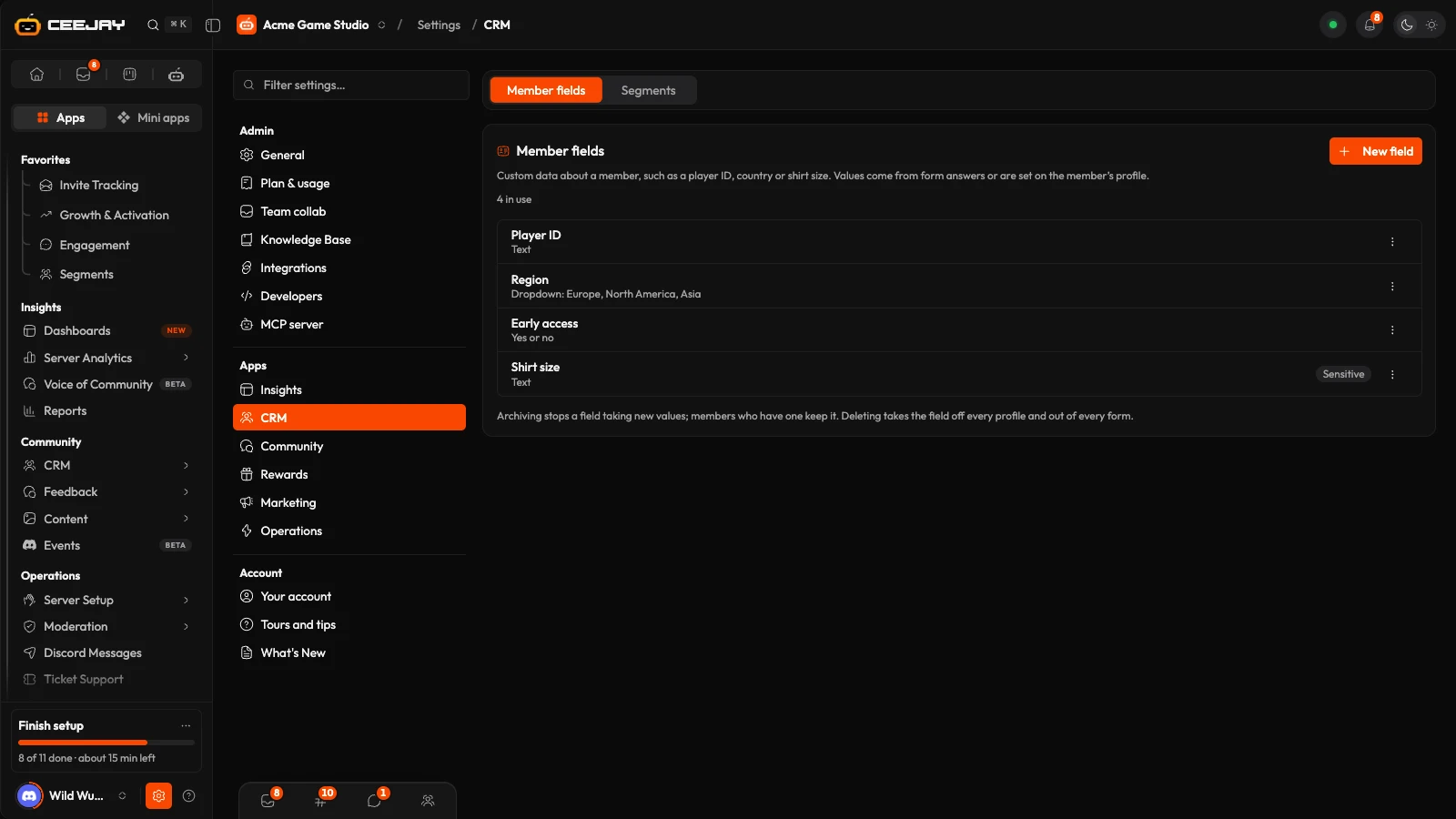
Create a field
Go to Settings → Community → Member fields. If it is not there, member fields are not available for your community yet.
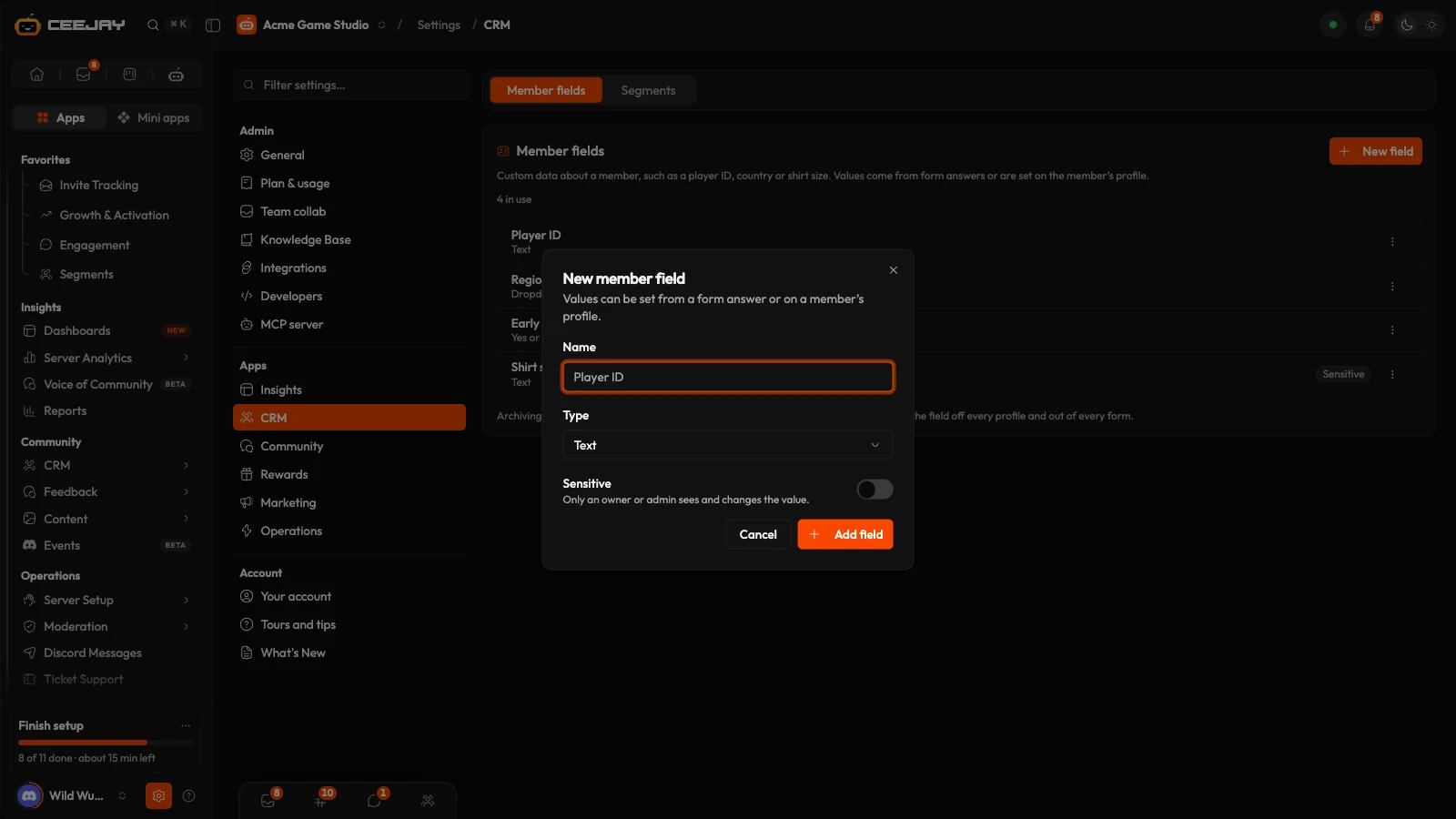
Press New field.
Give it a Name, for example "Player ID". A name can be up to 60 characters.
Choose the Type:
| Type | Holds |
|---|---|
| Text | A short piece of text, up to 500 characters. |
| Number | A number. |
| Date | A day. |
| Dropdown | One value from choices you set. Enter them under Choices, one per line. |
| Yes or no | Yes or no. |
The type cannot be changed once the field exists, because its values were checked against it.
Switch Sensitive on if only owners and admins should see and change the value. Press Add field.
A community can have up to 50 fields. The list shows each field's name and kind, and Sensitive and Archived tags.
Fill in a field
From a form answer. In the form builder, open a question and choose the field under Save to the member's profile as. When a member answers, the answer becomes their value. An answer that does not fit the field, such as text in a Number field, is not saved. See Surveys and forms.
By hand. Open a member's profile, go to the Admin tab and find Fields. Press the pencil beside a field, type or choose a value and press Save. Clear removes it. Dates are entered with the date picker.
Under each value the profile says where it came from: "From a form answer" or "Typed" with the name of the person who typed it, and when. A new value replaces the old one, and CEEJAY keeps the earlier one as history.
Use fields
- Columns. Each field that is not sensitive or archived adds a column to the Members table. It is off until you turn it on under Columns, in the Your fields group, and it cannot be sorted. A CSV export includes a column for each.
- Filters. In Filter, Add filter has a Member fields group, and a field's column heading has its own filter. The comparison depends on the type: for example "is", "is not", "has a value" or "has no value", "is at least" for a number, or "is before" for a date.
- Segments. Filters on member fields can be saved as a segment, with up to five conditions that must all hold.
- Quests. A Match a member field task rewards members when a field reaches a value. For a number field it can also reward a rise, such as scoring 50 points in a week ("goes up by at least 50"). The quest reads the field, so it works for values you fill in by hand, from forms, or that a connected product sends. See Quests.
Fields from a connected product
A connected product, such as Ultimate Bots or a game of yours, can send its own fixed set of fields. They are filled in by the product and cannot be typed over by hand. They sit together in their own group in Columns and Add filter, and on a member's profile under the product's logo.
Sensitive fields
A Sensitive field is for things only owners and admins should handle. Its value is shown and changed only by them. A team member who is limited to certain pages is never shown that the field exists. It gets no table column, cannot be filtered on and cannot be used in a segment. A field cannot be made sensitive while a segment has a condition on it.
Edit, archive or delete a field
Press the ⋮ menu on a field.
- Edit changes the name, the choices of a Dropdown field, and the Sensitive switch. Members who already have a value keep it under the new name.
- Archive stops the field taking new values. Members who have one keep it, and the field gets no column or filter. Restore brings it back.
- Delete takes the field off every member profile and out of every form. To keep the values and only stop collecting more, archive it instead.
Only an owner, an admin or a bot master can change the list. Anyone else who reaches the section can see it.
Good to know
Use fields for facts you collect on purpose. A member's email address has its own place: type it in the Email column of Members, or save a form answer to Email address. See Email.

