

Partner links
Connect partner and creator servers, then post your giveaways in their channels, with their approval if they want it.
Run a giveaway in a creator's server and reach players outside your community. A partner is a server you work with, such as a creator's community. Its admin adds CEEJAY's bot and links the server to yours with a code. From then on you can send a giveaway to a channel in their server, and their members enter it with the button on the post.
The sidebar marks this page Beta. Nothing is sent to a partner until you start or schedule a giveaway that includes them.
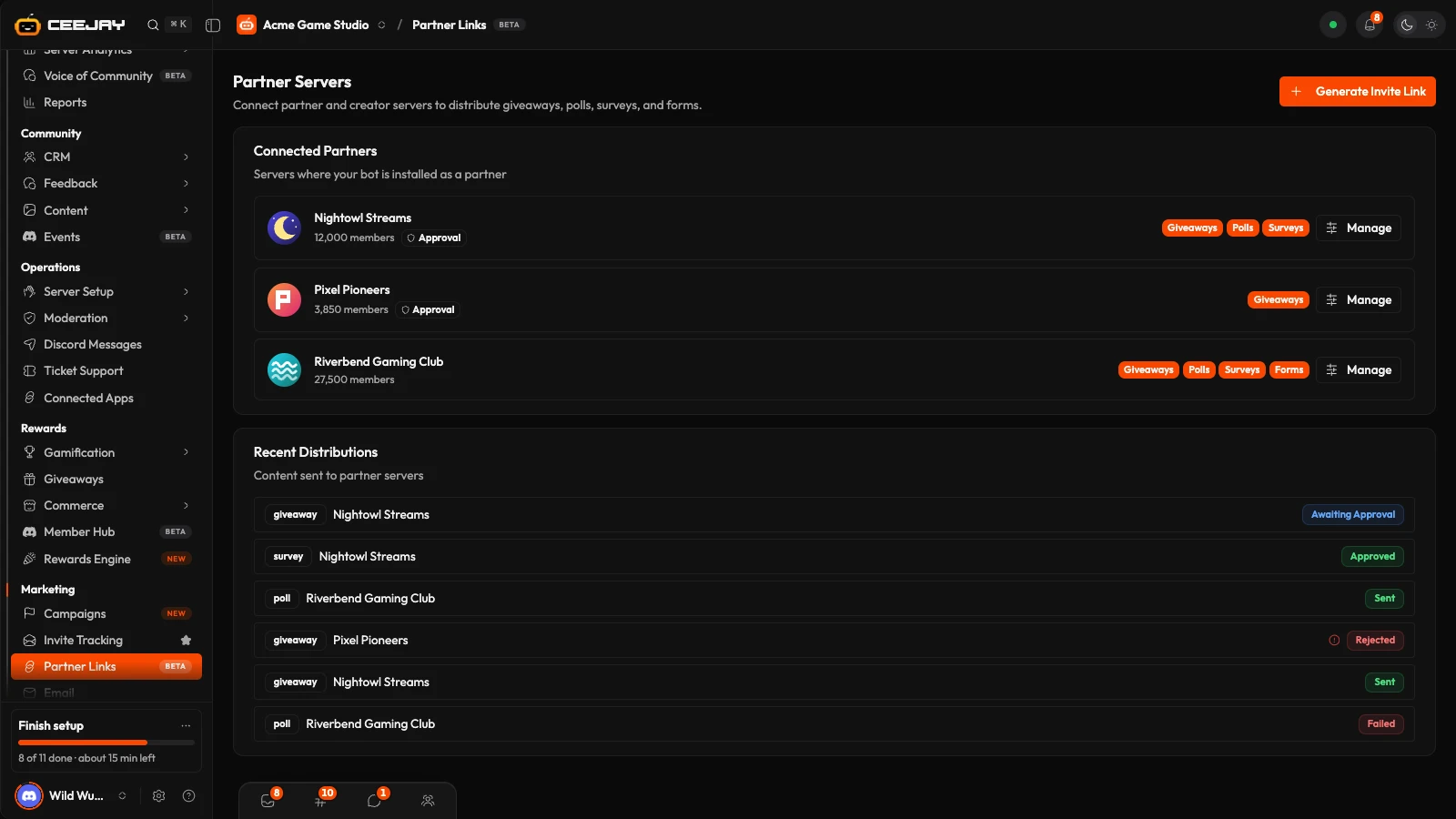
What you see
Go to Marketing → Partner Links. The heading on the page says Partner Servers. If the sidebar does not list the page for your community, search does: press ⌘K (Ctrl K on Windows) and type partner.
The page has:
- Generate Invite Link: starts a new partner connection.
- Connected Partners: the servers where your bot is installed as a partner. Each shows its name, its member count, the features you allowed (Giveaways, Polls, Surveys, Forms), an Approval chip when it reviews content, and a Manage button.
- Recent Distributions: your last 20 distributions, with the partner and a status: Pending, Awaiting Approval, Approved, Sent, Rejected or Failed. Hover the red icon on a rejected one to read the reason.
Connect a partner
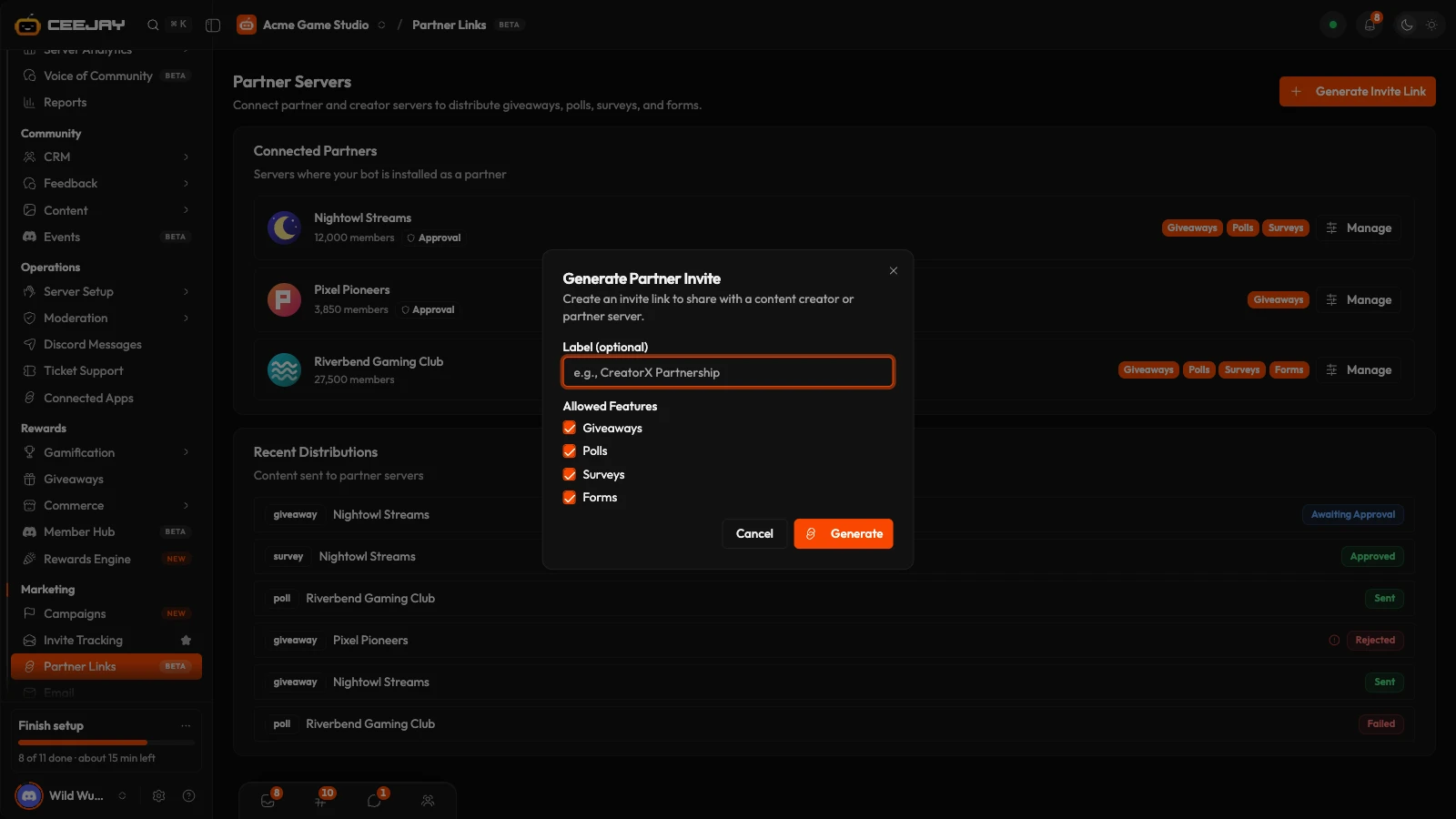
Press Generate Invite Link.
Add a Label if you like, such as the partner's name. It is for you. Under Allowed Features, tick what this partner may receive: Giveaways, Polls, Surveys and Forms. At least one is needed. Press Generate.
The next screen says Invite Created! and shows the code and a Bot Invite URL. Copy the link and send it to your partner, with the code.
The partner opens the link and adds the bot to their server. Then someone with the Manage Messages permission runs /link-partner there with the code. The bot replies Partner Link Successful! with the features enabled and how many channels it synced. A code works once. Ask for a new one if it was used.
The server now shows under Connected Partners. If it does not, refresh the page.
Manage a partner
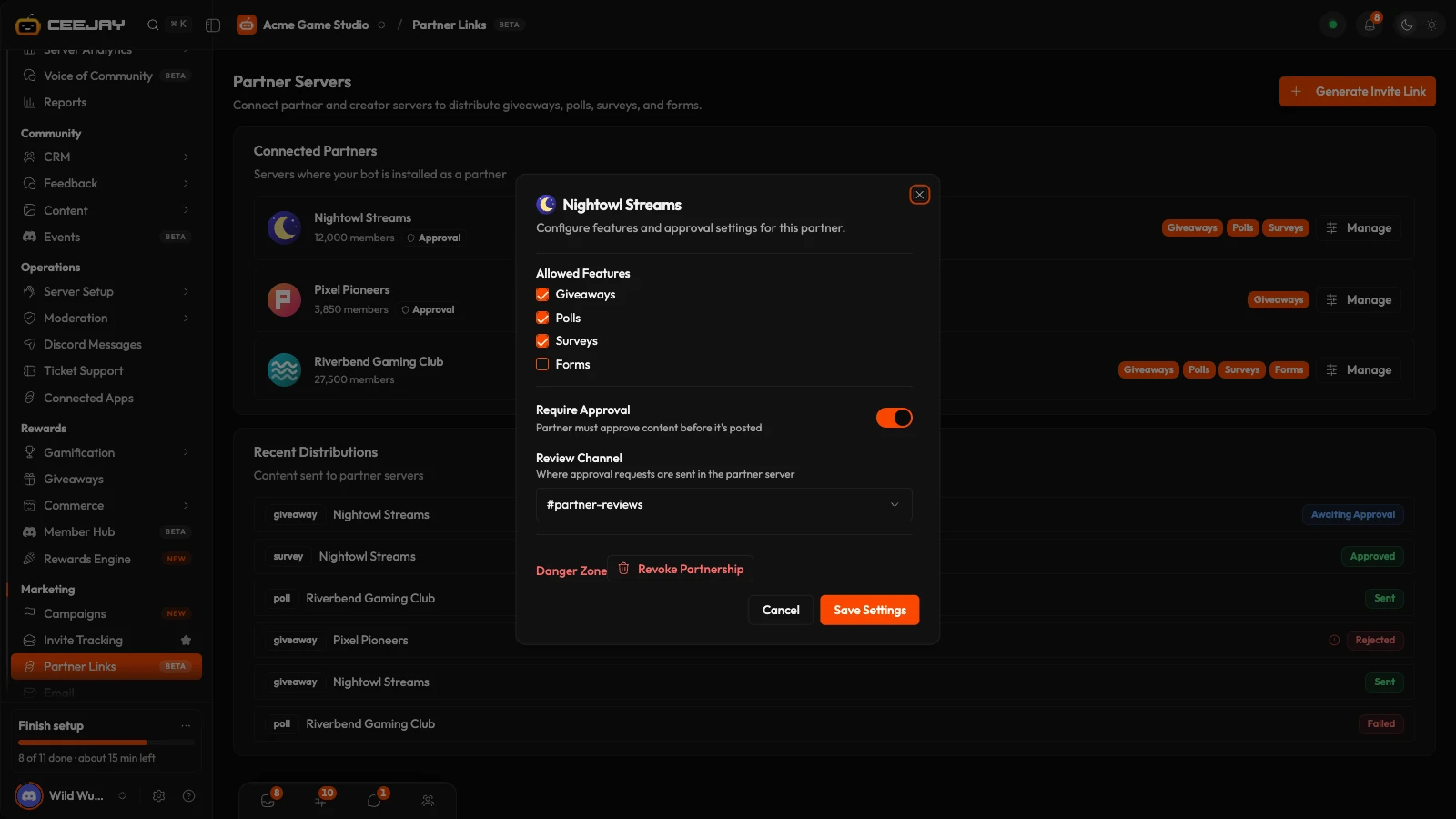
Press Manage on a partner to open its settings.
- Allowed Features: change what the partner may receive.
- Require Approval: the partner must approve content before it is posted.
- Review Channel: where approval requests are sent, a channel in the partner's server. It appears once Require Approval is on. The list fills from the channels the bot synced when it joined. If it says No channels available yet, they have not synced.
- Danger Zone: Revoke Partnership disconnects the partner server after you confirm with Yes, Revoke.
Press Save Settings to save your changes.
Pick a review channel
Approval only holds content back when there is a review channel to ask in. With Require Approval on and no Review Channel, or a channel the bot cannot find, the content goes out without being reviewed.
Send a giveaway to a partner
Open a giveaway in Rewards → Giveaways, then go to the Partner servers group in the panel on the right. It lists the partners that have Giveaways allowed, each with its member count and a switch. Switch a partner on, then pick Their channel. The giveaway goes out to the partner when you press Start now or Schedule, and a partner with no channel picked is not sent it. For a scheduled giveaway that means straight away, not at its start time, and members of the partner server cannot enter until it has started. Saving a draft sends nothing. If no partner has giveaway access, the group says so.
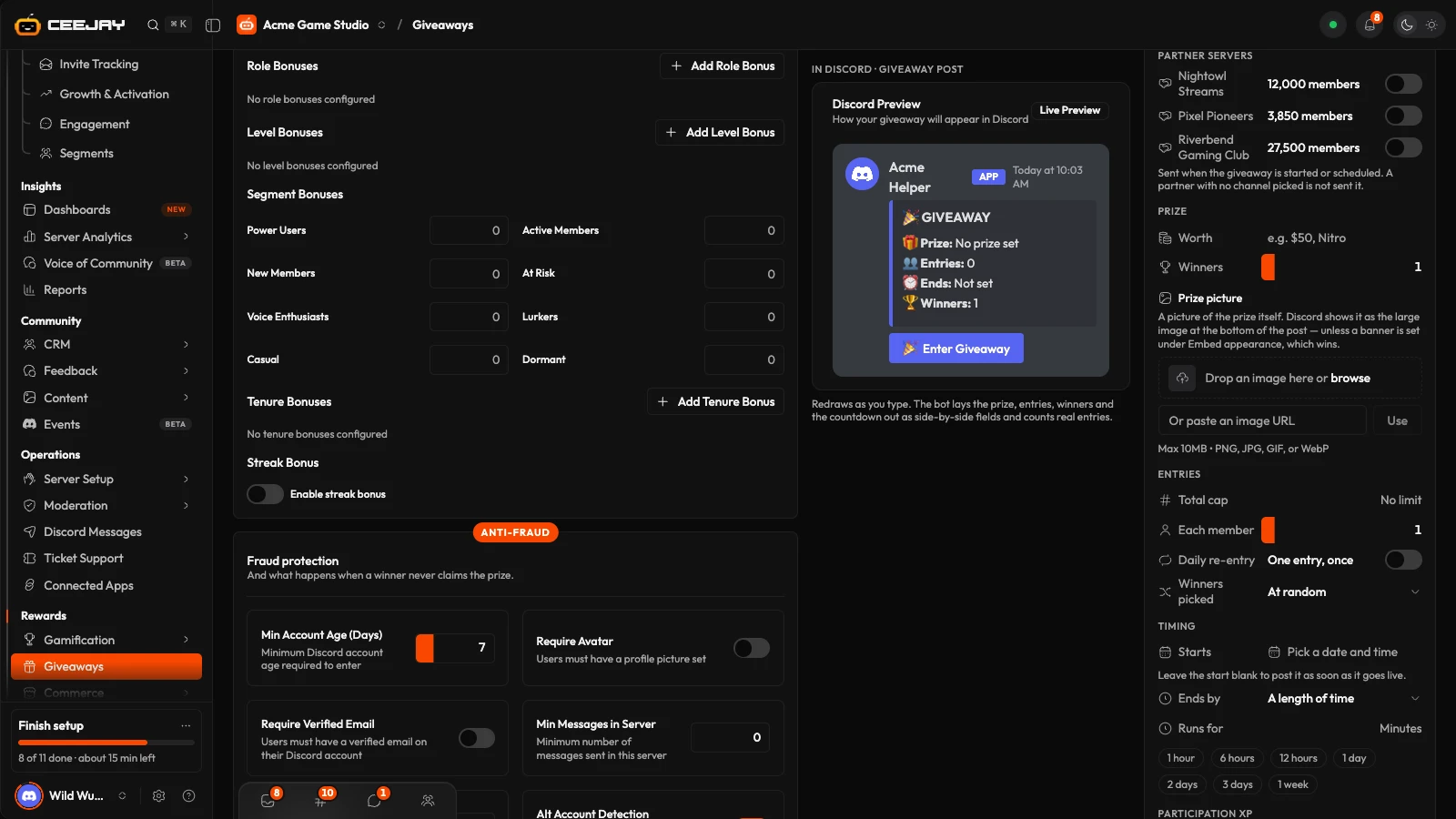
The partner's channel gets a short post with the giveaway's title, description, prize and an enter button. It is posted within about a minute. Members of the partner server enter with that button, the same way members of yours do. See Giveaways.
A partner that requires approval gets a Content Review Request in its review channel first, with Approve and Reject buttons. Someone with the Manage Server permission presses one. A rejection can carry a reason, which shows beside the distribution on your page. Until then the status is Awaiting Approval.
Only giveaways can be sent from the dashboard. Polls, Surveys and Forms can be allowed for a partner, but their builders have no Partner servers group.

