

Invite Tracking
See which link or member brought each new member, and spend on the creators, ads and partners that bring members who stay.
Give each creator their own invite link, thank the members who invite the most and compare ads, socials and partners. Invite Tracking follows each join back to the invite it used, then follows those members: did they take part, did they stay a week, are they still active.
The bot needs the Manage Server permission to read your invites. See Add the bot.
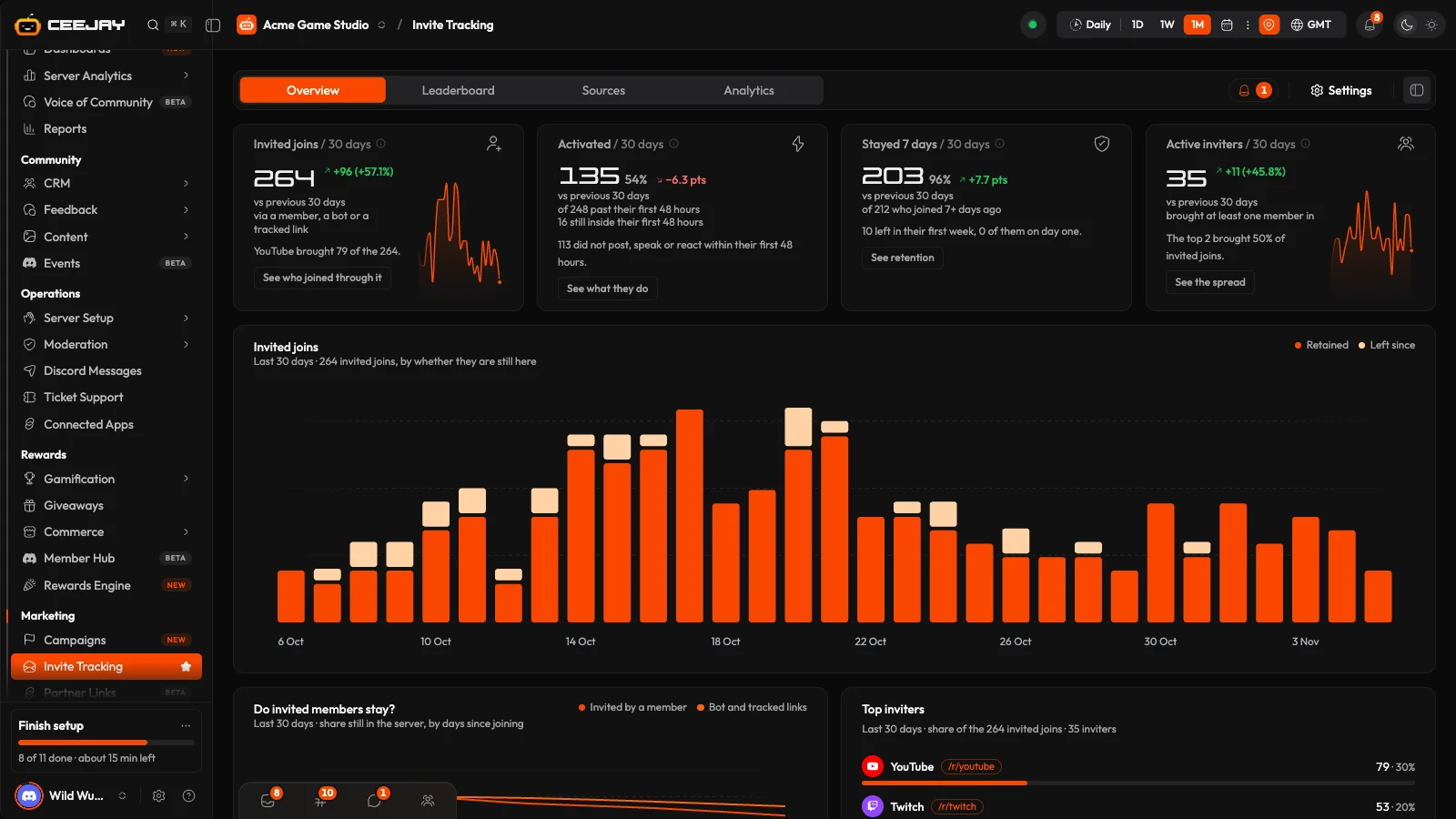
What you see
Go to Marketing → Invite Tracking. The page has four tabs:
- Overview: how invites are doing, and which inviters and links bring members in.
- Leaderboard: every inviter and link, with search and sorting.
- Sources: the invite links you make and where joins come from.
- Analytics: invited members against organic joins, how long they stay and what they do.
Every tab follows the range picker in the header, and the Overview also follows Compare in the header's ⋮ menu. Each number is about the members who joined in that range. A member who left and came back counts once, for their latest join. The bell beside the tabs is Needs attention, and Settings at the top of the page opens the invite settings in a panel beside it.
Who brought them
Each join belongs to exactly one row, and the first match wins:
- An invite link you made on the Sources tab, or the server's vanity URL.
- The member who created the invite. If an app created it, such as your own bot, a server listing site or a verification bot, the row is a Bot link.
- Organic: the bot could not tell which invite was used. The invite may have been deleted before the bot saw it, or the member was added directly.
Joins are logged from the day tracking started. When the period to compare with starts before that, the cards say "No earlier period to compare" and give the date joins are logged from.
Overview
- Invited joins: members whose latest join in the range came through an invite. A line says who brought the most.
- Activated: the share of invited members who took part within their activation window, 48 hours by default, counted once that time is up. A line says how many are still inside it. If the bot saw fewer than half of the joins, the card says so and links to the activation settings.
- Stayed 7 days: invited members still in the server 7 days after joining, out of those who joined at least 7 days ago.
- Active inviters: members, bots and invite links whose invite brought at least one member in.
Under the cards, Invited joins stacks the joins over time by Retained and Left since, with a dashed line for the previous period while Compare is on. Do invited members stay? shows the share still in the server by days since joining. Top inviters shows the top five and the rest. Inviters is a table of the top 10, with Inviter, Invited, Activated, Retained, Left in week 1, Posted and Sentiment. Full leaderboard opens the rest. Press a row to open its deep dive.
Press the (i) beside a card title for its exact definition. The column titles on the Leaderboard have one too.
The Needs attention bell lists:
- inviters whose invites may not be real members;
- a fifth or more of invited members leaving within a day, from 20 or more invited joins;
- invited joins moving 40% or more against the period before, from at least 10;
- one inviter or link bringing half or more of 20 or more invited joins;
- a large source whose members rarely activate;
- activation not being tracked for most joins in the range.
Leaderboard
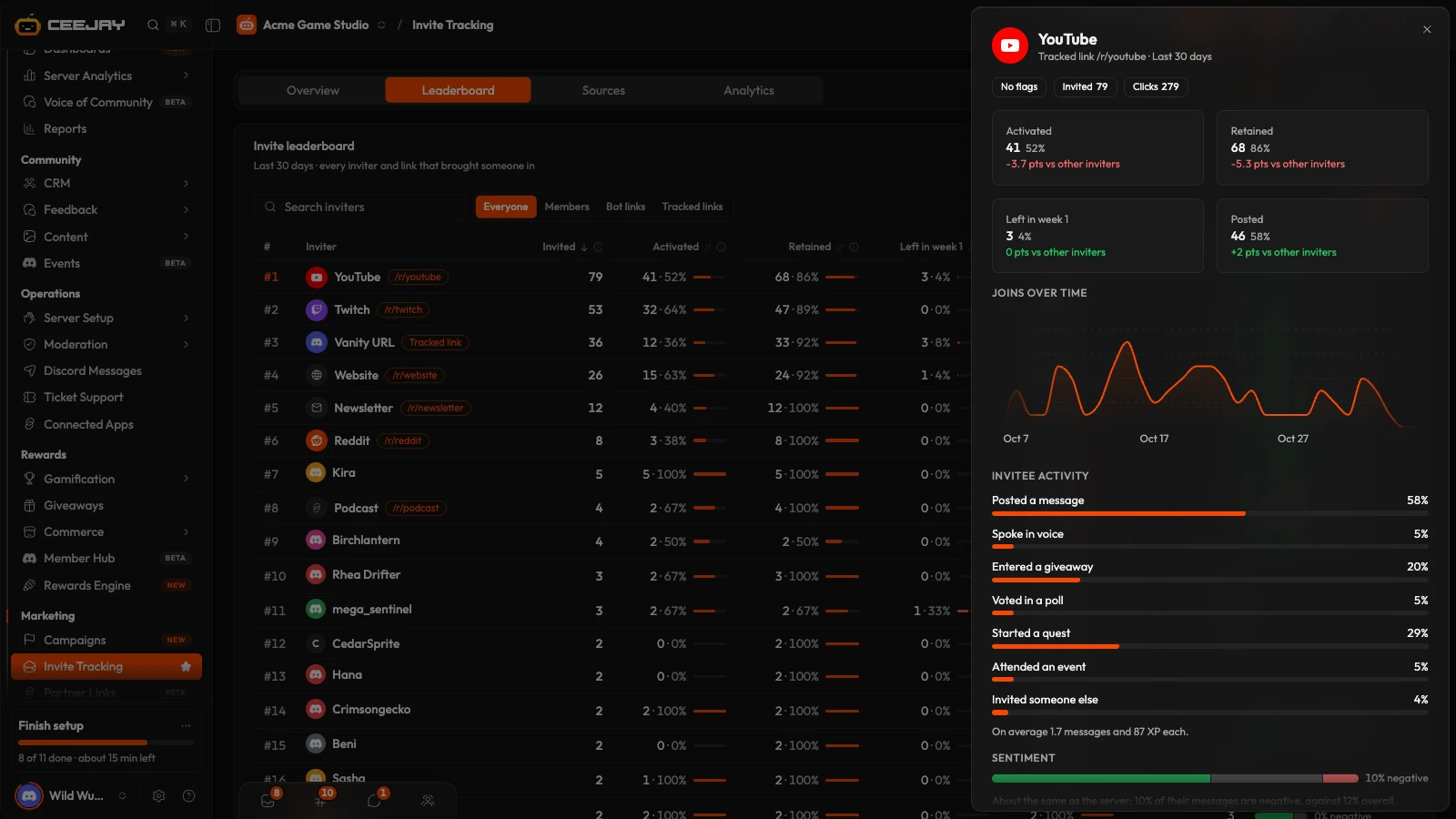
The Leaderboard lists every inviter and link that brought someone in, most invites first, 20 to a page and up to 500 in all. # is the place by invites for the whole range, however you sort. Search by name, show Everyone, Members, Bot links or Tracked links, and switch between a table and cards. Sort the table by Invited, Activated, Retained, Left in week 1, Posted or Avg messages.
A chip beside a name flags a row worth a look: All left in week 1, Nobody posted, Many leave in week 1 or Rarely activate. The first two can mean the invites were not real members, so open the row before you reward anyone for it. Review the row before you act on a flag.
Deep dive
Press any row, anywhere on the page, to open its deep dive. It shows how that inviter or link compares with everyone else: Activated, Retained, Left in week 1 and Posted, then Joins over time and Invitee activity: posted, spoke in voice, entered a giveaway, voted in a poll, started a quest, attended an event or invited someone. Sentiment compares the tone of their messages with the server's, once at least 50 have been analysed. Roles gained / 30 days and a Members list follow. From the deep dive you can open everyone a member invited in Members, copy a tracked link's URL with Copy tracking link, and ask CEEJAY what the invitees have in common.
Sources
The Sources tab lists your invite links with Clicks, Joins, Activated and Retained for the range, and where joins come from: invited by a member, bot links, invite links and organic. Search the links, switch between a table and cards, and press a link to open its deep dive. The icons on each link copy its Discord invite (or its tracking link, when click tracking is on), download its QR code and delete it.
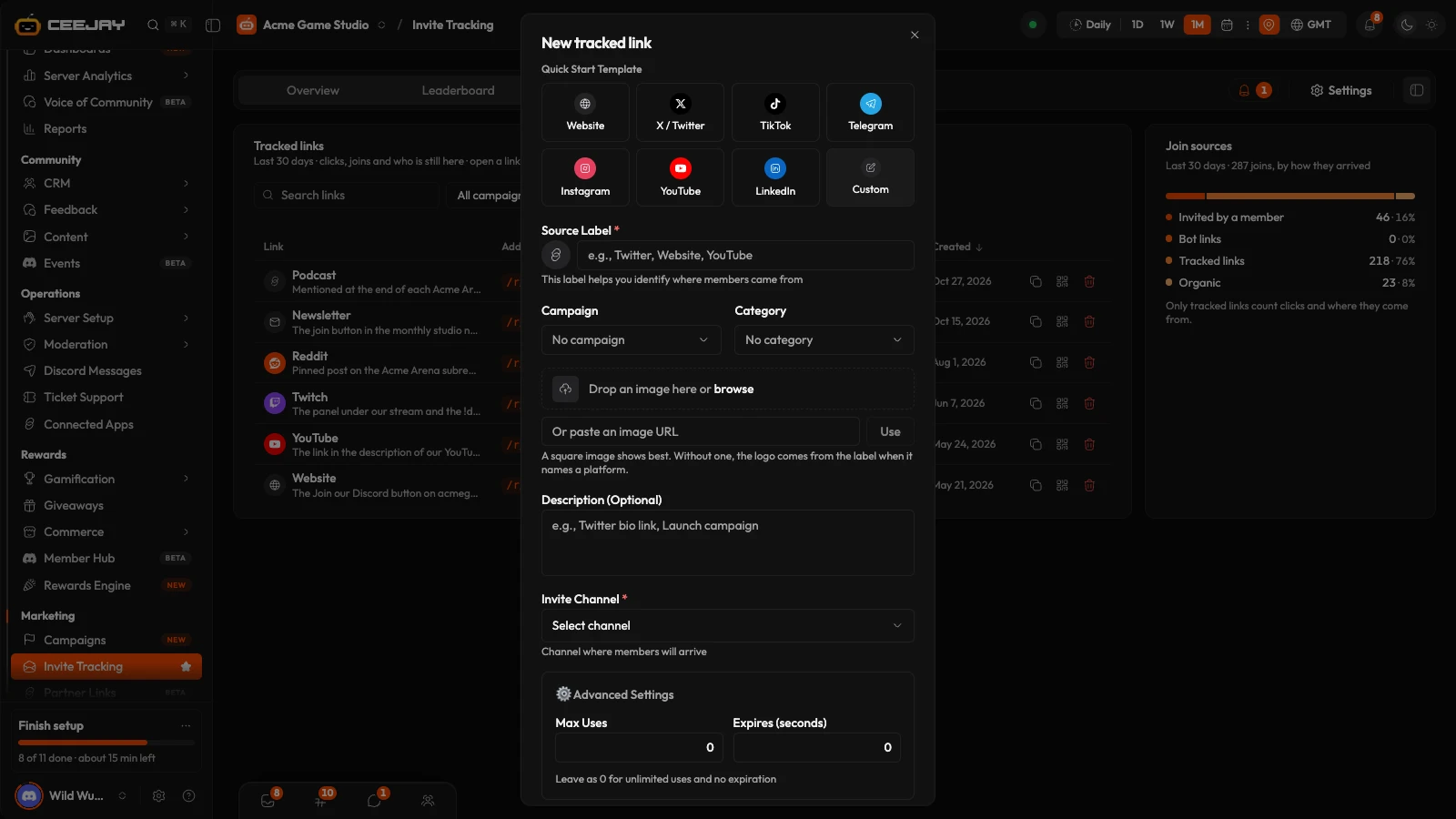
Press New invite link.
Pick a Quick Start Template for the place you will share it: Website, X / Twitter, TikTok, Telegram, Instagram, YouTube, LinkedIn or Custom. A template fills in the label and uses that platform's logo for the link.
Type the Source Label, so you can tell where members came from. Each invite link needs its own label. Add a Description if you like. A Logo can be uploaded for a custom link when logos are switched on. Where Campaigns is on, the form also has Campaign and Category fields.
Choose the Invite Channel, the channel members arrive in. The bot needs the Create Invite permission there. Under Advanced Settings, Max Uses and Expires (seconds) are 0 for no limit.
To also count clicks and visitor countries, turn on Click tracking. It adds a tracking link ending in /r/, and Custom URL Slug sets that ending (made from the label if you leave it empty).
Press Create link. The next screen shows the Discord invite, the Tracking link when click tracking is on, and a QR Code with Download QR.
Share the invite link anywhere you would share a Discord invite. Every join through it is attributed to its label. With click tracking on, the tracking link also counts clicks and visitor countries before opening the invite. An invite link cannot be edited once it exists. Deleting it asks first, and also deletes its Discord invite, so the link stops working everywhere you posted it.
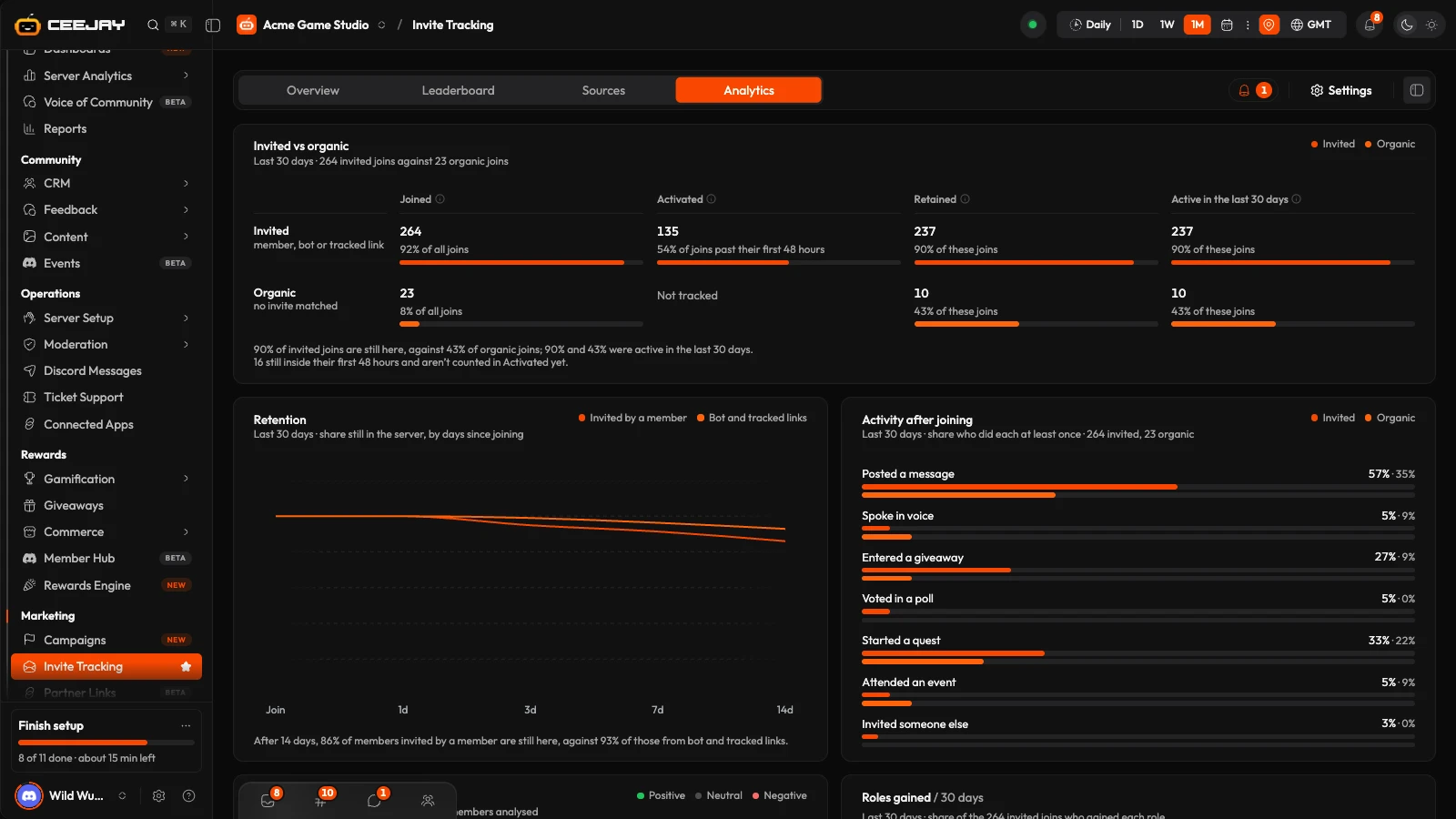
Analytics
- Invited vs organic compares the two groups on Joined, Activated, Retained and Active in the last 30 days.
- Retention is the share still in the server at each checkpoint, from the day they joined.
- Activity after joining is the share who took each action at least once, invited against organic.
- Sentiment and Roles gained / 30 days show tone and roles.
- Every inviter and link is the leaderboard as a table, with Type, Stayed 7 days, Avg messages, Avg XP, Sentiment and Most common role.
- Invite links shows clicks, joins and activations for links with click tracking, and which countries the clicks came from.
Settings
Press Settings at the top of the page, or go to Settings → Marketing → Invite Tracking. Activation Criteria decides what counts as activated. A member is activated when they meet any one of Messages Required (1 by default), Voice Minutes Required (5) or Reactions Required (1) within the Activation Window (hours), 48 by default and up to 720. Only joins the bot saw as they happened get a window, and a new window length applies to members who join after you save it. Press Save Settings at the end of the page.
Where it is switched on for your community, Rewards for inviting grants a member the rewards you pick each time someone they invited joins, once per invited member. See Rewards Engine.
In Discord
/leaderboard invites shows the top inviters, up to 25, with their invites, active members and retention. It reads all-time totals, so its numbers differ from the Leaderboard tab, which follows the range you picked. See Bot commands.

