

Reach the members who have opted in: write and send a campaign from your own domain, and see the results.
Marketing → Email is where you email your members. It is email only: CEEJAY does not send Discord direct messages from here. A member gets a campaign only if they have an email address on file and have opted in to emails, and every email carries an unsubscribe link and your postal address.
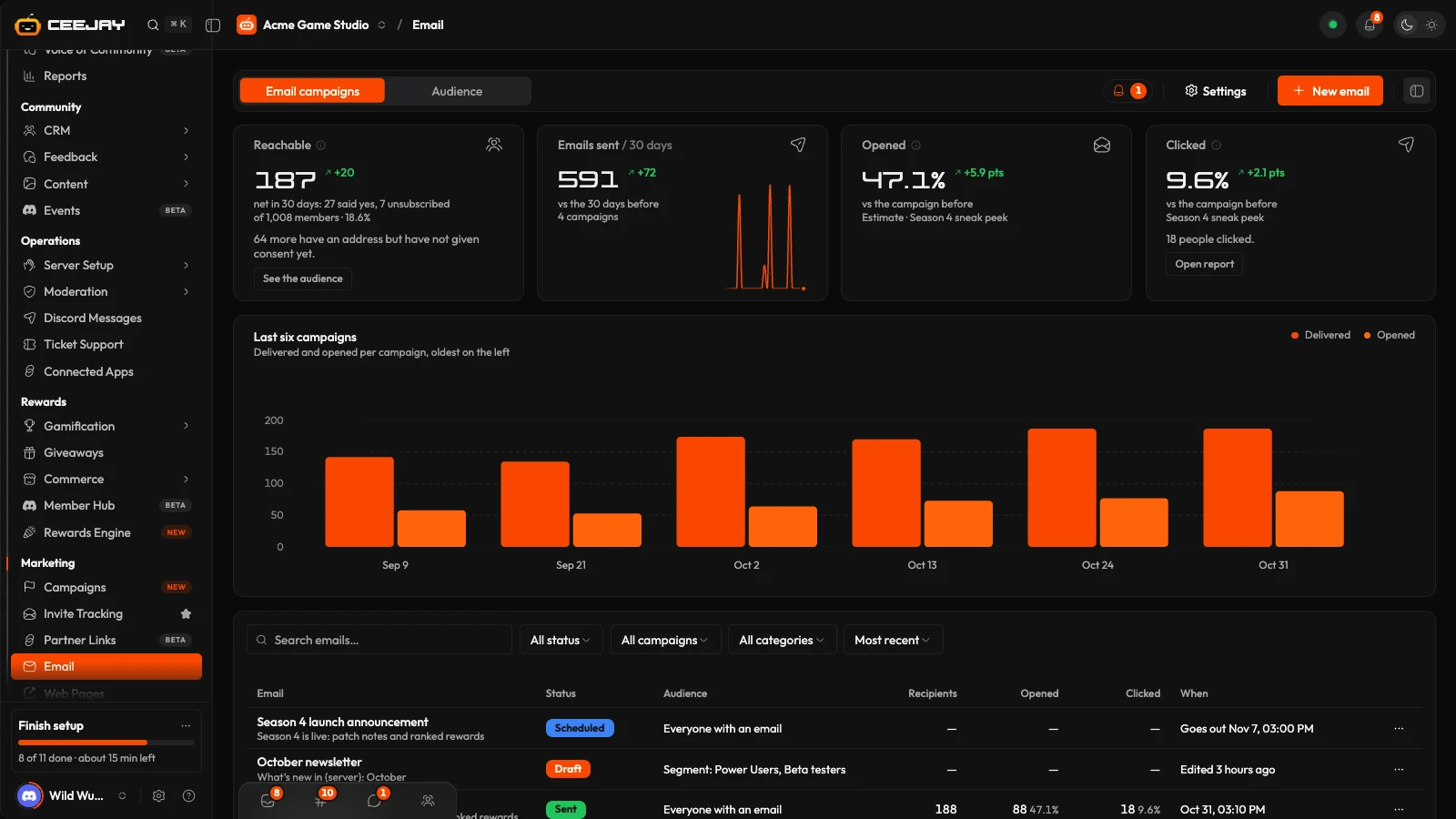
What you see
- Email campaigns: four stat cards, a chart, and your emails.
- Audience: who can be emailed and who cannot, and why.
- New email at the top right, and a bell, shown only when an item needs attention: email sending not switched on, a missing postal address, addresses that have not opted in, delivery tracking off, or a campaign where over 5% of addresses bounced.
Before you send
Check that email sending is switched on. If the bell says "Email sending isn't switched on", you can write and preview emails but nothing goes out until it is. Contact us to have it set up.
Open Settings → Marketing → Email (or press Settings at the top of the page) and fill in Email sender: the From name, a Reply-to address (without one, replies bounce), your Postal address, a Theme, a Logo, a Brand colour and a Footer note. The postal address is required: an email cannot be sent without one. A second card, Sending on this dashboard, shows whether sending and delivery tracking are on.
Make sure members have an email address on file and have opted in. The Audience tab shows where you stand.
Who can be emailed
Every member is in one of these states.
| State | Meaning |
|---|---|
| Subscribed | Opted in to emails at the address on file. These are the only members who get campaigns. |
| No consent yet | Has an email address but has not opted in. |
| Asked to confirm | Received the confirmation email and has not responded. |
| Unsubscribed | Opted out of your emails. This stays even if their address changes. |
| Bounced or spam | The address bounced or reported an email as spam. It is never emailed again. |
| No email | No valid address on file. |
The Audience tab counts them in four cards: Reachable, No consent yet, No email on file and Unsubscribed or bounced. Where the addresses came from splits them into Added manually, Form answer, Confirmed by email and No source recorded. Below, a table lists members with an address, with Search name or email… and a filter by state, 20 to a page.
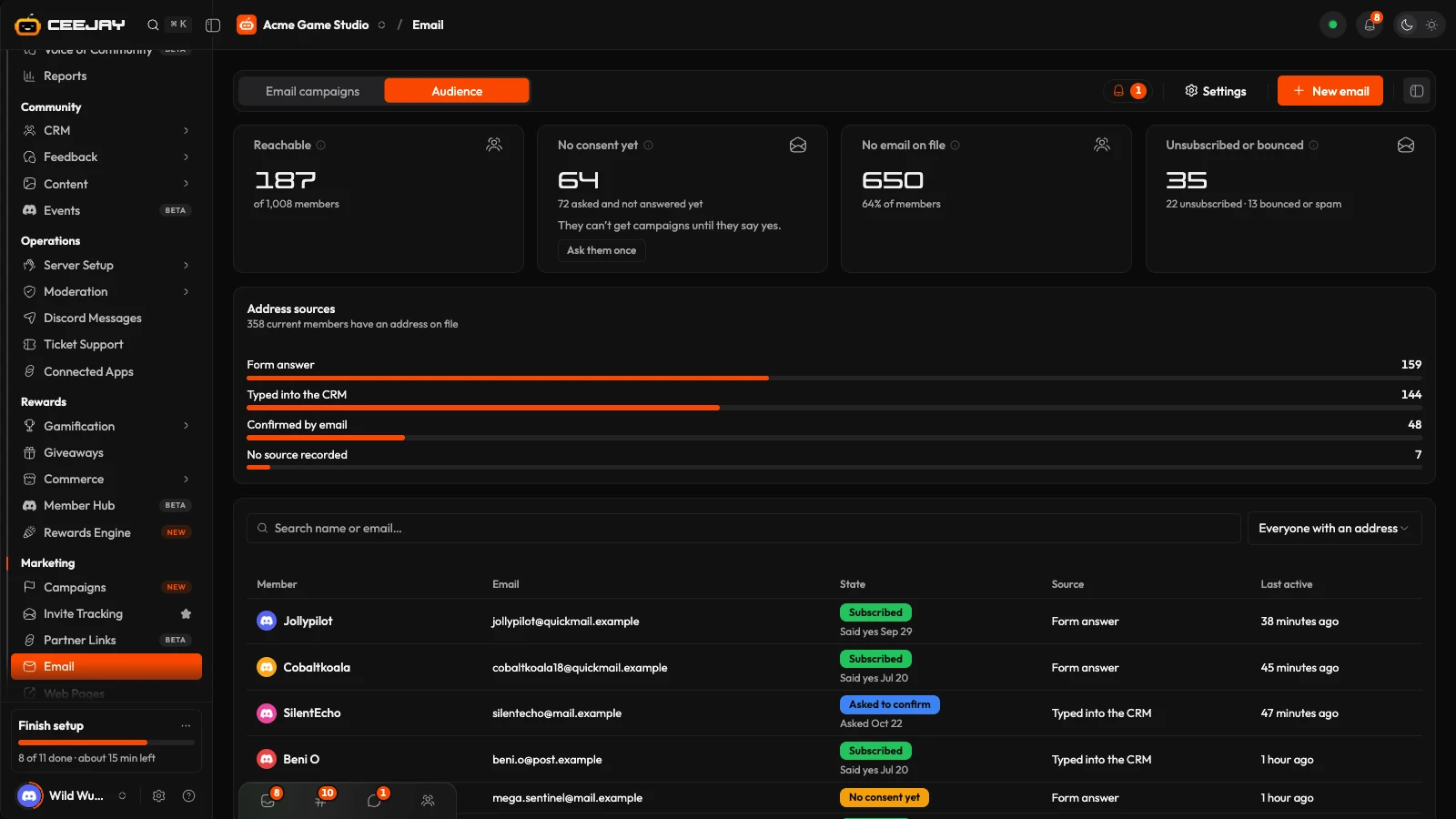
To get addresses, type one into the Email cell in Members, or add a form question that saves its answer to Email address under Save to the member's profile as. See Surveys and forms.
To collect opt-ins, send the one-off confirmation email. Press Ask them once → on the No consent yet card, or Ask them in the bell. CEEJAY opens a Confirm email updates email in the builder, addressed to everyone who has an address but no consent yet. Nothing goes out until you press Send to N. Keep its Yes, send me emails button: a member is subscribed only when they press it on the page it opens. Each member is asked once.
Write and send an email
Press New email. Choose Start from scratch, which gives you a header, a heading and a text block, or Use a template: Newsletter, Announcement, Event invite, We miss you, and some written for your industry. The Industry menu in Pick a template narrows the list.
The email opens on its own page. Under Audience, Send to is Everyone with an email, Members in segments, Members with roles or Members with CRM tags or Members of programs. A live count says how many members will get it and why the rest will not: no email, no consent yet, awaiting confirmation, unsubscribed, or bounced.
Under Subject and preview, write the Subject and the Preview text, which inboxes show after the subject. Type {name} or {server} and CEEJAY fills in each member's name and your community's name.
Pick a Theme (14 are offered; your brand colour from Email sender replaces the theme's button colour), then build the message under Content.
Check the Preview, which shows the email as a member would see it. Switch between Desktop and Phone, or press Full screen. Press Send test to email it to yourself.
Press Send to N or Schedule. Send asks you to confirm: it is sent to the members immediately and cannot be undone. Schedule asks for Send at (your time), at least a minute away. An email goes to whoever is in the audience at that moment, and you can Unschedule it until then.
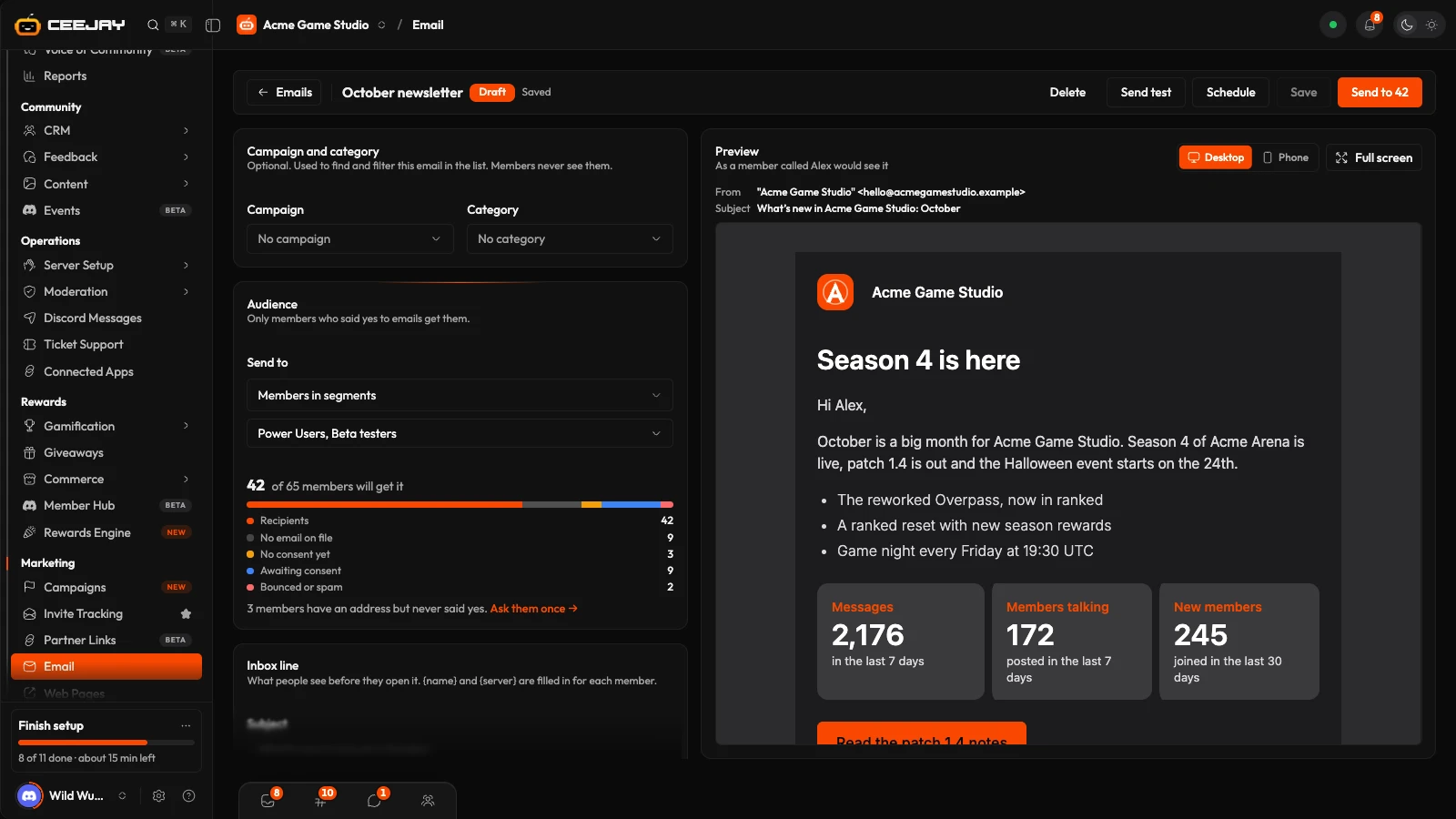
Save saves a draft. Your edits are also autosaved in your browser while you work. Only owners and admins can send or schedule; other team members can write, save and send themselves a test.
Content blocks
Choose Add a block and pick one. Press a block to edit it, and use the arrows to reorder it.
| Block | Use it for |
|---|---|
| Header | Your logo and server name. |
| Hero | A big picture with a heading, text and a button. |
| Heading, Text | A title line, and paragraphs with bold, italic, links and lists. |
| Image, Image grid | One full-width picture, or two to four in a grid. |
| Button | A link members click. |
| Two columns | Two short pieces of text side by side. |
| Stats | Up to three numbers. Use this server’s numbers fills them in. |
| Quote | A quote from a member, with their name. |
| Social links | Buttons to your Discord, YouTube, X and more. |
| Divider, Spacer | A thin line, or empty space. |
A Footer is added to every email: why the member got it, the unsubscribe link and your postal address. If something is missing, a yellow box headed "Before this can go out:" lists it, such as a subject, or a button with no link starting with https://. A template's [placeholders] must be replaced before you can send or schedule it, and any email is checked once for text like [Version] before it goes.
The campaigns list
Each email shows its Status: Draft, Scheduled, Sending, Sent, Stopped or Failed. The other columns are Audience, Recipients, Opened, Clicked and When. Search, filter by status and sort by Most recent, Name or Most opened. The menu on a row has Edit (drafts) or Open report, Duplicate, Unschedule or Stop sending, and Delete for drafts.
| Card | What it shows |
|---|---|
| Reachable | Members with an email address who opted in and have not bounced or unsubscribed. Its change is members who opted in during the last 30 days minus members who unsubscribed in that time. |
| Emails sent | Sends in the last 30 days, against the 30 days before. |
| Opened, Clicked | The latest campaign, against the one before. Opened is an estimate: Apple Mail opens every email it receives, so opens run high. |
Last six campaigns charts delivered and opened for each. Delivered, opened, clicked and bounced figures are reported by the email provider through delivery tracking. Where it is off, they read Not tracked and not 0%.
Read a report
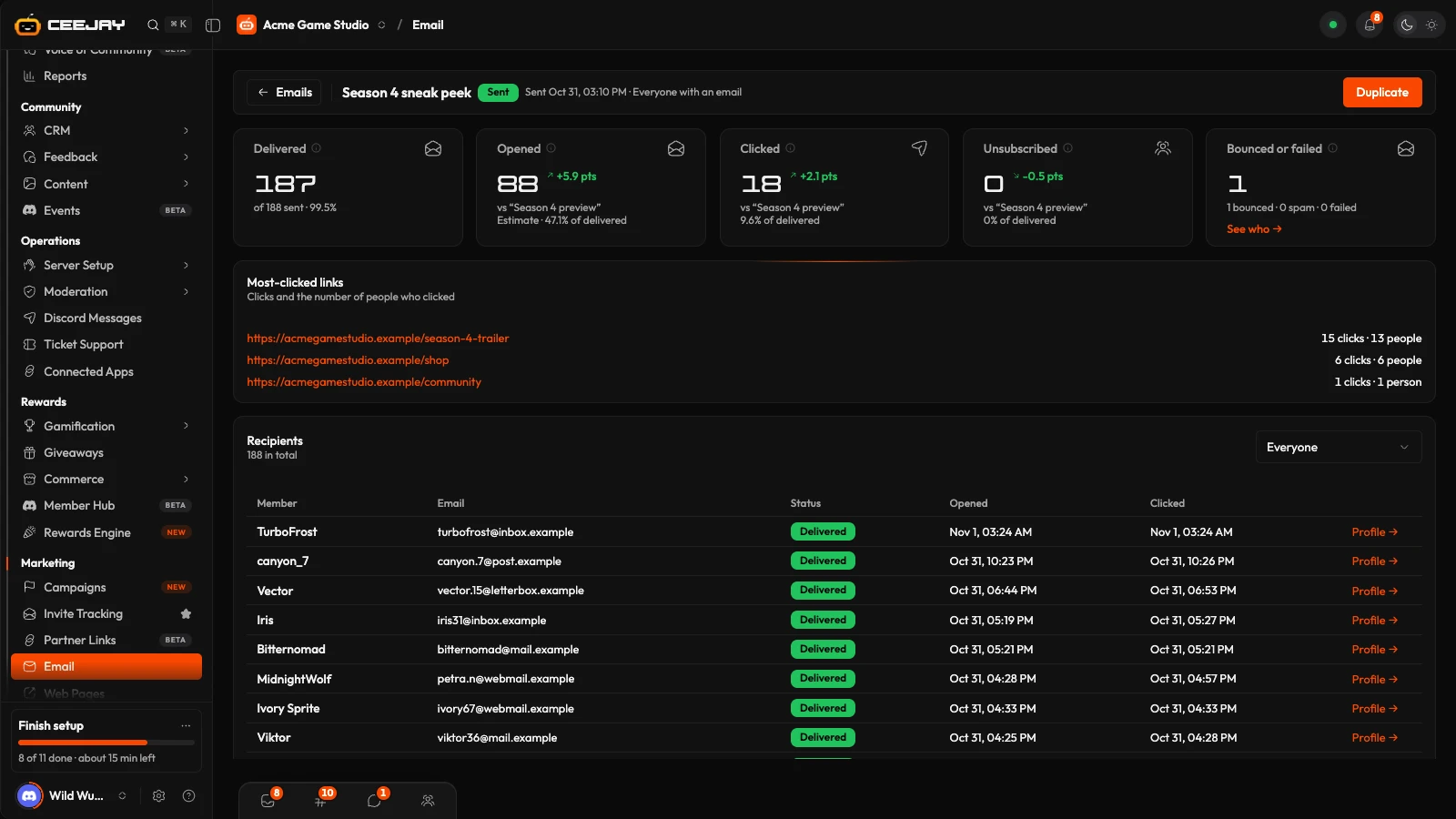
Press a sent email to open its report. The cards are Delivered, Opened, Clicked, Unsubscribed and Bounced or failed (Failed without tracking). Opened, Clicked and Unsubscribed compare with your previous email. Most-clicked links lists the links with their clicks and the number of members. Recipients lists every member with a status such as Delivered, Bounced or Marked as spam, filtered from Everyone to Still sending. While an email is Sending, a progress bar shows how many are done and Stop sending stops the rest from being sent. Duplicate copies it into a new draft.
A program, or one of its stages such as Active, Onboarding, Waitlisted or Alumni, can be the audience: pick it under Members of programs. Members who ticked the email box when they applied are recorded as opted in to email, and the same consent rules apply. See Programs.
Send from your own domain
By default emails go out from CEEJAY's shared address. In Settings → Marketing → Email, the Sending domain card lets member emails, reports and alerts come from an address on your own domain, like community@mail.yourgame.com.
Press Use your own domain. In Add your domain, type the Domain. A subdomain reserved for email, like mail.yourgame.com, is suggested, and your main inbox and website stay as they are. Choose what to Send from, then press Add domain.
Press See DNS records and add the Type, Name and Value rows where your domain is managed, for example Cloudflare, GoDaddy or Namecheap. A DMARC row is recommended. Skip it if your domain already has one. The card names your DNS provider when it can find it: press How to add these for the steps at that provider, or Send to your IT team to open an email with the same rows.
Press Check now. The card shows Waiting for DNS until the settings are found, and CEEJAY keeps checking in the background. When it says "Emails go out from" your address, press Send a test.
Email domain setup shows how to find your DNS provider, the steps for each provider, and what to do when the domain is stuck.
Team emails too sends reports, alerts, task reminders and team invites from the same address. Switch it off to keep those on CEEJAY's address. If the settings disappear later the card says so and emails go out from the shared address until they are back, so nobody's email is lost. Only owners and admins can change the domain.
Click tracking domain shows which links members click in your campaign reports. It appears once your domain is verified. Press Add domain, add the one DNS record it shows, then press Check now. It covers every email from this domain, so make sure your privacy policy mentions click tracking. Until it's set up, Opened and Clicked in your reports read Not tracked.
Good to know
Bounced and spam-reported addresses are blocked for every future email. A bounce rate above 5% can hurt delivery for everything you send, so check where those addresses came from.

