

Tours and tips
Learn the dashboard as you use it: tours of the whole product and single pages, tooltips in the sidebar and smart tips beside the button that does the job faster.
CEEJAY helps you learn it in three ways. A tour walks you through a page or the whole dashboard. A sidebar tooltip tells you what a page is for when you hover over it. A smart tip points at a faster way to do what you are doing. All three are personal to you and apply in every community, and you can switch each one off.
Tours
A tour highlights one part of the screen at a time, with a short note and Next.
- The dashboard tour shows how CEEJAY is laid out in under a minute: the sidebar, Help and your setup checklist, or the bottom bar on a phone. It names only what you have, so a page your team cannot open, or a feature that is off, is never mentioned.
- Tour this page covers the page you are on, in up to four stops: its tabs, the date range, the stat cards and the main chart. The date range and stat cards stops show once, so tours of later pages are shorter. Start it from Help on any page.
- The Discord Messages guide takes you through your first message while you build it: the title, the message, the channel and sending. The card moves to the next step as you finish each one, and Next skips a step. Nothing on the page is dimmed. Start it again from Tour this page in Help while the builder is open.
New members of your team get the dashboard tour after setup. After that, the first time they open a page, a small card says what the page is for and offers Tour this page. The page stays usable behind it. The card does not show over a page's first-visit welcome screen, or when a link opened one item. At most three show in a day, and closing three in a row pauses them for two weeks. Everyone who joined earlier sees one prompt, New: a quick tour of CEEJAY, with Start and Not now, and page introductions stay off until they switch them on.
When a page you use is updated, a short note on that page says what changed. It uses the release notes in What's new, appears once, and only within 30 days of the update. Bug fixes are not included, and neither are pages you opened for the first time after the update. Press × to close it.
Replay or switch off tours
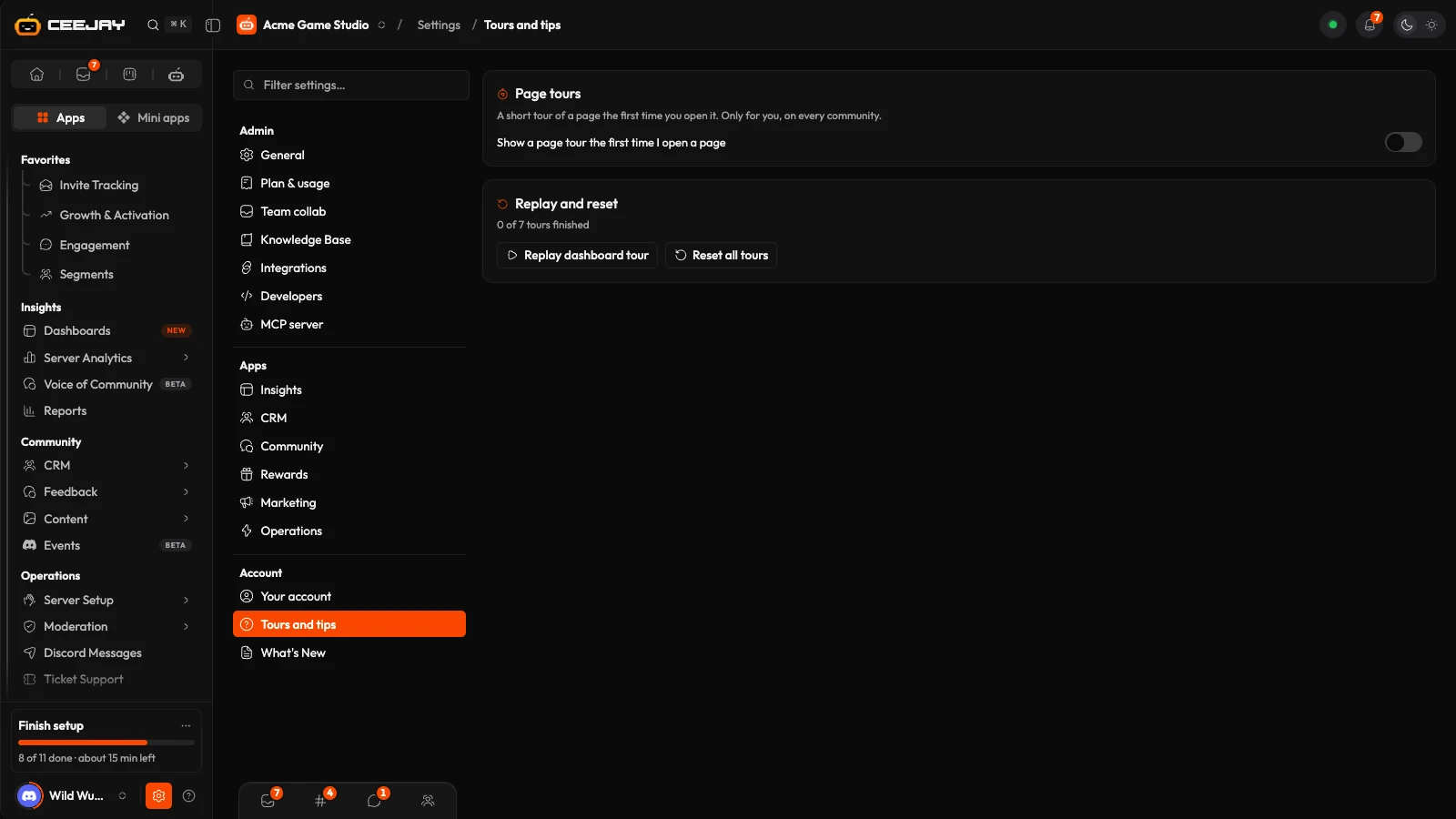
Go to Settings → Tours and tips.
Under Page introductions and updates, turn Show page introductions and updates on or off. Turning it off hides both the introductions and the update notes.
Under Replay and reset, press Replay dashboard tour to take the whole tour again. The card says how many tours you have finished.
Press Reset all tours and confirm Reset tours to reset your tour progress. Page introductions will show again the first time you open each page, if the switch above is on.
Help, the icon beside Settings at the bottom of the sidebar, is the other place to start a tour.
Sidebar tooltips
Hover over a page or group in the sidebar and a card appears. The detailed tooltip says what the page is for and what you can use it for, and links to Read the guide and to Tour this page. The card moves to the next row as you move down the list.
You choose how much it says in Settings → Your account → Preferences, under Sidebar tooltips:
| Choice | What you see |
|---|---|
| Detailed | What the page is for, with its guide and tour. This is the default. |
| Short | The page's name and one line. |
| Names only | The page's name only. |
| Off | No tooltip. |
Use short tooltips at the bottom of the card makes the same change in one press, and Turn off hides them.
Touch screens have no hover, so they keep the plain labels.
Smart tips
A smart tip appears when you do something the slow way, beside the control that does it faster. After you open three groups by hand in a minute, for example, it points at the sidebar list and says you can open every group at once. Once you use the faster way, that tip never shows again.
Press × to close a tip for good.
Smart tips are limited in how often and where they appear. You see one a day at most, never in the first two minutes of a visit, and never over a tour, a dialog, an open menu, a builder or while you type. Closing three in a row with × pauses them for two weeks. A tip you ignore may come back once, after 14 days. Tips about mouse-only shortcuts don't appear on phones.
To switch them off, go to Settings → Your account → Preferences and turn off Show smart tips. These preferences are set for this browser.
Good to know
Tours, tooltips and smart tips change nothing in your community. They only affect what you see.

