

Your account
Choose how CEEJAY looks and behaves for you, and which notifications reach you.
Your account holds your personal settings: your profile, your preferences and your notifications. It is a row of Settings, under Account, with three tabs: Profile, Preferences and Notifications. Open it from your picture at the bottom of the sidebar, or from Settings → Your account. Every team member can open it, whatever page access their team has.
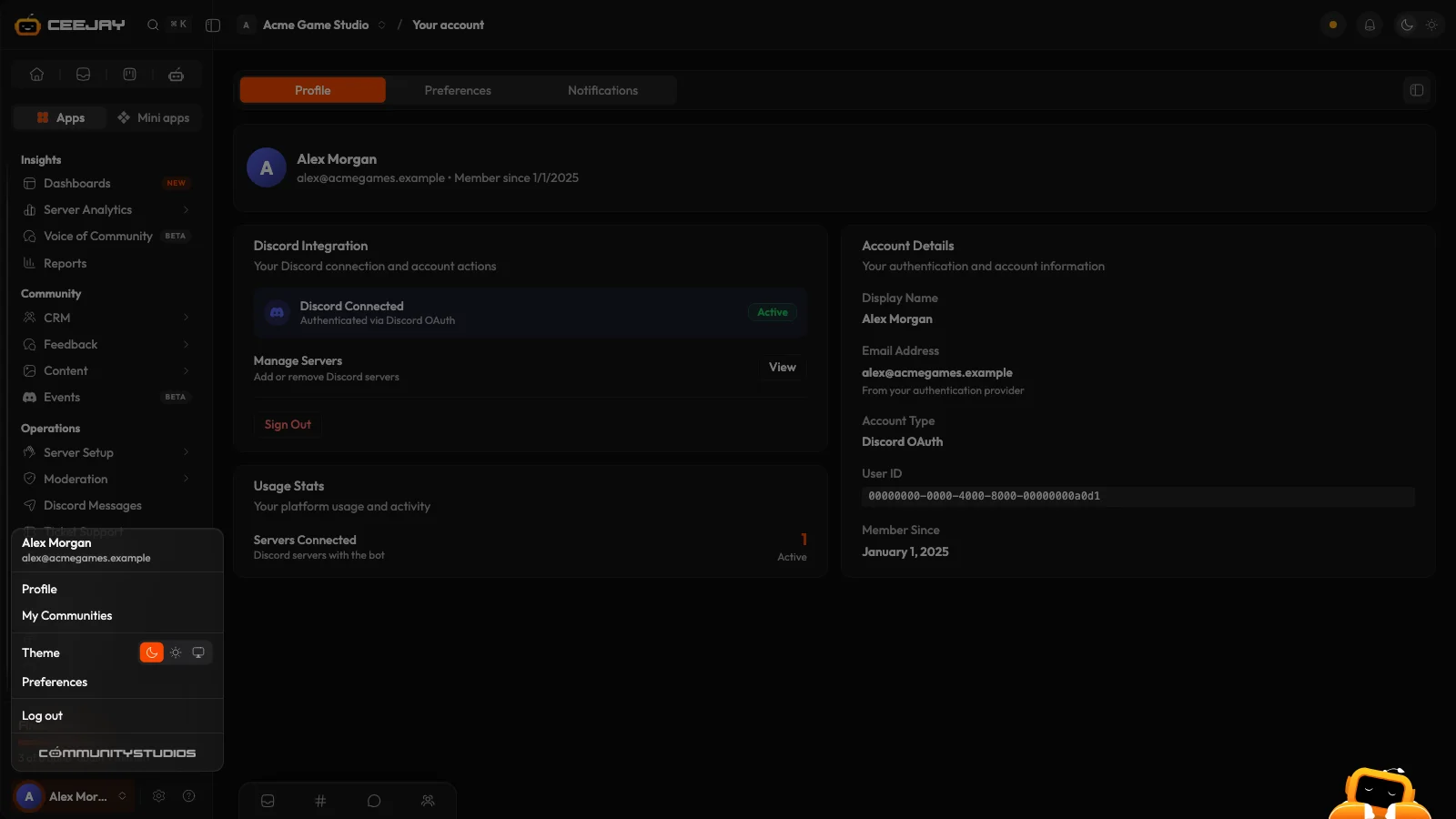
The Account menu
Press your picture and name in the bottom row of the sidebar. The menu lists:
- Profile opens Settings → Your account on the Profile tab.
- My Communities takes you to the hub of all your communities. See My Communities.
- Theme switches between Dark, Light and Match your device.
- Preferences opens Settings → Your account on the Preferences tab.
- Log out signs you out.
Profile
The Profile tab shows your Discord connection and your account.
- Discord Integration says your Discord is connected, links to Manage Servers and has Sign Out.
- Usage Stats counts the Discord servers you have connected with the bot.
- Account Details lists your display name, email address, account type, user ID and the date you joined.
Preferences
Preferences change how CEEJAY looks and how you get around it. They apply at once and are saved in this browser, so another browser or device has its own.
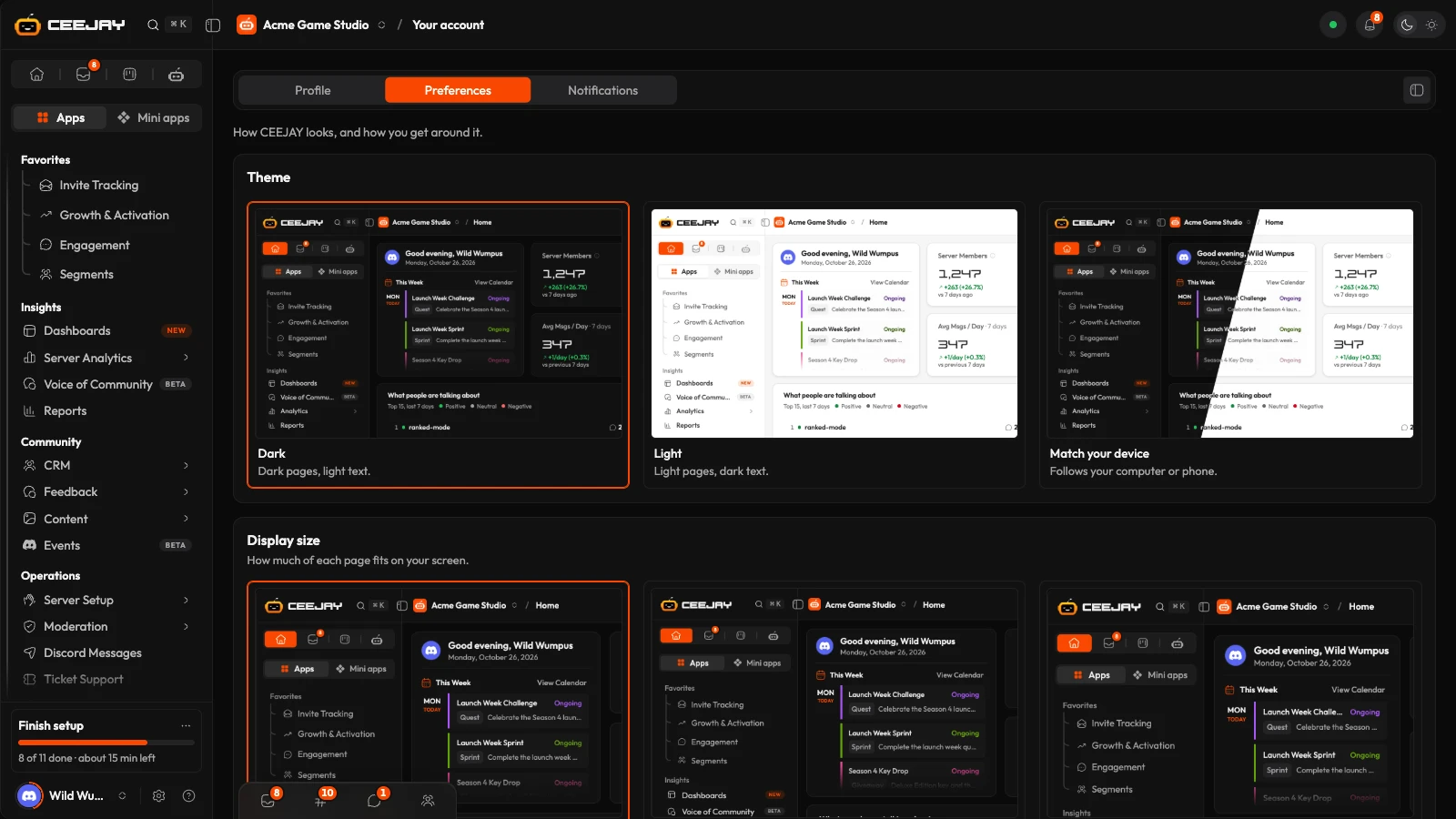
- Theme: Dark, Light or Match your device.
- Display size: Default, Compact or Comfortable. It decides how much of each page fits on your screen. It is available on computer screens only.
- Navigation: Standard opens groups such as Server Analytics in place, so every page stays in view. Advanced opens each group as a menu of its own, which is faster once you know your way around.
- Sidebar: how groups open in Standard navigation. Start closed is the default. The others are Start open, One group at a time, Keep groups open and Show every page. Once you have dragged groups or pages into your own order, Reset order puts them back.
- Cards: Spotlight adds a soft light that follows your pointer across cards. It is off until you turn it on.
- Sidebar tooltips: what you see when you hover over a page or group in the sidebar. Detailed shows what the page is for, with its guide and tour. Short shows the name and one line, Names only shows the name, and Off shows nothing.
- Smart tips: Show smart tips switches on a faster way to do what you are doing, shown beside the button that does it.
Spotlight, tooltips and smart tips need a mouse or trackpad, so a touch screen does not show them.
Power User
The Power User badge marks the team members who use CEEJAY most: the top 10% by days active in the last 30. It is awarded on the first of each month, and you need at least 10 active days. Once you earn it, it stays. It shows on your picture, in the Account menu and on your profile. Your teammates do not see it.
Notifications
The Notifications tab decides what reaches you, in the bell, as a push notification on your computer or phone, and by email. It is set per person, so your choices never change what a teammate receives.
- Push notifications shows whether this device is on, with Send a test, Turn off and Check again, and a switch for pushes from this community.
- Notification types lists every kind of notification in groups, with a choice for the bell, push and email.
- Email delivery sets your timezone, the hour for Daily summary at and the day and hour for Weekly digest on and Weekly digest at.
Changes take effect when you save them. The full list of notification types is in Notifications.

