

The dashboard tour
Learn the sidebar, header and page bar once, and every page in CEEJAY works the same way.
Every dashboard page shares one frame: a sidebar on the left, a header across the top, and a bar of tabs and buttons at the top of the page. Learn the frame once and every page works the way you expect.
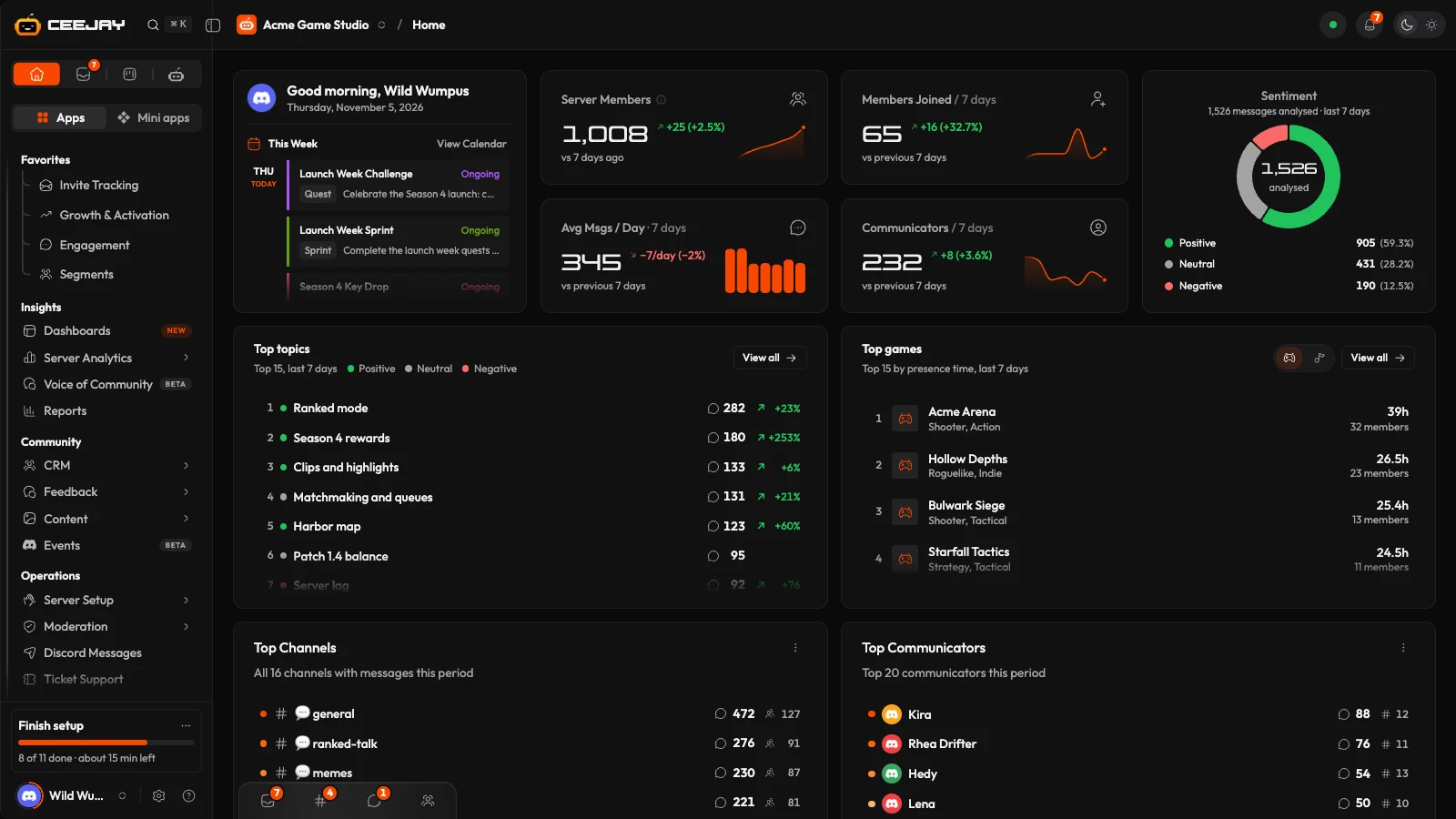
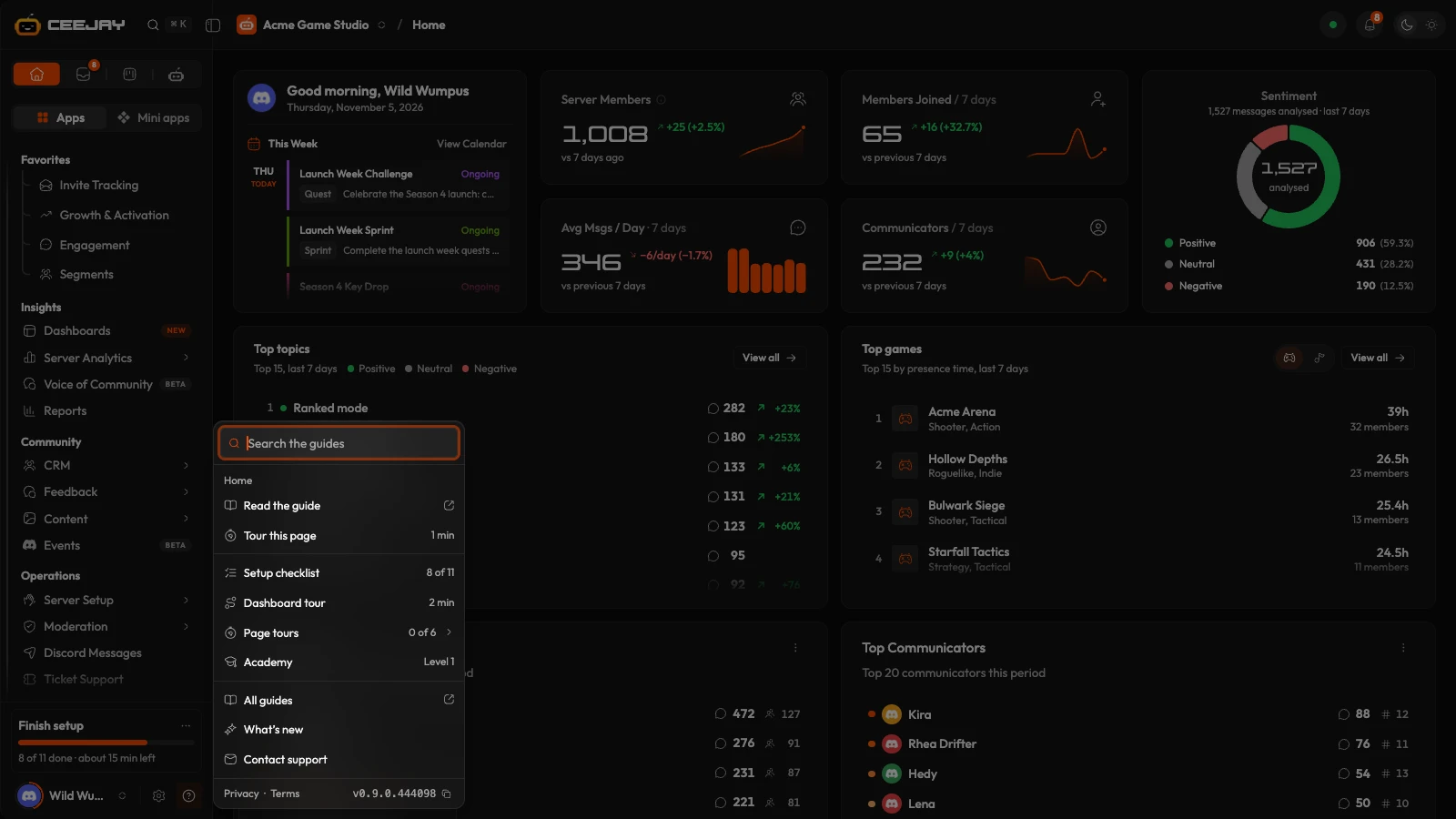
You can also let CEEJAY walk you through it: open Help, the question-mark icon in the bottom row of the sidebar, and start the dashboard tour. It runs on the page you are on and takes under a minute.
The sidebar
From the top down:
- The logo row holds the CEEJAY head, the search button and the fold button (see Search and Fold the sidebar).
- The top bar is four icons: Home, Inbox, Workspace and CEEJAY. Hover an icon for its name. The Inbox icon carries a count of what is unread.
- Favorites holds the pages you pinned. Hover a page and press its star to pin it, or right-click the page and choose Add to Favorites. Drag pinned pages into the order you like.
- Apps is the toggle above the sections. Mini apps is its other side and is marked Soon.
- The sections hold every other page. Each section is a title over its rows, and a row is either a page or a group of pages that opens to show them.
- The bottom row holds your picture and name, Settings and Help. Above it, the Finish setup card shows your setup progress until the checklist is done. See Set up your community.
The sections and what they hold:
| Section | What is in it |
|---|---|
| Insights | Dashboards, Server Analytics (Growth & Activation, Engagement, Announcements, Roles & Channels, Demographics, Activity, ROI), Voice of Community and Reports |
| Community | CRM (Members, Segments, Programs, Account Linking), Feedback (Upvote, Polls, Surveys & Forms), Content (UGC, Saved Content, Starboard, Social Feeds) and Events |
| Operations | Server Setup (Verification, Welcome Cards, React Roles), Moderation (Audit Log, Safety, Community Mods, Automations, Honeypot), Discord Messages, Ticket Support and Connected Apps |
| Rewards | Gamification (XP, Quests, Achievements), Giveaways, Commerce (Shop, Economy), Member Hub and Rewards Engine |
| Marketing | Campaigns, Invite Tracking, Partner Links, Email and Web Pages |
You only see the pages your access includes, and a few are switched off in some communities. A team member sees only the pages their team gave them.
Hover over a page or a group for a short tip about what it is for. You choose how much the tip says in Your account.
Open pages from the sidebar
Press a group to open it in place and see its pages. By default every group starts closed and you open the ones you need. The group you are in is marked in orange while it is closed.
Advanced navigation works differently: a group slides in as a menu of its own, with a back bar at the top, and Escape goes back. It is faster once you know your way around. Switch between Standard and Advanced under Navigation in your preferences.
Drag a group by its name to move it. Your order is kept in this browser, and Reset order in your preferences puts everything back.
Right-click a page in the sidebar for Open in a new tab, Add to Favorites and Copy link. Right-click anywhere in the list for Expand all and Collapse all.
Fold the sidebar
Press the fold icon where the sidebar meets the header to shrink the sidebar to a rail of icons. In the rail, hover a section's icon to see its pages. Press the same icon to open the sidebar again. The last button in the page bar does the same.
The header
The header holds the controls that belong to the whole dashboard rather than one page.
- The community and page read left to right as a path: your organisation when you have one, the community, then the page title. Press the community name to switch to another community, go back to My Communities or choose Add community.
- The Live dot shows whether the page receives updates. Open it for the Live updates switch, when the page last updated, and Refresh now.
- The range group holds the time range, comparison, filters, event markers and timezone. It appears on analytics pages, where it sets the period every card uses. Pages for managing things, such as Workspace and Inbox, do not show it. See Range, filters and export.
- The bell shows your notifications.
- The light and dark switch changes the theme. It is also under Theme in the Account menu.
The page bar
Most pages begin with one bar. Its tabs are the page's views, such as Overview and Messaging. After the tabs come the page's own controls, then Export (CSV or PDF, on analytics pages), Settings and the page's main button.
Settings opens that page's settings in a panel beside the page, so you stay where you are. Press Escape or the close button to return. Side panels float over the page the same way, for a member profile, a topic or a task.
The Needs attention bell, where a page has one, lists the items that need your attention first.
Right-click menus
Right-click any card, row or chart to open its menu where your pointer is. It holds the same actions as the ⋯ button on that item. On a touch screen, use the ⋯ button.
Search
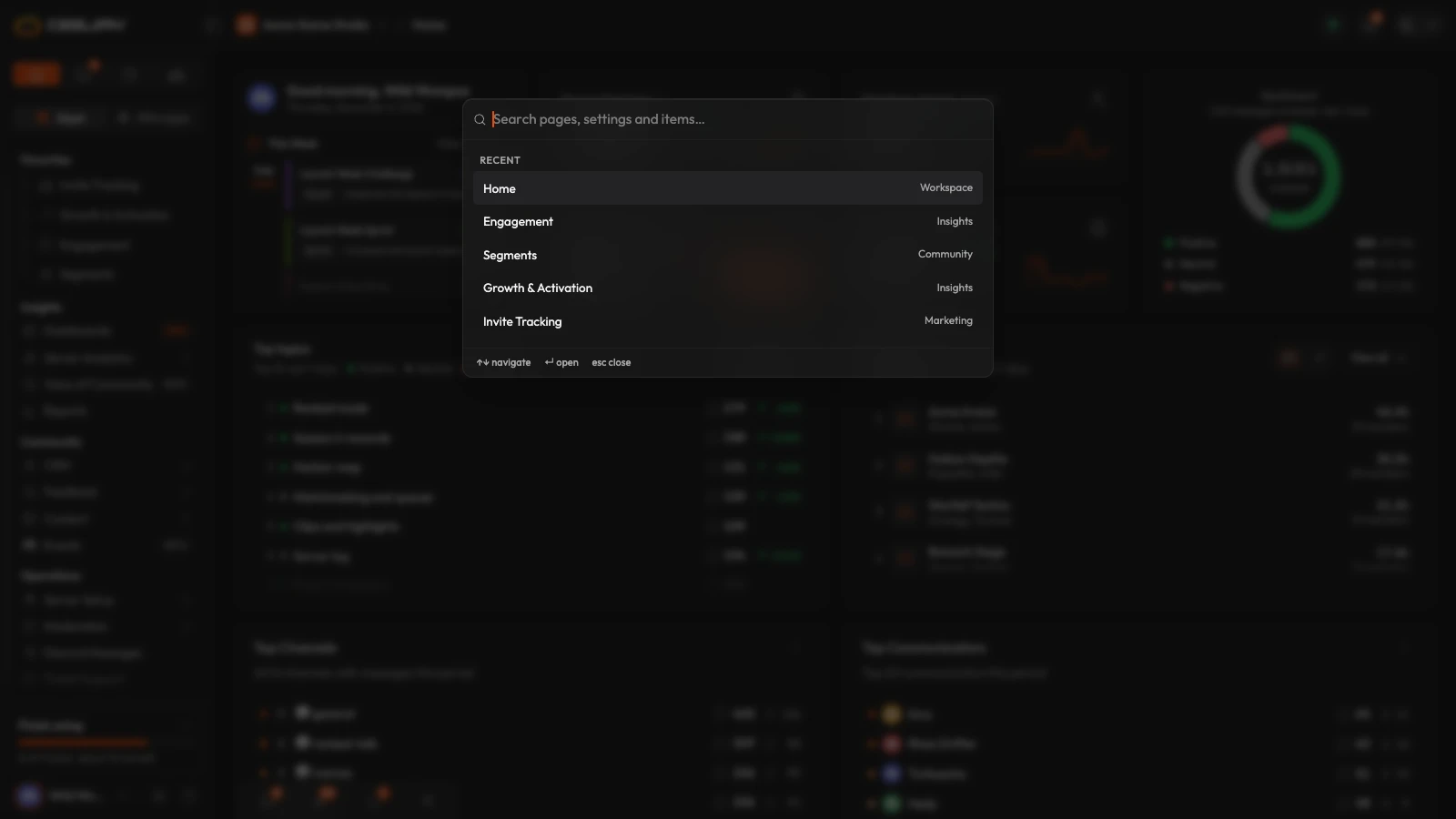
Press ⌘K (Ctrl K on Windows and Linux) from any page, or press the search button in the logo row. Type what you want: a page, a tab inside a page, a setting, or an action such as New poll or New task. The best match shows first, then results grouped as Pages, Views, Settings and Actions. With nothing typed it lists your recent pages. Use the arrow keys and Enter, or click, and Escape closes it.
Search finds places in the dashboard. Where Campaigns is on, it also finds items you made, such as a poll or a quest, by name. To find a member, use the search on the Members page.
Notifications
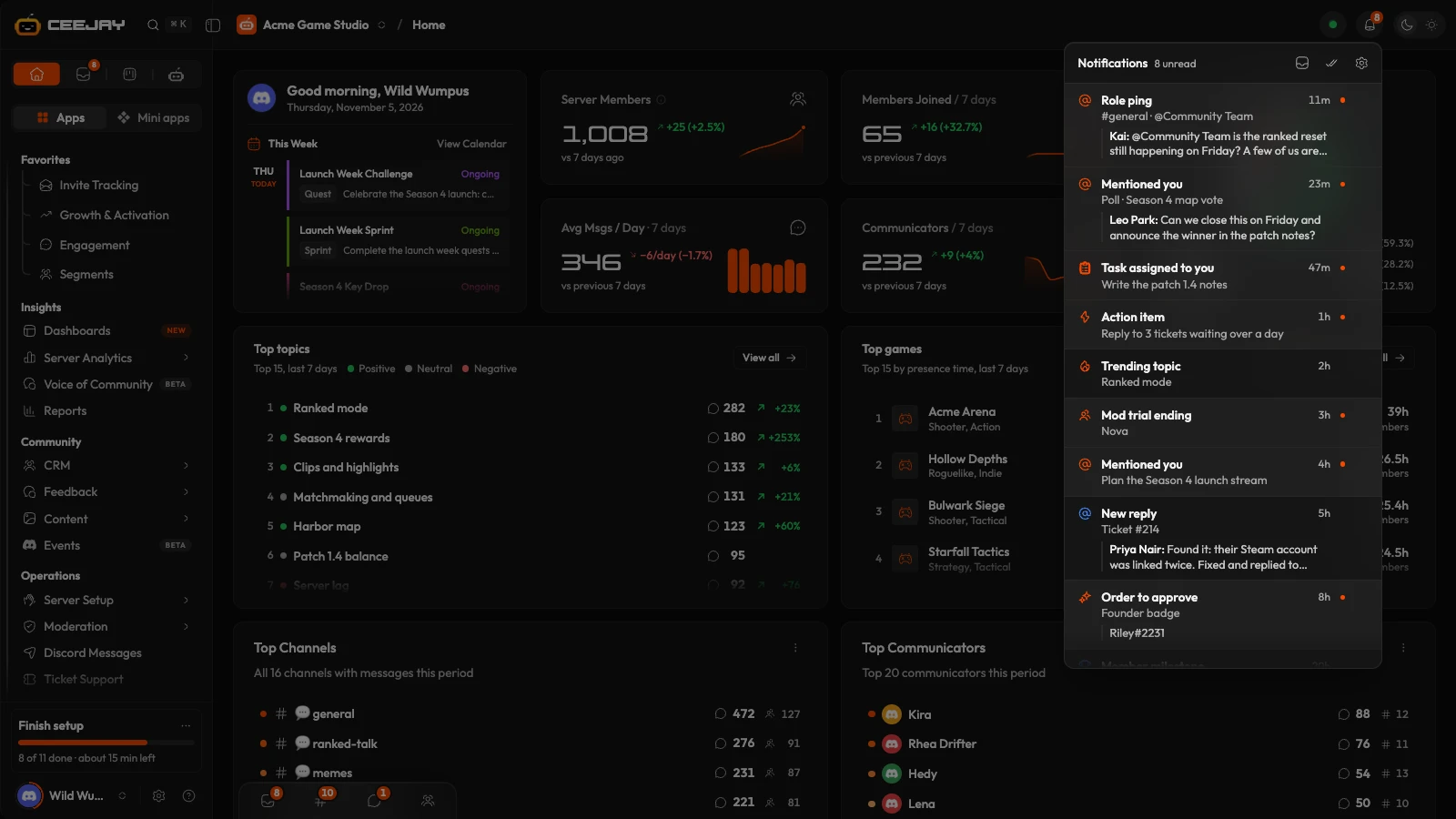
The bell shows how many notifications are unread. Open it to read the latest and press a row to go to what it is about. The icons at the top are Open inbox, Mark all read and Notification settings. A row's ⋯ menu can Mark as read (or unread) and Archive it, and swiping a row to the left shows the same actions. The Inbox page is the full version of this list: see Inbox. To choose what reaches you, see Your account.
Your picture, Settings and Help
The bottom row of the sidebar holds three things.
- Your picture opens the Account menu: your profile, My Communities, Theme, Preferences and Log out. See Your account.
- Settings opens the Settings list for the whole community, with your team, the bot, integrations and each section's options. A page's own Settings button opens the part that belongs to that page.
- Help is the place for tours, guides and support.
The CEEJAY assistant
On most pages, the round head at the bottom right opens a chat with the CEEJAY assistant. Its header has New chat, Open full page and Minimise. See The CEEJAY assistant.
The Inbox dock
At the bottom left, a small bar holds Inbox, Channels, DMs and a button for your teammates. The first three show a count of what is unread, and the last shows a green dot while a teammate is online. Press one to open it as a pop-up without leaving the page you are on. The dock is your team's chat and notifications: DMs here are direct messages between teammates. It is not shown on the Inbox page, which is the full version. See Inbox.
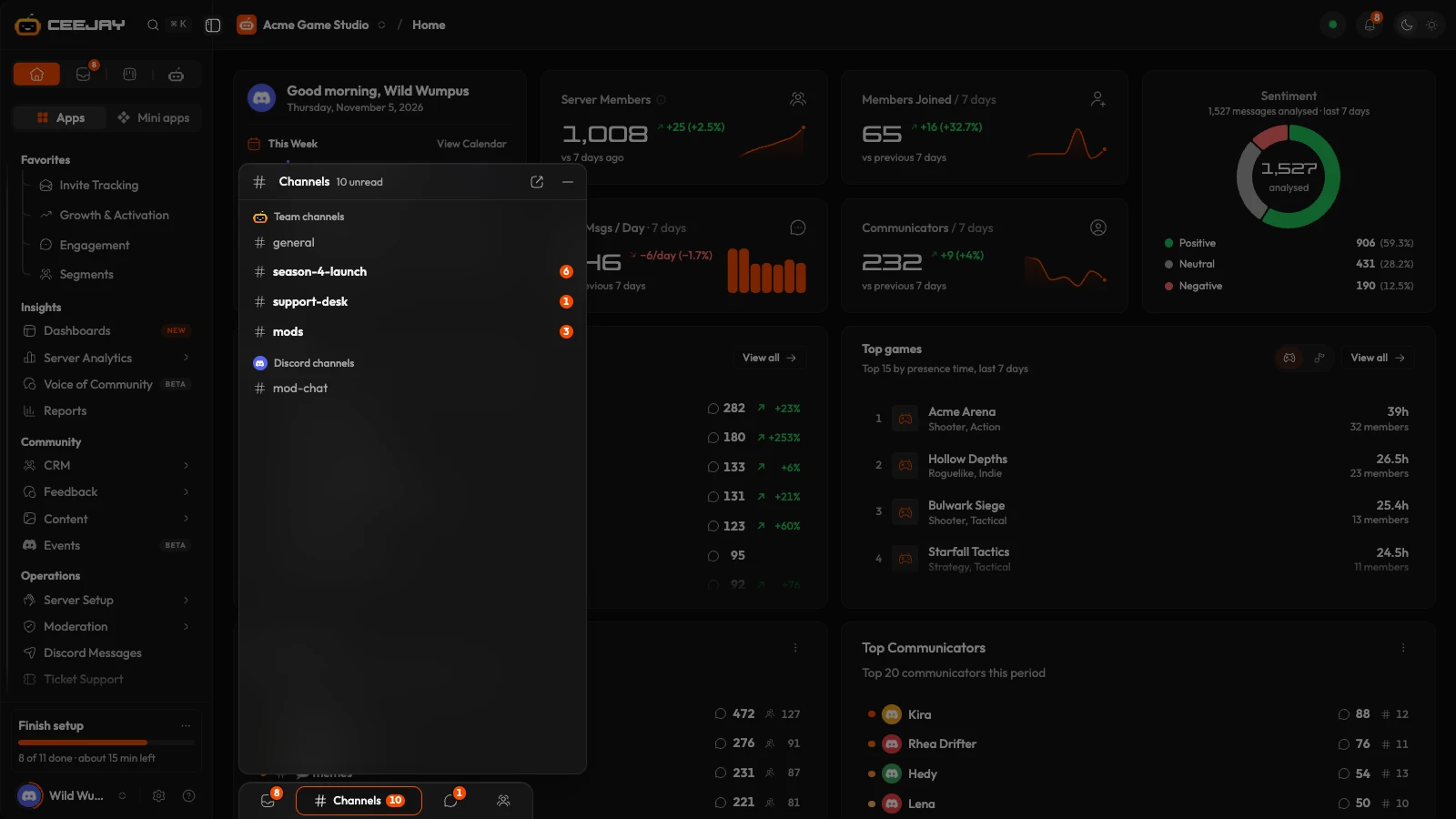
On a phone or tablet
On a phone, a bar at the bottom holds Menu, Inbox, Channels, DMs and CEEJAY. Menu fills the screen with a search box, your profile, Settings, your favourites and every section as a card of rows. Pick a group and it slides in, with Menu to go back. The header has two rows: the title with search and a ⋮ menu, then the date range and a Filters button that opens everything else the desktop toolbar holds. The ⋮ menu has Refresh now, Install the app and the theme: Light, Dark or Match this device. A tablet opens with the sidebar folded to icons.

