

Docs
Write shared team docs, with live charts and live tasks that stay up to date inside them.
Docs are for the writing your team keeps coming back to: a launch plan, a moderator handbook, a weekly checklist. Everyone with access to the Workspace can read and edit them. A doc can hold live dashboard charts and live tasks, so the numbers and statuses in it stay current. Open Workspace → Docs.
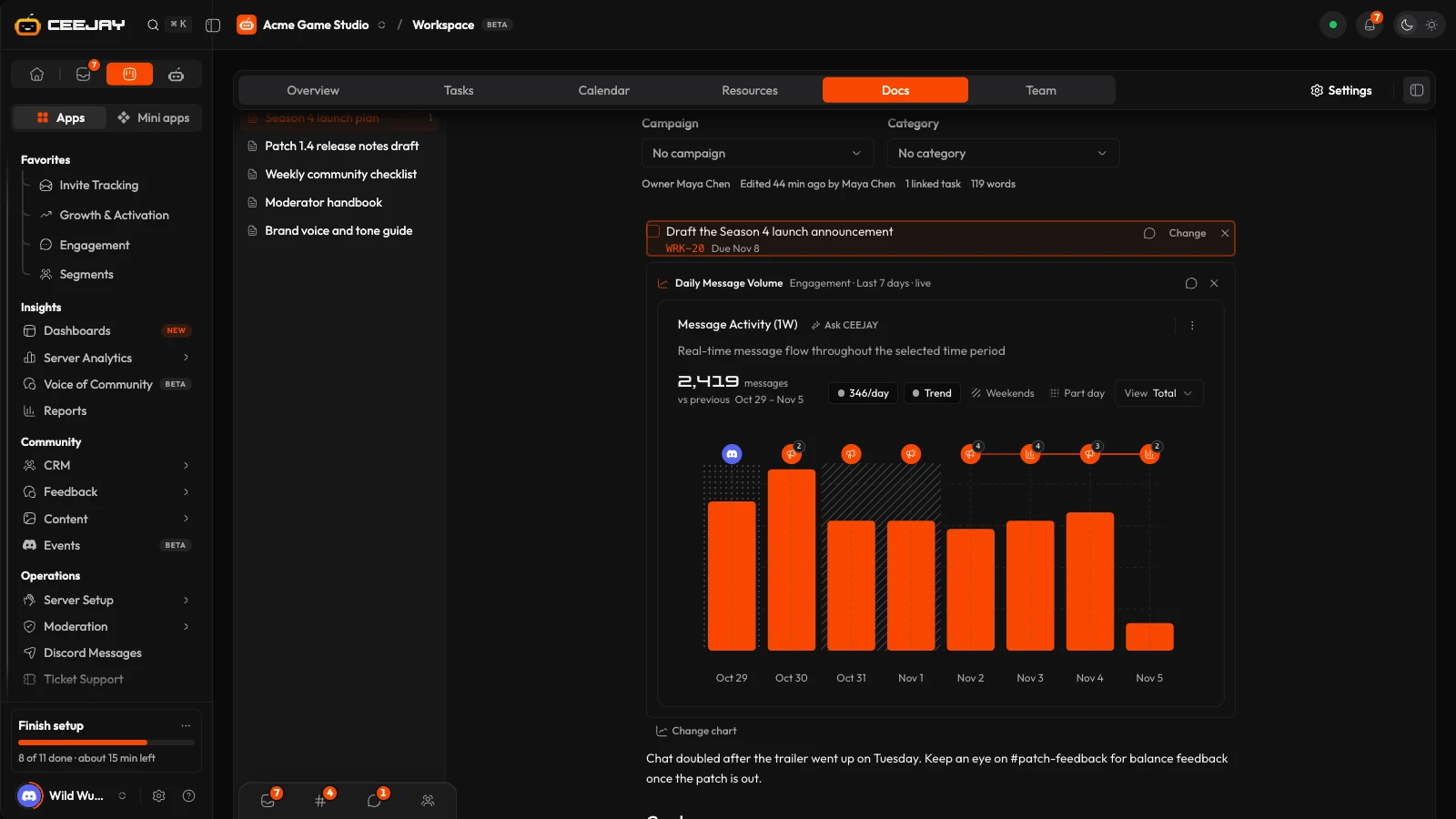
What you see
The docs list is on the left. It has a search box ("Search docs"), a + button for New doc, and every doc with the newest edit first. A number on a row is how many comment threads on that doc are open. Where campaigns are switched on, Campaign and Category filters sit under the search box, and the same two fields sit under a doc's title. The first time you open Docs, the most recently edited doc opens for you. On a small screen the list opens from the list button at the left of the top bar.
The open doc has a top bar and a page.
- The top bar shows Docs, then the doc's name, a Draft or Published badge, and "Unsaved edits" when you have changes that are not saved. Its buttons are Comments, Linked and History, a More actions menu with Delete doc, Save, and Publish.
- The page starts with the title, then a line with the owner, when it was last edited and by whom, how many tasks it links and how many words it has. The text follows.
Write a doc
Press New doc. A doc called "Untitled" opens at once.
Type a title, then start writing. Type / on a new line to add a heading, a list, a table, a quote, a code block, a divider, a Live chart or a Task. Every line has a handle at its left to drag it somewhere else, and the usual Markdown shortcuts work.
Press Save to keep your changes. Press Publish when the doc is ready. Publishing marks the doc Published and keeps that version in History. After that the button reads Publish update.
Docs hold text, lists, tables, quotes, code, charts and tasks. They do not hold images or uploaded files. Keep those in Resources and paste a link.
Live charts and tasks
Type /chart (or choose Live chart) to embed a chart. Pick one from the "Pick a chart" menu, which lists dashboard charts grouped by page. The chart draws the same numbers as its page, at the date range last chosen in the dashboard header, and says which range on its face. If a chart is no longer on the dashboard, the block says so and you can pick another or remove it. Change chart swaps it.
Type /task (or choose Task) to link a task. Pick one from the "Pick a task" menu. The block shows its title, status and due date, and updates as the task changes on the board. Change picks a different task.
Good to know
A chart inside a doc follows the date range in the dashboard header, which is set on the analytics pages. If a chart shows a range you did not expect, change the range on an analytics page and come back.
Comments
Select some text and choose Comment in the toolbar that appears to start a thread on that part of the doc. A block with a thread shows the number of open threads at its right, and a tint behind its text. Press the number, or Open thread in the toolbar, to read and reply.
The Comments button opens a panel listing the open threads on the doc, each with Open thread. Replies and mentions reach teammates through their Inbox. See Inbox.
Linked and History
Linked shows what the doc points at: how many tasks it links, with how many are done and how many are late, the charts it embeds, and a Discord channel you can link the doc to. Choose No channel to unlink it. Save the doc to keep the channel.
History lists every time the doc was published, with who published it and when. Restore puts an earlier version back in the editor, and keeps it as a new save. Until a doc is published, this tab says "Publish to keep a version."
If something goes wrong
CEEJAY keeps what you type in this browser as you work. If you close the page or lose your connection before saving, the doc offers "Unsaved edits from a previous session", with Restore and Discard.
If someone else saves the same doc, CEEJAY loads their changes, unless you have unsaved edits of your own. Those are never replaced.
Delete a doc
Open the More actions menu and choose Delete doc. Its versions and links go with it. Comments on it stay in the Inbox.

