

Team
See everyone on your dashboard team and each person's workload.
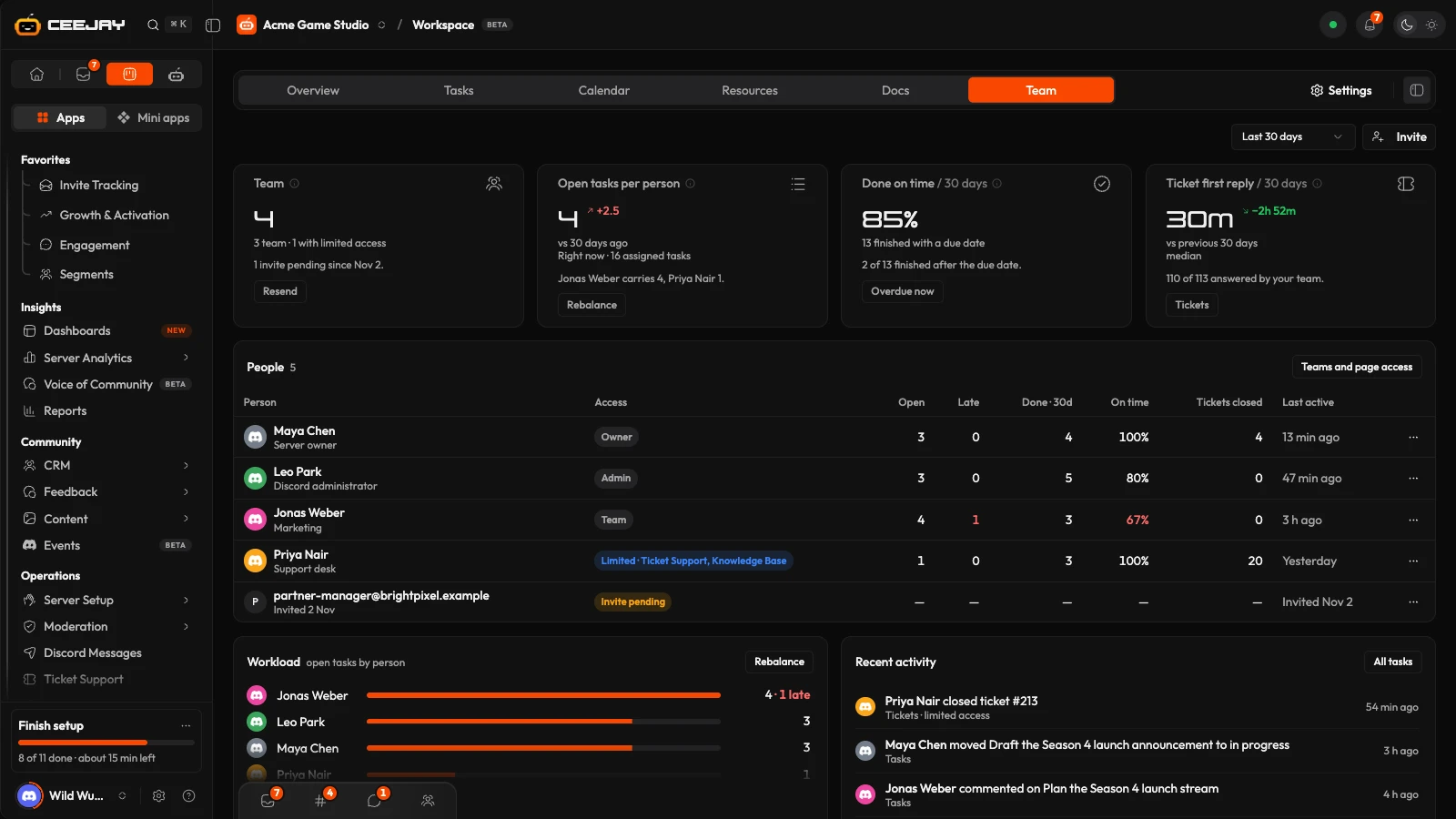
The Team view lists everyone with a login to your dashboard and each person's workload: open tasks, late tasks, work finished on time and tickets closed. Use it to spot someone who is overloaded and to see who has not joined yet. Open Workspace → Team.
Choose a window
The menu at the top right sets the window for the figures that count things over time: Last 7 days, Last 30 days or Last 90 days. It opens on 30 days. Numbers that describe right now, such as open tasks, ignore it.
The cards
Most cards compare with an earlier period, and each says in one line what to do about it.
- Team: everyone with a login to this community. That is the owner, Discord administrators and bot masters, and invited team members. Pending invites are counted separately, and the card's link says Resend → for the first one, or Invite someone →.
- Open tasks per person: assigned open tasks divided by the number of teammates. The card names who has the most and the fewest open tasks, and links to the board with Rebalance →.
- Done on time: of the tasks with a due date that were finished in the window, the share finished on or before it. Tasks without a due date are not counted. If some finished late, Overdue now → opens the overdue tasks.
- First response time: the median time from a ticket opening to its first reply from someone other than the member who opened it, for tickets opened in the window. It names who answers the most tickets first. Bots never count. See Ticket Support.
Press the (i) beside a card's title for its exact definition.
The table
The table has one row per person.
| Column | What it shows |
|---|---|
| Person | Their Discord name and avatar, with a line under it: Server owner, Discord administrator, Bot master role, their team, or when they were invited |
| Access | Owner, Admin, Team, Limited followed by the pages they can open, or Invite pending |
| Open | Open tasks assigned to them |
| Late | How many of those are past their due date, in red when there are any |
| Done · 30d | Tasks they finished in the window (the number of days follows the window) |
| On time | The share of those finished on or before the due date, in red below 70% |
| Tickets closed | Tickets they closed in the window |
| Last active | When they last used the dashboard, or when they were invited if they have not joined |
A person's ⋯ menu offers Open tasks and Manage access, and for a pending invite Resend invite, which emails the invitation again. Manage access and the Teams and page access link above the table open the team settings, where you choose which pages each person can see. See Team management.
Workload and recent activity
Workload draws a bar per person for their open tasks, with how many are late, and says what the team median is. A person with more than twice the median also appears under Needs attention on the Workspace. Rebalance opens the task board.
Recent activity is the last 20 actions by your teammates, with who did what and when: task changes, and tickets claimed or closed. All tasks opens the board.
Invite someone
The Invite button opens the team settings, where you invite a person by email and decide which pages they can open. Once they accept, they appear in the table. See Team management.
Good to know
This view covers teammates with a dashboard login only. Community moderators who have no login are not listed here: they are on the Community Mods page. See Community Mods.

