

Tasks
A shared task board for your team: create tasks, assign them, set due dates and move them across.
Tasks are the team's shared to-do list for the community. Everyone with access to the Workspace sees the same tasks. Open Workspace → Tasks.
What you see
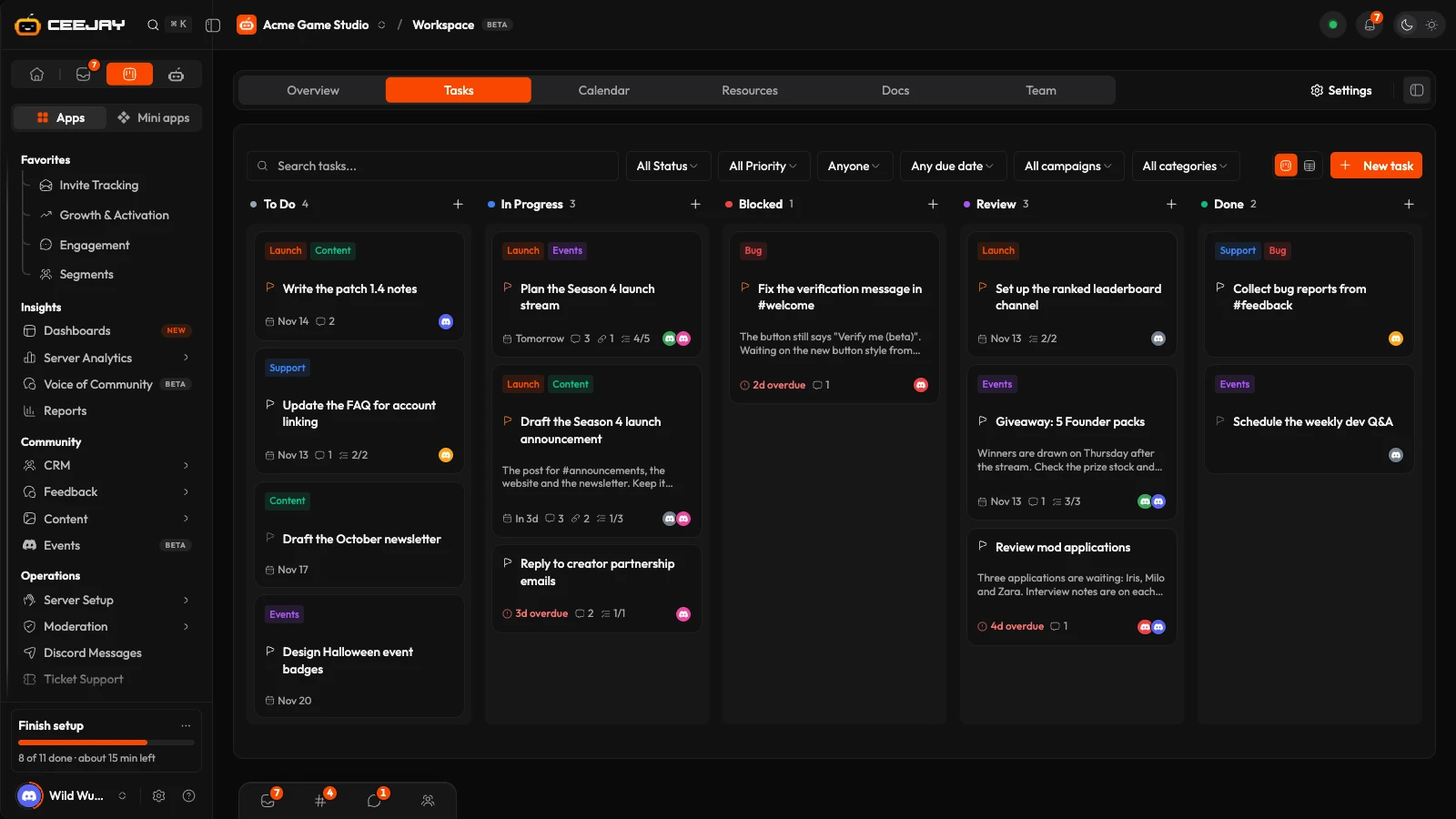
A bar of filters sits above the tasks, with the New task button at its right.
- The search box ("Search tasks...") finds a task by its title or description.
- Status shows To Do, In Progress, Blocked, Review or Done. Priority shows Urgent, High, Normal or Low.
- Assignee is Anyone, Mine or Unassigned. Due is Any due date or Overdue.
- Clear appears once a filter is on and removes them all.
- The Board view and Table view buttons switch how tasks are drawn. Your choice is remembered in this browser.
A community that uses campaigns and categories also gets a filter for each. See Categories.
The Workspace Overview links straight into filtered views: its cards open the board on overdue tasks, unassigned tasks or your own tasks.
The board
Each column is a status, and shows how many tasks it holds. A card shows its title, the first lines of its description, a flag when the priority is not Normal, the due date, how many comments, attachments and subtasks it has, and the faces of the teammates assigned. A due date that has passed turns red and says how many days late.
Drag a card to another column to change its status, or to another place in its column to reorder it. The card moves immediately. If the change fails, the card returns to its column and an error message appears. On a phone, press and hold a card before dragging, and scroll sideways to see the next column.
The table
Table view lists the same tasks with the columns Title, Status, Priority, Due and Activity. Open a column's heading to sort it, Ascending or Descending. Columns shows and hides columns. It opens sorted by due date, with tasks that have no date last. On a phone each row becomes a small card.
Create a task
Go to Workspace → Tasks and press New task. The + at the top of a column makes a task that starts in that column's status.
Type a Title. Set the Status and Priority (Low, Normal, High or Urgent), a Due Date and the Assignees. A day picked without a time is due at 18:00. Description (optional) takes more detail.
Press Create Task. The card appears on the board straight away. If the task cannot be saved, the window reopens with everything you typed.
You can also make a task from the Inbox (Create task on a Discord ping, or Make a task on an action item), or from Discord. In Discord, /task create makes a task, and /task list, /task view and /task complete read and finish them. Right-clicking a message and choosing Apps → Create task from message makes a task from it. By default, /task and Create task from message need the Manage Messages permission. See commands.
Open a task
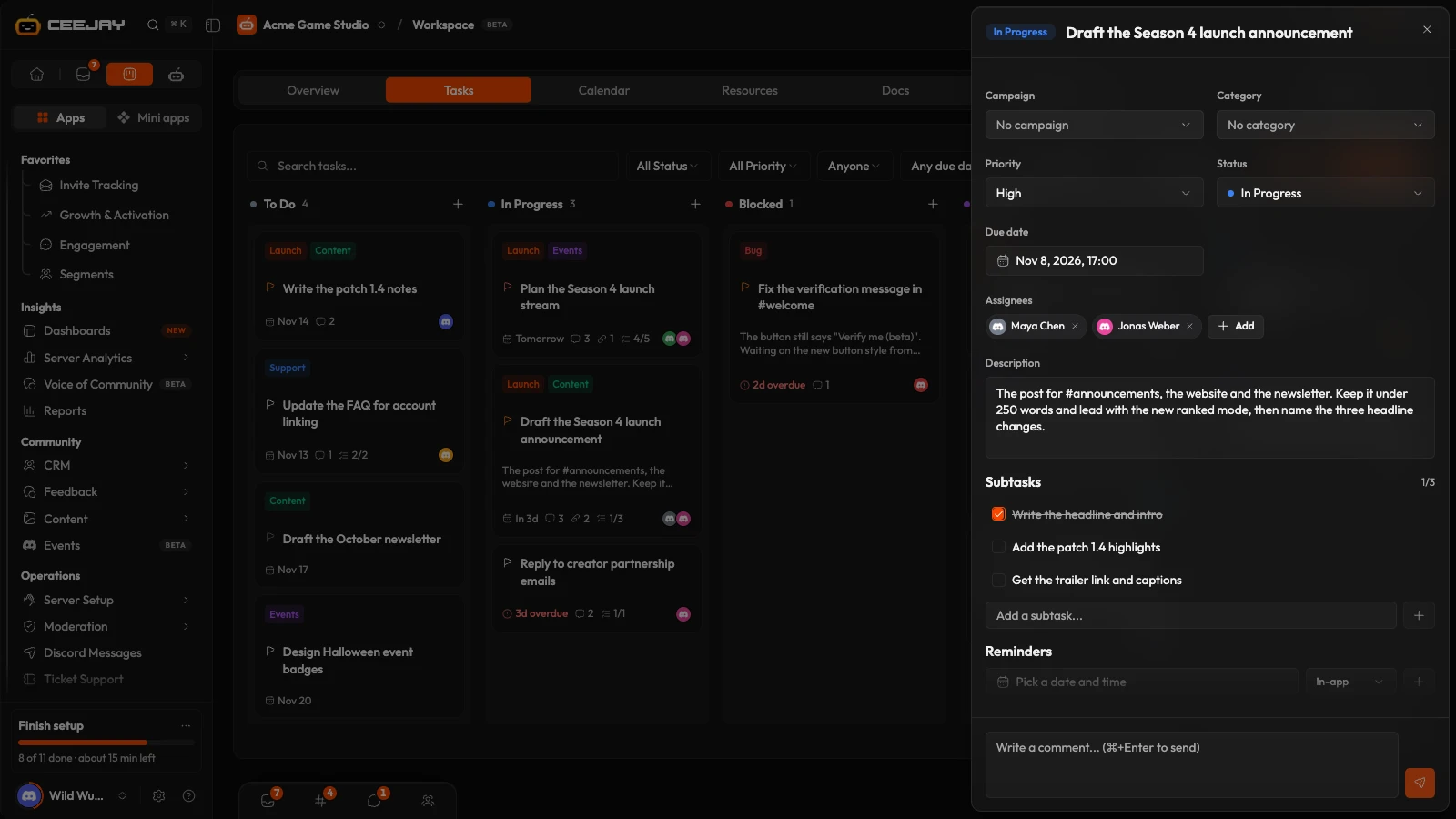
Press a card or a row to open its panel from the right.
- Click the title to rename it. Enter saves and Esc cancels.
- Priority, Status, Due date and Assignees save as you change them. The assignee list is everyone with a login to your dashboard, with a search box. Where campaigns are switched on, Campaign and Category sit above them and save the same way.
- Description saves when you click away. A task made from a Discord message also has a View in Discord link.
- Subtasks are a checklist under the task, one level deep. Type in the "Add a subtask..." box and press +, tick one to mark it done, and delete one with the bin that appears when you point at it.
- Attachments takes images only: PNG, JPG, GIF, WebP or SVG. Press Add file or drop them in.
- Comments is a thread for the team. Type in the "Write a comment..." box and press ⌘+Enter (Ctrl+Enter on Windows), or the send button.
A task has no delete button. To remove one from the board without deleting it, set its Status to Archived. Subtasks can be deleted.
Who is told
CEEJAY tells your team about tasks through the Inbox and the bell: when a task is assigned to you, when it is due within a day, and when it becomes overdue. The last two go to the teammates assigned to the task, or to whoever created it if nobody is. Email is available for these too. Choose what reaches you on the Notifications tab of Your account. See also Notifications.
The Needs attention bell on the Workspace lists overdue tasks, open tasks with nobody assigned, and anyone with more than twice the team's median number of open tasks.
Statuses and the activity log
Open Settings → Team collaboration → Workspace, or press Settings in the bar on any Workspace tab.
- Task statuses are the columns of the board. A new community starts with To Do, In Progress, Blocked, Review and Done. Rename or recolour any status. Turn on Default for the status new tasks start in, and Done for a status that completes a task. Add status makes a new one. The five standard statuses cannot be deleted, and a status you added cannot be deleted while a task still uses it.
- Activity Log Channel posts task changes to a Discord channel. Pick a Log channel, press Send test message to check the bot can post there, and switch off any event you do not want in Which events get posted?. The bot needs View Channel, Send Messages and Embed Links in that channel.
Good to know
Tasks belong to the community, not to a person or a project. Anyone with Workspace access sees every task, and assigning one only decides whose list and Inbox it appears in.

