

Calendar
One month view of everything dated in your community, plus events you add yourself.
The calendar puts everything that has a date in one place: scheduled messages, polls, giveaways, Discord events, forms and tasks, and your own events. Use it to see how busy a week is, and to spot two items scheduled for the same day. Open Workspace → Calendar.
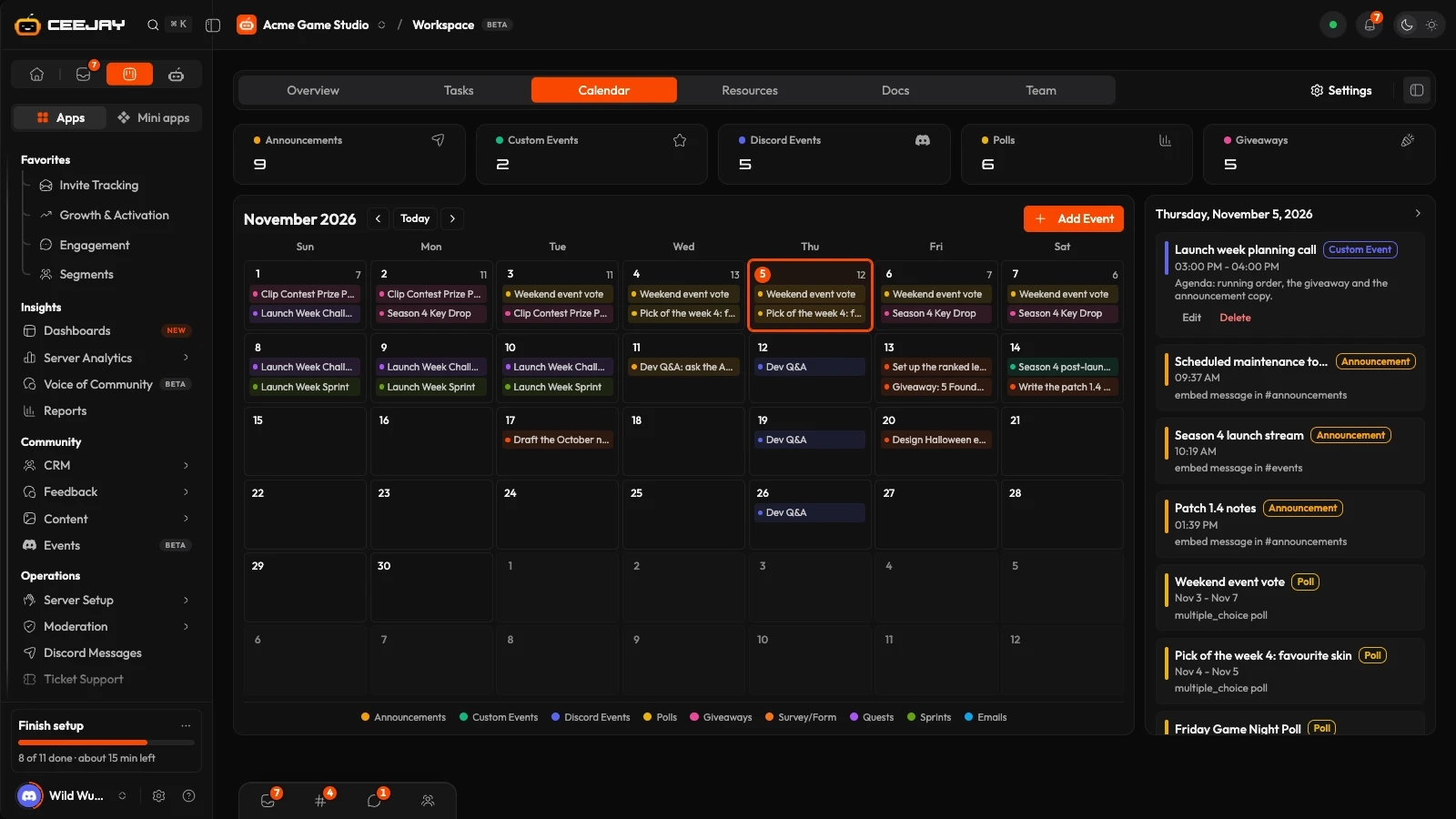
What you see
- The month grid, with Previous month, Today and Next month above it. Weeks start on Sunday. Today is marked, and the day you select is highlighted.
- Five cards above the grid count what is in the month on screen: Announcements, Custom Events, Discord Events, Polls and Giveaways.
- A legend under the grid names each colour.
- A panel at the right lists the events of the selected day. Press a day to fill it. The arrow at its top folds the panel into a narrow strip labelled Day Events, and the arrow on the strip opens it again.
Times show in your computer's timezone.
What is on it
Each kind of event has its own colour and its own label in the day panel.
| Label | What it is | Where you change it |
|---|---|---|
| Custom Event | An event you added here | On this page |
| Announcement | A scheduled or sent message, including drafts | Magic Messages |
| Discord Event | A scheduled event in your server, including each date of a repeating one | Events |
| Poll | A poll, from when it is sent until it closes | Polls |
| Giveaway | A giveaway, from its start to its end | Giveaways |
| Survey/Form | A form, on the day it was created | Surveys and forms |
| Task | A task on its due date | Tasks |
Posts in your announcement channels also appear as announcements. Where your community uses Campaigns, Quests, Sprints and Emails appear too.
A poll or giveaway that lasts several days shows on every day it runs. A task that is done stays on the day it was due, so the calendar reads as a history as well as a plan. Archived tasks are left off.
In the day panel each event shows its time, or its first and last date if it spans days, and its description. A message also shows whether it is sent, scheduled or draft, and its channel.
Add an event
Go to Workspace → Calendar and press Add Event.
Type a Title, pick a Date and a Time, and add a Description (optional). The time starts at 12:00.
Pick a Color from the eight swatches and press Create.
The event is on the calendar straight away. If it cannot be saved, the window reopens with what you typed.
To change one of your events, select its day and press Edit or Delete under it. Update saves an edit. Delete removes the event at once, without asking you to confirm.
Good to know
Only the events you add here can be edited or deleted on the calendar. To change anything else, open its own page: the calendar is a read-only view of them.

