

Inbox
Everything addressed to you in one list, with ways to act on it, and a chat for your team.
The Inbox collects everything that needs your attention in the community you have selected, so you do not have to watch Discord, the bell and the task board at once. Open it from Inbox in the sidebar, or from Open inbox in the bell. The count beside Inbox in the sidebar is the same number the bell shows.
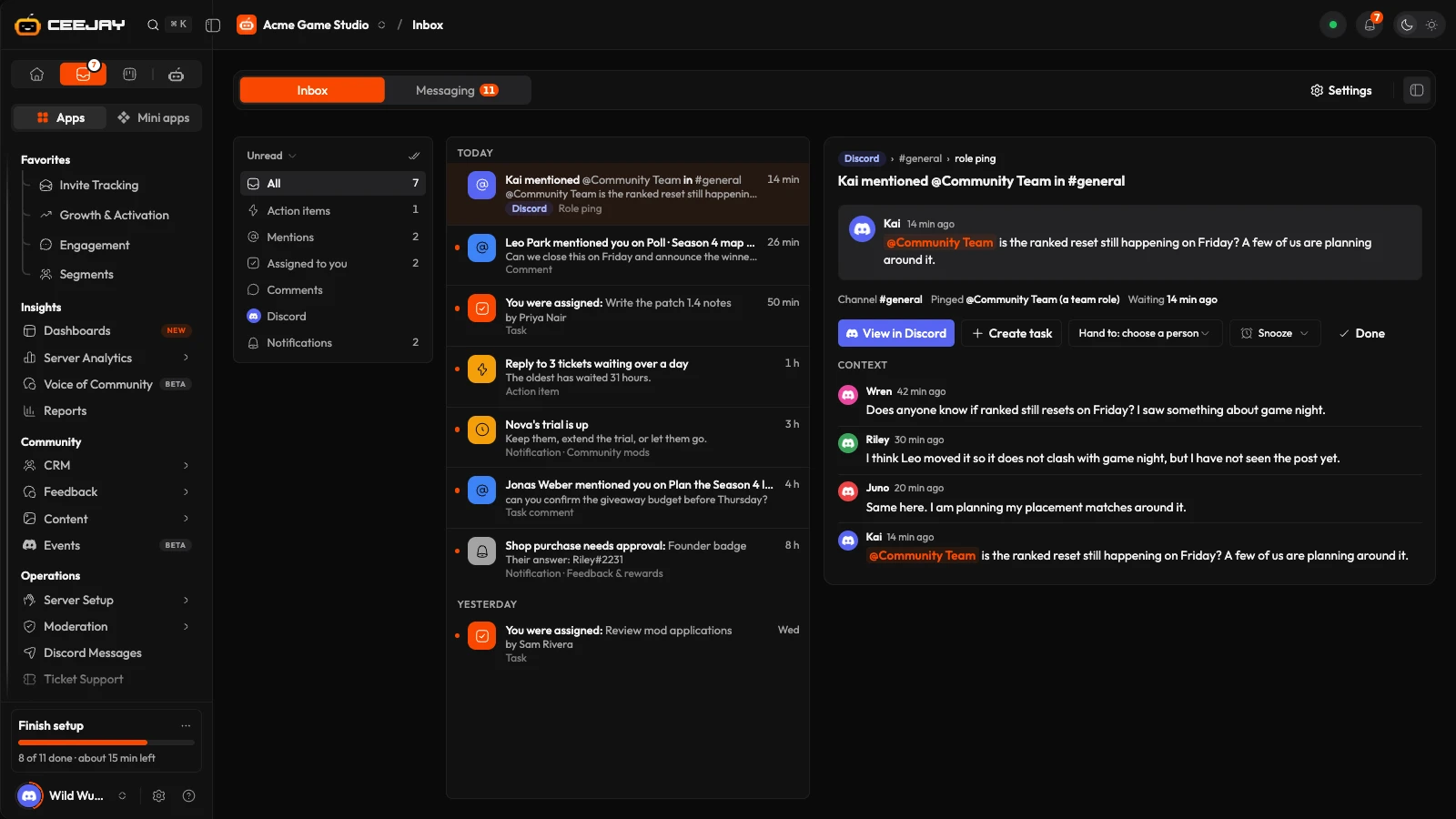
What appears in your Inbox
- Discord pings: a member's message in your server that @mentions you, a role you hold, or a team role.
- Tasks assigned to you.
- Mentions and replies in comment threads, on charts, polls, tickets, docs and tasks.
- Mentions and direct messages from teammates in Messaging. They show under Mentions.
- Action items: tasks that need action on your server, such as tickets waiting, approvals and overdue tasks, plus weekly suggestions from CEEJAY AI.
- Notifications: alerts from CEEJAY, such as a new ticket, a poll that closed or a task that is overdue.
Which of these reach you is set per person on the Notifications tab of Your account. See Notifications.
The page
On a large screen the page has three columns: the sections, the list and the open item.
- The sections are All, Action items, Mentions, Assigned to you, Comments, Discord and Notifications, each with its unread count.
- Show picks Unread, All or Archived. The Inbox opens on Unread.
- Mark all read clears the unread marks.
- The list is grouped under Today, Yesterday and Earlier. Older items loads more.
- Opening an item marks it read.
When there is nothing to show, the list says so, and Show everything clears the filters. On a small screen, Type and Show become two menus above the list, and the list and the open item take turns: press an item to open it, and press Inbox or swipe right to go back.
Work through an item
Each kind of item has its own buttons.
A Discord ping
The item shows the message, the channel, whether you were pinged directly or through a role, and the messages just before it under Around this message.
- Open in Discord opens the message.
- Create task makes a task from the message, with a link back to it. When it exists the button becomes Open task.
- Assign to lets you pick a teammate. It makes the task for them, with the message attached, and marks the item done. They find it in their own Inbox.
- Snooze and Done are covered below.
You cannot reply to Discord from here. Open the message in Discord, or link the channel in Messaging (below).
A task assigned to you
The item shows the task's status, due date, priority and description, and its subtasks. Open task opens it on the board. Accept moves the task to In progress. Snooze and Done are there too.
A mention or a reply
The item quotes the comment. Type in the reply box ("Reply on the thread…") and press Reply to answer without leaving the Inbox. Open thread opens the whole thread, or Open task for a comment on a task.
An action item
The item says what needs doing and why, lists The numbers behind it, and says where it came from. A suggestion from CEEJAY AI is labelled "Suggested by CEEJAY AI", with when it was made and the figures it used. Under it, a line says how many of CEEJAY AI's suggestions from the last 30 days were acted on, meaning marked done or made into a task.
- The first button opens the place to act, such as a ticket queue. Its name depends on the item.
- Make a task turns it into a task. The item then shows a button with the task's number, such as Task #12.
- Done and Dismiss close the item for the whole team. Dismiss asks for a reason: Not useful, Already done, Wrong or Something else.
- Snooze hides it from you for a while.
An item closes automatically when nothing is left to do, and says so.
A notification
The item shows the alert, any figures that came with it, and one button that opens what it is about. The button's name depends on the alert, for example Open task.
Snooze, Done and Archive
Snooze hides an item until 1 hour from now, Tomorrow 9:00 or Next week. A notification confirms when it will reappear. Done marks the item read and removes it from the Unread list.
Archive is in the bell's row menu: open a row's ⋯ menu, or swipe the row to the left. Archived items leave the bell and the other lists. Find them under Show → Archived, where Unarchive restores one. An archived item has no Snooze or Done.
Discord pings
A ping reaches your Inbox when a member's message @mentions you, a role you hold, or one of the team roles set for the community, and when a member replies to one of your messages with the ping on. A reply shows as Discord reply. You are never pinged by your own message, and a team member who has not used the dashboard for 60 days is skipped until they come back.
CEEJAY posts nothing in Discord about a ping, because Discord has already told the person. To stop pings reaching your Inbox, your phone or your email, turn off A member pinged me or my role in Discord on the Notifications tab of your account.
To choose extra team roles, open Settings → Team collaboration → Inbox, or press Settings in the bar on the Inbox page. Pings of the roles under Team roles reach everyone on the team who holds them. Only owners and admins can change them.
Messaging
The Messaging tab is a chat inside the dashboard for your team, and a way to read and answer Discord channels without leaving CEEJAY.
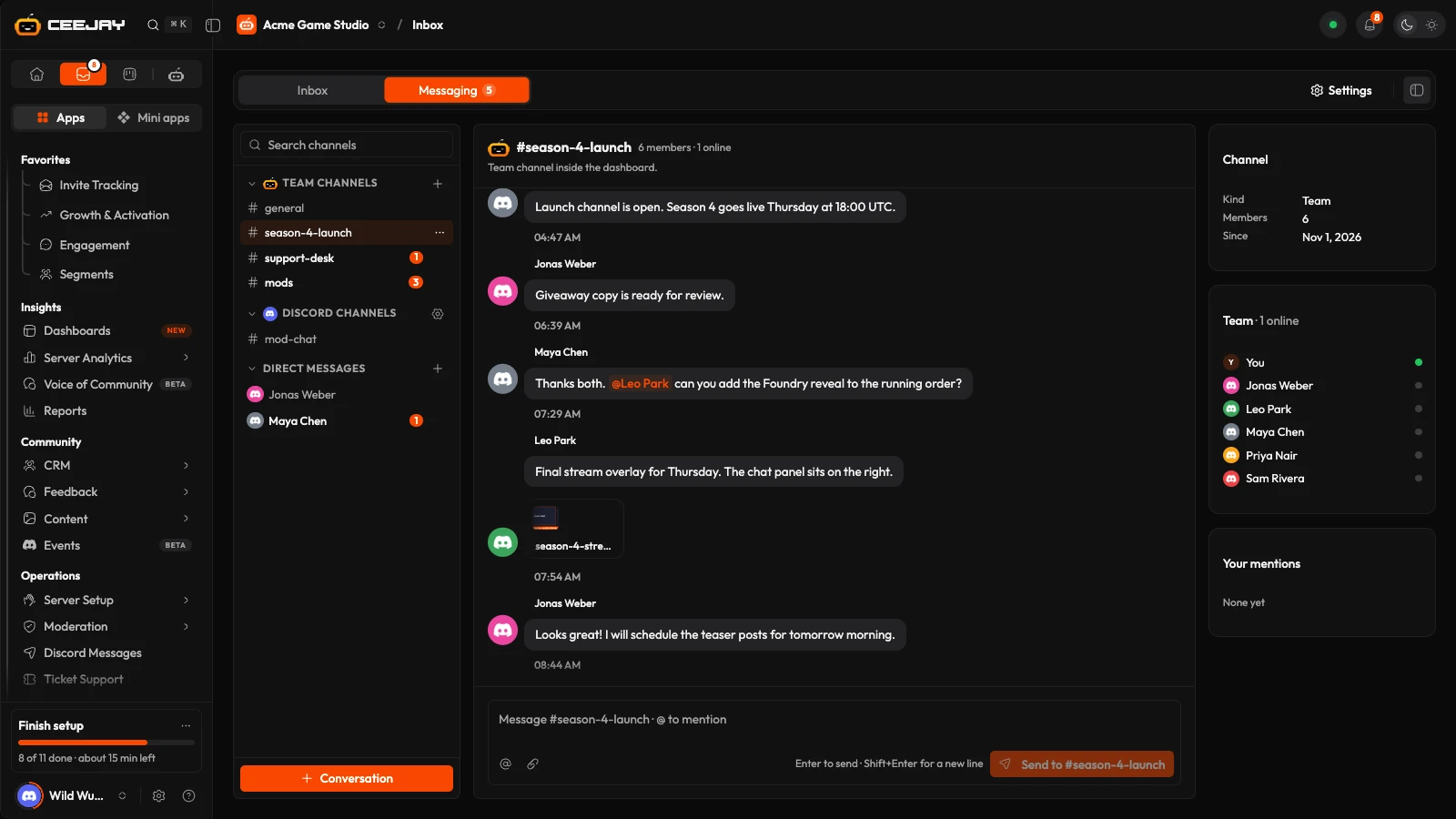
The list at the left has three groups. Search above it finds a channel by name.
- Team channels are places inside the dashboard. Add one with New channel and give it a name.
- Discord channels are real channels from your server that your team linked. Owners and admins link them with the gear beside the heading, which opens Linked channels. Pick a channel, choose Replies post as, and press Link channel. Replies go to Discord through CEEJAY, either under the person's name (a webhook) or from the bot naming the person, and show "via CEEJAY". Posting under a name needs the bot to have Manage Webhooks; without it the bot posts the message itself, with the person's name under it, and CEEJAY says so. Text and announcement channels can be linked. Messages in threads and messages from other bots are not shown here. A message edited in Discord shows the updated text, and one removed there reads "Message removed". Unlinking a channel only removes it from this tab.
- Direct messages are private between you and one teammate. Start one with New direct message.
The Conversation button starts a team channel. Type in the box at the bottom: Enter sends, Shift+Enter starts a new line, and @ lets you mention a teammate. Attach files with the paperclip, by dropping them in, or by pasting a screenshot. Discord's own size limit applies in linked channels. A linked Discord channel takes up to 1,900 characters a message; team channels and direct messages take 4,000. A message that fails stays in the conversation with Retry, Edit (which puts it back in the box) and Discard. Retry never posts the same message to Discord twice.
On wide screens a panel at the right shows the channel's details, the team with who is online, and recent messages that mention you. On smaller screens Details at the top of the conversation opens the same panel. Online means signed in to the CEEJAY dashboard right now, not online in Discord.
A message counts as read once you have seen it: one that arrives while CEEJAY is in a background browser tab stays unread until you come back. Opening a conversation also clears the Inbox items about it.
The Messaging tab at the top of the page shows how many messages are waiting across all your conversations, up to 99+, so you can see it from the Inbox tab too. It does not change the count beside Inbox in the sidebar, which counts notifications.
Where you left off
When you open a conversation with messages you have not read, a New line shows above the first of them that is not your own, and the conversation opens there instead of at the newest message. The line stays while you are in that conversation and goes when you leave it.
Replies
A message that replies to another shows who it replies to and an excerpt of the original message above it. Press that line to jump to the message. If the message is further back than what is loaded, the line says "Replying to an earlier message", and in a linked Discord channel it links to the message in Discord.
Change or remove your own messages
In team channels and direct messages, each of your own messages has a ⋯ menu with Edit and Remove.
- Edit changes the message in place. Press Enter to save, Shift+Enter for a new line, Escape to cancel, or use Save and Cancel. The message then shows "edited", and nobody is notified of the change.
- Remove asks you to confirm, then removes the message from the conversation for everyone.
Both take effect immediately. If CEEJAY cannot save the change, the message reverts and an error message appears. Only the person who wrote a message can change or remove it. Messages in linked Discord channels are changed in Discord.
The channel menu
Each channel has a ⋯ menu beside its name in the list. On a small screen, where the list is a picker, it is at the top of the conversation. You only see it where you can use it.
- A team channel: Rename… and Archive, for owners, admins and whoever made the channel. Archiving asks you to confirm and removes the channel from the list for everyone.
- A Discord channel: Rename…, Post as (You via CEEJAY or CEEJAY bot) and Unlink, for owners and admins. Renaming only changes the name shown here.
- A direct message: Close conversation, for either teammate in it. It leaves both lists. Starting a new direct message to the same person restores it.
When a team channel is archived, an Archived channels line appears under Team channels. It opens the channels you can restore, each with Restore. If a channel with the same name was made in the meantime, rename that one first.
On every other page, the Inbox dock at the bottom left gives you your notifications, channels, direct messages and teammates in a panel.

