

Resources
A shared library for links, files, folders and the magic messages your team reuses, with a nightly check for broken links.
Resources is where the team stores what it uses repeatedly: the brand kit, partner links, trailers, a message you resend every season. Everyone with Workspace access sees the same resources. A check runs every night and reports any link that returns an error. Open Workspace → Resources.
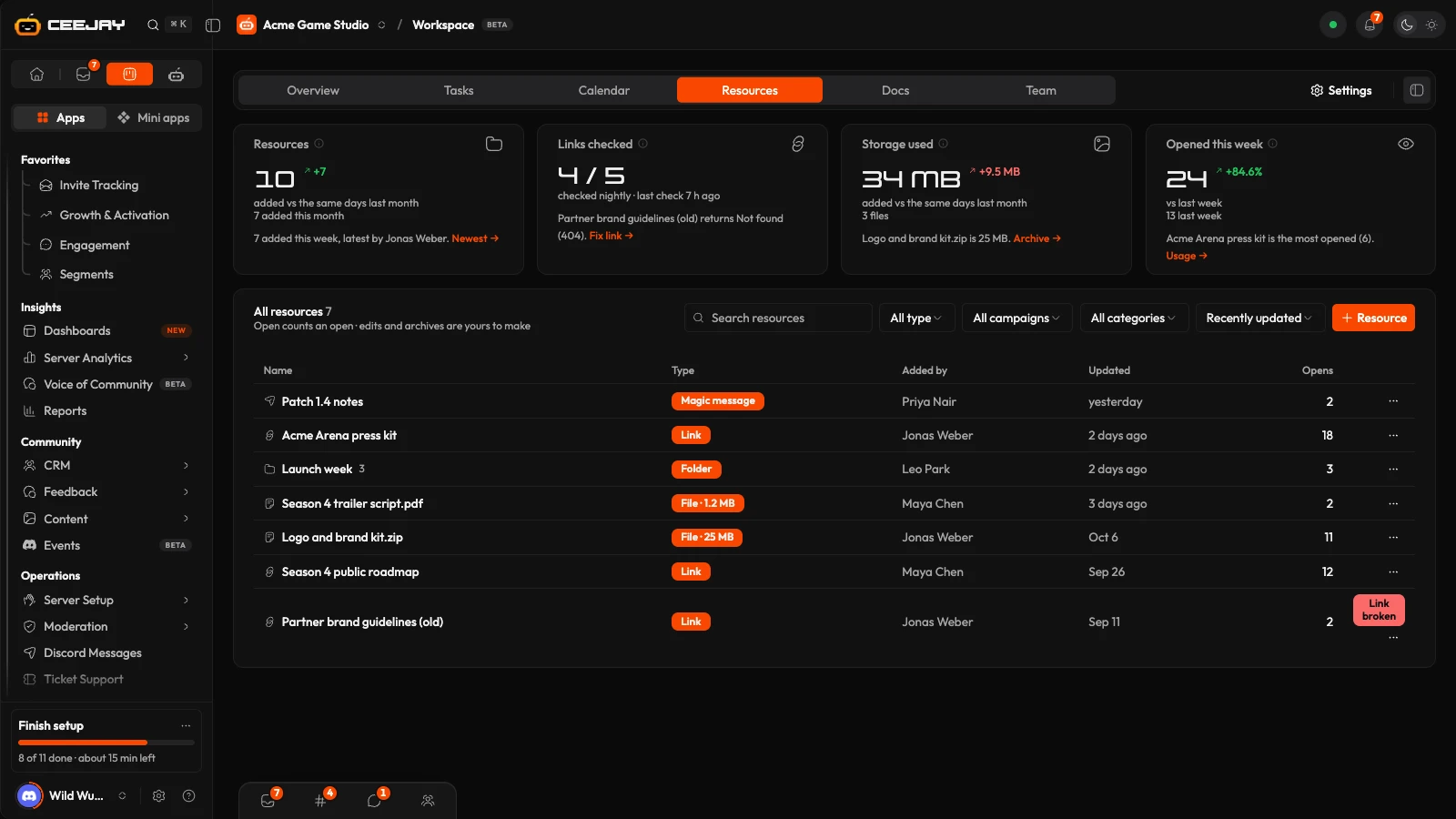
What you see
Four cards sit above the table.
- Resources: how many live items there are, and how many were added this month against the same days last month.
- Links checked: how many links responded to the last nightly check, out of all your links, and when it last ran. If one is broken, the card names it and offers Fix link →.
- Storage used: the size of the files you uploaded, not counting archived ones, with the biggest file named and an Archive → link that archives it immediately.
- Opened this week: how many times your team opened a resource from this page, against last week, with the most opened one named.
The table lists Name, Type, Added by, Updated and Opens. Above it, a search box ("Search resources"), a Type filter (Links, Files, Folders, Magic messages or Archived) and a sort menu (Recently updated, Newest, Most opened, Name A–Z or Largest) narrow it down. Twenty rows show at a time, and a button under the table (for example Show 20 more) loads the next ones.
Press a row's name to open it. A link or a file opens in a new tab. A magic message opens in Magic Messages. A folder opens to show what is inside it, with All resources above to go back. Each open is counted once, which is where the Opens column and the last card come from.
Add a resource
Go to Workspace → Resources and press Resource.
Choose the Kind: Link, File upload, Folder or Magic message.
Fill in what that kind needs. A Link takes a full URL starting with http:// or https://. A File takes a file from your computer, and the size limit is shown under the field. A Folder needs a name. A Magic message is picked from your Magic Messages.
Give it a Name. For a link you can leave it blank and CEEJAY uses the site's name. If you have folders, choose a Folder for it.
Press Add. For a file the button says Upload and shows progress. The resource appears in the table straight away. If it cannot be saved, the panel reopens with what you typed.
Where your community uses campaigns and categories, links and files can carry them too. See Categories.
Folders
Add a resource with the kind Folder, then add other resources to it with their Folder field. Resources inside a folder are hidden from the main list until you open the folder, or until a search or a filter is on. Deleting a folder does not delete what is in it: those resources stay and lose their folder.
Broken links
Every night CEEJAY checks that each link still works. A link that fails the check is marked Link broken in the table, and the Links checked card names the first one. Press the mark, or Fix link →, to open the resource with its URL ready to change. Saving a new URL checks it again that night. A link you have just added shows as not checked until the first check has run.
Edit, archive and delete
Open a row's menu (⋯).
- Open opens it.
- Edit changes the name, the URL of a link, and the folder. The kind cannot be changed.
- Archive hides it from the list and removes it from the counts. It remains under Type → Archived, where Restore returns it to the list.
- Delete removes it after you confirm. Docs that link to it then show a broken link.
Good to know
A magic message in Resources is a shortcut, not a copy. Opening it takes you to the message in Magic Messages, where you edit and send it. See Magic Messages.

