

Tickets and panels
Build ticket panels, set up the kinds of ticket members can open, and answer them from Discord or the dashboard.
Ticket Support gives members a private place to ask your team for help. You post a panel in one of your channels, with a button or a dropdown option for each kind of question. A member presses one and CEEJAY opens a ticket for them. Your team answers in Discord or from the dashboard, closes the ticket when it is done, and the Ticket Support page shows how quickly that happens.
Nothing is posted to Discord until you send it. A panel you save is a draft, and a draft sends nothing.
What you see
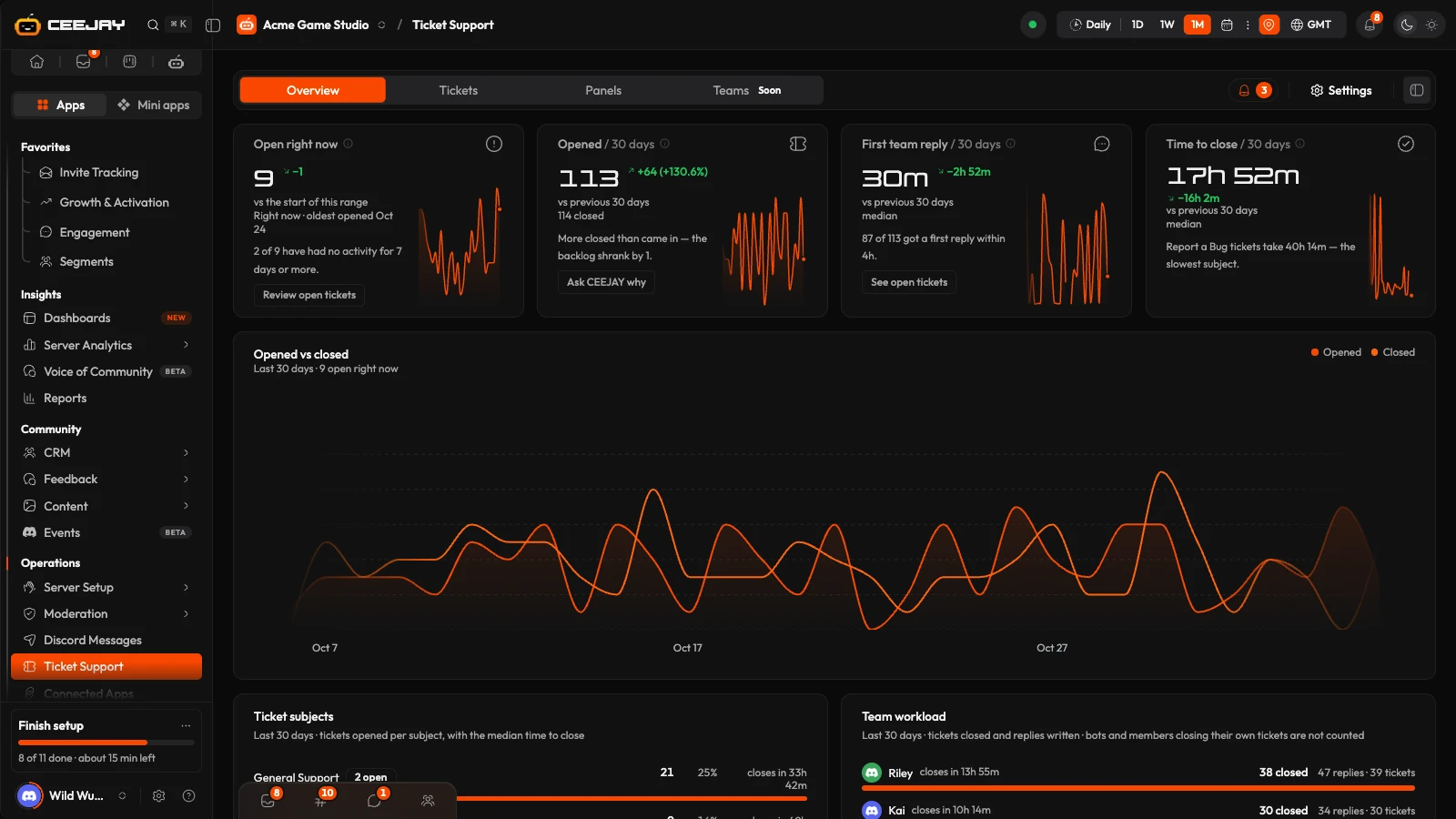
Go to Operations → Ticket Support. The page has four tabs:
- Overview: how support is going across a date range. It follows the range picker and the Compare switch in the header.
- Tickets: every ticket members have opened, newest first. Open one to read it and reply.
- Panels: the messages members press to open a ticket, and the builder for them.
- Teams: marked Soon. There is nothing to set up there yet.
The Tickets and Panels tabs are lists, so they ignore the date range. The bell beside the tabs is Needs attention, and it shows only when something is waiting. Settings at the top of the page opens Settings → Operations → Ticket Support beside the page. When you have no panel and no ticket yet, the page opens on Panels, because that is where to start.
What members see
A panel is a message in the channel you chose, with ticket buttons or a dropdown.
The member presses a button or picks an option. If that ticket type asks questions, a form opens first.
CEEJAY opens the ticket and confirms it to the member in a message only they can see: Ticket Created! with a link and the ticket number.
By default the ticket is a private channel named after the ticket type and the member, such as general-sam_28. Only the member, the roles you chose for that ticket type and the bot can see it. Members with the Administrator permission can too. With Use Threads on, it is a thread instead (see below).
The first message mentions the member and shows your welcome message, their answers under Your Submission, and two buttons: Claim Ticket and Close Ticket. Roles you chose to ping get a message saying a new ticket has opened.
A member can have only so many tickets open at once. At the limit, the bot tells them to close one first. The member who opened a ticket can always close it with Close Ticket. For the slash command that assigns a ticket to someone, see Bot commands.
Overview
The Overview shows how support is going, why, and which tickets need attention.
- Open right now: tickets that are open, claimed or pending at this moment, compared with how many were open when the range began. A line says how many have had no activity for 7 days or more, with a Review open tickets link.
- Opened: tickets created in the range, from any panel, and how many were closed. A line says whether the backlog grew or shrank, with an Ask CEEJAY why link.
- First response time: the median time from a ticket opening to the first message from someone other than the member. Bots, including the welcome message, do not count. A line says how many tickets got a first response within the target, 4 hours by default.
- Time to close: the median time from opening to closing, for tickets closed in the range.
Under the cards, Opened vs closed draws both over the range. Ticket subjects has one row for each ticket type, the label of the button or option the member used, with how many tickets it got and how long they take to close. Team workload lists each team member's closed tickets, replies and tickets. Both show the top 8. Bots, and members closing their own tickets, are not counted. Open tickets is a table of the first 20, longest open first, with All open tickets to jump to the full list. Press a row to open the ticket. A ticket idle for 7 days or more is marked in the Idle column.
Press the (i) beside a card title for its exact definition.
The Needs attention bell lists:
- tickets that waited past the response-time target without a reply;
- open tickets idle for 7 days or more;
- open tickets with no messages at all, whose channel may be gone;
- a rise or fall of 50% or more in tickets opened, once there were at least 5 the period before;
- one team member closing at least half of the tickets your team closed, when that is 10 or more.
Each item has a button that opens the list or asks CEEJAY.
Create a panel
Go to Operations → Ticket Support, open the Panels tab and press Create Panel.
Choose Start from scratch, a blank panel with one Create Ticket button, or Use a template for support desks, reports, appeals, billing and more. A template opens the builder already filled in. Replace every [placeholder] before you send: the page lists the ones left, and Save & Send to Discord stays disabled until they are replaced. Save as Draft never does.
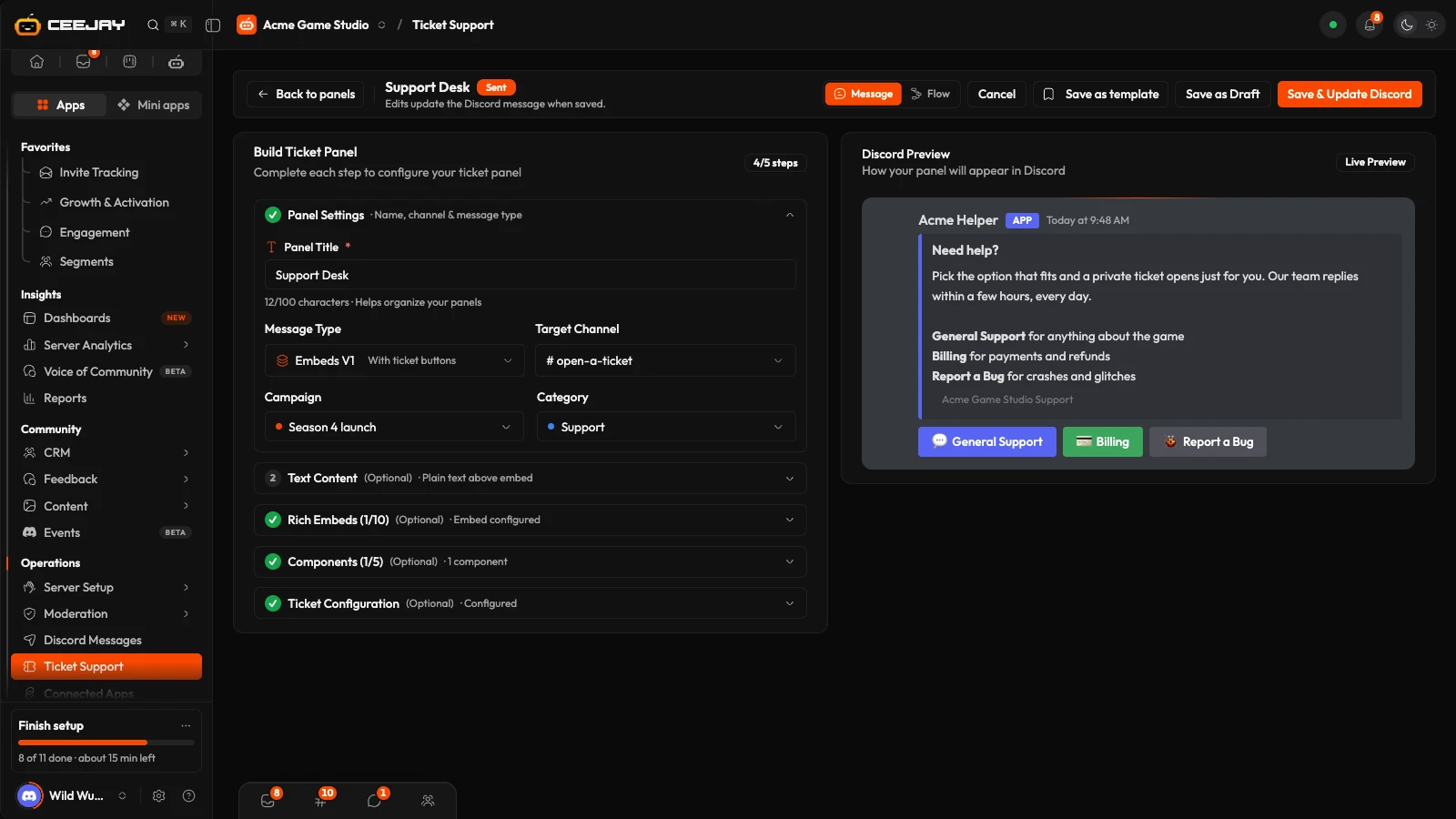
The builder is its own page, with the sections on the left and a live Discord preview on the right. In Panel Settings, type the Panel Title, which is for your team, choose the Message Type, Embeds V1 or Components V2, and pick the Target Channel. Where Campaigns is on, this section also has Campaign and Category fields.
Write the message members see. On an Embeds V1 panel that is Text Content and Rich Embeds, with an Embed Title, an Embed Description and optional fields, images, an author and a footer. A Components V2 panel is laid out from blocks instead.
Open Components and set up your ticket types, below. Optionally open Ticket Configuration for the settings that apply to the whole panel.
Switch the top bar from Message to Flow to follow what happens after a member presses a button or picks an option: the form, the ticket, the welcome message and the team logs, each marked Editable or Fixed text. Drag steps where you like. On a ticket panel the flow shows what will happen, and you change the panel in Message.
Press Save as Draft to save the panel without posting it, or Save & Send to Discord to post it in the Target Channel. It appears in Discord within about 30 seconds. After that, Save & Update Discord edits the posted message in place.
Ticket types
Every button and every dropdown option on a panel is its own kind of ticket. On an Embeds V1 panel, the Components section opens with a Ticket types card that lists them. Press Add another ticket type to add one, and press a ticket type to edit it. On a Components V2 panel, you set them up on the buttons and dropdowns in the layout. A panel can hold up to 5 rows of components, 5 buttons in a row and 25 dropdown options, and the builder tells you when you go over.
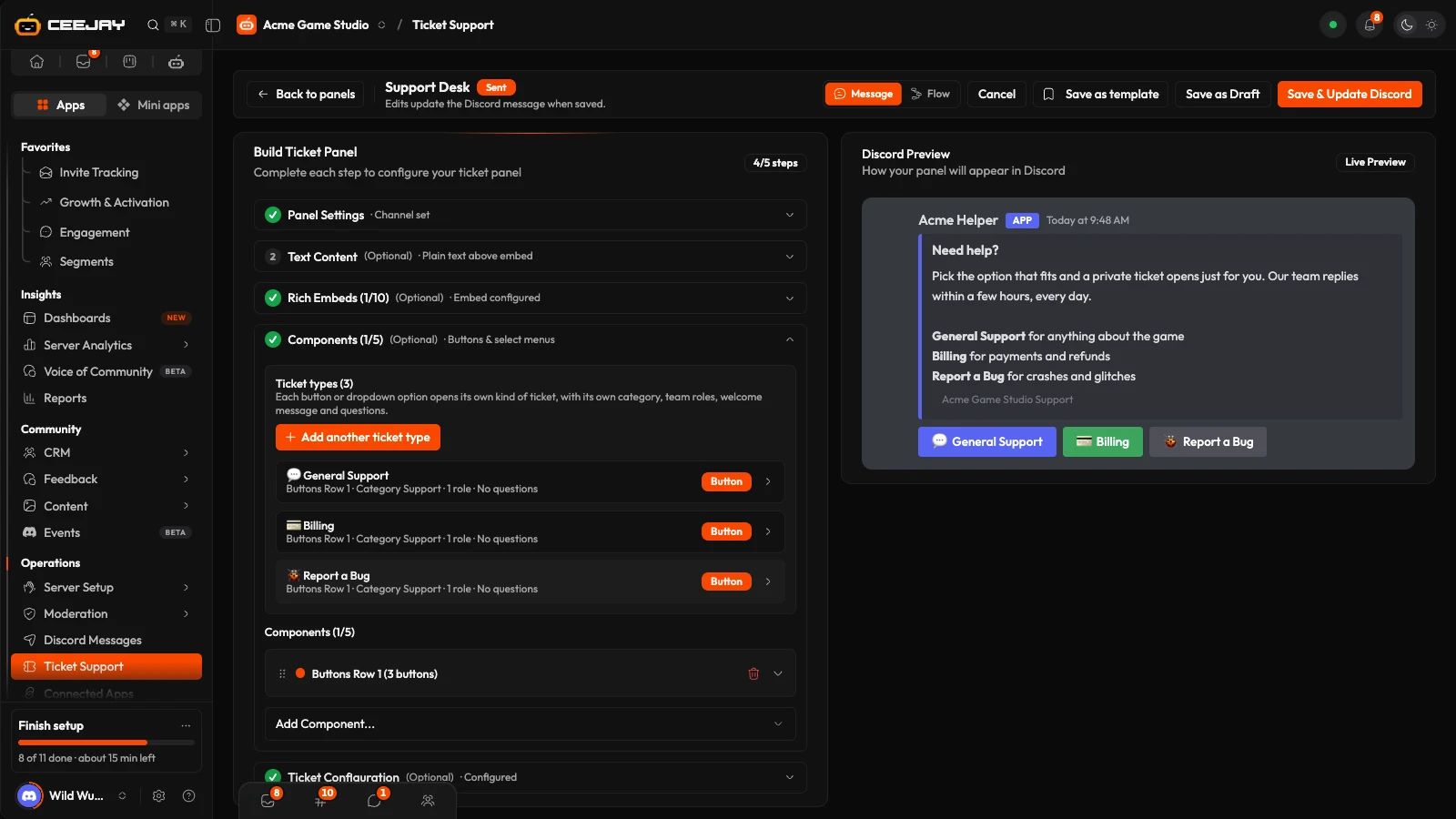
Each ticket type has:
- Show Modal Before Creating Ticket: asks the member questions first. Give the form a Modal Title of up to 45 characters and up to 5 Form Fields: Text Input, Label, Select Menu, Text Display or File Upload. Answers appear in the ticket under Your Submission.
- Welcome Message: what the ticket opens with. Simple Text + Attachments is a message with optional files. Embeds V1 (Classic) lets you design your own embeds.
- Category for new tickets: the Discord category the ticket is created in.
- Ping Roles on Creation: roles that are mentioned when a ticket opens. They can also see and write in the ticket.
- Slack Notification: shown only when Slack is connected under Integrations. It posts a Slack message when this ticket type is opened.
Pick a role for every ticket type
A ticket is visible only to the member, the roles picked for its ticket type and administrators. With no role picked, only administrators see it. A role gives access to read and write in the ticket. To press Claim Ticket or Close Ticket in Discord, a member also needs the Manage Messages or Manage Channels permission.
Ticket Configuration holds the panel-wide settings:
- Use Threads creates a thread instead of a channel. A ticket thread is a public thread in the panel's channel, so anyone who can see that channel can read it, and the roles above do not apply. Keep it off for private tickets.
- Auto-Close After (hours): leave it empty to use the server setting, or enter 0 to turn auto-close off for this panel.
- Max Open Tickets Per User: leave it empty to use the server limit. A panel limit only applies when it is lower than the server's.
Manage panels
The Panels tab shows each panel as it appears in Discord, with Sent or Draft on it, its channel and how many tickets it has had and how many are open. Search, filter by status, sort by Newest first, Oldest first or Name A–Z, and switch between cards and a table. A draft has Send to Discord on its card, a sent panel has Resend. The ⋮ menu has Edit, Send to Discord or Resend to Discord, Duplicate and Delete. Deleting a sent panel also removes its Discord message, and cannot be undone.
Work a ticket
Open the Tickets tab.
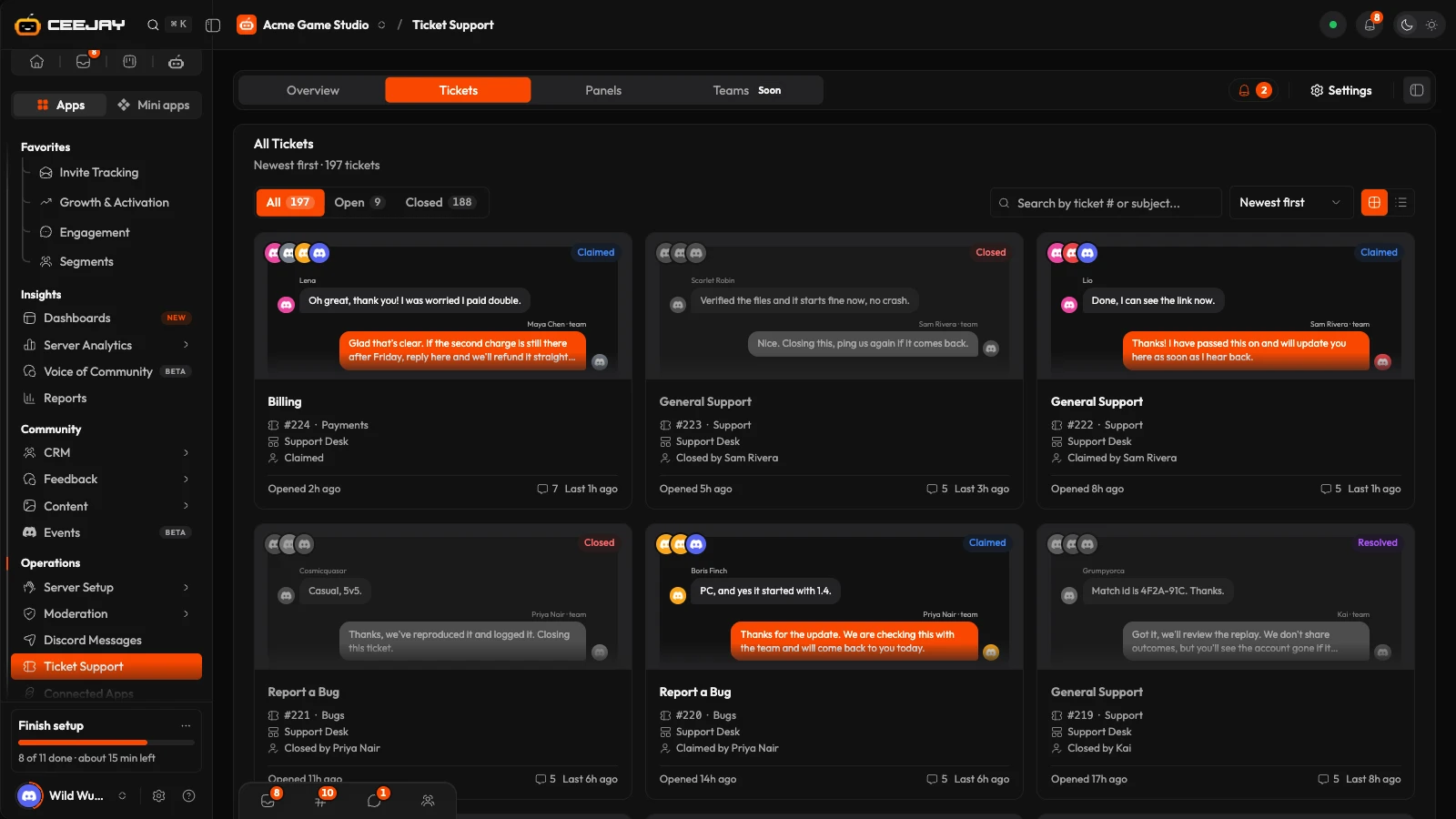
- All, Open and Closed narrow the list, each with a count. Search by ticket number or subject, and sort by Newest first, Oldest first, Last activity or Most messages.
- The default layout is cards. Each card shows the last exchange, with the latest message from the member and from your team, and No reply yet on a ticket nobody has answered.
- The table layout has filters on the Subject, Claimed By and Closed By columns and 25, 50 or 100 rows a page.
- A ticket opened with a priority support perk, one of the rewards in the Rewards Engine pool, is marked Priority. Open priority tickets stay at the top whatever the sort.
Press a card or row to open the ticket as its own page. A ticket has one owner, and a reopened ticket lets the member write in it again.
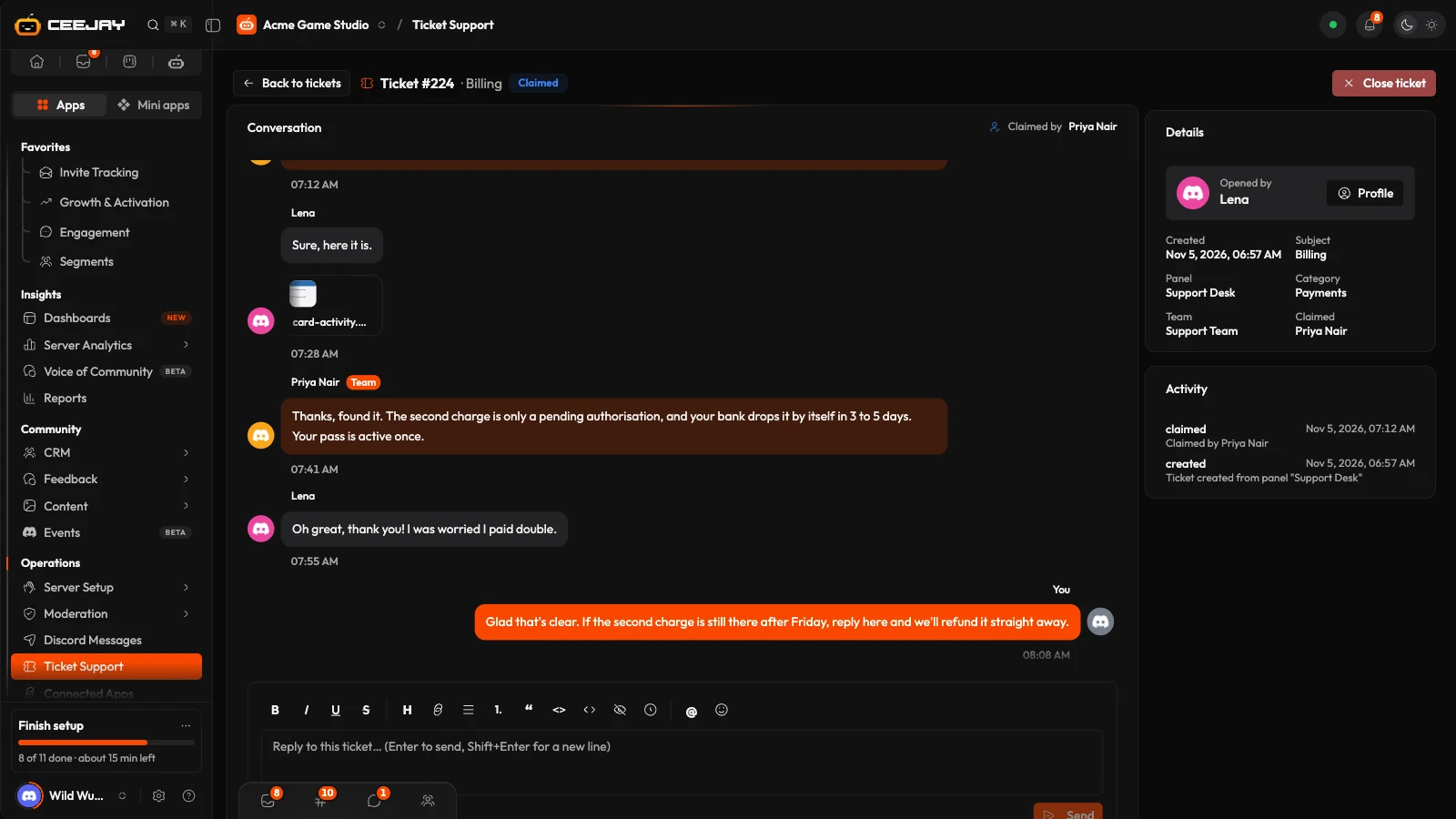
On the ticket page:
- Conversation is the thread, your replies on the right. The header says who claimed it, or that it is unclaimed and the first reply claims it.
- Details shows who opened it, with a Profile button for their member profile, and the panel, category and dates. Activity lists what happened.
- The reply box sends with Enter, and Shift+Enter adds a line. It has formatting, @mention and emoji buttons, takes up to 2,000 characters and up to 10 pictures, and shows a typing notice in the ticket while you write. The member sees the reply in Discord under your name and picture, which needs the Manage Webhooks permission for the bot. Without it, the reply appears as a message from the bot with your name at the top.
- Owners and admins can always reply. A team member needs their team to have Can reply to support tickets from the dashboard, which is chosen when the team is created in Team management. Without it they can read a ticket but cannot reply to it or reopen it.
- Close ticket asks you to confirm. A closed ticket shows Reopen instead of the reply box. It works only while the ticket's channel still exists, for example when Delete Closed Tickets is off.
In Discord, anyone with Manage Messages or Manage Channels presses Claim Ticket. The button goes away and the ticket says who claimed it. A closed ticket gets a Ticket Closed message and then follows your closed ticket settings.
Settings
Go to Settings → Operations → Ticket Support. Changes save from the bar at the bottom of the page.
- Default Settings: Max Open Tickets Per User, from 1 to 10, across all panels. The default is 3.
- Auto-Close System: with Enable Auto-Close on, a ticket closes when the member has not replied for Hours without a reply from the member after your team's last reply. The hours start at 24 and can be 1 to 168. The member is warned an hour before, and any reply keeps the ticket open. Tickets your team has not answered never close.
- Channels Configuration: the Logging Channel gets a post when a ticket is created, claimed, assigned or closed. The Transcripts Channel gets one when a ticket closes: the ticket number, who opened, claimed and closed it, who wrote how much and how long it lasted, with the conversation attached as an HTML file. With no channel chosen, nothing is posted.
- Closed Tickets Handling: Closed Tickets Category (Optional) moves a closed ticket there. Delete Closed Tickets is on by default and deletes the channel after the transcript step. Turn it off to keep closed channels in Discord, renamed with a
closed-prefix. A thread is locked and archived instead.
A deleted ticket channel cannot be recovered
With Delete Closed Tickets on, the channel is deleted as soon as CEEJAY has attempted to create the transcript, even when no transcript could be created. A transcript is posted only if you chose a Transcripts Channel. The conversation stays on the ticket's page in the dashboard. Turn Delete Closed Tickets off if you want to keep the channels.
Which ticket alerts you get in the bell, by push and by email is set under Support in Notifications.
Related
Ticket Support
Give members private tickets for each kind of question, with an intake form, and answer them from Discord or the dashboard while you track first response time.
Gamification and commerce
XP, quests, badges, the shop and economy, the Member Hub and the system that delivers what members earn.

