

Member profile
Everything CEEJAY knows about one member: activity, moderation history, tags, notes and your own fields.
A member profile shows you who someone is before you reply, tag them or assign them a role. It gathers what CEEJAY knows about one member, and your team adds tags, notes and field values of its own.
Open a profile
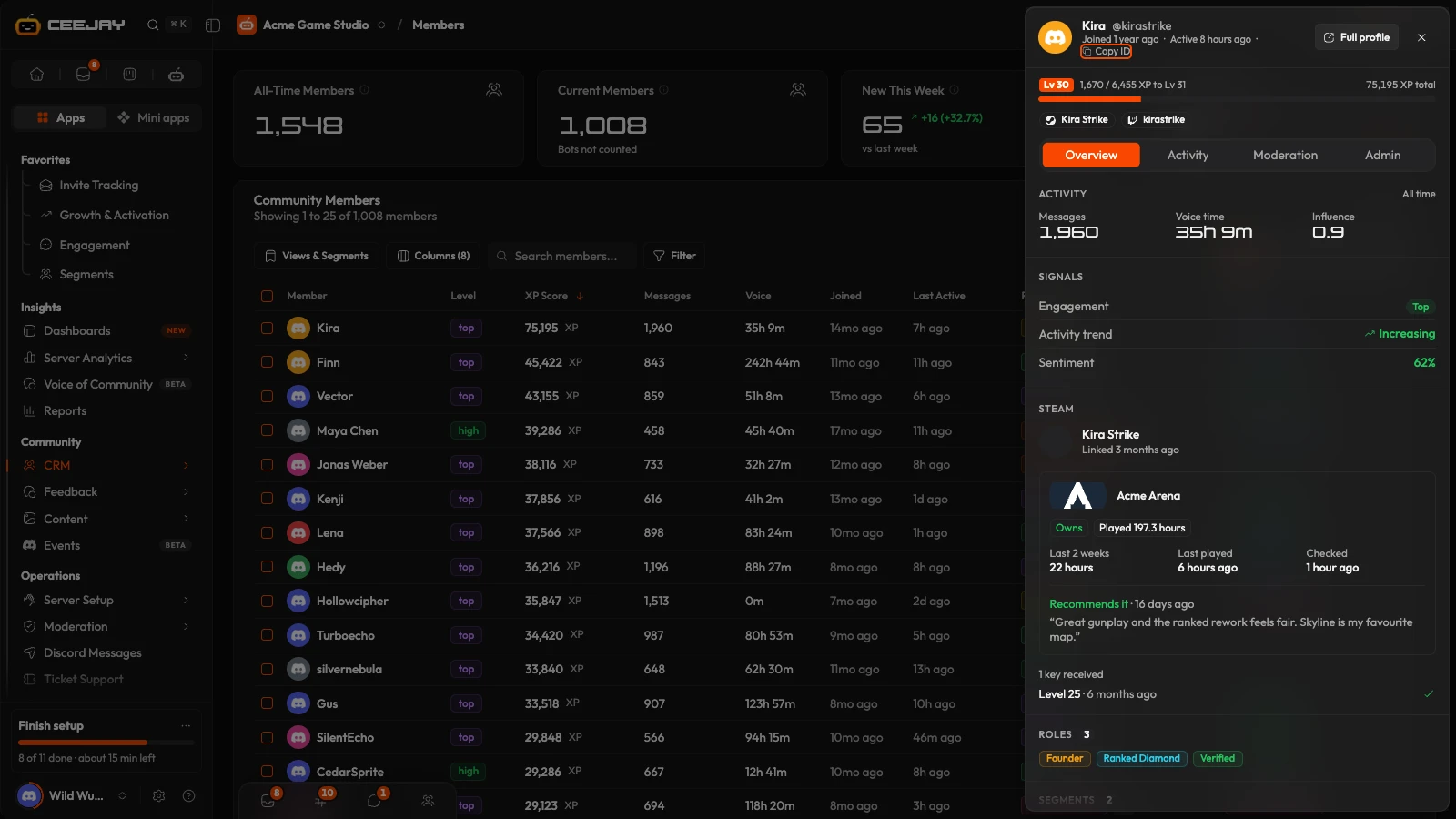
Press a member in Members, or right-click the row and choose Open profile. The profile opens in a side panel. The same panel opens from other lists that show members: a segment's members, a program's members, the quest review queue, a ticket, the top contributors lists and the list of members who left on Growth. Press Full profile in the panel to open it as a page. The page has a Back to CRM button, which returns to Members.
In Discord, /crm and View member profile (right-click a member or one of their messages, under Apps) show a short version with a button that opens the full profile here. See commands.
What you see
At the top, on every tab:
- The member's name and @username, a status tag if they are banned or timed out, and a line with when they Joined, when they were last active and Copy ID, which copies their Discord ID.
- An XP bar: their level as Lv and a number, the XP to the next level, and their total XP. At the top level it says Max level. Levels follow your server's XP settings.
- A chip for each linked account, which opens the member's profile on that platform.
Below that are four tabs: Overview, Activity, Moderation and Admin.
Overview
| Section | What it shows |
|---|---|
| Activity | The member's Messages, Voice time and Influence, all time. |
| Signals | Engagement, Activity trend and Sentiment. |
| Steam | Only for a member who linked Steam. Whether they own your game, have wishlisted or followed it, or have played it, and the hours in the last 2 weeks. Below that, their review of it and the keys they received, each marked as used or not. |
| Your connected product | One block under the product's logo, with the fields it sends for this member and when they last synced. A member who is not linked there reads "Not linked". |
| Roles | Their Discord roles, highest first. Eight show; Show N more opens the rest. |
| Segments | The segments they are in, with when they were added to each. |
| Campaigns, Categories | The campaigns they took part in, with their place among everyone who did ("3rd of 120"), and the categories their activity falls under. Only where these are switched on. |
The three Signals are the same figures as the Level, Activity Trend and Sentiment columns in Members:
- Engagement is the member's Level: "top", "high", "medium", "low", or "inactive" for a member who has not been ranked yet.
- Activity trend compares the member's messages in the last 14 days with the 14 days before.
- Sentiment is the average sentiment of their messages. It is green from 60%, amber from 40% and red below that.
Activity
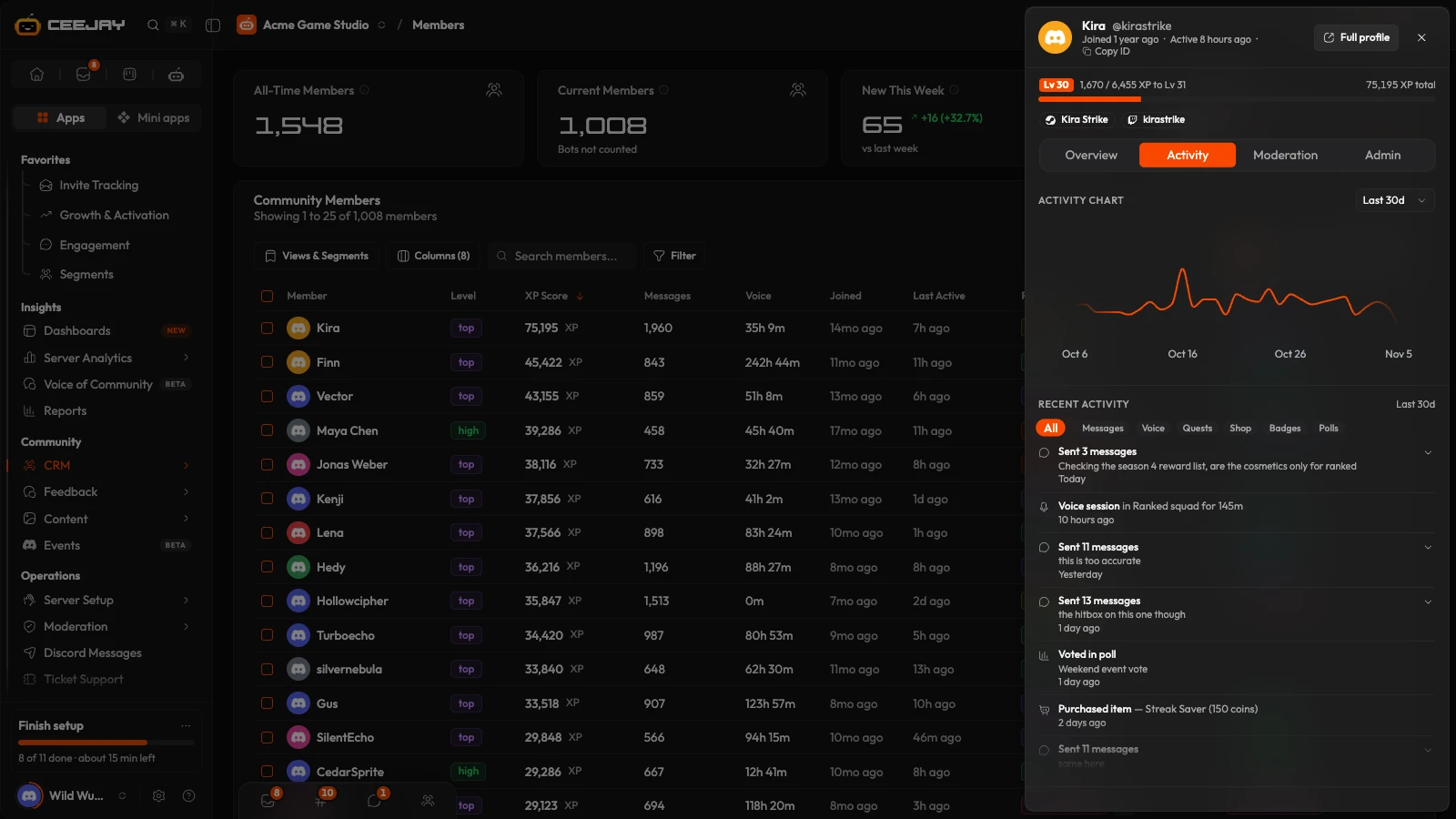
- Activity chart: messages per day. The menu above it sets the range: Last 24h, Last 7d, Last 30d or All time, which charts the last 365 days at most.
- Recent activity: a scrolling list for the same range. It mixes messages, voice sessions, quests completed, shop purchases, tickets, giveaway wins, badges, poll votes and what the member did in other apps.
- A day of messages is one row with its real count ("Sent 40 messages"). Press the row to open it and read the day's latest five. A single message stays a row of its own.
The chips above the list (All, Messages, Voice, Quests, Shop, Tickets, Giveaways, Badges, Polls and Other apps) narrow it to one kind, and only kinds that are present appear. Messages lists the latest messages one by one. A view holds 30 rows at most and says where it stopped: End of recent activity, Latest 30 events, or for messages, Latest 20 of 254 messages. It is a recent sample, not a full log.
Moderation
A read-only history of what has been done to the member, for all time.
- Moderation shows their current status (banned or timed out) and five counts: Bans, Kicks, Timeouts, Messages deleted and AutoMod actions.
- Moderation history lists the actions newest first, 20 at a time: bans and unbans, kicks, timeouts, deleted messages, Discord AutoMod actions, posts in the honeypot channel and failed verifications. Each row says who did it and why. A ban that is no longer in place is marked Lifted; a honeypot action undone from the dashboard is marked Reverted.
The list covers actions by moderators, other bots, Discord AutoMod and CEEJAY. If timeouts, deleted messages and AutoMod actions are not being tracked on your server yet, the tab says so. See Safety.
Admin
The tab for the information your team stores about the member.
| Section | What it does |
|---|---|
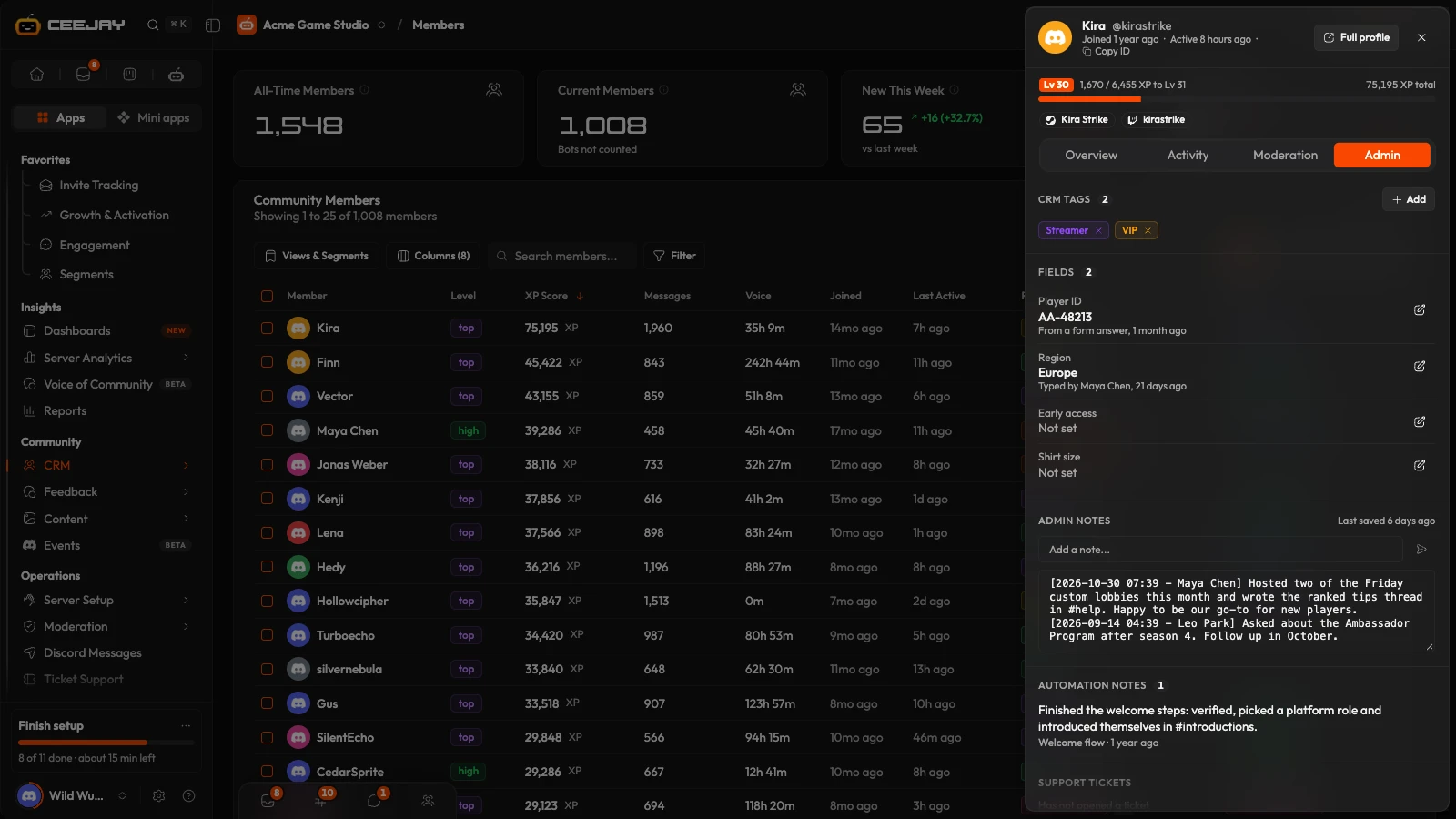
| CRM tags | Press Add to search for a tag and add it. The cross on a tag removes it. |
| Fields | Your own member fields. Press the pencil to type or change a value. Under each value is where it came from and when. Shown only when you have fields. |
| Also in | Other communities the member is in where you also have access. |
| Admin notes | Notes for your team. Type a note in the line at the top and press Enter to add a dated line with your name to the top of the text box. The text box contains every note and you can edit it directly. Changes are saved automatically a moment after you stop typing. |
| Automation notes | Notes written by automations that have a "Save to database" step: the text, the automation and when. Newest 20. |
| Support tickets | The tickets the member opened, newest first, with how many are open and closed. Shows the newest 20. A row opens the ticket. Shown only to team members who have access to the Ticket Support page. |
Good to know
Admin notes are visible to your team, so keep them to facts about the community. A field marked Sensitive is shown only to owners and admins.
Related
Members table
Find the right members by filtering on activity, roles or linked accounts, then tag them, add or remove roles in bulk and export the list.
Segments
Build groups from activity, roles or fields, or use the eight system segments CEEJAY maintains, then reach them in polls, giveaways, emails and more.

