

Segments
Build groups from activity, roles or fields, or use the eight system segments CEEJAY maintains, then reach them in polls, giveaways, emails and more.
A segment is a group of members who share something: they chat a lot, they are new, they have gone quiet. CRM → Segments shows what each group is worth to your community, how it moves and who is in it, so you can win back At Risk members before they leave. You can add a segment to a program, email it, send it a giveaway or point an automation at it.
Two kinds of segment
- System segments are the eight CEEJAY provides. Every member who is in the server belongs to exactly one. CEEJAY tests members against the segments in a set order and a member joins the first one they match.
- Custom segments are groups you build from filters on the Members page. A member can be in any number of them, and they overlap the system segments.
A third entry, Everyone else, appears when some members match no system segment, for example because a segment is switched off. It is worked out, not stored.
Only members who are in the server are counted. Members who left never are.
The system segments
These are the default rules, in the order they are tested. A server's owner or an admin can change them, so check a segment's own page for the rules in force.
| Segment | Default rule |
|---|---|
| Power Users | 100 or more messages in the last 30 days, and active in the last 7 days. |
| Active Members | 30 or more messages in the last 30 days, and active in the last 14 days. |
| New Members | Joined in the last 30 days, with fewer than 10 messages. |
| At Risk | 20 or more messages in the last 60 days, but last active between 15 and 45 days ago. |
| Voice Enthusiasts | 60 or more voice minutes in the last 30 days, and more than twice as many voice minutes as messages. |
| Lurkers | Joined over 30 days ago, 5 or fewer messages ever, and active in the last 30 days. |
| Casual | Active in the last 45 days, below the rules above. |
| Dormant | No activity for over 45 days, or never active. |
Message and voice counts leave out channels you hide from analytics. If nothing has been set up yet, the Overview offers Set up default segments.
What you see
Three tabs, Overview, Segment Detail and Trends. The bar at the top holds these controls:
- Needs attention: a bell with the things worth acting on, such as At Risk growing or a recalculation that failed. It appears only when an item needs attention, and the Summary card on the Overview shows the first one.
- Recalculate: runs the update now. A Stale chip appears when the last run is old, and Last run failed when it failed.
- Settings and New segment. Settings opens the segment settings in a panel beside the page.
Overview
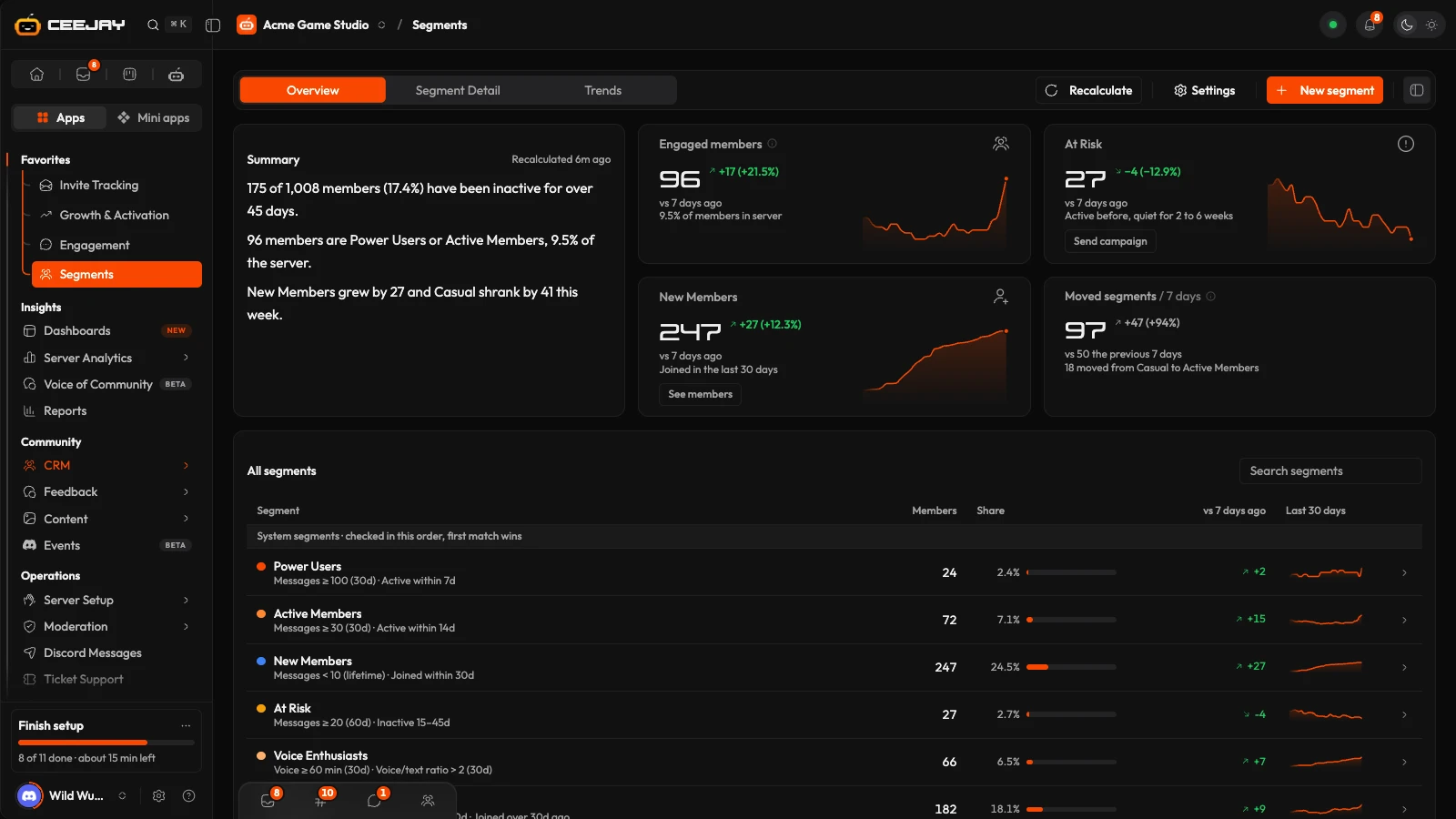
- Summary: a few sentences worked out by CEEJAY from the last recalculation, never by AI. They say how many members have been inactive for over 45 days, how many are Power Users or Active Members, and which segment grew or shrank this week. It says when the recalculation ran.
- Four stat cards: Engaged members (Power Users plus Active Members, with its share of the server), At Risk, New Members and Moved segments (members who moved from one system segment to another in the last 7 days, and the biggest move). At Risk has a Send campaign button and New Members a See members button.
- All segments: a table with Segment, Members, Share, vs 7 days ago and Last 30 days. System segments are listed in the order they are checked, then custom ones. Sort by a heading, use Search segments, and press a row to open it.
Segment Detail
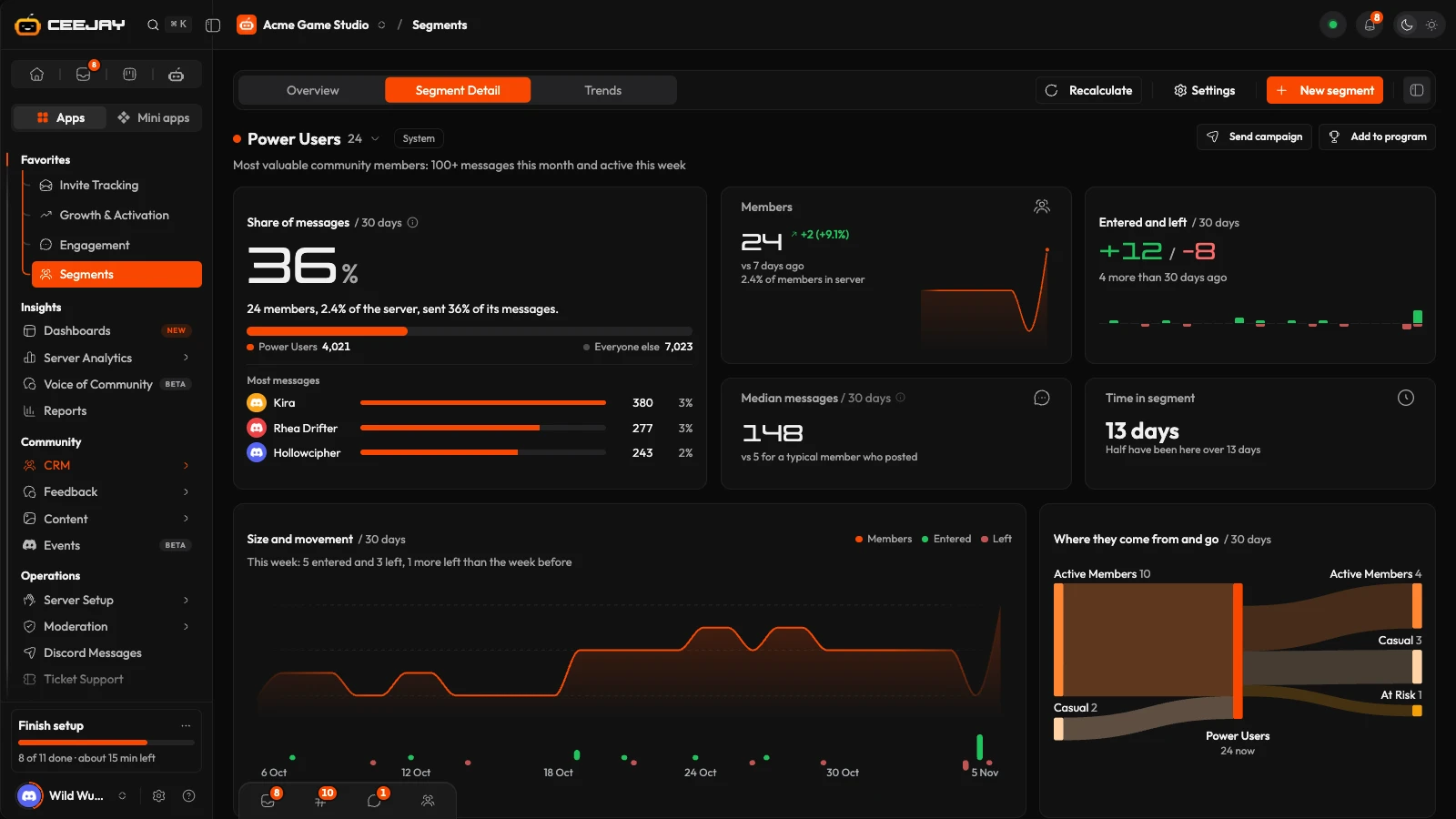
The segment's name at the top is the menu: press it to switch segment. A tag says whether it is System, Custom or Computed, and Send campaign and Add to program sit beside it. Below:
- Share of messages: what the segment's members sent in the last 30 days as a share of every message in the server, and the members who sent the most. Press a member to open their profile.
- Members, Entered and left (30 days for a system segment, 7 days for a custom one), Median messages and Time in segment. Leaving a segment is not leaving the server.
- Size and movement: the segment's size each day, with arrivals above the line and departures below it. Members joining and leaving shows the segments members moved in from and out to over 30 days. Both are for system segments, which store a daily history.
- How members get here: the rules in plain rows and where the segment sits in the checking order. Edit definition (system segments) and Edit rules (custom segments) are on this card. Next to it, Used by lists the programs, automations, campaigns and giveaways that use the segment.
- Members: a switch for In segment, Entered and Left, with Export. The table shows Member, Msgs 30d, Tier, Came from, Last active and In segment since. Tick members to Tag them or add them to a program.
Export saves up to 10,000 members in the order the table shows. Add to program adds the segment's members as Active, as they were at the last recalculation, up to 500 at a time. Send campaign opens a new email to the segment.
Trends
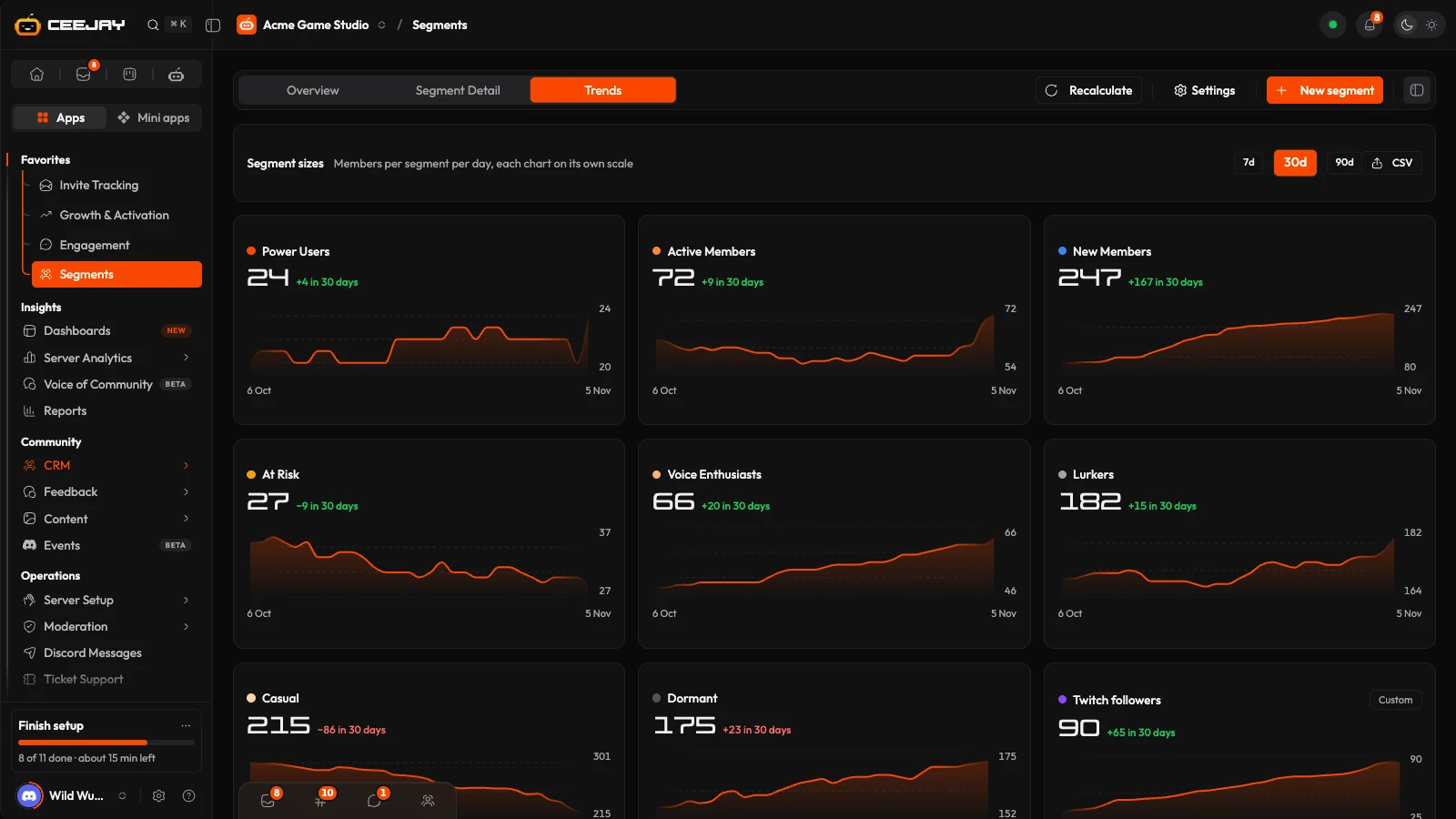
Segment sizes gives every segment its own chart of members per day, each on its own scale, with how much it changed over the period. Switch between 7d, 30d and 90d, and press CSV to download the numbers. Custom segments carry a Custom tag and overlap the rest.
Create a custom segment
Press New segment. CEEJAY takes you to Members, because segments are built from its filters.
Add filters until the list shows the members you want, then press Save Segment.
Give it a Segment Name, a Description, a Color and an Icon. Leave Auto-update membership on to keep it current. Press Create Segment.
It then appears in the menu on Segment Detail and in Views & Segments on Members.
Change a segment
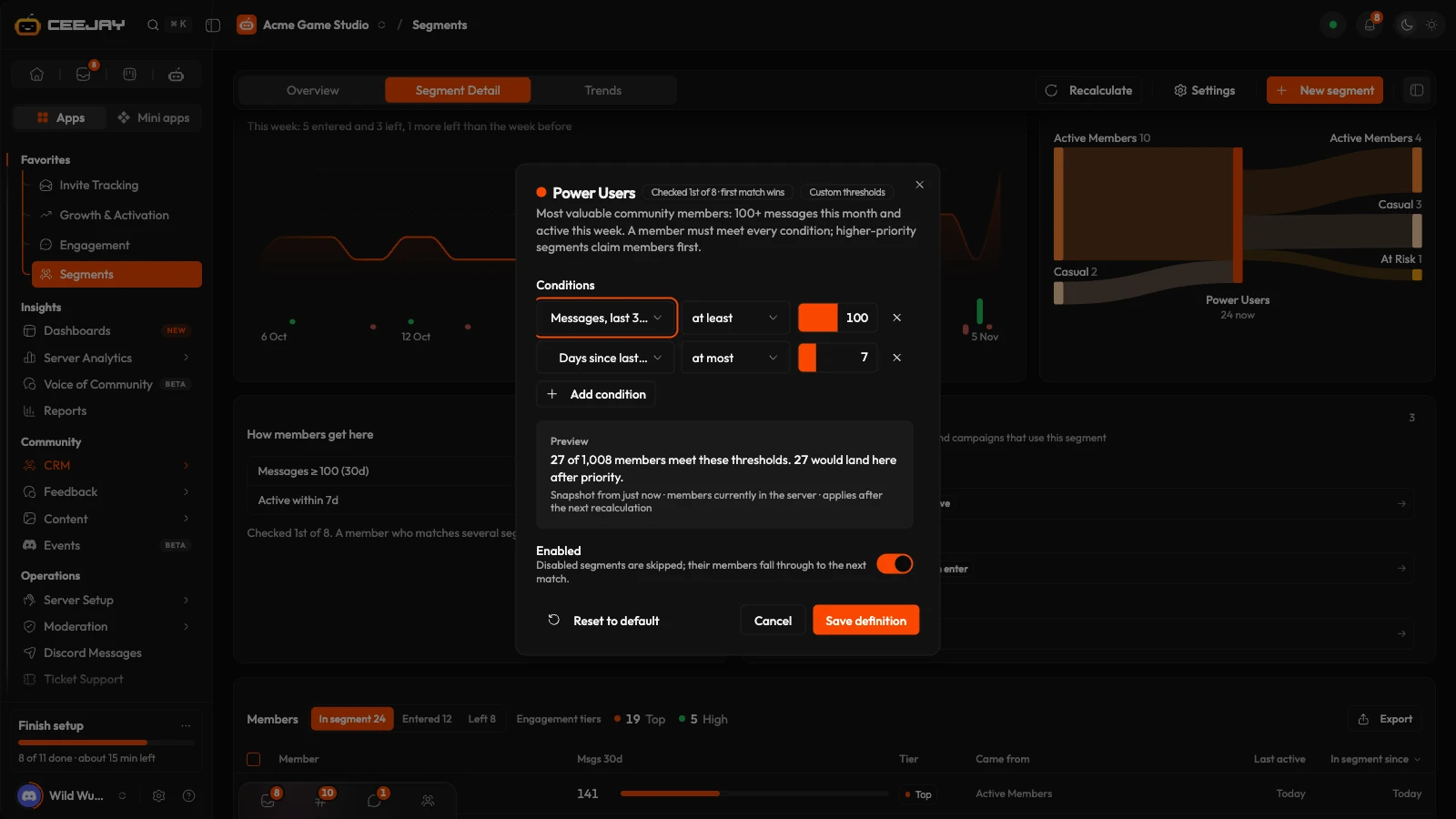
- System segment: open it and press Edit definition on How members get here. Change the Conditions (a field, a comparison such as "at least" or "fewer than", and a number), use Add condition for more, and watch Preview, which says how many members would match and how many would be in the segment. Press Save definition. Reset to default restores the default rule. The Enabled switch skips a segment so its members move to the next matching segment.
- Order: in Settings → Community → Segments, under System Segments, the arrows move a segment up or down the test order. Changes apply after the next recalculation.
- Custom segment: Edit rules on How members get here takes you to Members with the rules loaded under Editing rules for the segment's name. Change the filters and press Update segment, or Cancel. The pencil next to the segment's name, and the pencil under Custom Segments in Settings → Community → Segments, change its name, description and colour. The bin deletes it and removes its members from it.
Owners, admins and bot masters can change any custom segment. A team member can change the ones they created.
When segments update
System segments, and custom segments with Auto-update membership on, are recalculated every 6 hours, at 03:30, 09:30, 15:30 and 21:30 UTC. Recalculate runs the update now: it starts in the background and the page refreshes when it finishes. Rule and order changes take effect on the next run, so press Recalculate after you make one.
Good to know
A segment tells you where a member stands today. To see how it has changed, use Trends or vs 7d ago. The Level on a member is a separate measure and does not move members between segments.

