

Programs
Run ambassador, creator, beta tester or any other program, from applications to graduation, with roles, rewards, quests and keys for each.
A program is a group of members you work with more closely than the rest: ambassadors, creators, beta testers, a street team. In CRM → Programs you decide who can join and how, move applicants through stages, grant accepted members roles, channels, XP and keys, and see which members deliver.
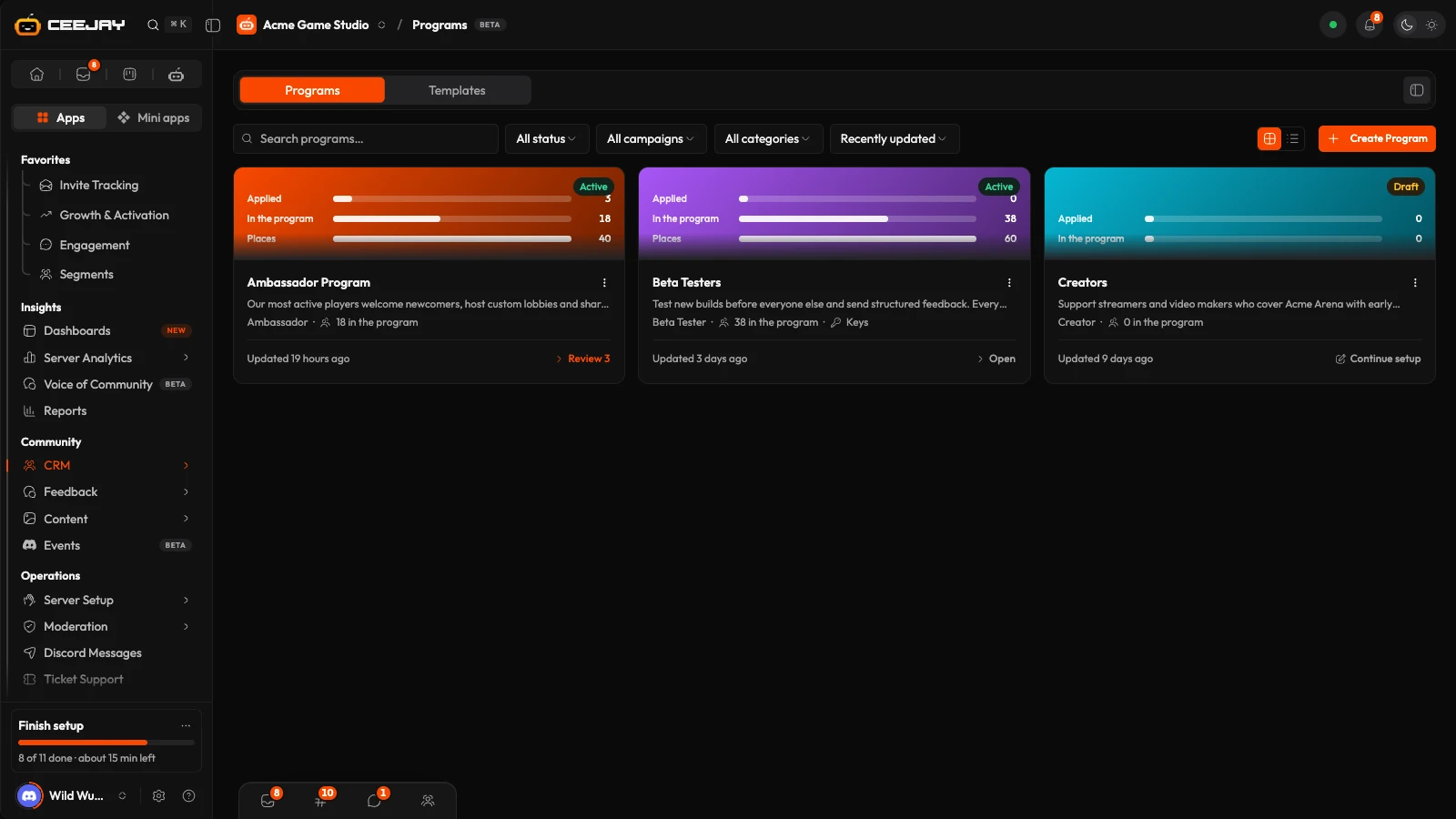
What you see
Two tabs.
- Programs: your programs as cards or a list. Each shows its status (Draft, Active, Paused or Archived), its members and how many are waiting for review. Search, filter by status and sort by Most waiting for review, Recently updated, Newest first, Oldest first, Most members or Name A–Z. A program with applicants waiting offers a button that opens its applicants. A draft offers Continue setup. The menu on a program has Edit, Duplicate and Archive.
- Templates: ready-made programs such as Ambassador Program, Creator Program and Beta Tester Program. The Industry menu narrows the list, and Custom Program starts a blank one.
Press a program to open it. Its name sits in the header after Programs, and its tabs are Overview, a tab named for its members (Testers, Ambassadors, Creators or Members), Quests, Keys, Results, Analytics and Settings. Keys appears only when Key distribution is on.
Create a program
Press New program and choose a program type, such as Ambassadors or Playtesters, or Start from scratch. Each type shows what it fills in, and you can change all of it.
The setup runs in steps across the top: Basics, Who can join, Applications, Onboarding, Rewards and access and Launch, with More settings beside them. Press Continue to move on, or a step's name to open it.
- Basics: the name, campaign and category, description, colour and program type.
- Who can join: messages in the server, minutes in voice, Discord account age, roles a member has or doesn't have, and linked accounts. The count under them shows how many members meet them today.
- Applications: where members apply (Discord post, Program page, Member Hub), Approval method, Member limit, an Application form, the dates applications open and close, and Ask for an email address.
- Onboarding: Agree to the terms and Link Steam.
- Rewards and access: roles and channels members have while they are in the program, the XP bonus and more rewards when they are accepted, keys and the key drop, and Invites per member.
- Launch: every step with Edit, the channel for the Apply post, and the post as members will see it.
- More settings: chapters or teams, and the program's quest channels and notification role.
Press Preview at any time to see the Apply post, the bot's replies and the program page. Press Save draft to finish later, or Launch program on the last step: the program goes live and the Apply post is posted in the channel you picked. If something is missing, the setup opens the step it is on. Unsaved changes are autosaved in your browser and the list offers to resume them.
To change a live program, press Edit program, or Edit beside a step on its Settings tab, which also holds its status and Archive. A live program saves with Save changes.
Requirements are checked when a member presses Apply. Accepted and Active members have the roles and channels while they are in the program, and these are removed if the member is removed or rejected. The XP bonus is awarded once. Members your team adds manually skip the requirements. Only an Active program takes applications or shows its quests.
How members apply
Open the program's Overview to see where it stands: In the program, Waiting for review, keys assigned or graduates, and members who left. The cards Who can join, What members get and How members join list your settings as sentences.
In Discord. Launch program posts a message with Apply and My status buttons in the channel you picked. The Apply post card on the Overview posts it again. A member who meets every requirement is accepted immediately with auto-approve, or is held as Applied. A member who falls short is told what is missing. Members can also type /programs to see the programs they can join, apply and check where they stand.
On the web. Switch on Program page in Applications and the Overview shows a Public page with a link to share. With Apply on the program page on, members sign in with Discord there and apply. An email box with a tick for updates is offered when you switch on Ask for an email. Members who tick it are recorded as opted in to email on the Email page.
In the Member Hub. Switch on Member Hub under Where members apply. The program is then listed on the Quests screen of the Member Hub, where members apply and open My status. A program with an Application form opens the form in the Hub, and finishing it applies. A form with a required member, role or channel picker or a file upload is answered in Discord.
A member can apply to a program only once.
Control who gets in
These are on the setup's Applications step.
- Where members apply, Applications open and Applications close, and an Application form. Choose a form from Surveys and forms and Apply opens it, completing it applies, and you read each applicant's answers from Answers on the members tab.
- Approval method: Review each application, or Accept everyone who qualifies while there is space under the Member limit. The limit counts Accepted and Active members. When it is reached, new applicants join the waitlist.
- Invites per member, on Rewards and access: up to 10. A friend who applies with a member's link skips review and the requirements. Invites need Apply on the program page switched on.
Stages
Each member has a stage. Change it from the dropdown in the Status cell.
| Stage | Meaning |
|---|---|
| Applied | Waiting for review. Does not count toward the Member limit and receives nothing yet. |
| In review | The team is looking at the application. |
| Interview | Through to an interview. |
| Waitlisted | Waiting for space. Joins when one opens. |
| Onboarding | Accepted: counts toward the Member limit, receives the roles and channels, and completes the checklist below. Moves to Active when it is done. |
| Active | In the program, with its quests, program XP, roles, channels and key. |
| Alumni | Finished. Retains what they were given and does not count toward the Member limit. |
| Rejected, Removed | Out. Roles and channel access are removed. |
Review applicants
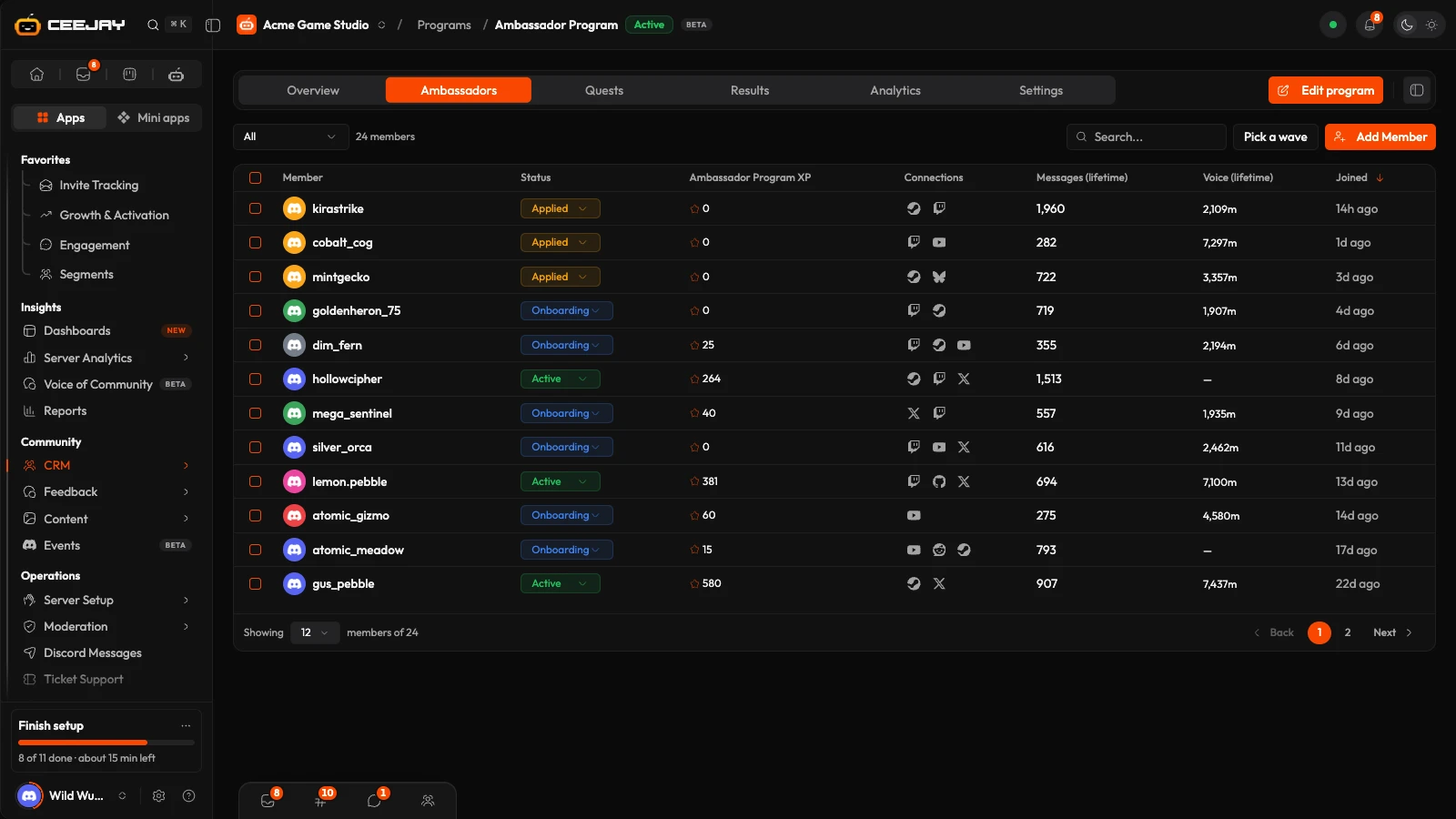
The members tab filters by stage and searches by name. Columns appear for what the program uses: Answers (an application form), Terms, Steam, Key, Playtest, and Team or Chapter. Press a member's Answers to read the application in a panel, with buttons to move them to In review, Interview, Waitlisted, Accept or Reject.
Pick a wave admits a batch of members from the waiting stages. Set How many, the Order (First to apply or At random), which stages to take them From, and optionally Who answered a question with a certain answer, such as a region. Press Accept with the number.
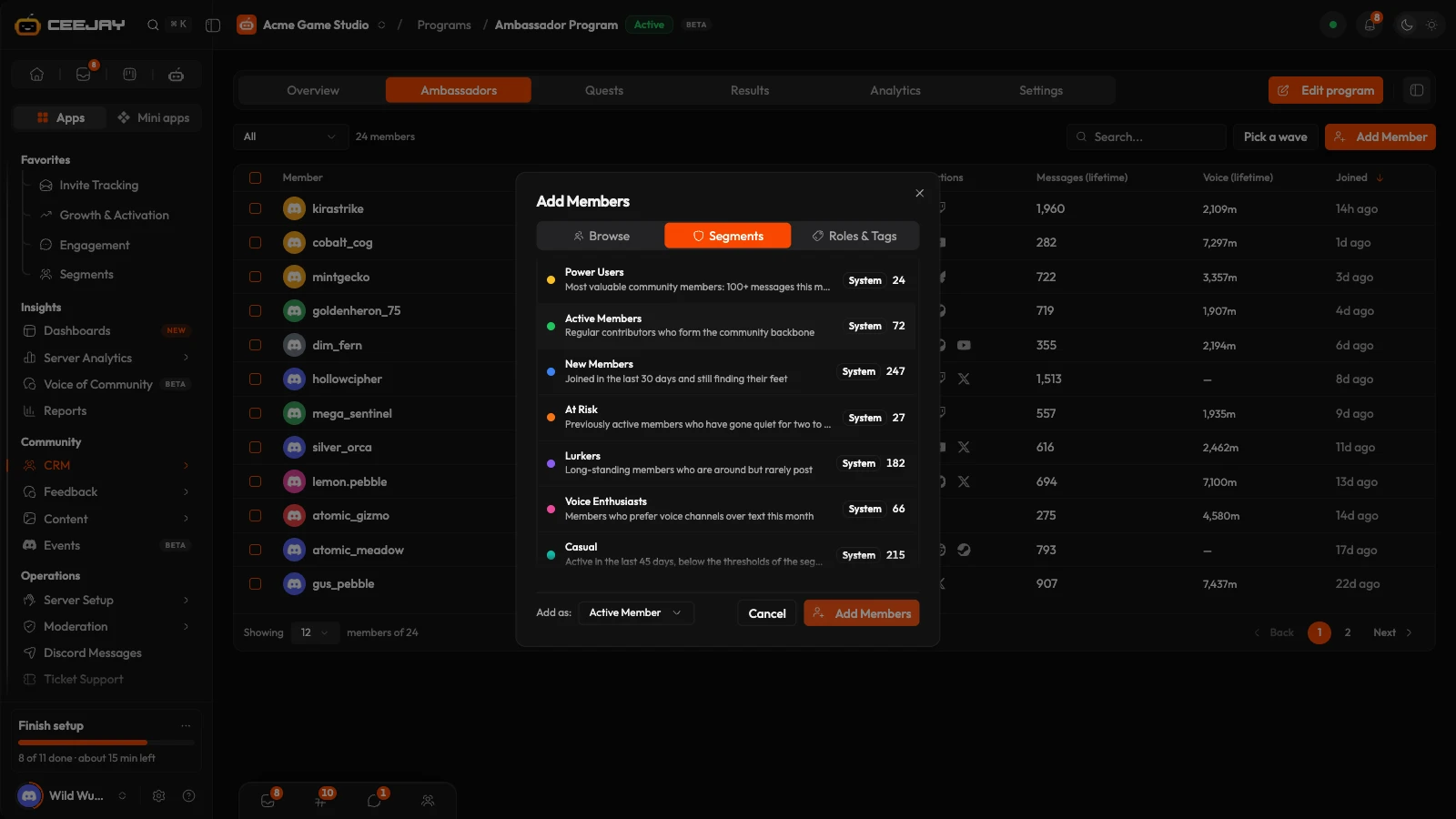
Add Member adds from Browse, Segments or Roles & Tags, as Active Member, Accepted or Applied, up to 500 at a time. Tick members and use Actions at the bottom: Set Active, Give keys, Graduate, Reject and Remove, plus Move to a team or Make team leaders when the program has teams.
Program XP is separate from a member's server XP. Anyone with Manage Messages can add or remove it with /program-xp. See commands.
Terms and Steam before the key
For playtests, the setup's Onboarding step sets what an accepted member does first. Switch on Agree to the terms, write them, and members read them in Discord and press I agree. If you change the terms, members must agree to the new version. Switch on Link Steam and they link their Steam account before their key shows. Their Terms and Steam marks fill in on the members tab, and finishing the checklist moves them from Onboarding to Active.
Keys and the key drop
Switch on Give each member a key under Rewards and access and each member who is Accepted or Active receives the next key once onboarding is complete. They see it under My status. The Keys tab shows Total Keys, Available, Assigned and Revoked, and a list with each key hidden except its last four characters.
- Import Keys takes a Platform (Steam, Epic Games, GOG, Xbox, TestFlight invite link, Google Play test link or Other), a Label and the keys, one per line. TestFlight and Google Play links must start with https.
- From a key list moves keys that are not assigned yet out of a list in the Rewards Engine's Pool, so nobody gets the same key twice. See Rewards Engine.
- Keys to ban downloads the keys you revoked, so you can ban them in Steamworks. Revoke cancels a key. Give key on the members tab assigns one by hand.
- Key drop, under Give each member a key: Keys show from hides every key until one moment, and Post when keys drop posts in a channel with a My status button.
The dashboard never shows an imported key in full again, so keep your own copy.
Who is playing. With your game saved in Connected Apps, the Playtest column and the Playing card on the Overview show which testers' Steam accounts own the game or its playtest since they received their key. Steam does not say which key was used. You are notified when keys go unused for 3 days.
Results and analytics
Results shows what members did since they joined the program: Members brought and how many stayed, Quests done, Posts and views on linked platforms, Code from linked GitHub accounts, and for testers Hours played, Playing and Positive in its channels. Who did the most ranks members, and a row opens their profile.
Analytics shows Total Applicants, Acceptance Rate, Graduation Rate and Keys Distributed, the Member Pipeline from application to graduation and a Recent Activity list.
Chapters and teams
In Chapters and teams, on the setup's More settings step, choose whether members are Chapters or Teams, with a score, and name them. Put members in one from the members tab. Results ranks them side by side with their leaders and score.
Quests and email
Quests lists the program's quests. Create Quest opens the builder with the program chosen, and only members who are Accepted or Active see them. See Quests.
A program, or one of its stages such as Waitlisted or Onboarding, is an audience in Email. Members still need to have opted in to email.
Related
Segments
Build groups from activity, roles or fields, or use the eight system segments CEEJAY maintains, then reach them in polls, giveaways, emails and more.
Account Linking
Let members link their Steam, Twitch, X and other accounts, then see what linked members do for your community on those platforms.

