

Audit Log
See every ban, deleted message, join, role change and server change in one log, with who did it and why.
The Audit Log is a single log of what happens in your server and in CEEJAY: moderation, messages, members, server changes, tickets, community apps, rewards and the changes your own team makes. Each entry says who did it, who it affected and why. Pick a log channel once and every feature posts there too.
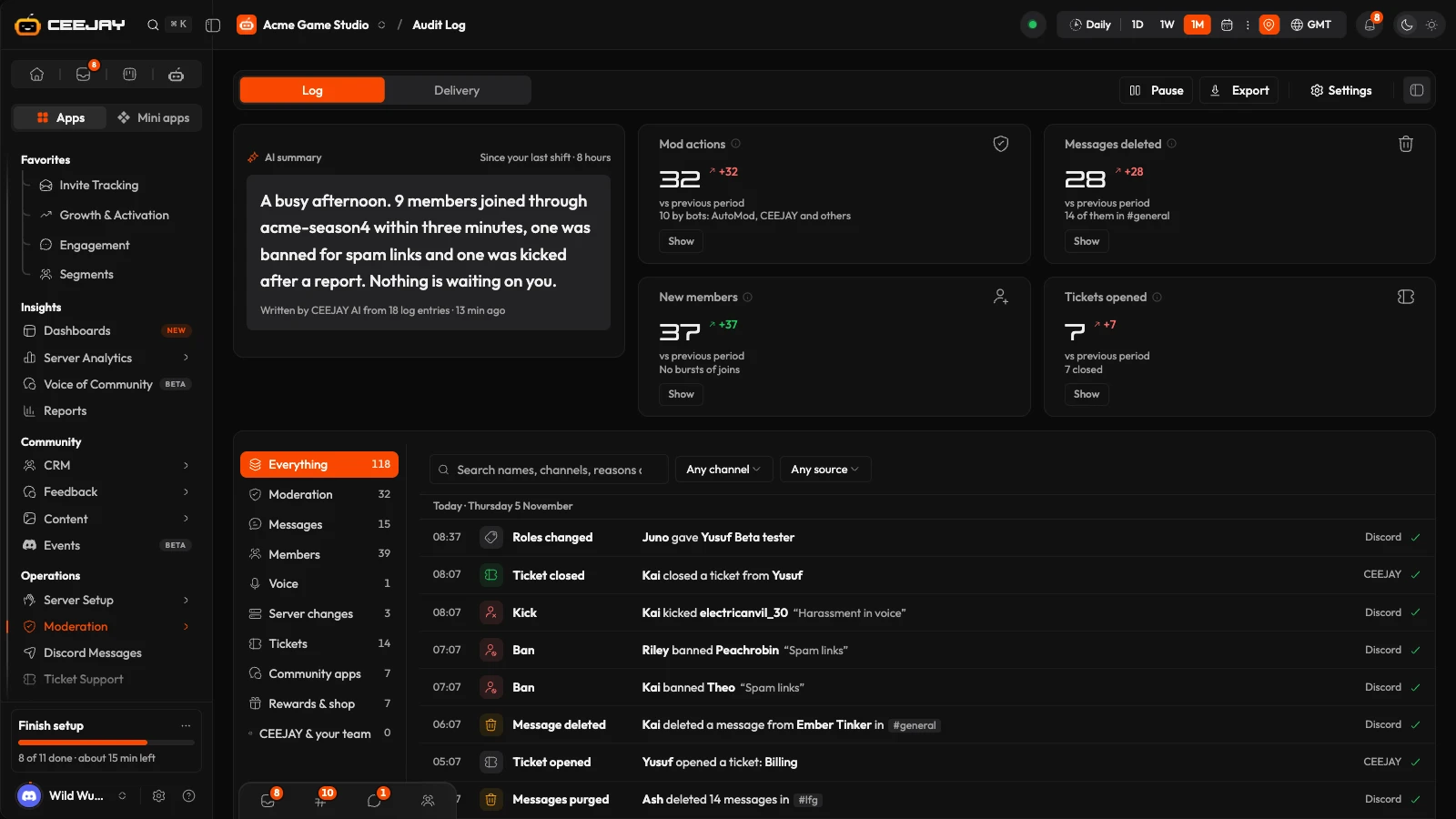
What you see
Go to Moderation → Audit Log. Two tabs sit at the top, Log and Delivery, with Pause and Export beside them. The log follows the date range at the top of the page.
- Since your last shift: a summary written by CEEJAY AI of the last 8 hours, whatever range you picked. It says how many log entries it was written from and when.
- Needs attention: shown only when action is needed, for the last 24 hours. It warns when there is no log channel yet, when CEEJAY cannot post in a log channel, and when a burst of members joined within 5 minutes. Dismiss one with the cross.
- Mod actions, Messages deleted, New members and Tickets opened: four cards, each against the previous period, with a Show button that filters the log to that group.
- The entries, newest first, 50 at a time. Press Show more for older entries.
Read the log
The groups sit on the left with a count each: Everything, Moderation, Messages, Members, Voice, Server changes, Tickets, Community apps, Rewards & shop and CEEJAY & your team. Press one to see only that group.
Above the entries you can search names, channels, reasons and message text, and narrow the log with Any channel and Any source. The source is Discord, Another bot, AutoMod, CEEJAY or Dashboard. Clear filters removes them all.
Each row shows the time, what happened, who did it and the reason, and whether the entry was posted in Discord, failed to post or is stored in CEEJAY only. A new member whose account is under a week old is tagged New account. Joins within minutes of each other are grouped into one Join burst row, which opens to the members' names.
Good to know
Pause stops new entries appearing while you read, and Resume shows them again. Export downloads the entries for the range and filters you have on as a CSV, up to the newest 50,000. It needs the Export permission on your team.
Open an entry
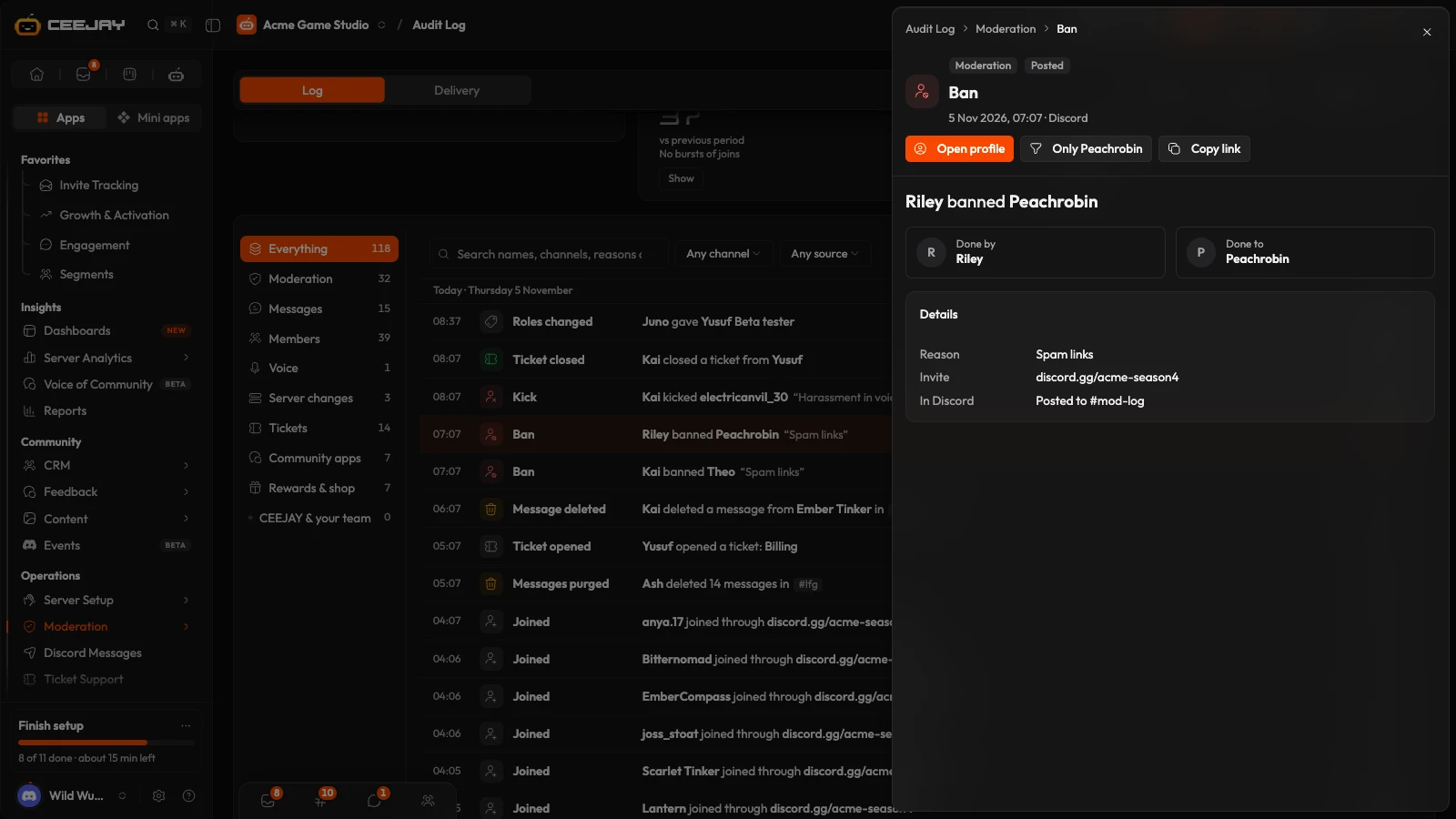
Press a row to see the full entry. It shows the sentence in full, Performed by and Target, and Details: the reason, the length of a timeout, the invite a member joined through, when their account was made, roles added or removed, a nickname change, coins, and where the entry went in Discord. A deleted or edited message shows its text under Message or Before and after, and a purge lists the messages it removed. A settings change lists its Changes. When the entry names a member, a card headed with their name and "last 30 days" lists their other entries.
The buttons at the top are Open profile, Only followed by the member's name (it filters the log to that member, and a switch then offers Either, Performed by and Target), the Discord link and Copy link. The link opens the same entry for anyone on your team with access.
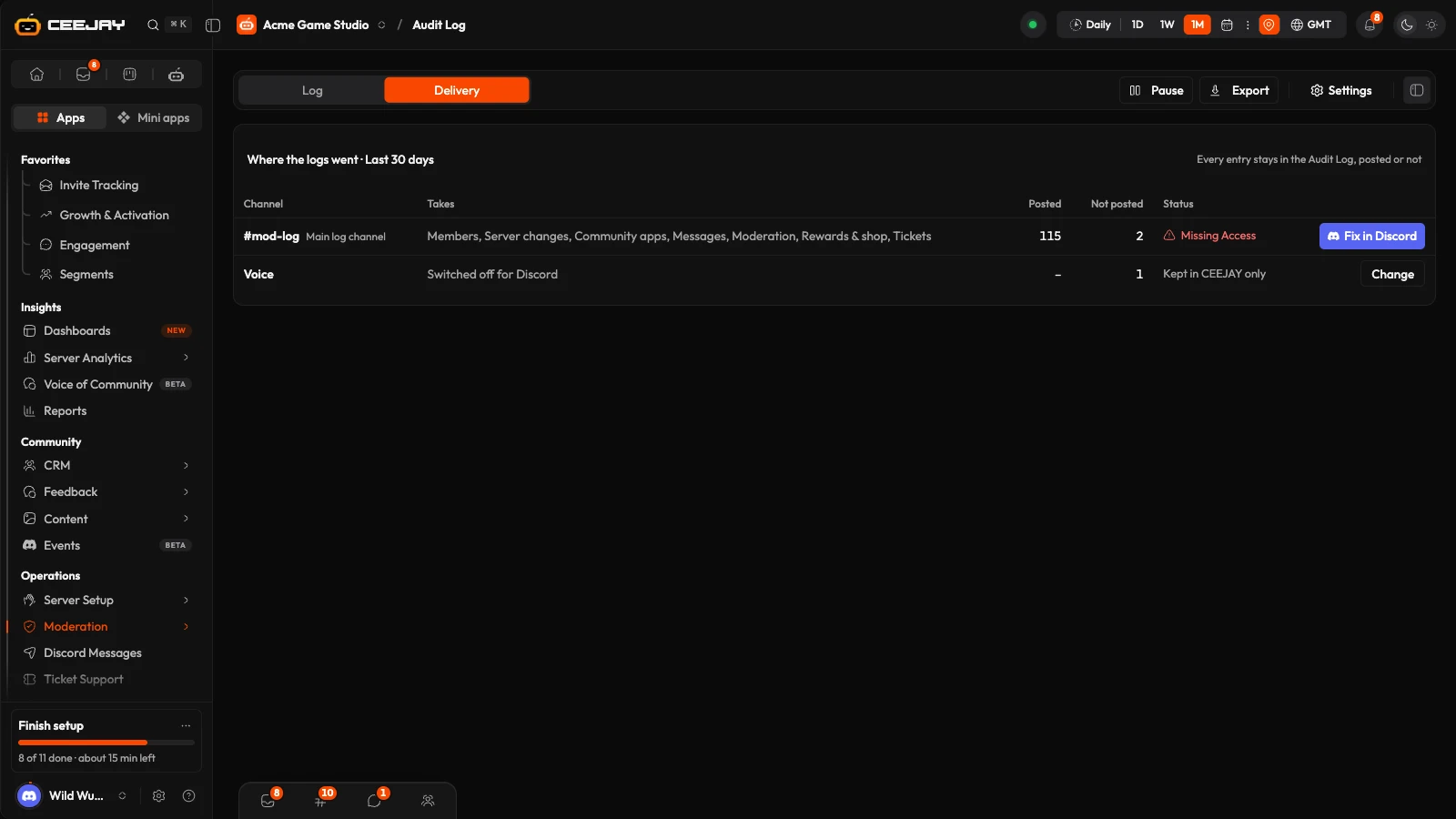
Delivery
The Delivery tab shows where the range's entries went. Each log channel has a row with the groups it takes, how many entries were Posted, how many were Not posted, and a Status. A channel CEEJAY cannot post in shows the reason Discord gave and a Fix in Discord button. Below them are the groups you switched off for Discord, entries stored in CEEJAY only because no channel is set, and entries a feature posted to its own log channel, such as Tickets, Verification or Forms. Every entry stays in the Audit Log whether it was posted or not.
Choose where entries go
Go to Settings → Operations → Audit Log, or press Settings at the top of the page.
Under Main log channel, pick a Channel, or press Make a private channel. CEEJAY creates #ceejay-log, which only admins and CEEJAY can see. Add your moderators' role to it in Discord.
Choose the Post style: Detailed posts carry the facts and a Member card button, Compact posts are one line. Save, then press Send a test log. It posts within 30 seconds, and the Delivery tab shows whether it was delivered.
Under Log channels, give a group its own channel, leave it on the main one, or switch it Off. Open Log types on a group to switch single types on or off, such as poll votes or level-ups, which are stored but not posted until you turn them on.
Under Exclusions, add channels, categories and roles that should not be logged. Other bots controls whether bans, deletes and changes made through other bots are logged. What your team changes in CEEJAY is always logged.
Under Deleted and edited messages, Store message text decides whether your moderators can read what a message said, and Retention sets how long it is stored: 7, 30 or 90 days. Switching it off removes the text stored so far when you save.
Access opens Team Management, where you choose which team members can open the Audit Log. Entries are retained for 180 days.
What CEEJAY needs in Discord
- View Audit Log: to see who banned, kicked or timed out a member, and server changes.
- Manage Server: to see Discord AutoMod actions.
- Send Messages and Embed Links in each log channel.
See Add the bot for what each permission is for.
Good to know
The Audit Log only reads. It cannot ban, kick, unban or time out a member. A post in Discord never pings anyone.

