

Team management
Choose who can open your dashboard: Discord roles with full access, and teams that only see the pages you pick.
Team Management decides who can open the dashboard for your community and what they can see. You give full access to a Discord role, or you build a team that sees only the pages you choose.
Who can open the dashboard
Four groups can open a community in CEEJAY:
- The server owner, always.
- Anyone with the Administrator permission in Discord, through any of their roles. CEEJAY lists these roles as Automatic Bot Masters.
- Anyone with a role you add as a bot master. This is for members of your team who run the community but are not Discord administrators.
- Team members you invite. They see only the pages their team was given.
Everyone signs in with Discord, except team members you invite by email: they sign in from the invitation and need no Discord account.
What you see
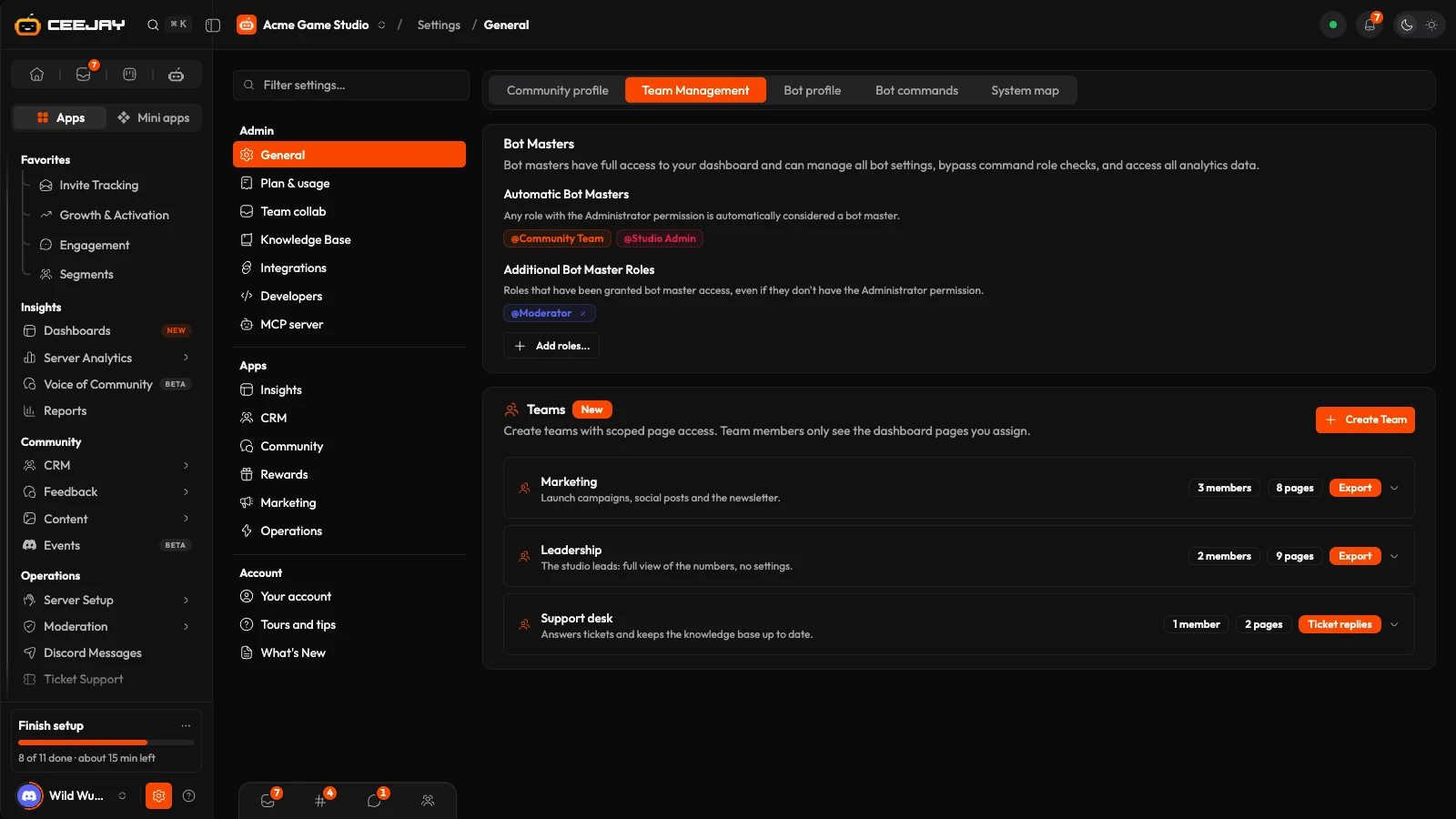
Go to Settings → General → Team Management. The page has two cards:
- Bot Masters: the Discord roles that have full access.
- Teams: groups of team members with access to chosen pages.
Bot masters
A bot master has full access to the dashboard: every page, every setting and all analytics. Access is by Discord role, so adding or removing someone in Discord is how you add or remove them here.
- Automatic Bot Masters shows every role with the Administrator permission. You cannot remove these here; change the role in Discord.
- Additional Bot Master Roles shows the roles you added yourself, each with an × to remove it.
Go to Settings → General → Team Management and find Additional Bot Master Roles.
Press Add roles..., type in Search roles... if the list is long, and pick a role. The role appears at once. Roles that already have the Administrator permission are not in the list, because they are automatic.
To revoke access, press the × on the role's badge and confirm Remove Access. Everyone who only had access through that role loses full dashboard permissions.
Good to know
Only the server owner and Discord administrators can add or remove bot master roles. Anyone with the role must sign in to CEEJAY with Discord before they see the community.
Teams
A team is a name, a list of pages and a list of team members. Use it for a moderator group that should only see moderation pages, or an outside stakeholder who should only read reports.
In the Teams card, press Create Team.
Give the team a Team Name (for example Marketing, Leadership or Moderators) and, if you like, a Description (optional). Two tick boxes decide what the whole team may do:
- Allow CSV/data exports lets them export the member list, poll results, form responses and reports from the pages they can open.
- Can reply to support tickets from the dashboard lets them reply to tickets from the Tickets page.
You can only choose these when you create the team. The page has no way to change them afterwards, or to rename the team. To change them, create a new team and delete the old one.
Press Create Team. The team appears in the list with its number of members and pages, and an Export or Ticket replies badge when those boxes are ticked.
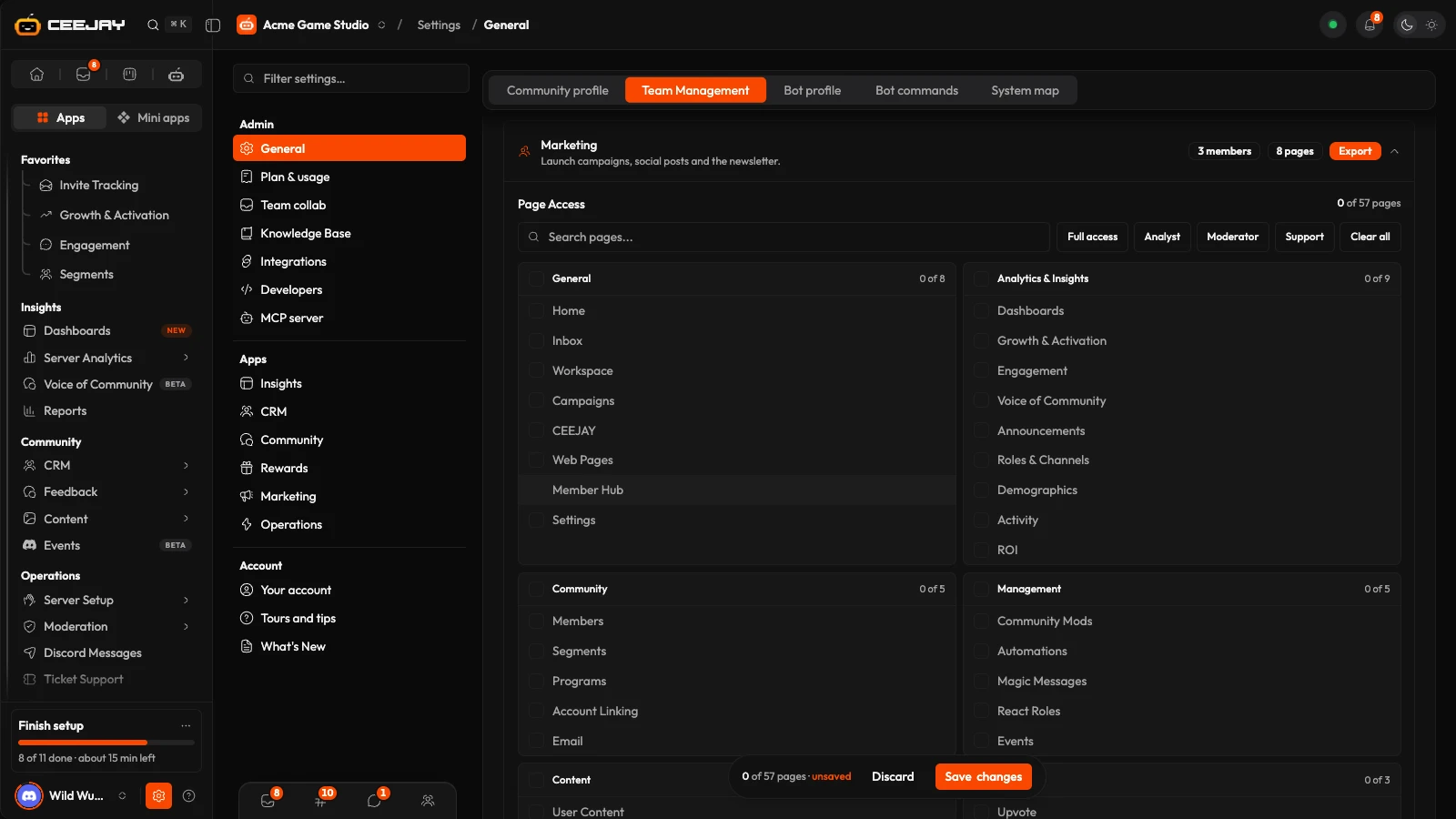
Open the team by pressing its row. Under Page Access, tick the pages the team may open. Pages are grouped the way the sidebar is, and the group heading ticks or unticks the whole group. Search pages... finds a page by name. The counter shows how many of the pages are ticked.
Press Save changes in the bar that appears at the bottom (Discard discards your edits). Nothing in Page Access is saved until you do.
The preset buttons above the page list fill the ticks for you: Full access, Analyst, Moderator, Support and Clear all. A preset replaces what is ticked now, so check the list afterwards. It is only a starting point and is not saved until you press Save changes.
Add team members
Open the team and press Add Member.
Fill in one of two fields. Email (for external stakeholders) invites someone by email. Discord User ID adds a Discord user by their ID. Filling in one clears the other.
Choose a Role: Viewer or Member. What a person can open comes from the team's Page Access. A Viewer can open those pages but cannot change anything on them. A Member can also make changes on those pages.
Press Send Invite (email) or Add Member (Discord). An invited person shows Pending until they accept.
The invitation is an email from CEEJAY with a button. The link only works once the person presses the button, so a mail scanner that opens it does not use it up, and it stays valid for 14 days. After they press it, they are taken to the dashboard. They come back later from the login page with Invited by email? Sign in with your email, which sends a sign-in link and a six-digit code. If an email does not arrive, ask them to check spam, then use Resend invite in the menu (⋯) on their row in Workspace → Team (see Team).
To remove someone, press the bin on their row and confirm Remove member. They lose the access that team gave them at once, and you can invite them again later. Delete Team at the bottom of an open team removes the team and everyone's access through it. It cannot be undone.
What a team member sees
- The sidebar shows only the pages the team ticked. A page that is not ticked cannot be opened, and the request returns: "Your team doesn't have access to this page."
- A person in more than one team gets the pages of all their teams together. They can export if any of their teams may, and reply to tickets if any of their teams may.
- Settings sections follow the same pages: a team member sees the sections for the pages they have. To open Settings at all, the team needs Settings ticked under General.
- These actions are restricted to admins: managing teams and bot masters, adding or removing the bot, and changing the community profile. A team member who tries gets: "Only a server admin can do this."
-
- A member field marked Sensitive is never shown to team members.
Export follows the team
Export at the top of a page and the export option in chart menus follow the team's Allow CSV/data exports box. A team without it does not get them, and a request to export poll results, form responses or a report returns: "Your team doesn't have export access."
Team members invited by email see only the communities they were invited to.

