

Community Mods
See who moderates for you, how they are doing, who has applied, who is on duty and what they earn.
Community Mods follows the volunteers who moderate your server. It finds them by Discord role, so nobody needs a dashboard account to be listed, scored, rostered or rewarded. It shows how each mod is doing, runs the application and trial process, plans who is on duty, and pays rewards for good work.
Set it up
Go to Moderation → Community Mods. The first time, the page asks you to Choose which roles count as mods. Press Choose roles, or press Settings at the top of the page to open Settings → Operations → Community Mods beside it, and fill in three sections:
- Mod roles: pick your Mod roles (full moderators) and your Helper roles (helpers). The first helper role is what a trial gives, so CEEJAY must be able to give it: keep CEEJAY's role above it in Discord. Pick at least one role. Everyone who holds one of them is on the roster within a minute, tracked, scored and rewarded.
- Mod score: five weights that must add up to 1, and the numbers behind the rewards. See Mod score.
- Applications and trials: the Application form, the Trial length (days), a Welcome channel and a Welcome message. In the message,
{member}becomes a mention of the new helper.
Only owners and admins can change these settings.
What you see
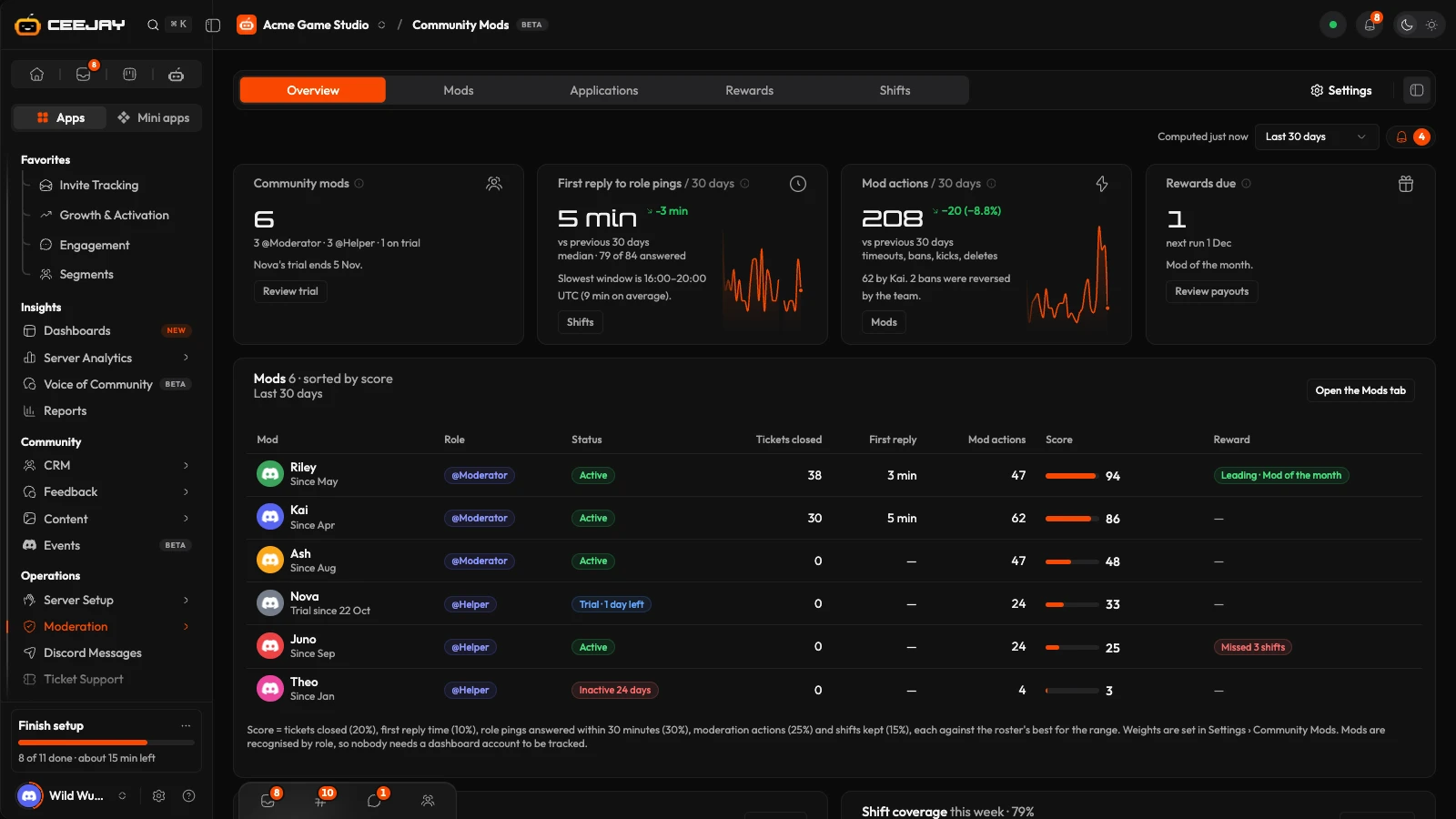
The page has five tabs: Overview, Mods, Applications, Rewards and Shifts. A range menu on Overview and Mods offers Last 7 days, Last 30 days and Last 90 days. When something needs attention, a bell with a count appears. It opens Needs attention: a trial that is ending, a mod who has been inactive for 7 days, a shift with nobody on it, the bot being unable to read the audit log, rewards waiting to be paid, and role pings left unanswered.
Overview has four cards: Community mods, First reply to role pings, Mod actions and Rewards due. Under them are the roster sorted by score, a Mod rewards card and a Shift coverage card for this week.
Mod score
The score is a number from 0 to 100 for each mod over the range. Five things go into it, each measured against the best on your roster: tickets closed, first response time, role pings answered, mod actions and shifts kept. By default they count for 30%, 20%, 20%, 15% and 15%, and you can change the weights under Mod score. A mod with less than a week of data in the range shows too early instead of a score. A measure that nobody on the roster has any data for is left out, so a quiet month does not read as everyone failing.
- Tickets closed come from Tickets.
- First reply to role pings is the time from a message that pings a mod or helper role to the first reply from someone on the roster in that channel. A ping with no reply inside the Ping window (minutes) counts as unanswered. The default is 30.
- Mod actions are timeouts, bans, kicks and deletes, read from your server's audit log when the person acting holds a mod or helper role. This needs the View Audit Log permission. Without it the page says CEEJAY cannot read the audit log, and actions are not counted.
- Shifts completed counts a rostered shift as completed when the person took a moderation action during it.
Mods
The Mods tab is the roster as a table. Filter it by role (Role: All mod roles) and by status: Active, On trial or Inactive. A mod is inactive after 7 days with no mod action, ticket reply or answered ping. A trial row has Review, and an inactive row has Check in.
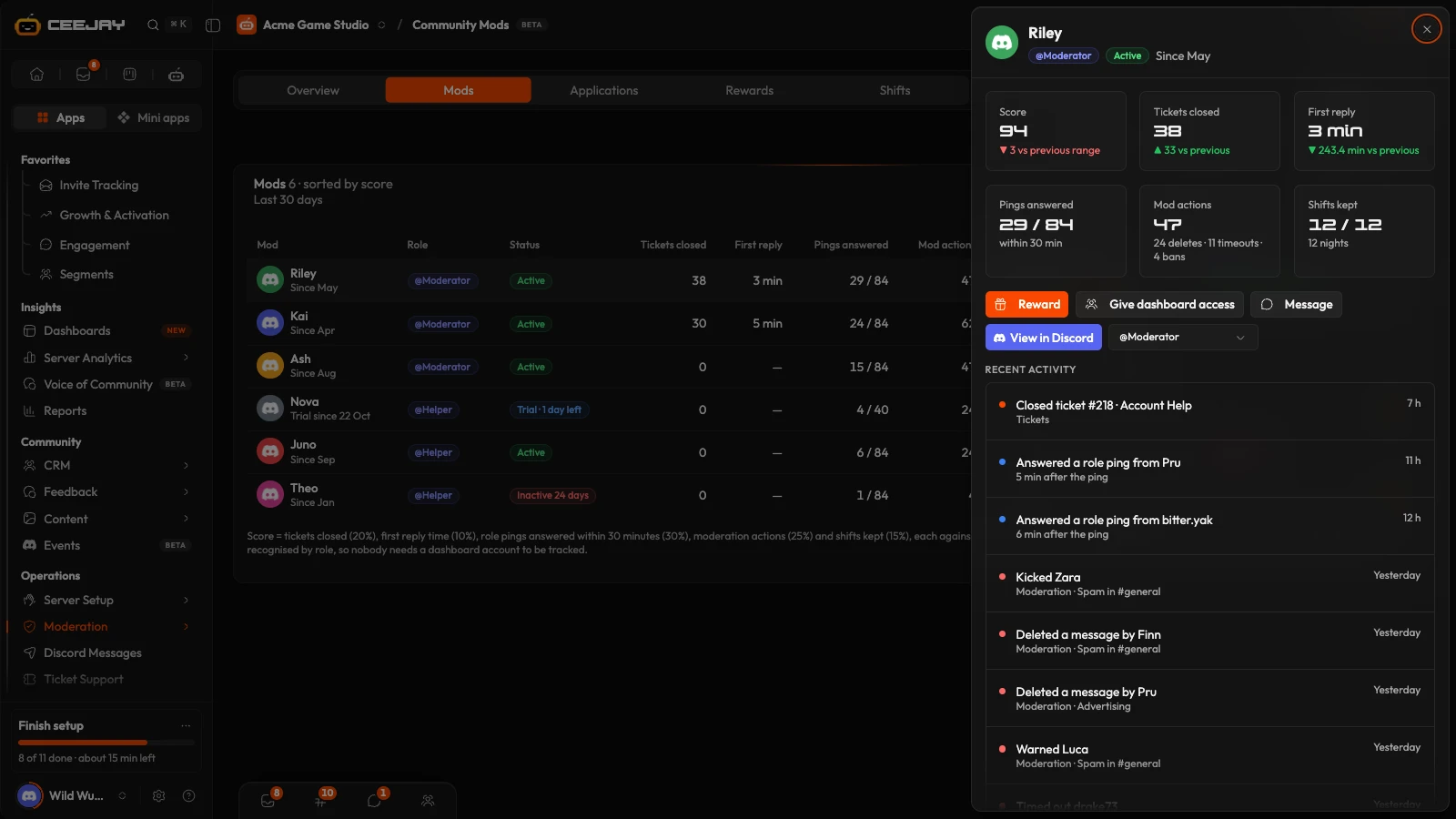
Press a row to open the mod's panel from the right. It shows six tiles (Score, Tickets closed, First reply, Pings answered, Mod actions and Shifts completed) against the previous range, and their Recent activity. The buttons are:
- Reward opens the Adjust Balance dialog, to give the mod currency from your economy.
- Give dashboard access takes you to Settings → General → Team Management.
- Discord profile opens their Discord profile.
- The Role menu switches them between your mod and helper roles. CEEJAY changes the role in Discord.
The ⋮ menu on an active mod's row has Open, Give dashboard access, Mark inactive and Remove from roster. Removing someone takes their mod and helper roles away in Discord, and they stop being tracked and rewarded. Their history stays.
Applications
Members apply with a form from Surveys and forms. Choose it under Application form in the settings, and every completed response becomes an application. The tab has a Form menu, a Stage menu, Edit form and Share form. Share form copies the form's slash command so members can run it in Discord, when the form has one.
Four cards show Applications over the last 30 days, To review (applications at New, Review or Interview), Trials running and Accepted this quarter. The Applicants table shows each person's level, their messages in the last 30 days, their help replies (messages in channels with help, support or question in the name, over the last 90 days) and their Warnings, which counts moderation actions taken against them. These come from the numbers CEEJAY already has. Press a person to see their Answers, add a note for the team under Team notes (only your team sees these), and move them along:
Schedule interview picks a date and time and moves the application to Interview. Nothing is sent to the applicant.
Start 14-day trial gives the person the helper role in Discord, puts them on the roster as on trial, and posts your welcome message in the welcome channel if you set one. The button shows your own trial length, and 14 days is the default. When the trial is up, a trial review is sent to the Inbox of the person who started it.
Accept as mod appears during a trial. It gives the mod role, or the helper role if you have not set a mod role. Decline moves the application to Declined, and nothing is sent to them.
The stages are New, Review, Interview, Trial, Accepted and Declined.
Rewards
The Rewards tab pays mods through the Rewards Engine, under the source Mod performance. There are four rules, each with its own reward editor:
- Mod of the month: the top score for the month, with Rewards by place. Paid on the 1st.
- Ticket milestone: every N tickets a mod closes, set with Ticket milestone (every N closed). Paid daily.
- All shifts kept in a month: every rostered slot kept, at least four. Paid on the 1st.
- Role pings answered in a row: N quick answers in a row, set with Ping streak (N in a row) and Quick answer (minutes). Paid daily.
Owed lists what will be paid on the next run, and Payout history shows the last 20 rewards the bot gave. A reward that gives a role needs CEEJAY's role above it.
Shifts
The Shifts tab is one week of cover: seven days, each with a Day slot (08:00 to 20:00) and a Night slot (20:00 to 08:00), all in UTC. In each slot press Add… to put someone from the roster on it, up to 10 mods. A slot with nobody is outlined and says No one. Use the arrows to change week, and Copy last week to fill an empty week from the one before. Press Save on the bar that appears. Once a slot has ended it shows a tick for a mod who kept it and a cross for one who missed it.
Good to know
CEEJAY notifies you about a new mod application, a trial that is up, a shift with nobody on it in the next 48 hours, and a mod who has gone quiet. Choose where notifications go in Notifications. The Message button on a mod's panel and on an application is not ready yet.

