

Shop and economy
Give members a shop to spend their coins in, from roles and perks to game items and codes.
The shop is where members spend the currency they earn. You stock it with roles, perks, codes, items for your game and anything you fulfil by hand, and a queue shows the purchases that need your approval. The coins themselves, who holds them and every transaction are on Economy.
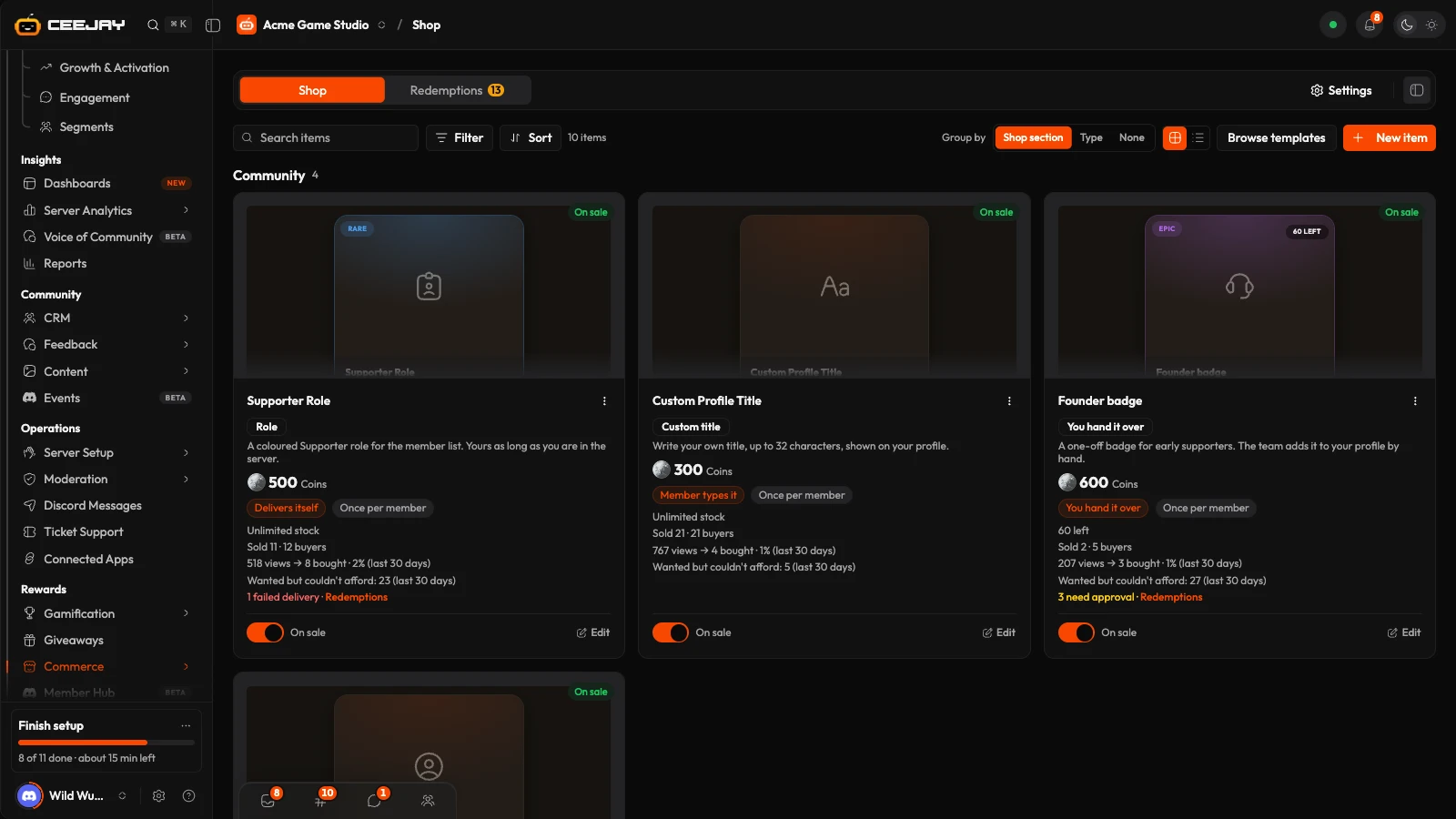
What you see
Go to Commerce → Shop. The page has two tabs:
- Shop: your items, as cards, with search, filters and sorting.
- Redemptions: purchases that need your approval, failed deliveries and purchases waiting on an outside system. A count of what needs your action appears on the tab.
Settings at the top of the page opens Settings → Rewards → Shop & Economy beside the page. The rest of the economy, with its Overview, Balances and Transactions, is on Commerce → Economy.
Settings
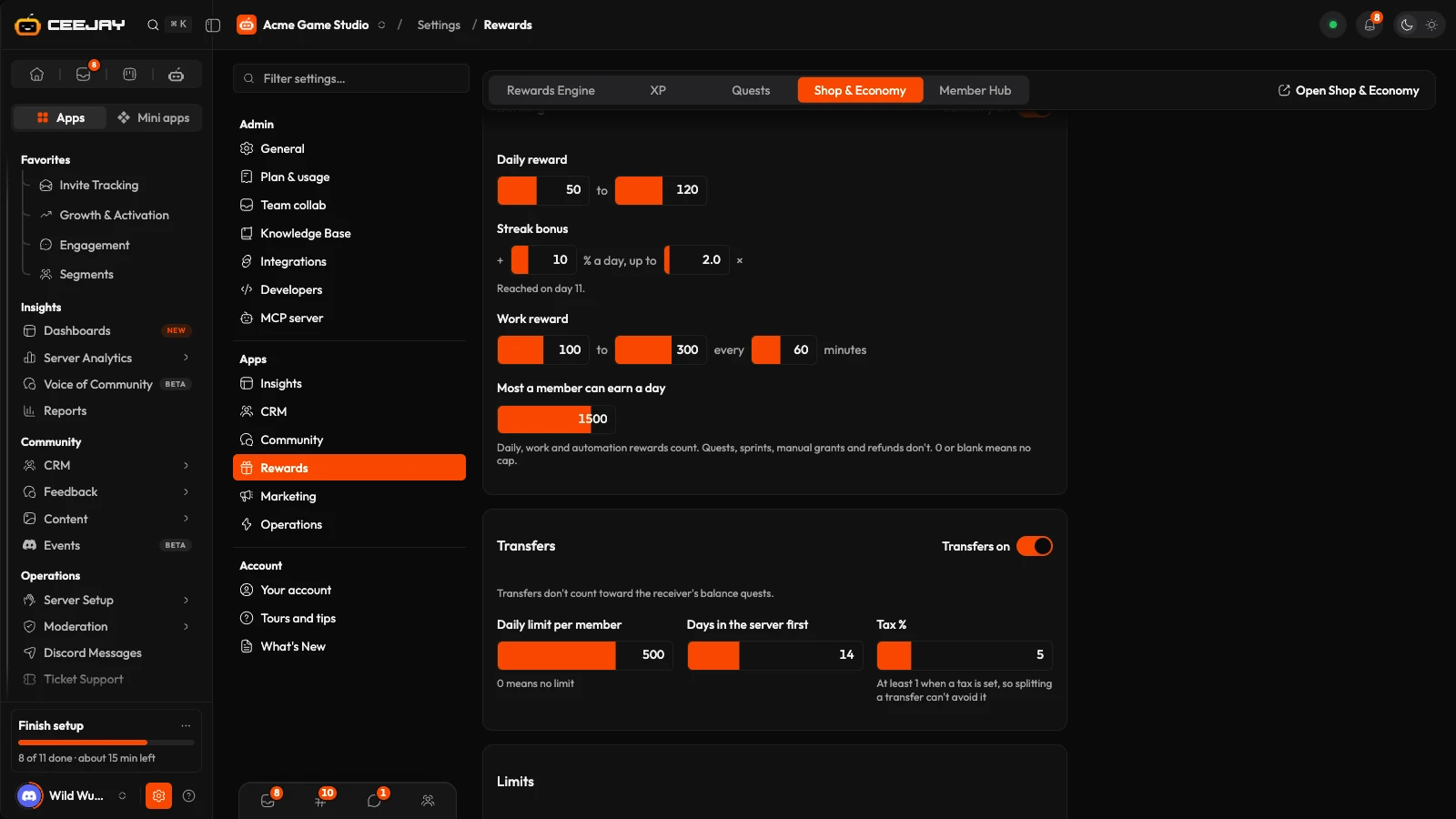
Go to Settings → Rewards → Shop & Economy. Changes save from the bar at the bottom of the page. Members earn with /daily and /work, check their balance with /balance, see the richest members with /richest and send currency with /transfer. See commands for the full list.
- Earning: the Economy on switch. While it is off,
/daily,/workand/transferreply that the economy is disabled. Balances, items and history are retained. Set the Daily reward range (50 to 120 by default, once every 24 hours), the Streak bonus (a percentage a day, up to a cap, continued by claiming again within 48 hours), the Work reward range (100 to 300 by default) and its cooldown in minutes, and Most a member can earn a day. Daily, work and automation rewards count towards that daily limit. Quests, sprints, manual grants and refunds do not. 0 or blank means no cap. - Transfers: the Transfers on switch, a Daily limit per member, Minimum days in server (members must have been in the server that long before they can send) and Tax %. A tax is at least 1 when one is set, so splitting a transfer cannot avoid it.
- Limits: Balance cap, the most one member can hold. 0 means the default of 1,000,000, and there is no unlimited setting. Rewards stop adding once a wallet is full, and refunds still go through. Currency name and Currency emoji set how the currency is written everywhere.
- Game servers and stores: connect a game server, Steam, a Shopify store or a Stripe store so shop items can deliver there.
Create a shop item
On the Shop tab, press New item, or Browse templates to start from a ready-made item.
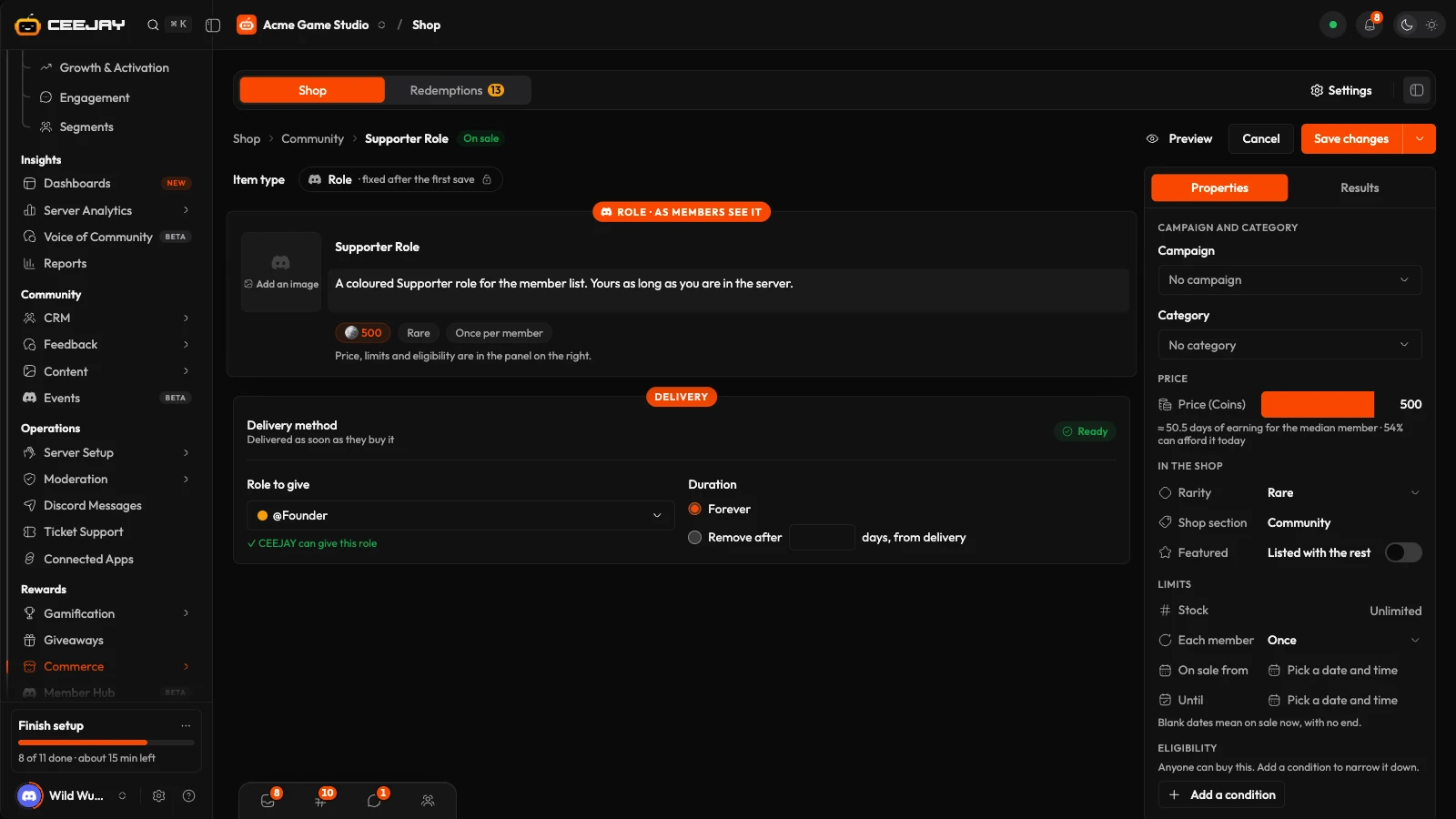
The item builder is its own page. Under What the member gets, choose the type of item. It is fixed once the item is saved. The types are grouped as Discord (Role, Pick a role, Custom role, Nickname change, Custom title), CEEJAY perks (Giveaway entries, Badge, XP boost, Streak saver, Quest task skip, Priority support, Mystery box), Manual delivery (You fulfil it, Code from a pool) and Games & integrations (Delivered by your API, Game server command, Steam inventory item, Discount code). Hub cosmetic is listed as coming soon.
Name the item, write its description and fill in the section its type needs, for example the role to give or the codes to upload.
In the panel on the right, set the Price, then the item's place in the shop: Rarity, Shop section and Featured. Under Limits set Stock, how often Each member can buy it (Once, Once every … days, Up to … times or No limit), and On sale from and Until. Eligibility limits who can buy it.
Press Put on sale. The arrow beside it has Save as hidden, which saves the item without putting it on sale until you are ready.
Only one item can be Featured. Saving a new featured item replaces the current one. The Results tab of a saved item shows what it sold in the last 30 days and all time, and how many purchases are awaiting approval or have failed.
Keys and gift codes
A Code from a pool item issues one code from a list you paste or upload, such as game keys or discount codes. Choose the Platform (Steam, Epic Games, Xbox or Other) and members see its logo beside their key and where to activate it. A Steam key comes with a button that opens Steam with the key filled in. The item shows how many codes are left, given out and in total, and Add more codes tops up the list.
Owners and admins see who got each key. On a saved item, press See who got which code to open Given codes: every code given out, newest first, with the member, what it was given for and when. Press Download CSV to match keys to players. Where your game is saved under CRM → Account Linking, an On Steam column shows a tick for each member whose Steam now owns your game, and Owned before for members who had it already. Steam never says which key was used, only that the member owns the game.
Keys from forms, quests, role picks, verification and giveaways are delivered to the member as soon as they earn them, and members can view them again with /inventory. The same lists for every reward are in the Rewards Engine.
How members buy
Members open the shop with /shop or in the Member Hub, and buy with /buy or a button. The price is taken straight away. What happens next depends on the type: a role is given at once, a code is shown only to the member and stays in /inventory, a nickname or title is typed by the member, and an item you fulfil is added to Redemptions. If a member does not have enough, the reply says how much they are short. If a purchase needs a linked account, the member gets a link to connect it.
Redemptions
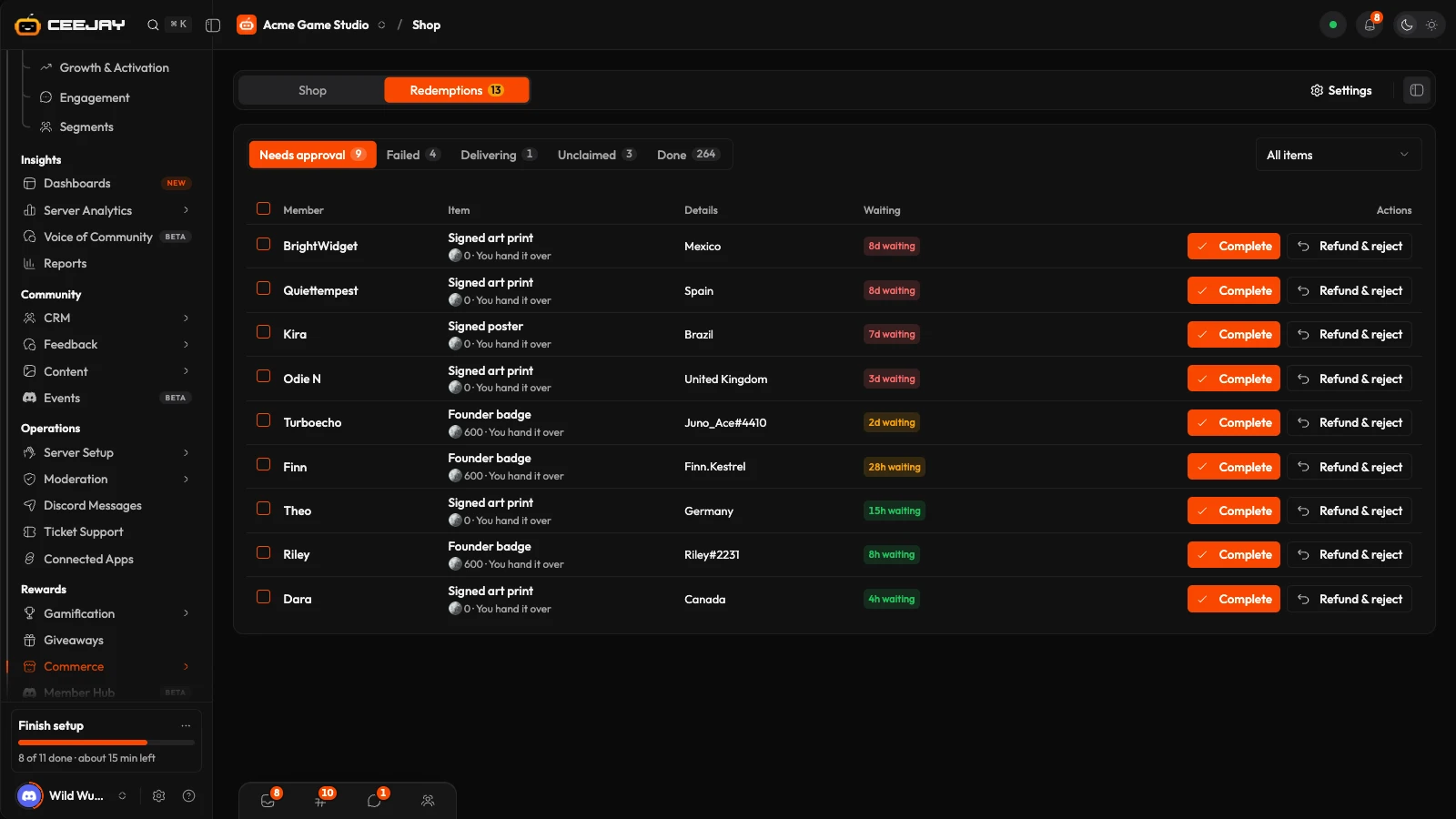
The Redemptions tab has five lists:
- Needs approval: items you fulfil, and custom roles waiting for you. Press Complete once you have fulfilled it, or Refund & reject. For a custom role the buttons are Approve and Reject.
- Failed: CEEJAY retries each hour and refunds the member automatically after 3 attempts. Retry attempts the delivery again straight away.
- Delivering: waiting on an outside system such as your API or game server. Its delivery log shows what was sent.
- Unclaimed: bought but not claimed. These are refunded automatically after 14 days.
- Done: finished in the last 30 days.
Tick several rows to complete them together.
Deliver items from your own game
An item of type Delivered by your API sends your server a signed request when a member buys it, and your server delivers the item. See Shop delivery for the request format and the response it expects. Game server command, Steam inventory item and Discount code items use a connection you add under Game servers and stores.

