

Connected Apps
Connect Jira, ClickUp, GitHub and Slack so bug reports and alerts reach your team where it works.
Connected Apps links CEEJAY to the tools your team already works in. Turn a Discord message into a Jira issue, a ClickUp task or a GitHub issue, post a GitHub or Jira event in a channel, or get a Slack message when a ticket opens.
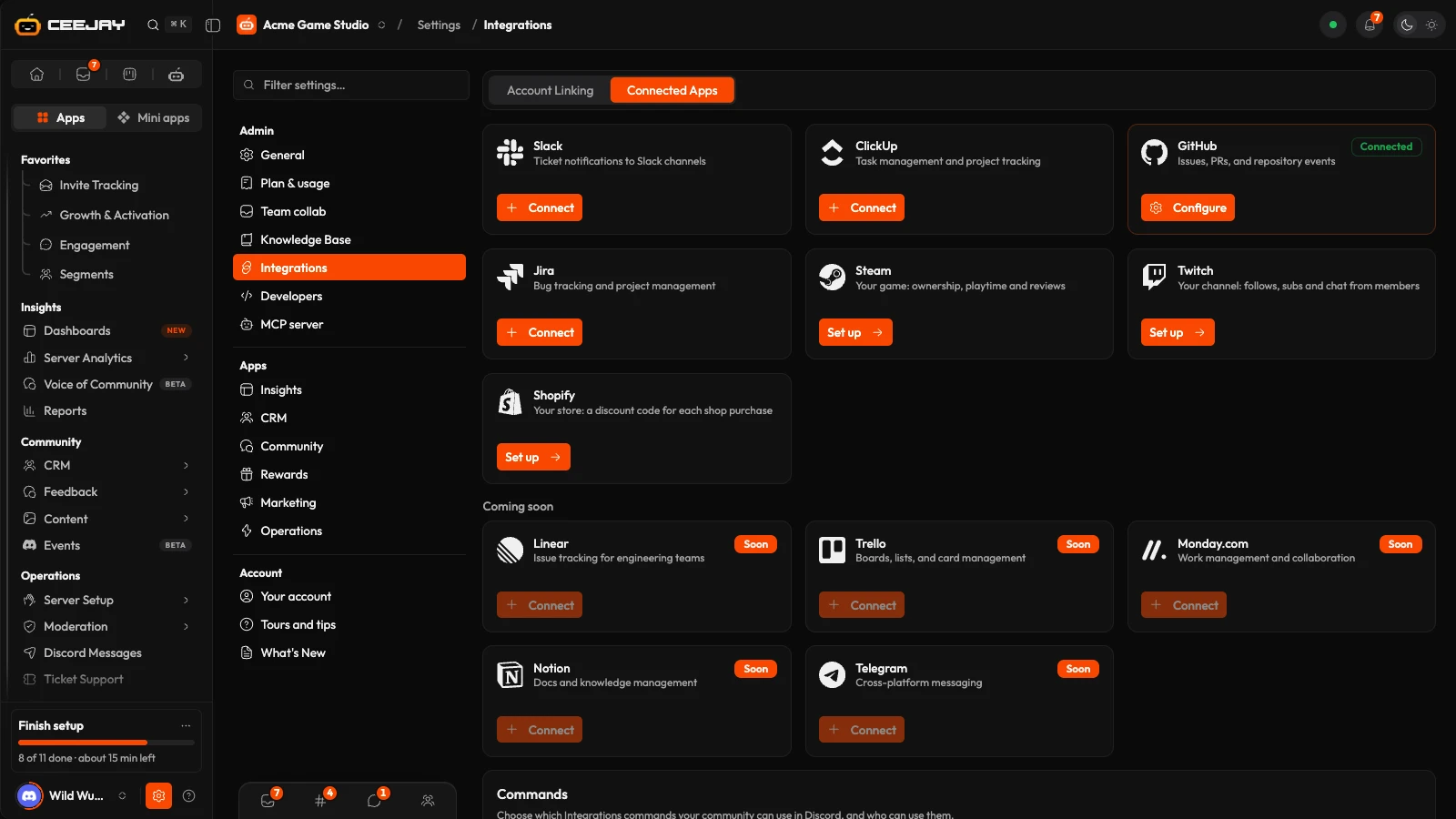
What you see
Go to Operations → Connected Apps. It is the same page as Settings → Integrations → Connected Apps, because the page is the setting: it has no tabs of its own and no Settings button. Each tool is a card. Your own tools, the ones a developer builds, are under Settings → Developers: see API keys and webhooks. Your domains, bot and platform apps are on the tab beside it: see Domains & apps.
The cards
| Card | What it does | What you paste to connect |
|---|---|---|
| Slack | Ticket notifications to Slack channels | Incoming Webhook URL |
| ClickUp | Task management and project tracking | API Token |
| GitHub | Issues, PRs, and repository events | Personal Access Token |
| Jira | Bug tracking and project management | Atlassian Email, Site URL and API Token |
| Steam | Your game: ownership, playtime and reviews | See Your game on Steam |
The Twitch card opens your own account in Account Linking, and Shopify opens Shop & Economy settings. More cards (Linear, Trello, Monday.com, Notion and Telegram) sit under Coming soon and cannot be connected yet.
Connect an integration
Go to Operations → Connected Apps and press Connect on a card.
Paste what the card asks for. The eye button shows or hides what you typed. For Jira, enter the email of the Atlassian account the token belongs to and your site URL, such as https://your-domain.atlassian.net. Create the token in your Atlassian account, under Security and then API tokens.
Press Connect. The card now shows Connected and a Configure button.
Configure a connected integration
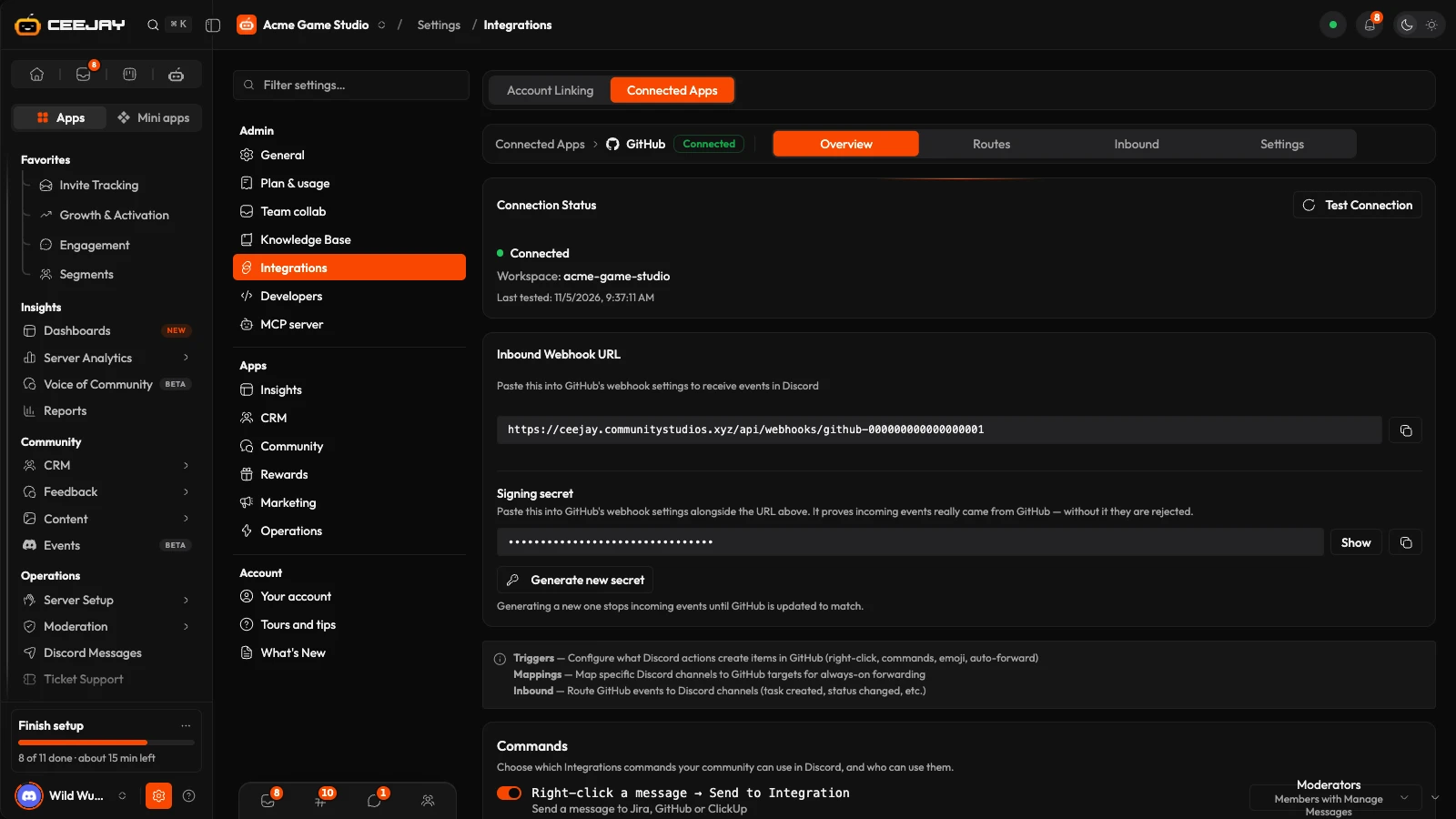
Configure opens the integration on its own page. A bar at the top shows Integrations, the name and Connected, with four tabs.
Overview
Connection Status shows the workspace it reached and when it was last tested. Test Connection checks it now and shows the result underneath.
For Jira, ClickUp and GitHub the tab also shows an Inbound Webhook URL and a Signing secret. Copy both into that service's webhook settings so it can send events to CEEJAY.
- CEEJAY generates a signing secret when you connect. Show and the copy button let you read and copy it. A connection made earlier may have none: the tab says so, and Generate secret creates one.
- Until a secret exists, events from the service are rejected.
- Generate new secret replaces it, after you confirm. Events are rejected until you paste the new value into the service, so change both at the same time.
Routes
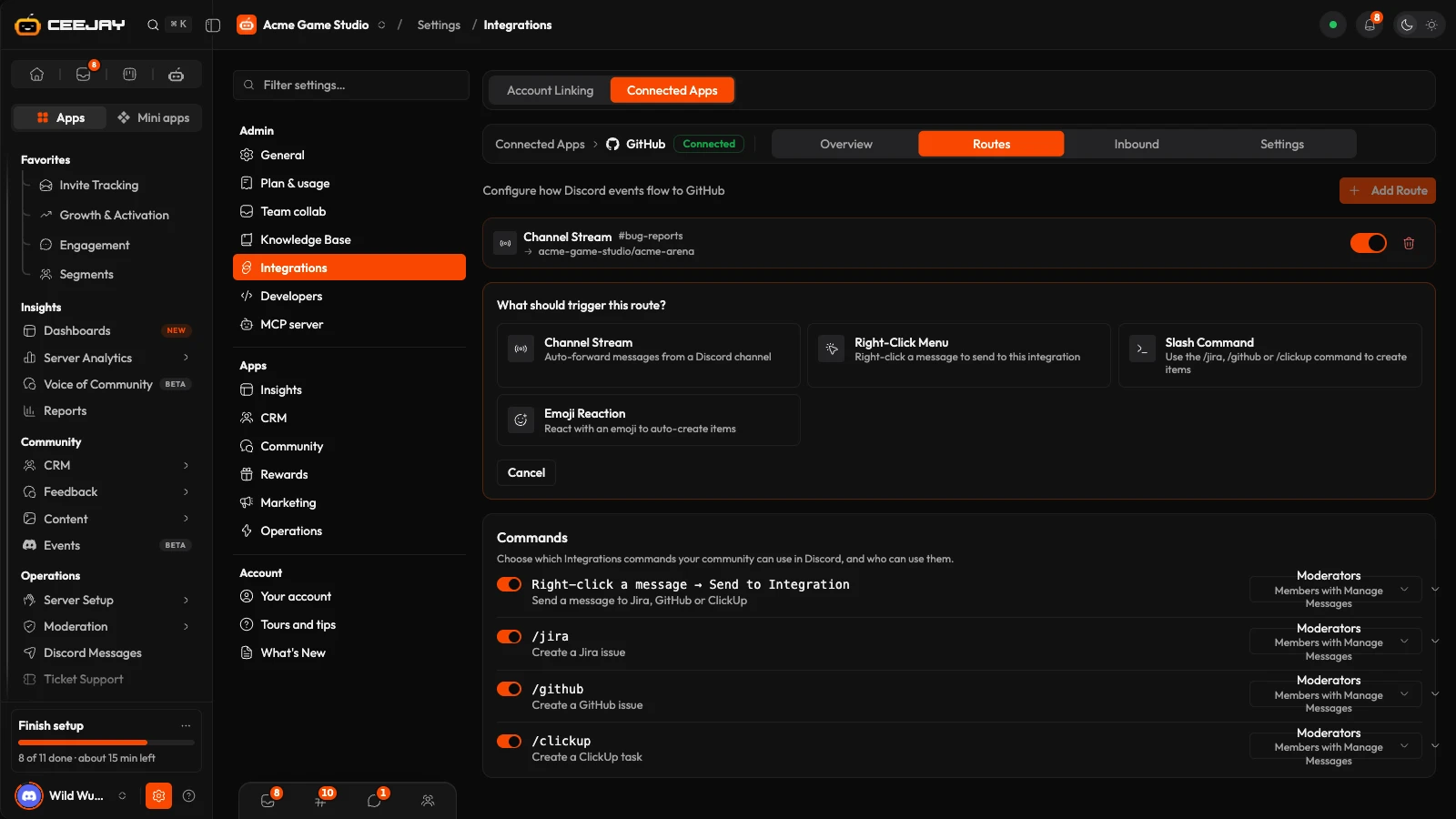
Routes forward Discord messages to the service. Press Add Route, pick what triggers it, and fill in the rest:
| Trigger | When it fires |
|---|---|
| Channel Stream | Every message in a Discord channel you choose is forwarded. |
| Right-Click Menu | A moderator right-clicks a message and picks Apps → Send to Integration. |
| Slash Command | Someone with the right permission uses /jira, /github or /clickup. |
| Emoji Reaction | Someone reacts to a message with the Trigger Emoji you set. |
Then choose where items go from the service's own list (Jira List, ClickUp List or GitHub List: a project, a list or a repository). The form also has an Action, a Priority (Urgent, High, Normal or Low) and two boxes, Include attachments and Include thread context. Press Save Route.
A route has a switch to pause it and a bin to delete it.
What a route does
Every route creates a new Jira issue, ClickUp task or GitHub issue in the list you chose. It contains the message text, who wrote it, the channel, the time, a link to the message and links to any attachments. CEEJAY saves the Action, Priority and the two boxes but does not apply them: a route never adds a comment, creates a subtask or a discussion, or changes a status, and attachment links are always included.
Inbound
Inbound sends events from the service into Discord. The tab shows the webhook URL again. Press Add Route, choose the service's Event, the Discord Channel and the Format (Rich Embed or Simple Text), then Save.
| Service | Events you can route |
|---|---|
| GitHub | issue.opened, issue.closed, issue.assigned, pr.opened, pr.merged, pr.closed, push, release.published |
| ClickUp | taskCreated, taskUpdated, taskDeleted, taskStatusUpdated, taskAssigneeUpdated, taskCommentPosted, taskMoved, taskDueDateUpdated, taskPriorityUpdated |
| Jira | issue_created, issue_updated, issue_deleted, comment_created, comment_updated |
Settings
Update API Token replaces the token with a new one. Danger Zone has Disconnect. It asks "Are you sure?" and then Yes, Disconnect. Disconnecting removes every route and inbound route for that integration.
Good to know
Slack only announces new tickets. After you connect it, turn on Slack Notification on a ticket button in Operations → Ticket Support, and the bot sends a Slack message each time that kind of ticket opens. Routes and Inbound are for Jira, ClickUp and GitHub.
Your game on Steam
Open the Steam card and enter your Steam app ID. You can also add Other app IDs, such as a playtest or demo, and a Publisher Web API key, which also checks members whose Steam profile is private.
Once saved, ownership and review checks run straight away, then daily. A playtest or demo key counts as activated as soon as the member receives it. Used by shows which features use your game and key: member checks, member profiles, the Steam tasks in Quests, Steam keys and player sign-in. Disconnect stops new checks and retains the data already collected.
Members link their own Steam accounts in Account Linking.
Use it from Discord
Once a route points at a list, your team can use it without opening the dashboard:
/jira,/githuband/clickuptake a description and a type (Task, Bug or Feature) and create the item in one of the lists you set up as routes. With more than one list, the bot uses the route set for the channel you are in, or asks you to pick one. By default only members with the Manage Messages permission see these commands.- Apps → Send to Integration on a message turns that message into an item, in the same way.
In Settings → Integrations → Connected Apps, the Commands card at the end of the list turns each command on or off and sets who can use it.
If an integration is not connected, the bot replies "No Jira Integration" (or the same for the others) and tells you to connect it. If it is connected but has no route, it replies "No Targets Configured". See Commands.
Where the other tools went
API keys, webhooks, your own platforms, the event log and the SDK are for developers and sit under Settings → Developers. See API keys and webhooks. Members' own linked accounts, such as X, Twitch or Steam, are under Account Linking.

