

Install the app
Put CEEJAY on your computer or phone so it opens in its own window, and turn on push notifications.
You can install CEEJAY like an app. On a computer it opens in its own window with an icon in your Dock or taskbar. On a phone it sits on your Home Screen and opens full screen. An installed CEEJAY can also send you push notifications when it is closed.
Nothing is downloaded from an app store. Your browser adds CEEJAY itself, and you sign in with Discord as usual.
Where to start
- Finish setup has a Get the app group with Install the app on your computer and Install the app on your phone. Press Install on either one.
- Your browser may offer its own install button, usually at the right of the address bar.
- On a phone, Install the app is at the bottom of the sidebar and in the ⋮ menu, until the app is installed.
If your browser has its own install prompt, you see that. If not, CEEJAY shows the steps for your device.
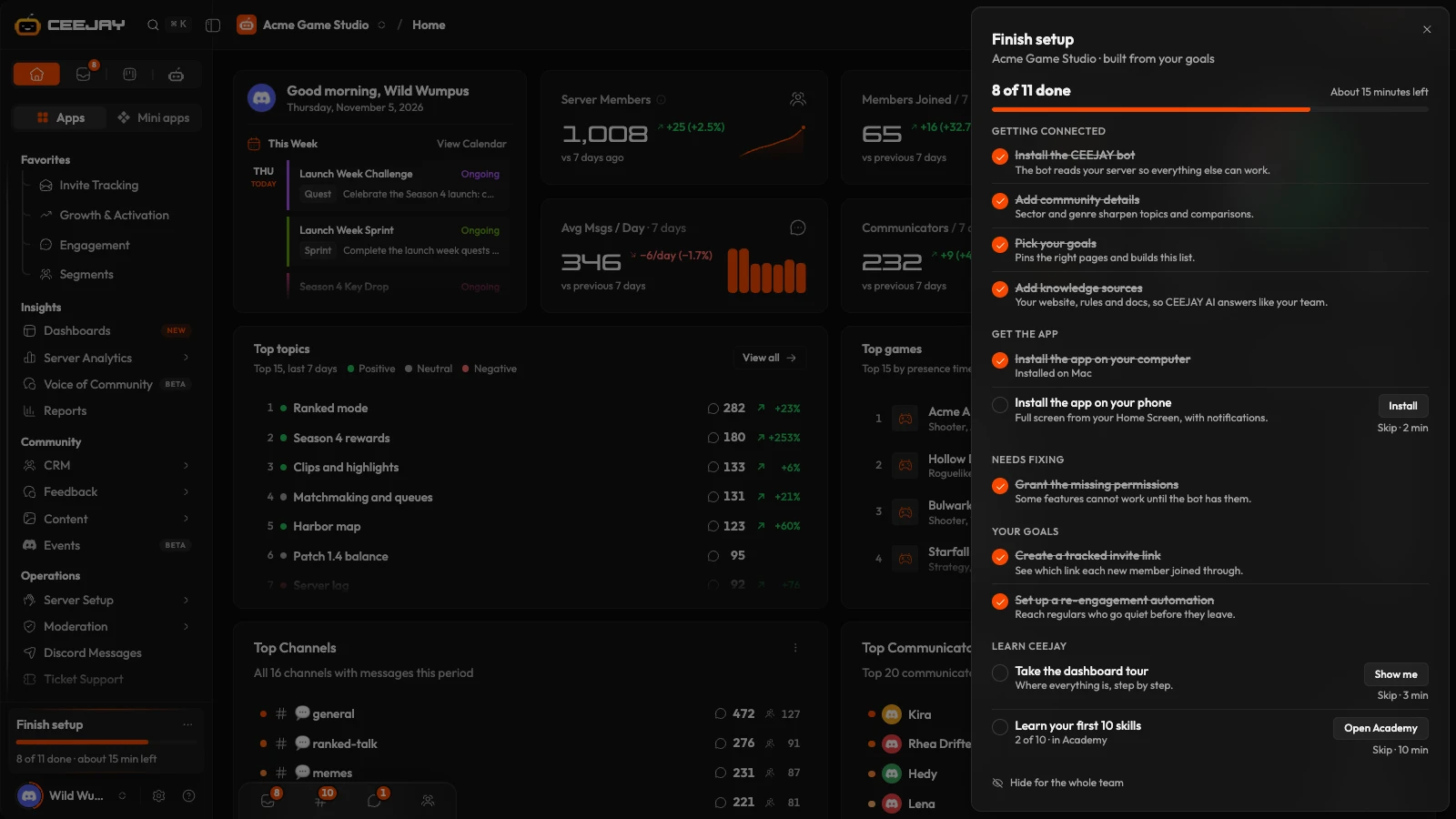
Install on this device
- In Chrome or Edge, click the install icon at the right end of the address bar. If you cannot see one, look for Install in the browser menu.
- Click Install. CEEJAY opens in its own window.
In Safari on a Mac, open the File menu, choose Add to Dock, and click Add. This needs macOS Sonoma or later. Firefox cannot install apps: open CEEJAY in Chrome, Edge or Safari and install it there.
Install on a different device
The checklist can guide you to a device you are not holding.
- From a computer, Install the app on your phone shows a QR code. Scan it with your phone's camera, add CEEJAY to the Home Screen as above, open it from there and sign in with Discord.
- From a phone, Install the app on your computer shows a link with Copy link. Open it on your computer in Chrome, Edge or Safari and install it from there.
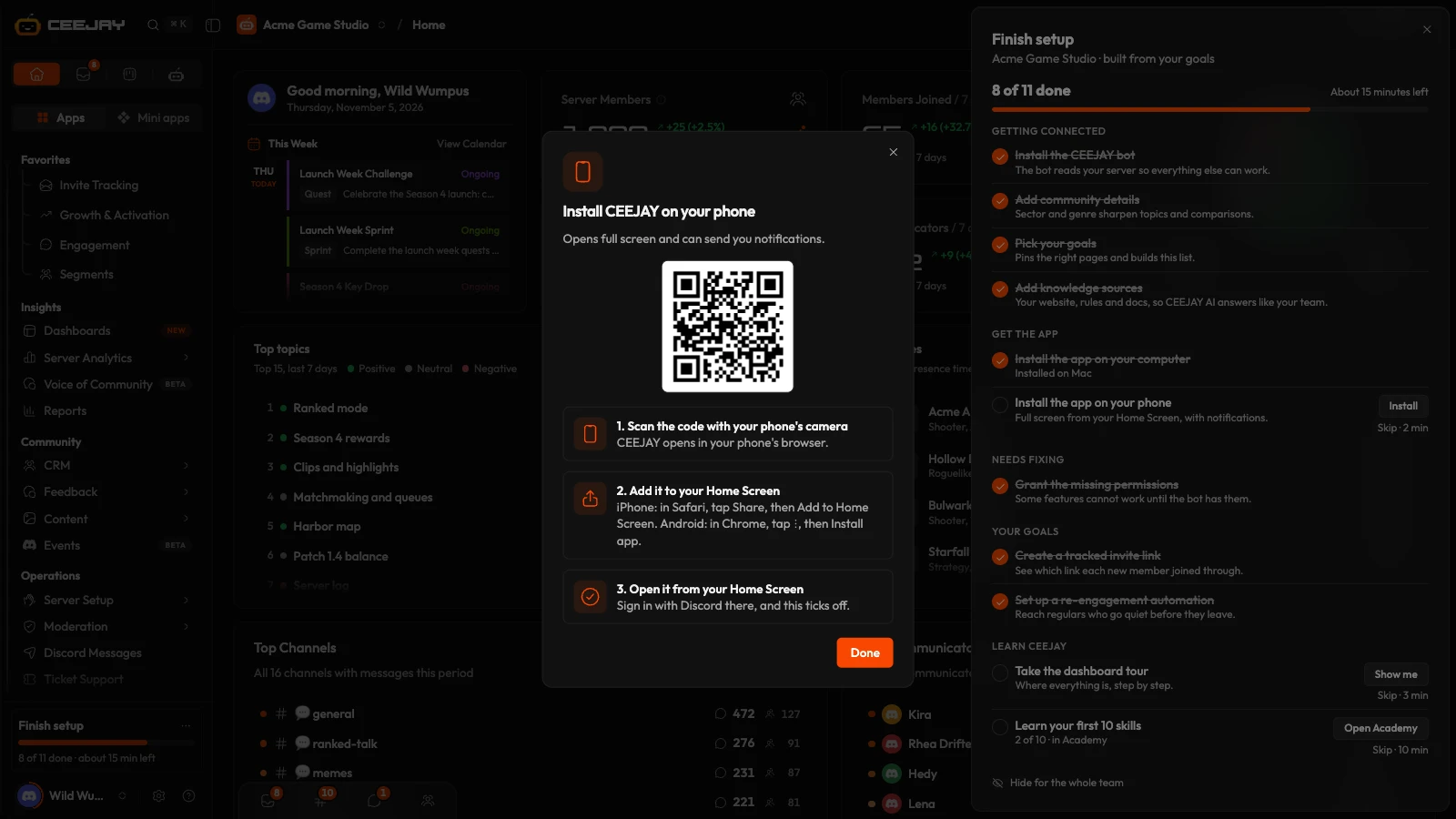
The tick
Each Get the app item is ticked automatically when your browser installs CEEJAY, or the first time you open the installed app. Browsers do not tell CEEJAY when an app is removed, so a tick never goes away.
These two items are personal and not shared with your team. Skipping one affects only you, and the item shows which device it was installed on.
Notifications
CEEJAY can send a push notification to a device, even when CEEJAY is closed. The first time you open the installed app, or CEEJAY in a computer's browser, a window asks Get notifications on this computer (or phone, or tablet). Press Turn on and allow it in the browser's own prompt, or press Not now. It asks once per person on each device, whichever you choose.
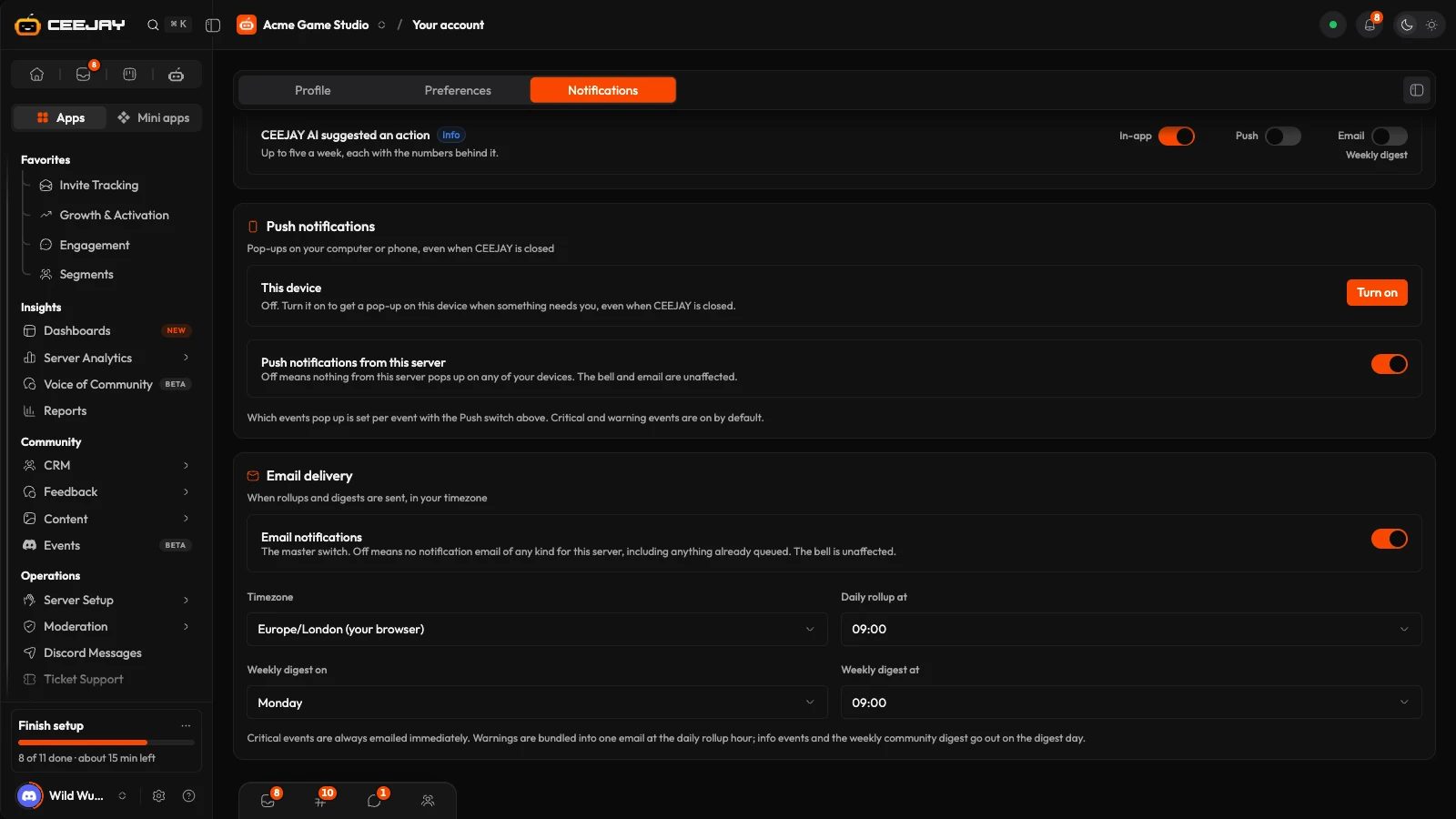
You can change your mind on the Notifications tab of Your account, in the Push notifications card, on the This device row:
- Turn on asks the browser for permission. Once it is on, Send a test sends a test push notification within a few seconds, and Turn off stops them on this device.
- If it says blocked, notifications are turned off for CEEJAY in your browser or device. Allow them in the site or device settings, then press Check again.
- On iPhone and iPad, notifications only work from the Home Screen app, and need iOS 16.4 or later. On Android they work in the browser and in the installed app.
- If the card says push notifications are not available yet, contact support from Help, the icon beside Settings.
Turning notifications on applies to this browser or device, for every community you use. Which events send a push notification is set with a Push switch beside each one, and Push notifications from this server turns off every push notification from one community on all your devices. See Notifications.
Updates and offline
When a new version of CEEJAY is ready, a card at the bottom right says Relaunch to update. Press it to load the new version. You can dismiss it and update later.
CEEJAY needs a connection to load your community's data. With no connection, it shows "You’re offline" and a Try again button.

