

My Communities
Every Discord server you manage in one place: how each is doing, what needs you, organisations, and analytics across them.
My Communities is where signing in takes you. It lists every Discord server you can reach, says how each one is doing, and opens any of them. If you run more than one community, this is also where you compare them and group them into organisations.
Open it any time from the community name in the header, or from My Communities in the Account menu under your picture.
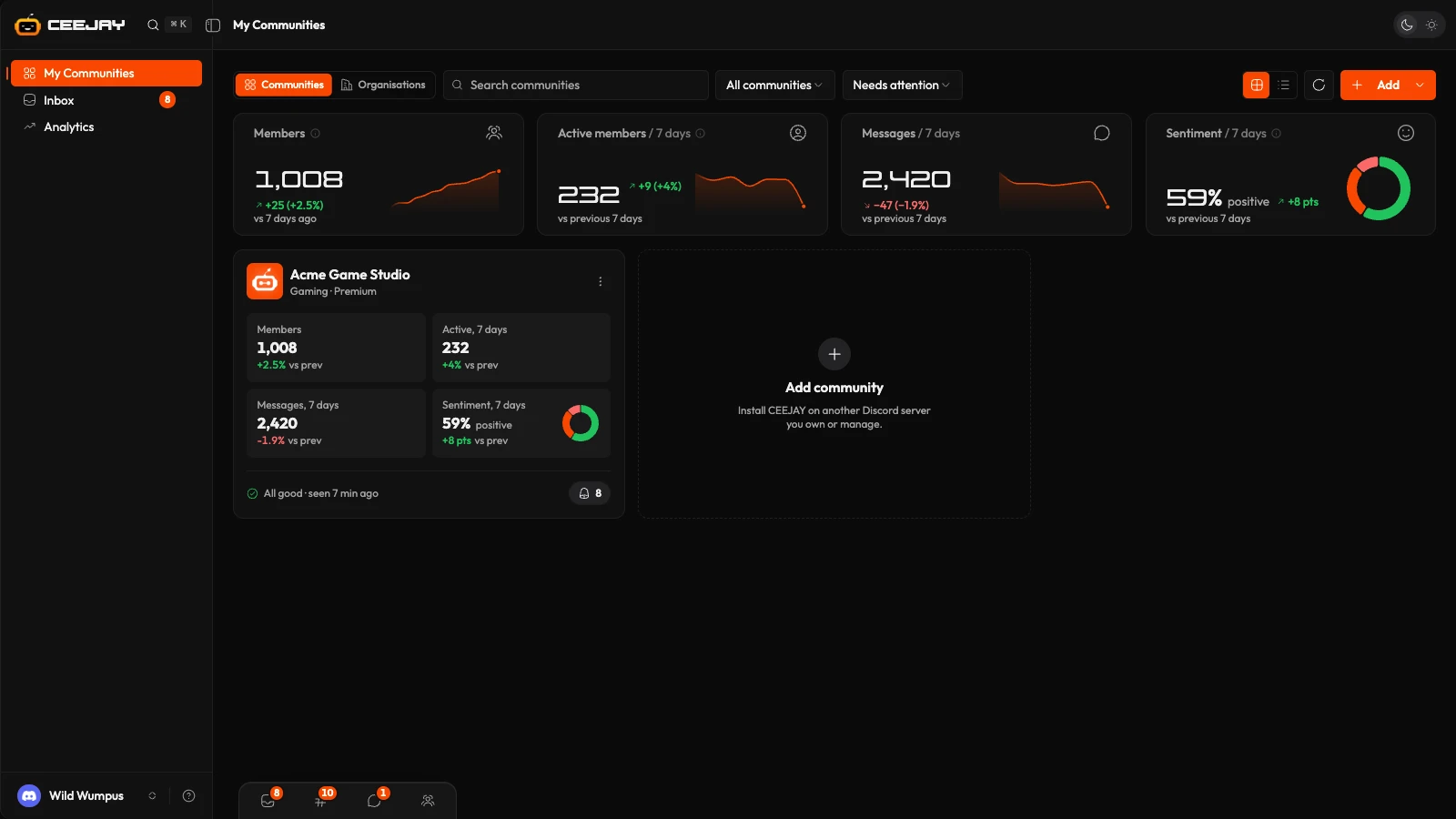
What you see
From the top:
- A toolbar:
- The Communities and Organisations switch chooses how communities are shown.
- A search box ("Search communities"), a status filter that starts on All communities (the others are Has notifications and No notifications) and a sort menu that starts on Needs attention first (the others are Most members, Most active and Name A–Z).
- The grid and list buttons change the layout, and the circular arrow refreshes the list from Discord.
- The bell is Needs attention across all communities: bot issues and Voice of Community alerts. Add adds a community or an organisation.
- Four total cards for the communities you can open: Members, Active members, Messages and Sentiment. The last three cover the last 7 days and compare with the 7 days before. Someone in two communities counts twice in Members, but Active members counts each person once.
- One card per community.
- Bot not installed: servers you own or manage that do not have CEEJAY yet. Each has Install bot, or Finish install if an earlier invite was not finished. See Add the bot.
- Pending access: CEEJAY is installed in the server, but the dashboard has not been switched on for that community yet. Press Request access to email CEEJAY and ask for it.
A community card
The header has the community's icon, its name, and its sector (or your role in it if no sector is set). Under it are four tiles: Members, Active, 7 days, Messages, 7 days and Sentiment, 7 days. Each shows its change against the week before. Hover over a tile for the numbers behind it.
The footer shows the most important thing about the community, in this order:
- A problem: the bot is offline or was removed, a permission is missing, or the member sync is behind.
- "Setup not finished", with Continue setup.
- "All good", with when the bot was last seen.
When something needs you, a bell with a number appears at the right of the footer. Hover over it to preview the list, or press it to open a panel with Needs attention and the community's unread Inbox items, and the buttons Open dashboard and Open inbox. The bot checks each community every 15 minutes.
The ⋮ menu has Open dashboard, Re-invite bot in Discord (shown when the bot is offline, removed or missing a permission), Move to organisation and Remove from CEEJAY.
Press anywhere on a card to open that community's dashboard.
Good to know
If your team access to a community does not include analytics, its card shows the member count and a dash for the rest. The Analytics page lists such a community under Not included.
Organisations
An organisation groups communities that belong to the same company or client, so you can see their numbers together. It never grants anyone access: you only see numbers for communities you can already open, and the others are counted as "others you can't open".
To make one, press Add and choose Organisation. In the New organisation window:
Add a Logo if you like, and type a Name.
Tick the Communities to include. A community is in one organisation at a time. If one is already in another, its row says "In ...: ticking moves it", and CEEJAY asks you to confirm the move. Moving changes the grouping only: its data and settings stay.
Press Create organisation.
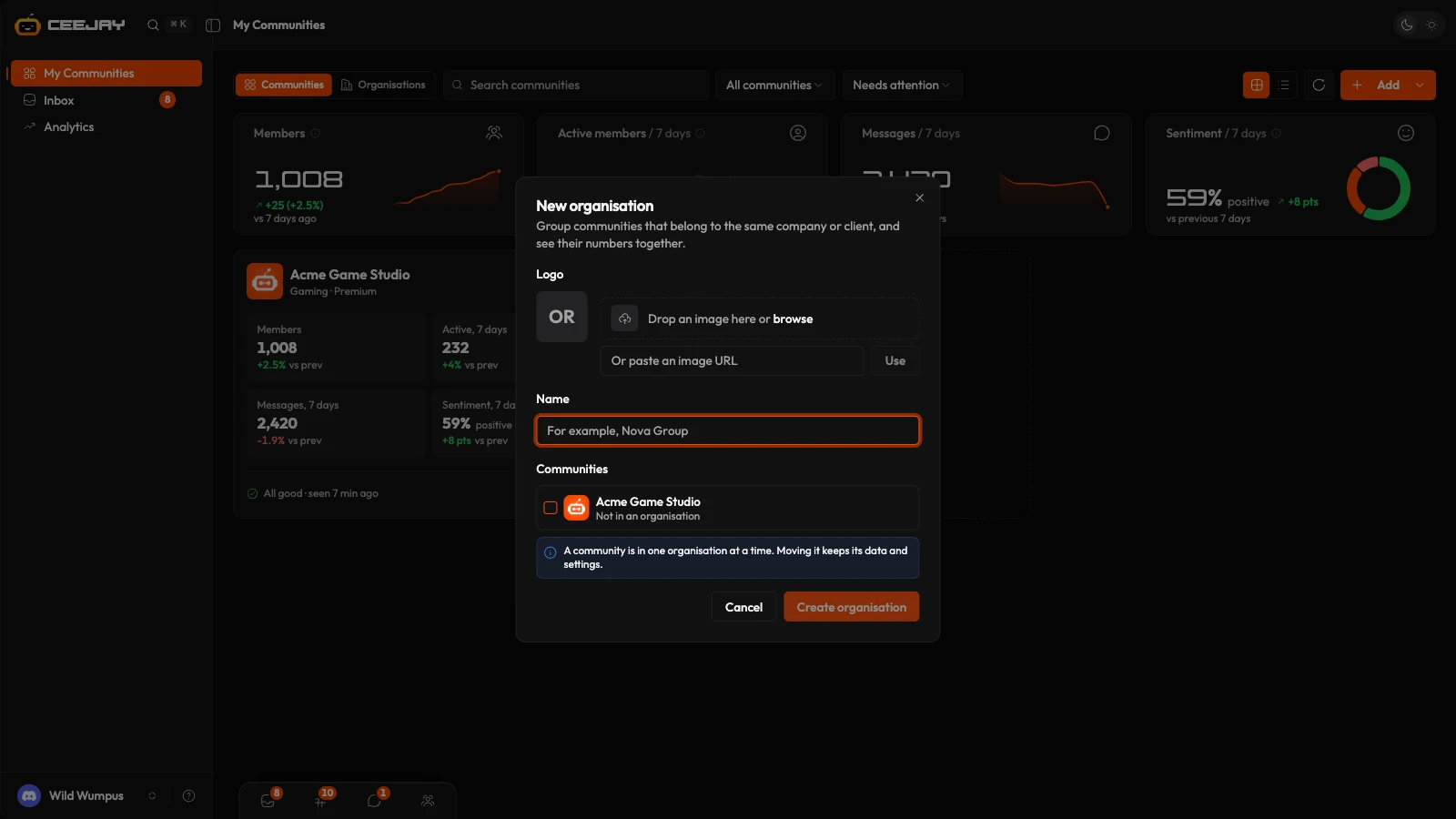
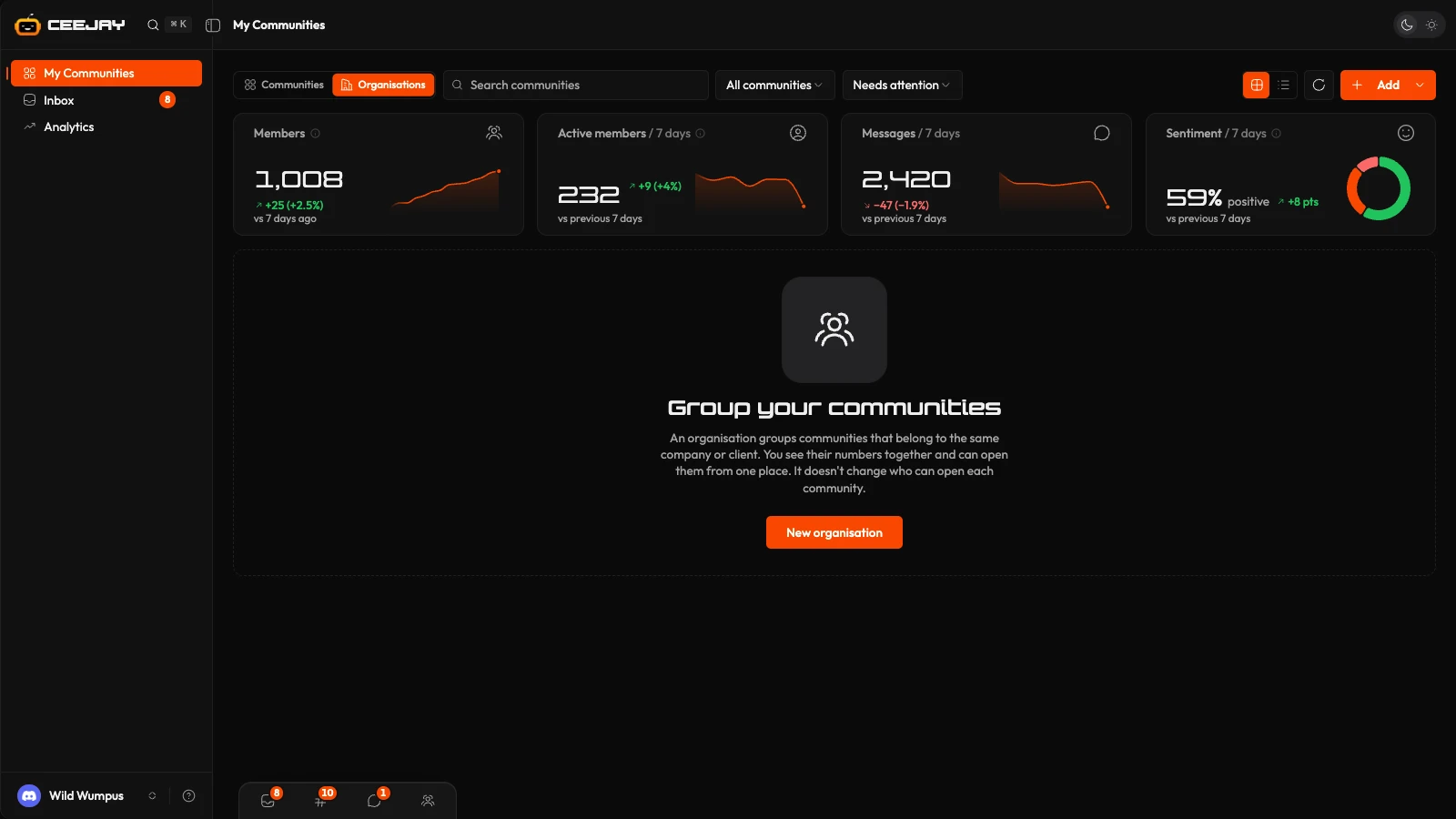
Switch to Organisations in the toolbar to see each organisation as a block: its totals, a bell for what needs attention across it, and its communities. Communities in none are under Not in an organisation, which has a Move to organisation button. The ⋮ menu on a card also moves a community.
Open organisation opens the organisation's own page, with one range for the page: 7 days, 30 days, 90 days or 1 year.
- Overview has an AI summary of what matters most across the group, the four totals, and a By community chart of the three highest.
- Communities ranks your communities by Community Health, lowest first, with each one's stage, sentiment, activity and next calendar item. Sort by any column, and set a stage from the row's ⋮ menu.
- Members and Compare work as they do on Analytics, for this organisation's communities.
- Admins lists who manages the organisation. The owner and admins can add and remove admins, and the owner can transfer ownership.
The bell is Needs attention across the organisation: bot issues and each community's Voice of Community alerts. A team member sees alerts only for communities where they can open Voice of Community.
Use Edit organisation to rename it, set its type, or add and remove communities. Choose Game publisher or Record label to use titles and players, or artists and fans, in place of communities and members. Use Manage groups on the Communities tab to add groups, which read Studios for a publisher and Imprints for a label, then filter every tab by one from the bar.
Add community goes back to the Add list. Delete organisation, in the ⋮ menu, removes only the grouping: every community retains its data, settings and access.
Until you create one, the Organisations view shows a short explanation and a New organisation button.
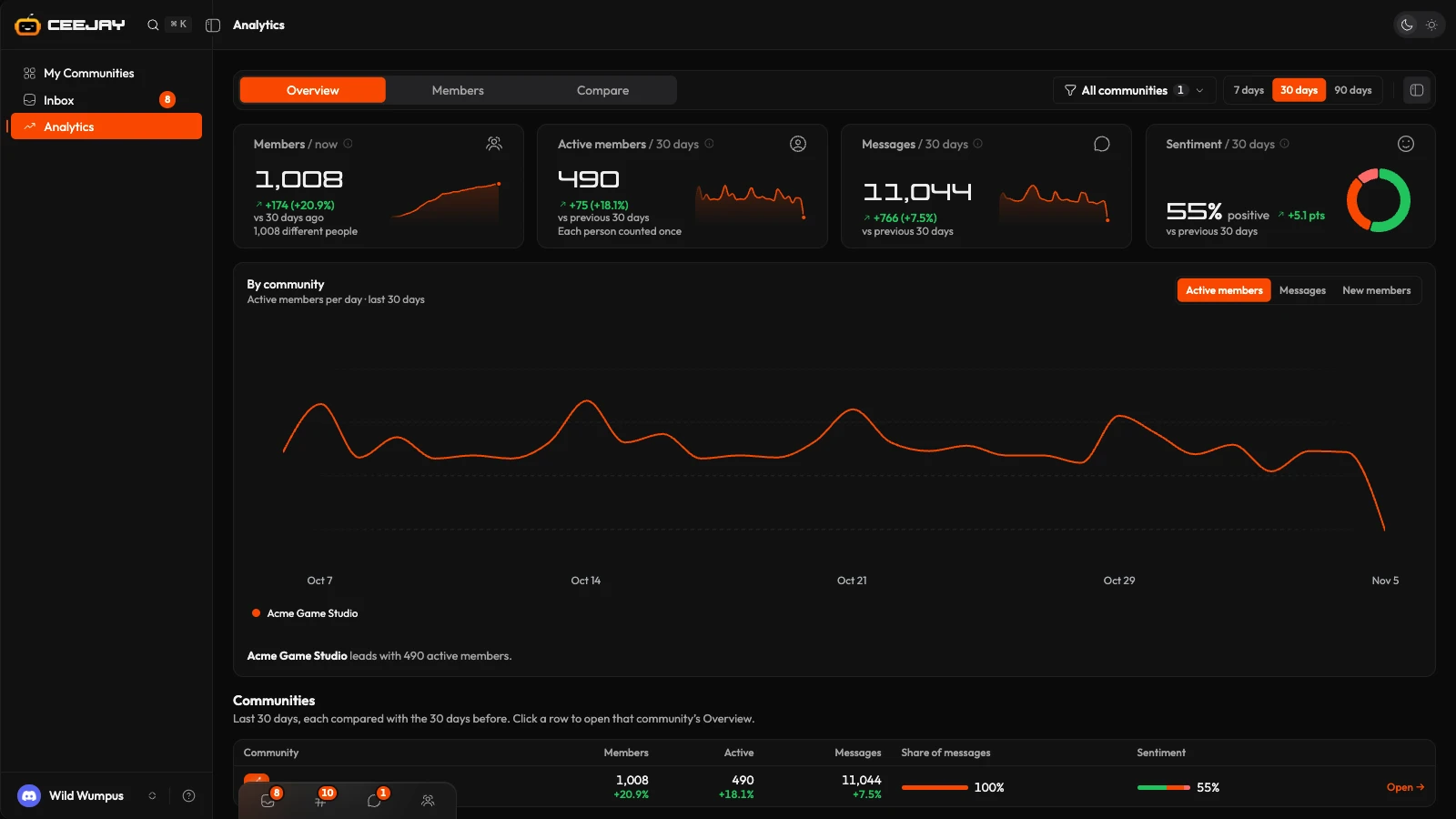
Analytics across communities
Press Analytics in the sidebar. Everything on the page follows one range, 7 days, 30 days, 90 days or 1 year, and one choice of communities. The communities menu shows All communities, one organisation, or a set you tick yourself. At least one stays ticked.
- Overview has four totals, a By community chart (the three highest, for Active members, Messages or New members), and a table with a row for each community. Press a row to open that community's own Overview.
- Members counts members once across the communities you chose: how many different members, how many are in 2 or more, and how many were Active in 2 or more. It also lists Top members across your communities, ranked by messages, and Where your communities overlap, a grid of members active in both. Press a number in the grid to see who.
- Compare puts two communities side by side. Choose a First community and a Second community, then read Side by side and Over time. Per 1,000 members divides the counts by each community's size so a big and a small community compare fairly.
Inbox across communities
Inbox in the sidebar gathers everything addressed to you from every community, newest first, under Today, Yesterday and Earlier. Each row names its community. A column at the left filters by community or by Unread and All, and you can narrow by type. Press a row to open that item in the community's own Inbox, where you read it, reply and act on it. See Inbox.

