

Set up your community
Work through the five setup steps, then use the Finish setup checklist for what is left.
Setup tells CEEJAY what kind of community you run, checks that the bot can do its job, and builds a checklist of what to do next. It is a window over your dashboard with five steps and takes about five minutes. Each step saves when you move on, so you can stop at any point and come back.
The window opens by itself right after you add the bot. It also opens from Continue setup on a community's card in My Communities, and from the checklist.
The five steps
Use Continue to move on and Back to go back. On steps 2 to 4 you can also press Skip for now. Whatever you skip stays on your checklist.
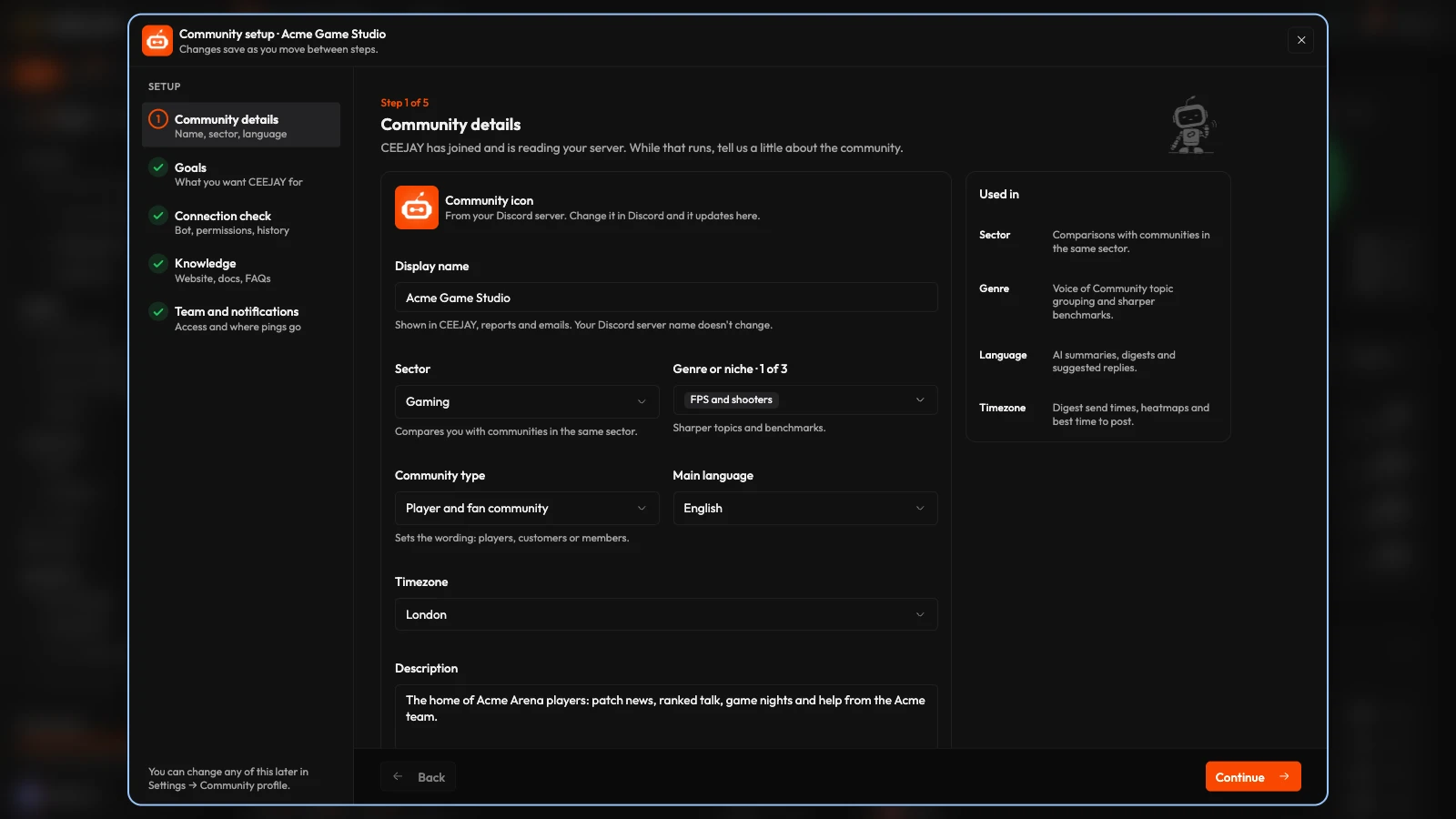
Community details
Your icon comes from Discord, so change it there. Fill in the other fields yourself.
- Display name is how the community is named in CEEJAY, reports and emails. It starts as your server's name and never renames your Discord server.
- Sector is the one thing you must choose before you can continue. Pick from Gaming, Esports, Music, Brand & consumer, Creator & media, Software & developer tools, Web3 & crypto, Education & learning, Sports & fitness, Nonprofit & cause, iGaming & betting or Other. CEEJAY compares you with communities in the same sector.
- Genre or niche takes up to three choices from a list that depends on the sector. With Other you describe the niche in a few words. It sharpens topic grouping and comparisons.
- Organisation appears when you have organisations. See My Communities.
- Community type is Player and fan community, Customer community, Creator community, Members-only or paid, or Internal team. It sets the wording: players, customers or members.
- Main language is used for AI summaries and digests.
- Timezone decides digest send times, heatmaps and the best time to post.
- Description is read by CEEJAY AI for context when it writes summaries and digests.
Goals
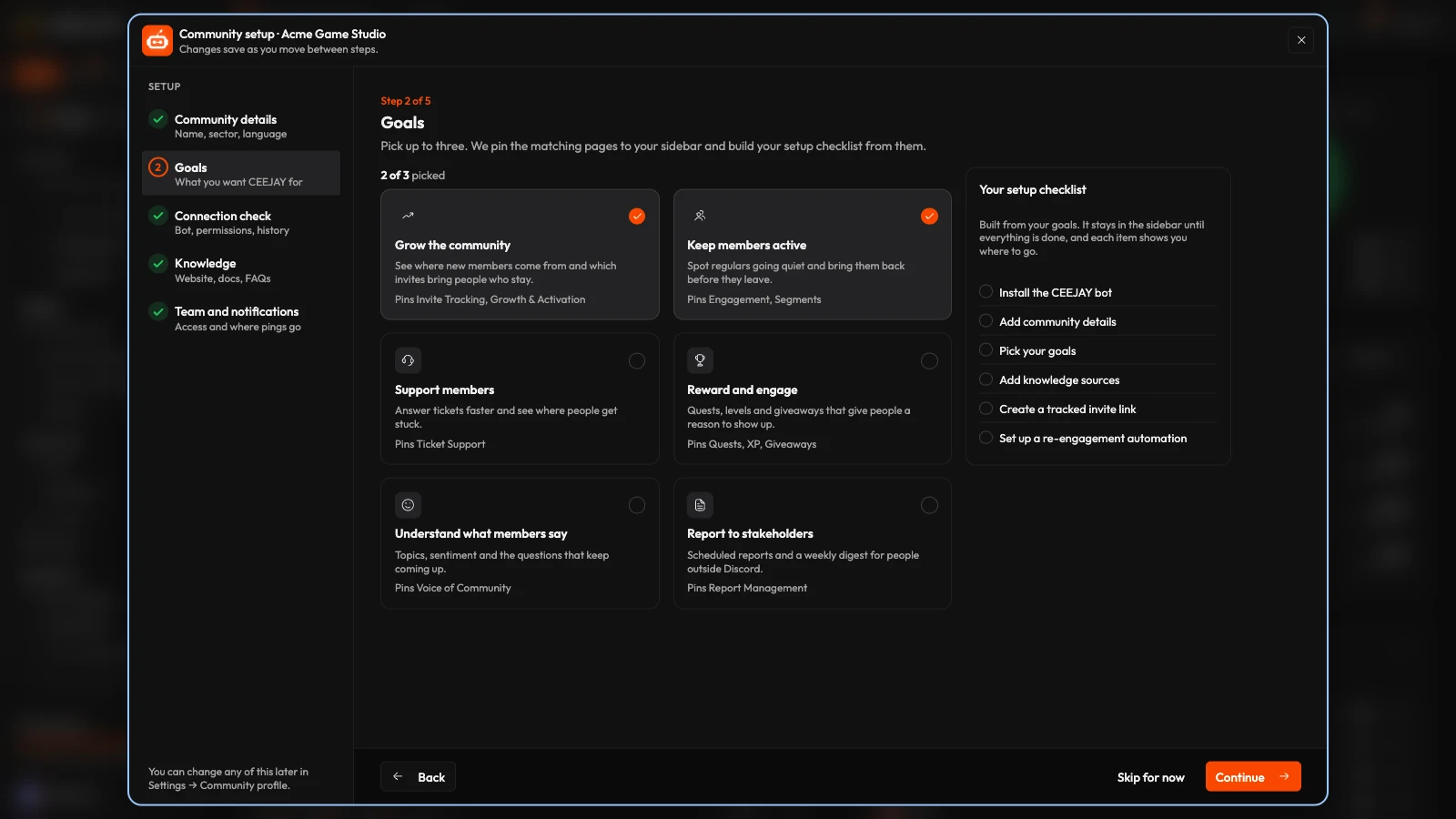
Pick up to three goals. This helps us understand what you want from CEEJAY. You can change them at any time in Settings → General → Community profile.
Connection check
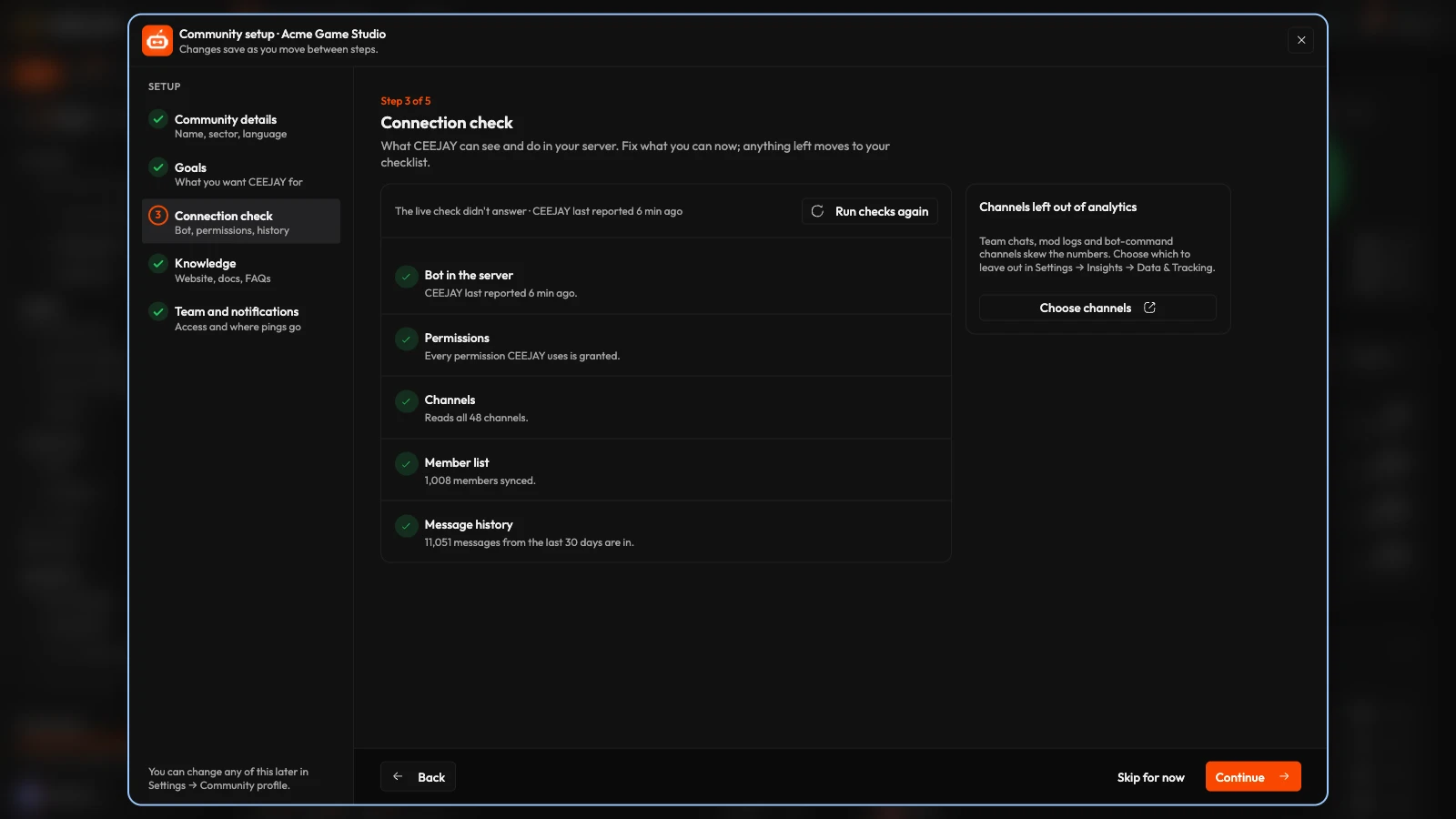
The connection check reports whether the bot is online, whether its permissions are complete, how many channels it can read, how many members have synced and how much message history it has. Run checks again repeats the check.
- If a permission is missing, Fix in Discord takes you back to Discord. The Waiting on permissions card lists the features that stay paused until it is granted. See Add the bot.
- If CEEJAY has less than about a month of messages, Import 30 days loads the last 30 days so your charts start full. It carries on in the background.
- Choose channels opens Settings → Insights → Data & Tracking, where you leave channels out of analytics. Moderator chats, logs and bot-command channels usually skew the numbers.
Knowledge
Give CEEJAY AI what your community already knows, so it answers like your team in the CEEJAY assistant, ticket reply drafts and summaries. Add any of these:
- Website, with up to 50 of its pages when it has a sitemap.
- Discord channels, such as your rules, FAQ or announcements. CEEJAY reads the pinned messages and the latest 200.
- Community docs, as PDF, Markdown or text files.
- Help centre or docs site, such as Notion, GitBook, Zendesk or Intercom.
- Brand and tone of voice, and FAQs that you write here.
- Something else, as a file or a link.
Test it searches what you added and shows the matching passages. The same cards live on the Knowledge Base page: see Knowledge base.
Team and notifications
- Full access by Discord role lists the roles whose members can open this community in CEEJAY by signing in with Discord. Roles that have Administrator in Discord are already included. Use Add a role to add more.
- Email me turns on critical alerts and the weekly digest for this community.
Full access means everything
Anyone who holds a role listed here can open every page and change every setting of this community. Add only roles your own team holds.
To grant someone access to only some pages, use Open Team settings, or see Team management.
When you press Finish and start the tour the setup window closes. If you are new to CEEJAY, the dashboard tour starts. Otherwise it is offered to you, and you can start it any time from Help, the icon beside Settings.
Leave and come back
Save and finish later, the ✕ and the Escape key all save what you typed on the current step and close the window. While setup is unfinished, the checklist then opens so you can see what is left. On My Communities, the community's card says "Setup not finished" with Continue setup, which reopens the window on the step where you stopped.
The Finish setup checklist
The Finish setup card above the bottom row of the sidebar shows how many items are done and about how many minutes are left. Open it for the full list.
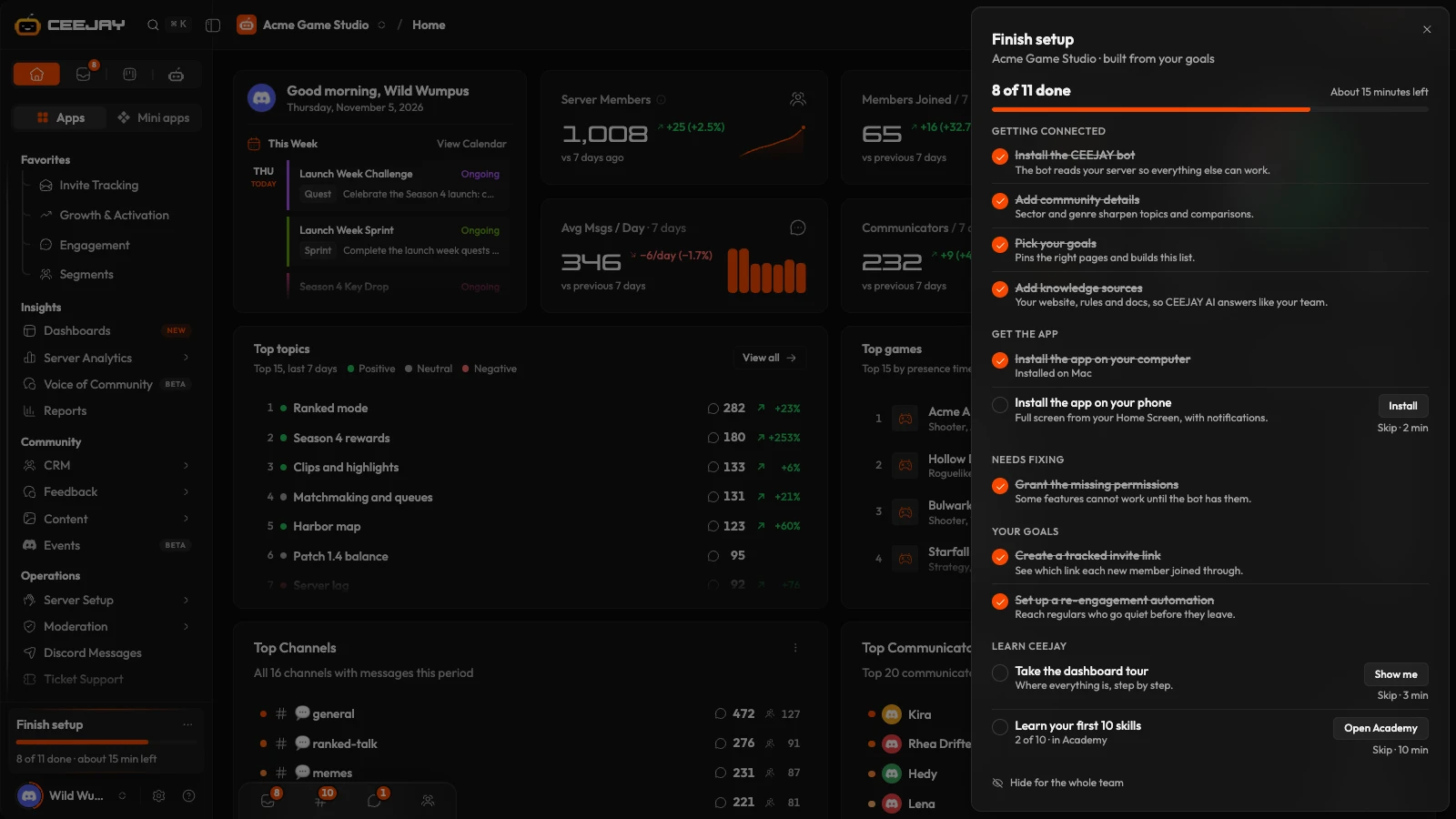
- Getting connected: Install the CEEJAY bot, Add community details and Add knowledge sources.
- Get the app: Install the app on your computer and Install the app on your phone. See Install the app.
- Needs fixing: Grant the missing permissions.
- Learn CEEJAY: Take the dashboard tour. See Learn CEEJAY.
Items are marked complete automatically when the task is finished, so a community that already uses a feature shows it as done. Under each open item, the link that reads Skip · 3 min (the minutes vary) puts it aside, and Undo skip brings it back. A skip applies to the whole team, except the Get the app and Learn CEEJAY items, which are skipped for you only.
The card goes away when every item is done or skipped. Its ⋯ menu has Remind me tomorrow and Remind me next week, which hide it for you until then. Owners and admins also get Hide for the whole team. At the bottom of the checklist, Show in the sidebar again brings the card back.
Change it later
Open Settings → General → Community profile to change your community details and goals. Connection check on that page reopens the check, and knowledge sources and team access have their own pages in Settings. Only the server owner, admins and roles with full access can change the profile.

