

Economy
Give members a currency to earn every day, and see what they earn, spend and hold.
The economy is the currency your members earn and spend, such as Coins or Gold. This page shows how it is moving, which members hold the most and every coin that was earned or spent, and it lets you adjust a balance when you need to. The shop where members spend it is on Shop and economy.
What you see
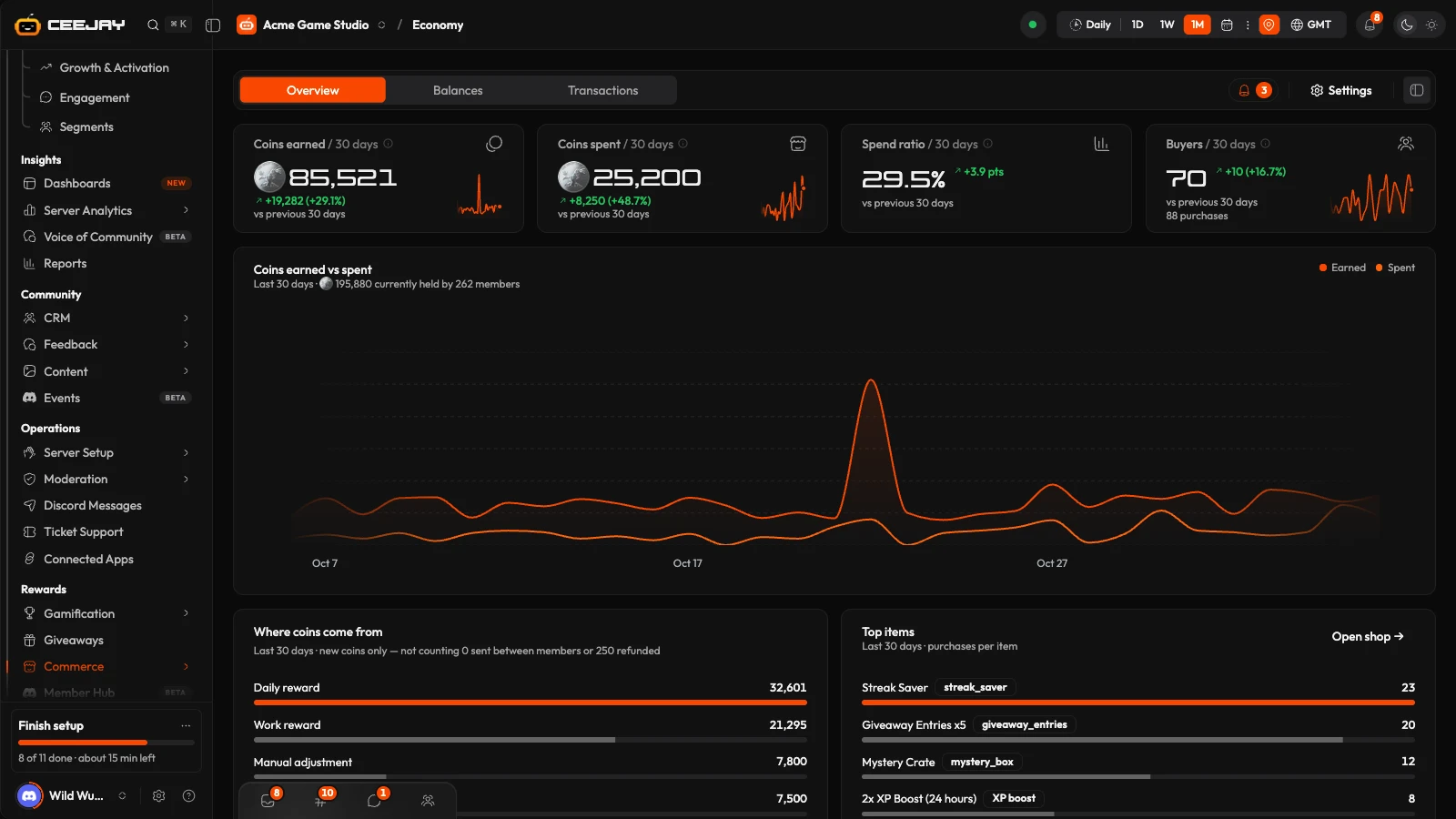
Go to Commerce → Economy. The page has three tabs:
- Overview: how the currency is moving across a date range. It follows the range picker and the Compare switch in the header.
- Balances: every member's balance.
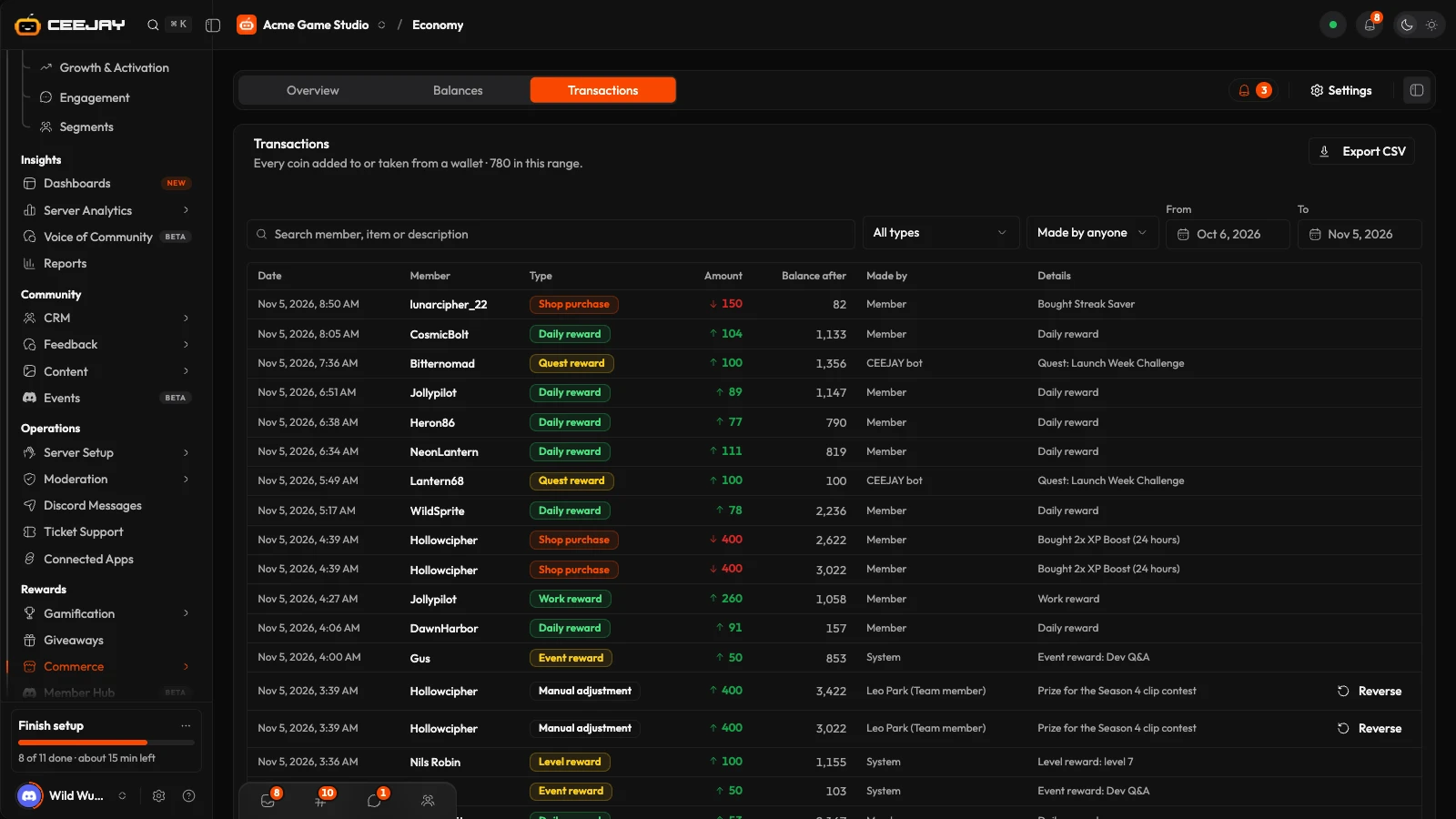
- Transactions: every movement of currency.
The bell beside the tabs is Needs attention. Settings at the top of the page opens Settings → Rewards → Shop & Economy beside the page, where the earning rules live.
Overview
The Overview has four cards. The first two are named after your currency:
- Coins earned: new currency added to balances in the range: daily rewards, work, quests, sprints, automations, the partner API and team grants. Transfers between members and refunds are not counted, because they move currency that was already earned.
- Coins spent: currency spent in the shop in the range. Purchases refunded later are not counted.
- Spend ratio: spent divided by earned. Under 50% for weeks means balances pile up and rewards buy less.
- Buyers: members who bought at least one shop item, with the number of purchases.
Below them, earned vs spent draws both over time and says how much is held now and by how many members. Where coins come from splits the earning by source, and Top items counts purchases per item, with Open shop to go to the shop.
How members earn currency
Members earn with /daily and /work, and from quests, sprints, rewards and automations. You set the amounts, cooldowns, streak bonus and daily limit in Settings → Rewards → Shop & Economy. See Shop and economy for each setting.
Members check their balance with /balance, see the richest members with /richest, and can send currency to each other with /transfer. Transfers are a switch in Settings.
Balances
Balances lists members by balance. Sort by Balance, Earned (all time), Spent (all time) or Daily streak, and search by name. The Flag column marks a member whose delivery failed, who is at the balance cap, who is new or who has left the server.
Press a member to open their wallet: balance, daily streak, what they earned and spent in the last 30 days, recent activity and purchases.
Adjust a balance
Press Adjust Balance, or the same button in a wallet. Choose the Member, the Action (Grant (add currency) or Deduct (remove currency)), the Amount and a Reason. The reason is required and is saved on the transaction with your name.
Moderators can do the same in Discord with /coins give and /coins take, with a member, an amount and a reason. The change is recorded in Transactions, like one made here. A member of your team needs access to Shop & Economy, and view-only access is not enough.
Transactions
Transactions is the full ledger. It opens on the last 30 days. Search by member, item or description, change the dates with From and To, filter by type and by who made each entry, and press Export CSV to download the filtered list.
A manual adjustment, or a change made through the partner API, has a Reverse button. It asks for a reason, retains the original row and adds a Reversal row. Other entries, such as purchases and transfers, cannot be reversed here.
Good to know
A balance cannot go below 0, and it stops at the Balance cap you set. A deduction larger than the balance is refused, and a grant that would pass the cap adds only what fits.

