

Member Hub
Give members an app inside Discord for their quests, shop, ranks and rewards, branded to match your community.
The Member Hub is a small app that members open inside Discord. It brings together the places they go to earn and spend: a home screen, your quests, your shop, the ranks and a locker for what they have earned. This page is where you set its branding and see whether members use it. Inside Discord, members still see it called Community Hub.
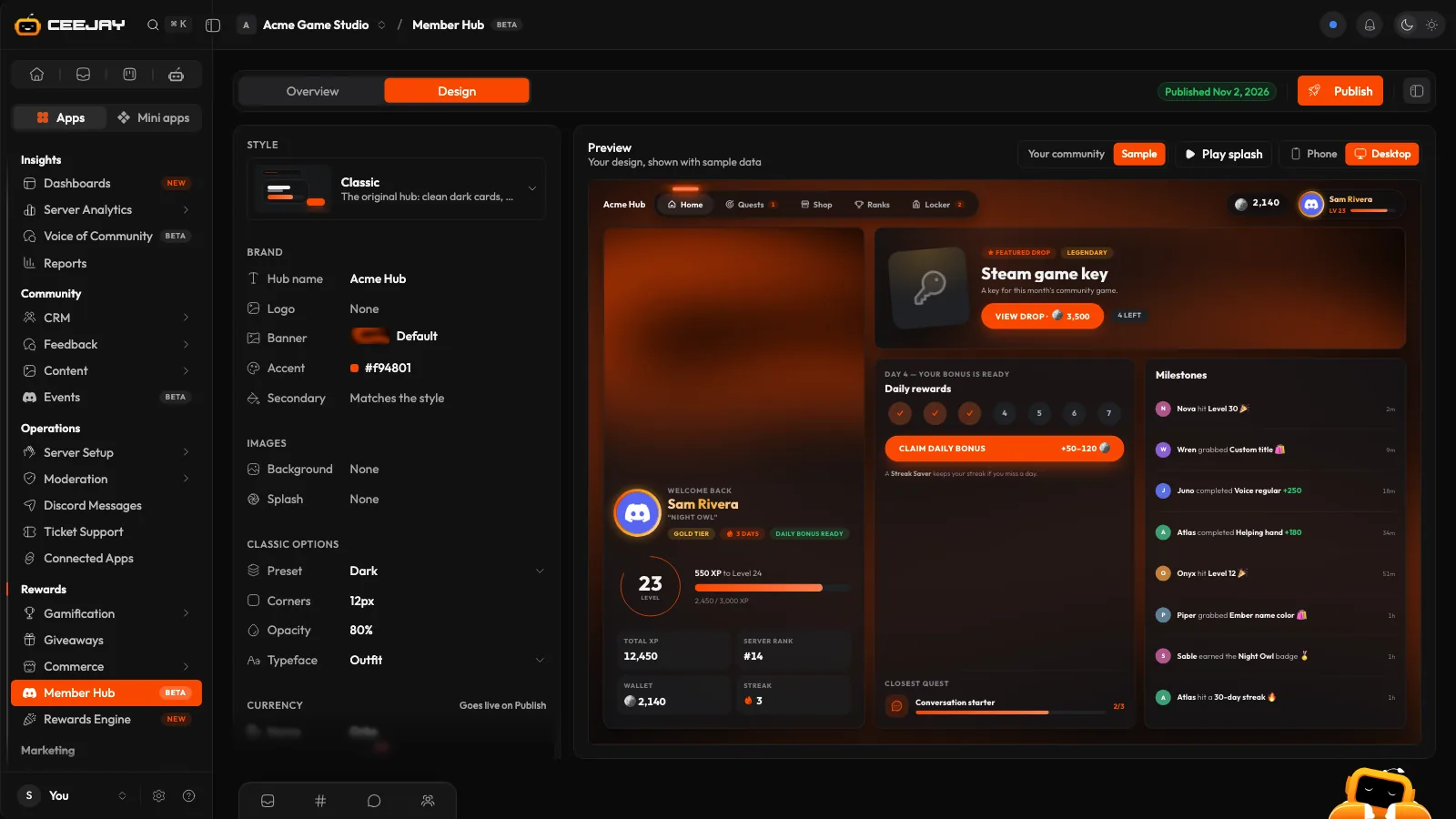
What members see
The hub has five tabs for members:
- Home: their profile and the daily check-in.
- Quests: your live quests, with the same tasks as in Discord. See Quests.
- Shop: your shop items. See Shop and economy.
- Ranks: the leaderboards.
- Locker: the rewards they have earned.
Surveys and forms you show in the Hub are listed on Home, and open as a popup when members answer them. See Surveys and forms.
The hub uses your currency name and emoji, and your theme.
What you see
Go to Rewards → Member Hub. The page has two tabs:
- Overview: how much the hub is used across a date range. It follows the range picker and the Compare switch in the header.
- Design: the studio where you set the theme.
The bell beside the tabs is Needs attention. Settings at the top of the page opens Settings → Rewards → Member Hub beside the page.
Overview
The Overview has four cards:
- Hub opens: times a member opened the hub in the range.
- Members using it: members who opened it at least once, as a share of your members.
- Quests started in the hub: quests started from inside the hub, as a share of all quests started in the range.
- Purchases in the hub: shop purchases made inside the hub, as a share of all purchases.
Below them, Hub opens over time draws opens across the range, and Where members spend their time shows the share of time spent on each tab. If your community has not started logging hub use, the cards say Not tracked yet.
Design the hub
Open the Design tab. The live preview runs the real hub with your community's shop, quests and ranks, as your own account sees them. Switch it to Sample to see the design with example content. Phone and Desktop switch its size, and Play splash replays the loading screen of the style you picked.
Under Style, open the row and pick one of the seven game styles. Each changes how every hub screen looks, from the home screen and quests to the shop, the ranks, the daily reward and dialogs, and each has its own loading screen:
- Classic: the hub as it was, with the banner, preset, corners and typeface options.
- Sci-Fi Arcade
- Neon Noir
- Cozy Pop
- Brawl
- Fantasy
- Retro Pixel
Your colours, hub name, logo, background and splash image apply to every style, and the preview updates as you pick.
Under Brand, set the Hub name, which the hub's top bar and loading screen show, and your Logo.
With Classic, Main banner shows behind the featured item on Home and in the Shop. Upload your own, or keep the default banner, which takes your accent colour. Profile banner shows at the top of each member's card, and uses the main banner if you leave it empty.
Set the Accent colour. If it is hard to read on the style's cards, the panel warns you and offers a shade that works. Secondary follows the style by default; switch off Match the style to choose your own.
Under Images, add a Background. With the Glass preset it also has Blur, Surface opacity, Scrim darkness and Surface tint. Splash shows on the loading screen, and uses your background or banner if you leave it empty.
Under Classic options, set a Preset (Dark or Glass), Corners, Opacity and a Typeface: Discord (gg sans), Outfit, Inter, Nunito, Rubik, Space Grotesk, Chakra Petch, JetBrains Mono or Lora. The other styles bring their own, so these stay dimmed there.
Under Currency, set the Name and Icon. They are the same ones as in Settings → Rewards → Shop & Economy, and a change here goes live when you publish.
Press Publish.
Your edits are saved as a draft automatically. The page bar shows Saving..., then Saved, and Not published yet, Unpublished changes or Published with the date. Members keep seeing the last published theme until you press Publish, which copies the draft to the live hub. A hub members already have open updates to the theme you publish within a minute, and new stock, coins, leaderboard positions and quests appear without reopening it.
Good to know
While you are editing, the page does not refresh over your changes. If a save fails, the page bar says Save failed with Try again. Discard changes puts your draft back to the published design.

