

Quests
Set tasks for your members, review their proof, run time-boxed sprints and grant the rewards.
A quest is a short list of tasks that earns a reward when a member finishes them all. Tasks can count what members do in Discord, check a linked account, ask a question or ask for proof that you review. You build quests on the dashboard and post them in a channel.
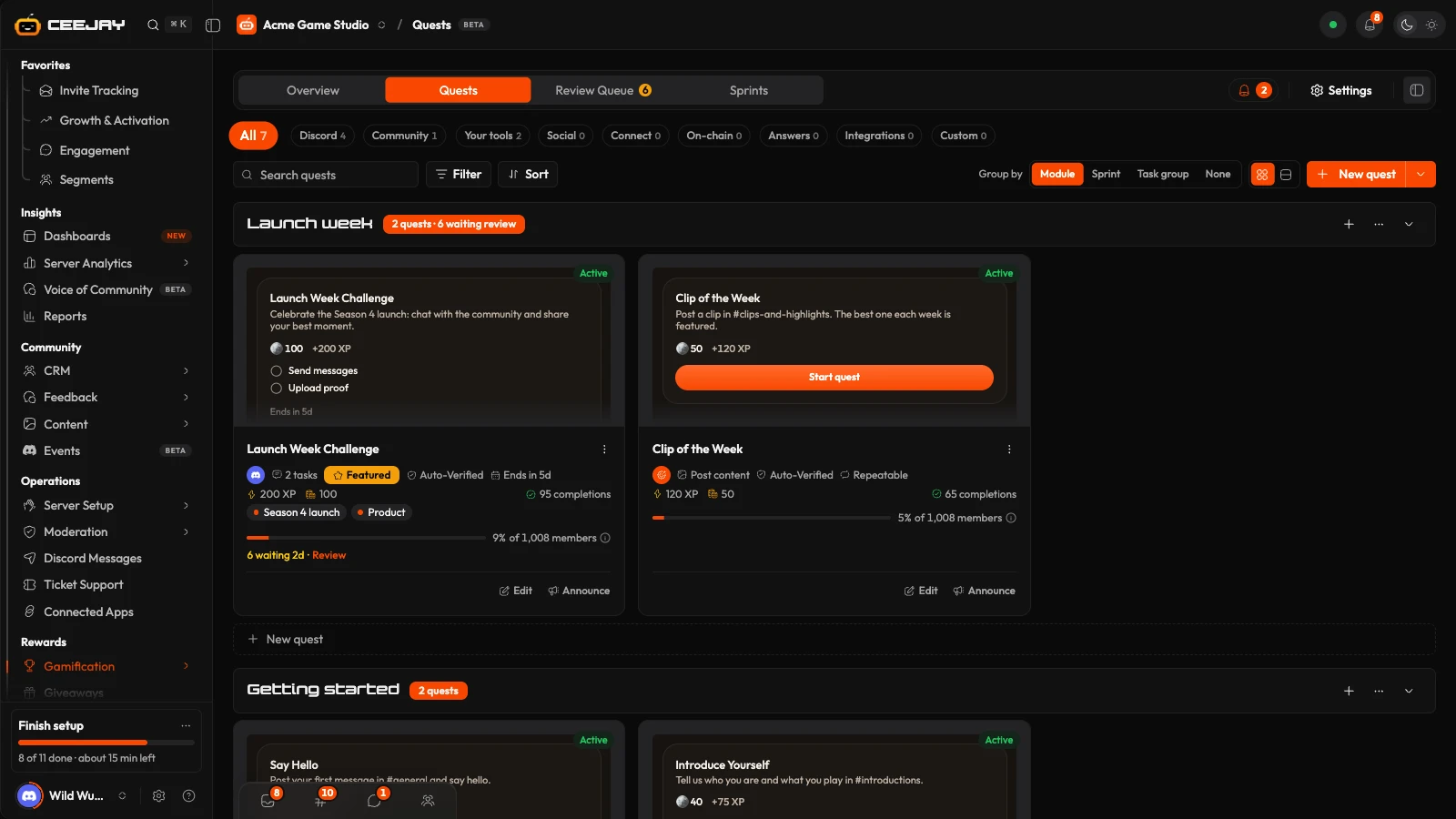
What you see
Go to Gamification → Quests. The page has four tabs:
- Overview: how quests are doing across a date range. It follows the range picker and the Compare switch in the header.
- Quests: all your quests, as cards or a list.
- Review Queue: proof members sent for tasks that need your review. A count sits on the tab.
- Sprints: time-boxed races over a set of quests.
The bell beside the tabs is Needs attention.
Overview
The Overview has four cards:
- Quest completions: quests completed in the range. A repeatable quest counts every completion.
- Members completing: members who completed at least one quest in the range, as a share of your members.
- Awaiting review: proof waiting for a reviewer right now, and how long the oldest has waited.
- Sprint participation: members who completed at least one of the running sprint's quests, right now.
Below them, Completions over time draws the range, with the previous period as a dashed line when Compare is on, and Completion rate by quest shows which quests members finish. Press the (i) beside a card title for its exact definition.
Create a quest
On the Quests tab, press New quest. The arrow beside it has Browse templates and, where your community uses them, New module.
In the builder, the quest appears as members see it, with its tasks under it. Name the quest, write its description, then add up to five tasks.
For each task, choose the type. Tasks are grouped as Discord, Milestones, Apps, Social, Account linking, On-chain, Answers, Integrations and Custom. Examples: send messages, spend time in voice, invite members, reach a level, vote in polls, complete a form, follow an account on X, wishlist your game on Steam, answer a question. Give each task a Title members see, a short What members are asked to do, and its settings, such as how many messages.
Set each task's Verification: Auto-verified or Manual review. Submissions for tasks on manual review go to the Review Queue. Upload proof tasks are always on manual review.
In the panel on the right, set the quest's Properties, Eligibility and Reward (see below). Press Publish, or open the arrow for Save as draft.
Tasks worth knowing
- Send messages counts posts in a channel and in its threads and forum posts. Set a Minimum length (optional) to ignore short replies. Turn on Replies only to count only a reply to another member, or a message in a thread or forum post they started. Use it to reward welcoming newcomers in an introductions channel, or answering the question of the day.
- Steam tasks reward members who wishlist, follow or own your game, or play it for a number of hours (Hours to play). They sit in the Social group and check the game saved on the Steam card in Operations → Connected Apps. Until you save a game, the picker offers Set up Steam and members cannot complete the task. The member must also have connected Steam. A member with a private wishlist or private game details is shown how to make them public. A member who already owns the game passes the wishlist task.
- Match a member field (in Integrations) rewards a member when a field meets a condition you set: pick the Field, a Comparison and a Value. A comparison can also be "goes up by", which counts the rise from the quest's start date, such as scoring 50 points in a week, and again after each completion when the quest repeats. It completes as soon as the field matches, or when the member presses Verify. A field marked sensitive cannot be used.
Drag a task by its handle to change the order. A quest has a status of Live, Draft, Paused or Archived. The list calls a live quest Active, and a quest whose Ends time has passed becomes Ended on its own. A Live quest is posted to Discord for you (see below). A draft is not posted, but a draft with a Starts time goes Live automatically at that time.
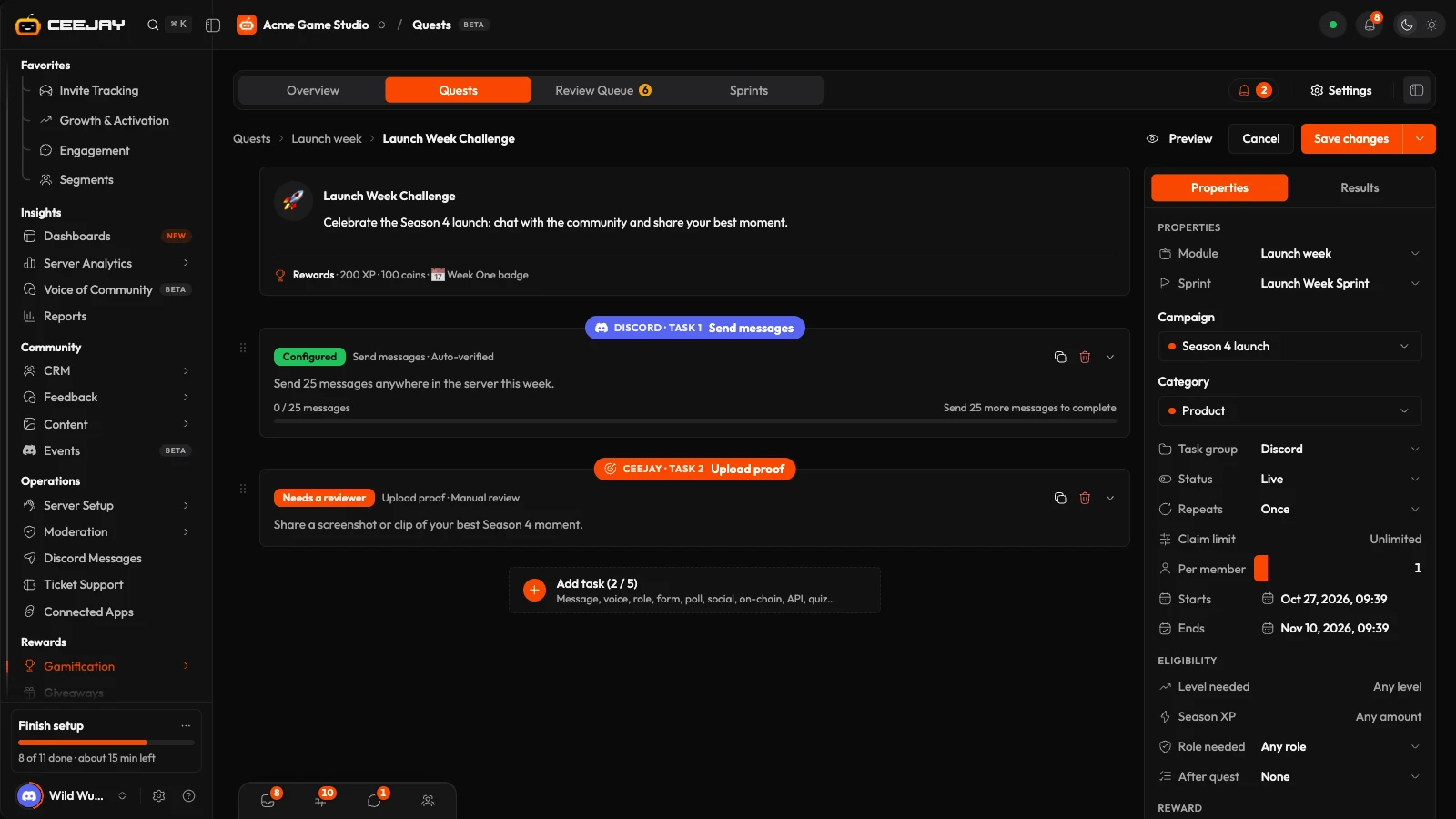
Properties, eligibility and rewards
- Properties: Module, Sprint, Task group (it follows the first task unless you pick one), Status, Repeats (Once, Daily, Weekly, Every … hours or Repeatable, no wait), Claim limit (how many members can complete it in total), Per member, and Starts and Ends.
- Eligibility: Level needed, Season XP, Role needed and After quest, which makes another quest a prerequisite.
- Reward: XP, Coins, a Badge and a Role. More rewards adds anything else from the pool, such as perks, codes, game items or manually fulfilled rewards. Save the quest first to add them. See the Rewards Engine.
- Delivery: Show in hub features the quest at the top of the Member Hub. Members also find quests with
/quests.
Send a quest to Discord
CEEJAY posts a Live quest in Discord automatically, about a minute after it goes live and once its Starts time has passed. A draft is never posted. To post a quest yourself, or post it again, open its ⋮ menu and choose Send to Discord (it reads Resend to Discord once the quest has been sent). The Announce button on a quest card does the same. Only a Live quest can be sent. The post goes to the Announcement channel in the quest settings, and pings the Quest notification role if you set one. With no announcement channel set, nothing is posted.
Members complete the tasks from buttons on the post, such as Verify, Submit Proof, Answer or My progress, and /quests lists what is available. When the last task is complete the reward is granted. For a task on manual review, that happens when you approve it.
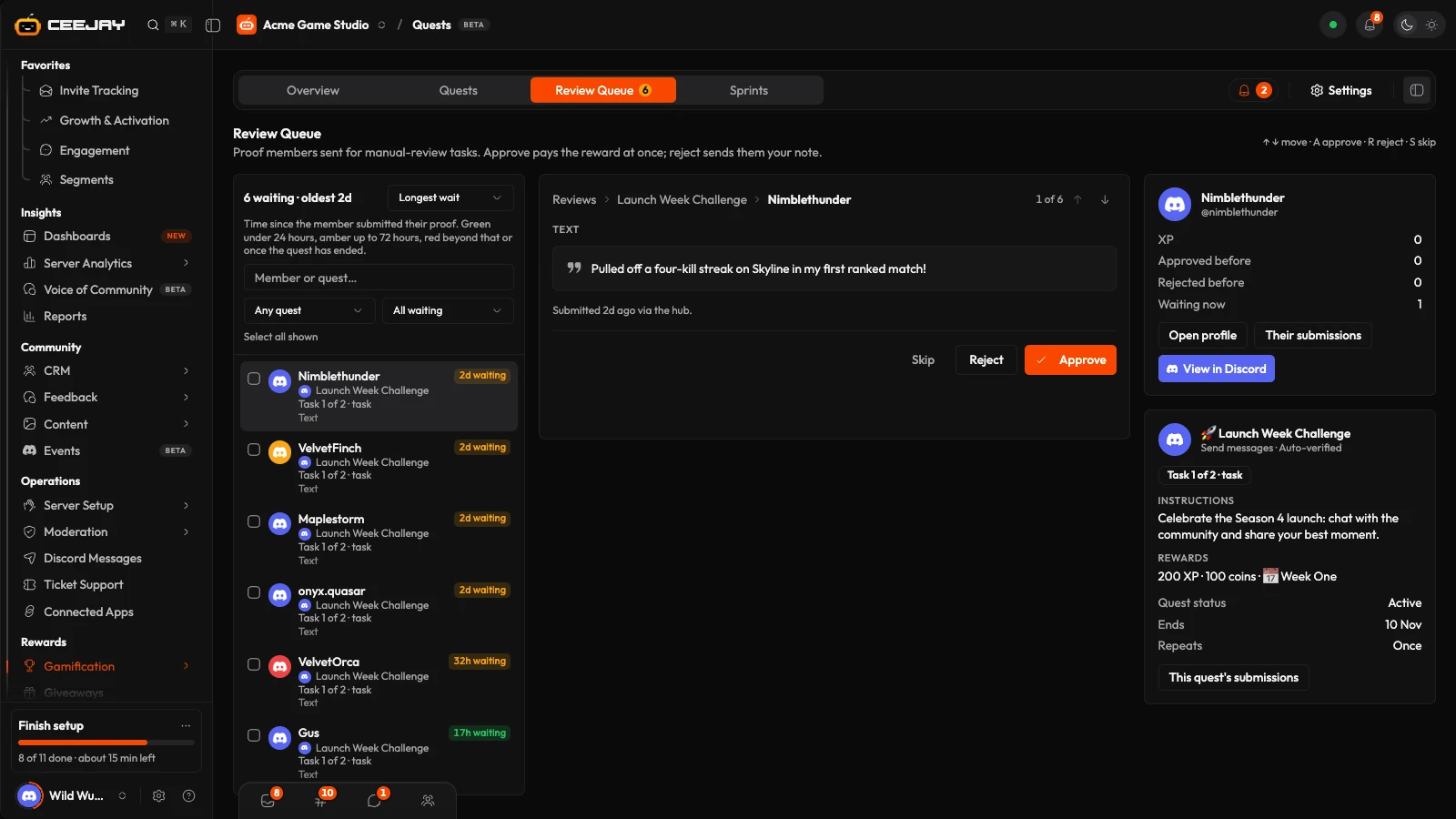
Review queue
The Review Queue tab is where proof for Manual review tasks is submitted. Each submission shows the member, the quest and what they sent. Approve grants the reward immediately. Reject asks for an optional note, which the member sees. Keys: ↑ and ↓ move through the queue, A approves, R rejects and S skips. A decision is held for 10 seconds so you can undo it, and you can tick several submissions to approve or reject them together. The wait time is green under 24 hours, amber up to 72 hours and red beyond that.
Modules
A module groups quests, for example one for each week of a campaign. New module creates one. The ⋮ menu on a quest can Move to a module… or Remove from module, and a module can be renamed or deleted without deleting its quests.
Sprints
A sprint turns a few quests into a race with a leaderboard and prizes. Only completions inside its window count.
On the Sprints tab, press New sprint, then Start from scratch or Use a template.
Enter a Name and an optional Description, set the Duration with Starts and Ends, and choose the Included quests.
Under Rewards, press Add reward for each prize: a range of finishing ranks with XP, coins and a role. Once the sprint is saved, this section is called Rewards by finishing rank and can also hold perks, codes, game items and manually fulfilled rewards. Hide included quests until it starts keeps them off the board and out of the hub until the sprint begins. You can also set a Colour and a Cover.
A running sprint shows Live now with a countdown, View leaderboard and Edit. In its ⋮ menu, End now closes it immediately and the rewards are granted by final rank within a minute. Cancel sprint removes a sprint before it starts, with no rewards granted. Delete removes an ended sprint, and rewards already granted stay with the members.
Settings
Press Settings at the top of the page, or go to Settings → Rewards → Quests. These settings take effect:
- Announcement channel: where new quests are posted.
- Review channel: where manual submissions are reviewed.
- Log channel: where quest completions are logged.
- Quest notification role: the role pinged when a new quest is posted.
- Daily Quest Limit Per User: how many quests one member can complete in a day. When more quests are live than this limit, the Quests tab warns you.
Quest System Enabled and Max Active Quests are on the same page, but CEEJAY does not act on them yet. Switching the system off does not stop quests.

