

Bot settings
Change how CEEJAY looks in your server, choose which channels count in your analytics, and turn the bot's commands on or off.
Bot settings has three jobs. Bot profile changes the name, picture, banner and bio the bot shows in your Discord server. Bot commands turns the bot's commands on or off and picks who can use them. Data & Tracking hides channels you do not want counted in analytics, such as mod channels and bot-command channels.
What you see
The three live in different places in Settings:
- Settings → General → Bot profile: the Custom Bot Profile card.
- Settings → General → Bot commands: every command, grouped by feature.
- Settings → Insights → Data & Tracking: the Analytics Exclusions card.
Give the bot your own look
The custom profile changes how CEEJAY appears in your server only. Other servers still see the usual CEEJAY.
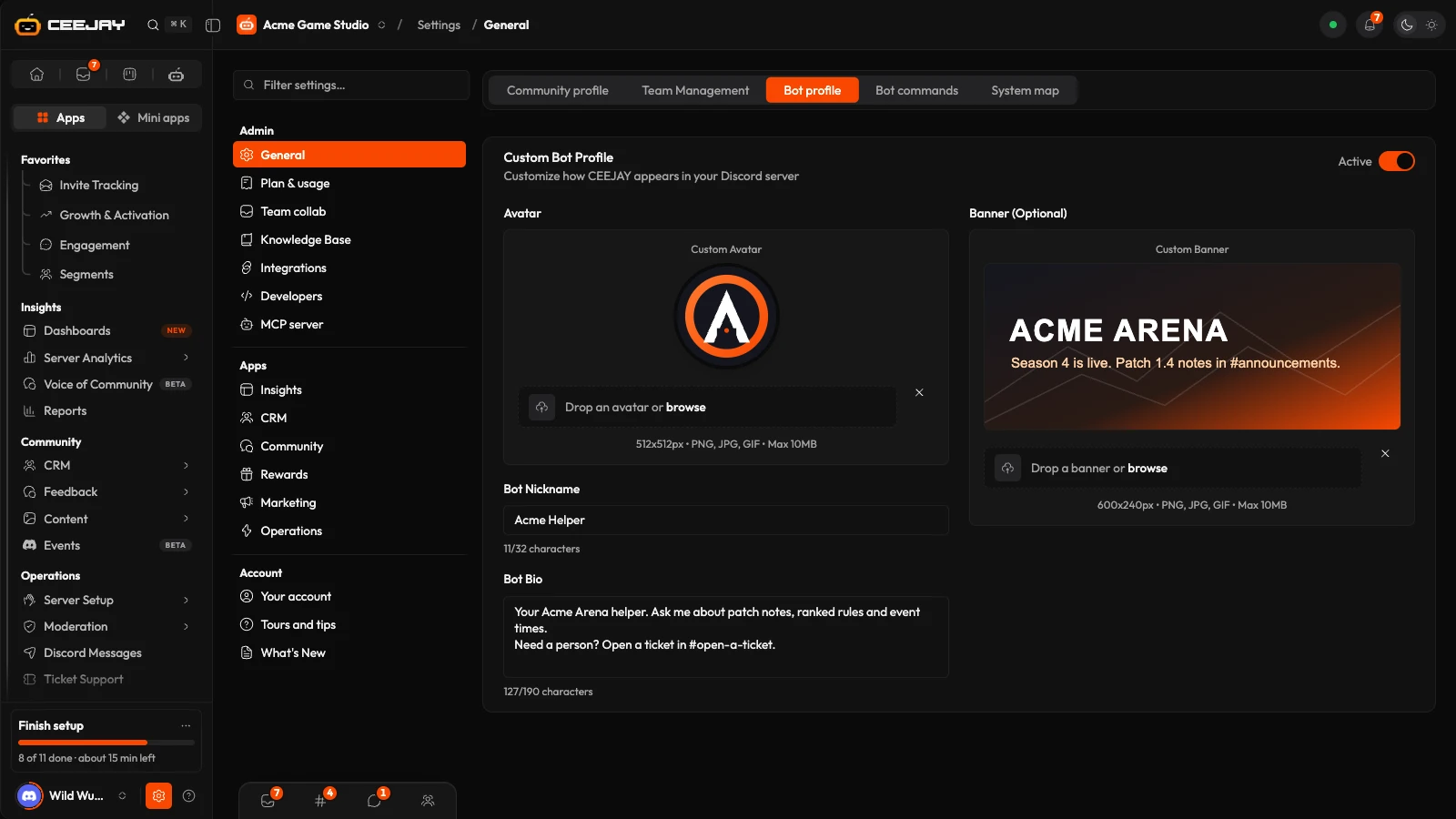
Open Settings → General → Bot profile. The Avatar shows Default Avatar until you add your own. Drop a PNG, JPG or GIF up to 10 MB on the avatar box, or browse for one. 512 by 512 pixels works well. The small cross beside the box restores the default.
Type a Bot Nickname (up to 32 characters) and a Bot Bio (up to 190 characters). The counters under each field show how much room is left.
Optional: upload a Banner (Optional). 600 by 240 pixels works well, with the same file types and size limit.
Turn the switch at the top right of the card on, so it reads Active, and press Save changes in the bar that appears at the bottom.
After you save, a message says "Profile Saved" and that it can take a minute or two to show in Discord. If the switch reads Inactive, the profile is saved but not applied, and the message says the custom profile is switched off. A nickname or bio over its limit gets Invalid Nickname or Invalid Bio. If the card cannot load, press Retry; your saved profile is safe.
Good to know
Discord limits how often a bot's picture and nickname can change. If a second save made within a few minutes does not show up, wait a little and save again. CEEJAY adds a short line linking to its privacy policy to the end of your bio when it fits inside Discord's 190 characters, and leaves your text alone when it does not. To change a picture or name that is already showing, add or type the new one and save.
Exclude your team from analytics
Your team's messages can inflate engagement and skew sentiment. Go to Settings → Insights → Data & Tracking. In the Analytics Exclusions card:
- Roles: use Add a role, or press Exclude on a role under Suggested, which lists roles with admin or moderator permissions. Anyone with an excluded role is left out, even if they also have other roles.
- Members: search with Add a member to exclude one member at a time. Use this for team members who don't have a role of their own.
The Members list shows everyone excluded and the reason. Press Include to keep one member in analytics without removing the role for everyone.
Give your team its own role. Everyone with an excluded role is left out, so a role shared with community members excludes them too. If a role has to be shared, leave it out and add your team members one at a time.
New communities start with their admin and moderator roles excluded. You can change this at any time.
Choose which channels count in analytics
The same card lists your server's channels, grouped by category, with a switch for each channel and for each category.
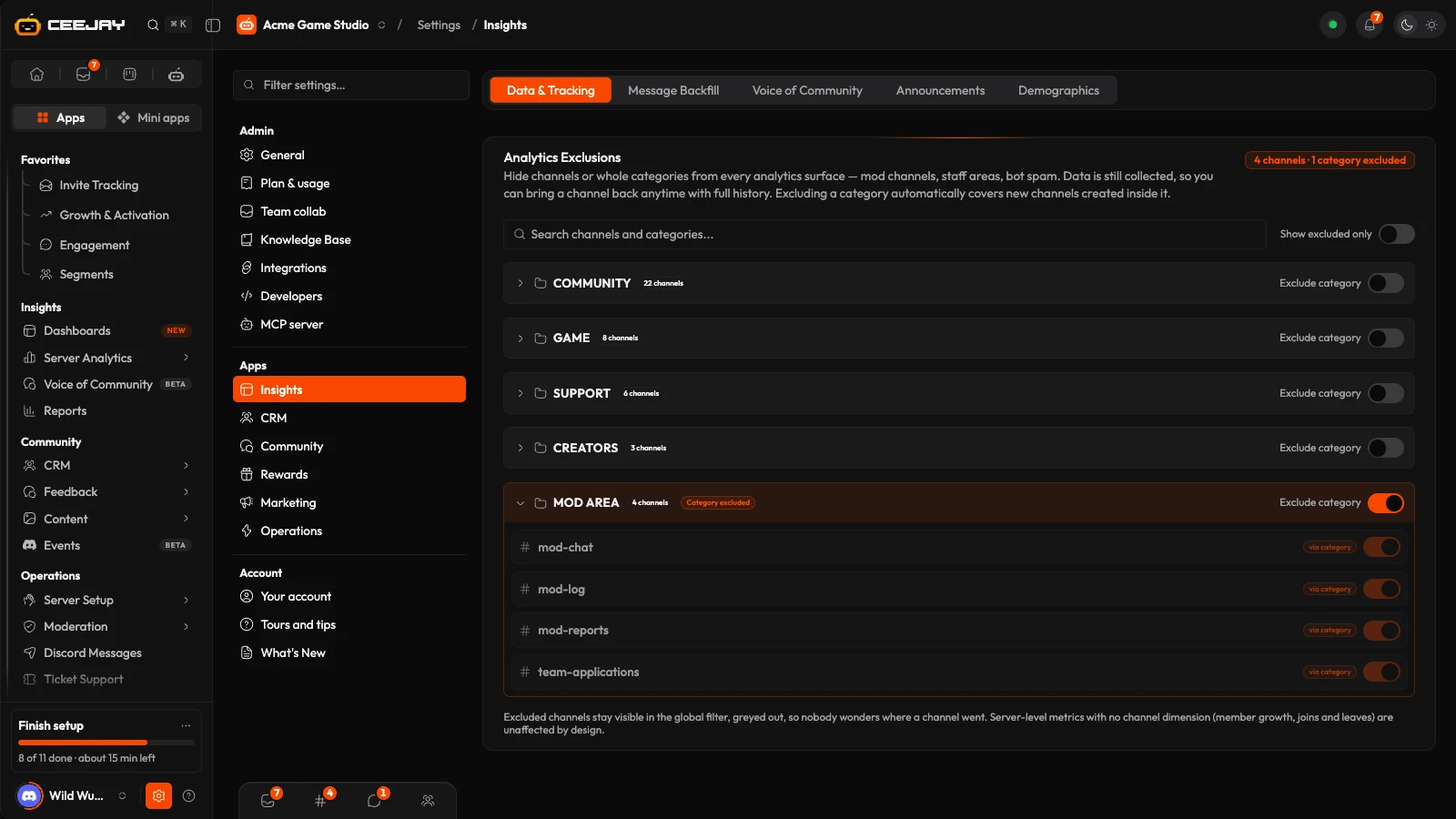
Press a category's name to open it and see its channels. Voice, stage, announcement and forum channels are listed too, with a small label. Search channels and categories... narrows the list, and Show excluded only shows what is hidden now.
Switch a channel on to exclude it. To exclude a whole category, use Exclude category on its row. Channels in an excluded category show via category, and their own switch is locked until you remove the category exclusion.
Press Save changes in the bar at the bottom of the page. A message tells you how many channels are now hidden from analytics.
A badge at the top of the card counts the members and channels you have excluded.
What exclusions change
- Excluded members and channels disappear from the analytics numbers, charts and lists, including the comparison period. The content lists (User Content's Discord tab, Saved Content and most of the Starboard) still show every channel.
- Data is still collected. Remove the exclusion later and its full history is included again.
- An exclusion covers past dates as well as new ones, as soon as you save. Published reports keep the numbers they were published with.
- Excluding a category also covers channels created inside it afterwards.
- In the header's filter, excluded roles and channels are listed under Excluded from analytics, where you can review and manage them.
- Member profiles still show a member's full activity.
- Member growth, joins and leaves still include excluded members.
Other channel choices live elsewhere
- Which channels CEEJAY reads for sentiment is set in Settings → Insights → Voice of Community, under Channel Tracking. See Voice of Community.
- Which channels count as international is set in Settings → Insights → Demographics. See Demographics.
- A channel the bot cannot see is never collected at all. The setup step Connection check tells you how many channels the bot reads. See Troubleshooting.
Turn the bot's commands on or off
Go to Settings → General → Bot commands. Each feature has a card with its commands, and the count on the card says how many are on, such as "3 of 5 on". Switch a command off, pick who sees it, or limit it to some roles or channels, then press Save changes in the bar. Each feature's own settings also include a Commands card with just its commands, so XP's are with XP. See Commands for the details.

